
Smart Search and Match will match candidates to your jobs, either as you create the role or on an ad-hoc basis.
When you create a new job, Smart Search & Match will run an automatic search using the job's details and advert content against your database and display a list of all candidates that best match your requirements. The functionality searches both candidates' CVs and application forms (it does not search cover letters).
Unlike the standard search functionality in Jobtrain which searches based on keywords within CVs, Smart Search & Match uses smart searching to find suitable candidates, looking at the meaning of words and related terms and phrases, which is far more accurate.
You may not have access to Smart Search & Match in your Jobtrain platform. If so and you would like to find out more, please contact your Client Success Consultant who will be happy to help.
This guide includes information on:
Smart Match
Searching your database and LinkedIn
Both the Smart Match and Smart Search features work in a very similar way, but Smart Match automatically adds the search criteria for you.
When you are creating a new job, select the Smart Match tab to see candidates who meet the criteria of the job you have just created. To do this, Jobtrain uses the job's details and the advert copy along with searching technology to pro-actively find suitable candidates for you.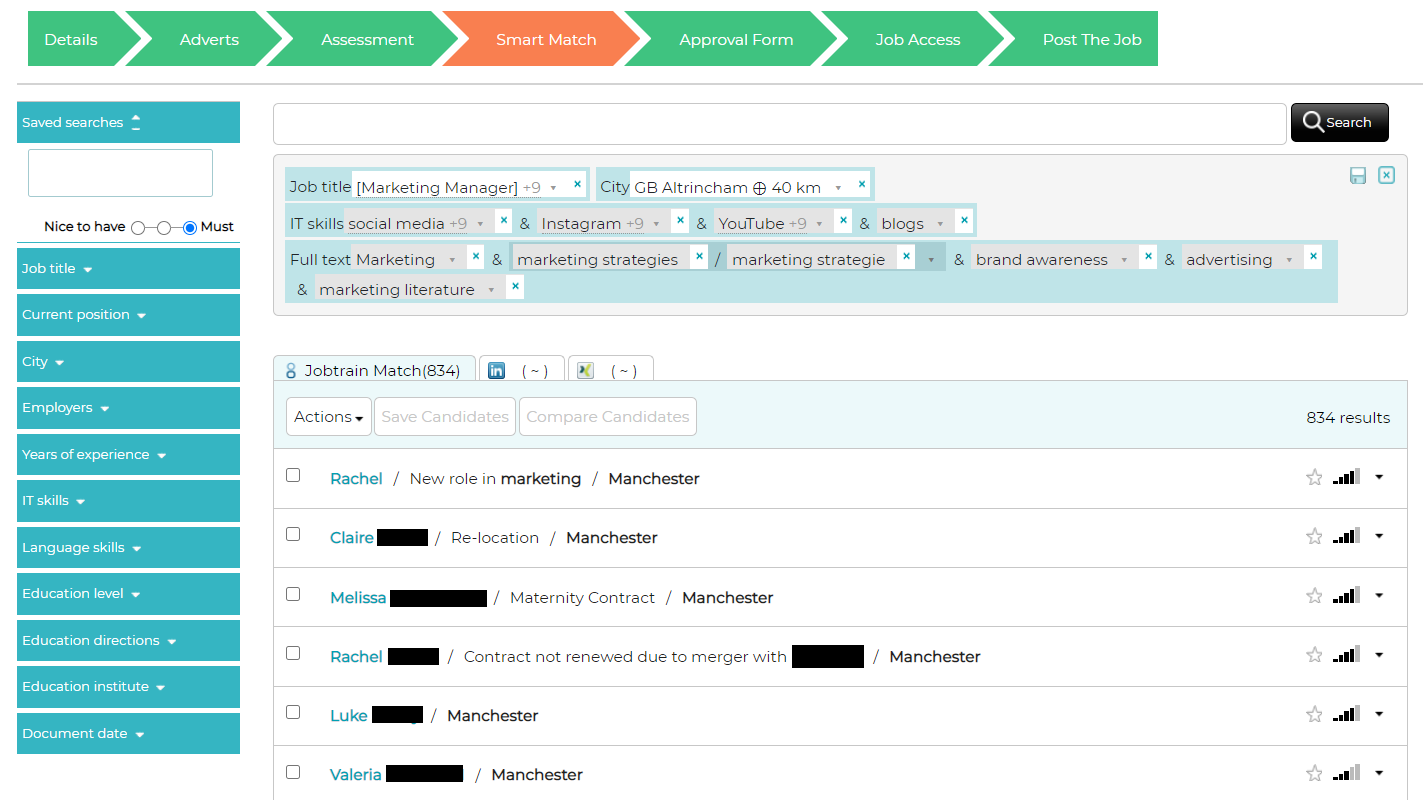
When the results are returned, Jobtrain sorts the candidates in order of suitability. The results can be refined further by simply using the left-hand actions menu outlined below Smart Search section.
Search results are returned where content matches key fields in the left hand menu:
- Job title
- Current position
- City
- Employers
- Years of experience
- IT skills
- Language skills
- Education level
- Education directions
- Education institute
Smart Search
Smart Search allows users to pro-actively search for candidates within their own Jobtrain database and also within LinkedIn and Xing.
To access Smart Search go to Search > Smart Search.
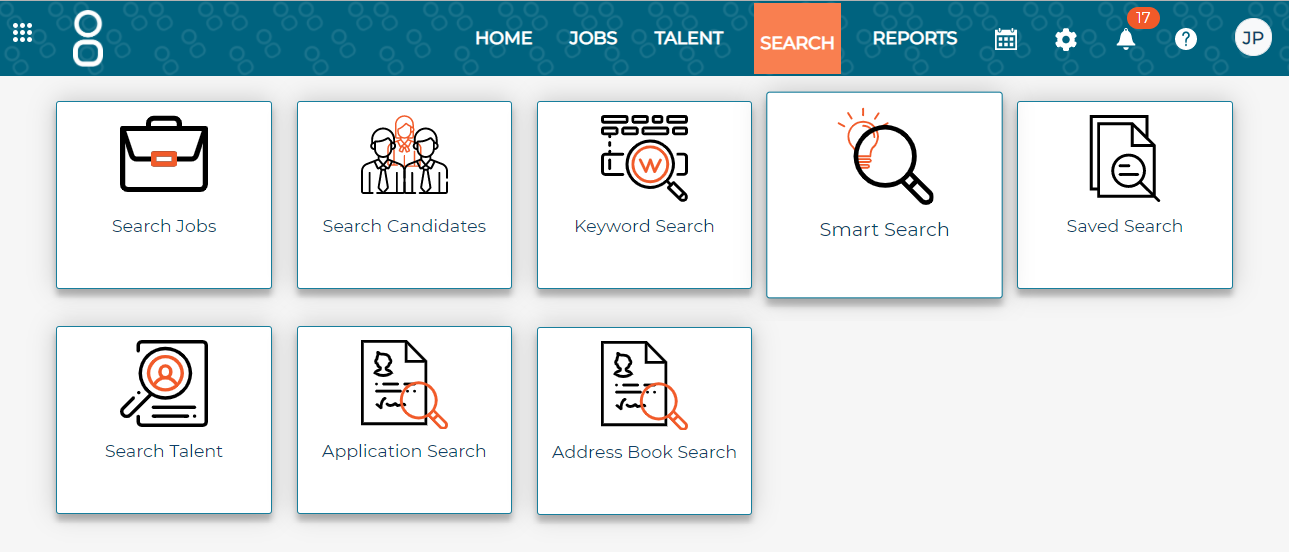
Smart Search will display a list of all candidates that are stored in your database and where you can also begin adding filters and refining the search.
Search results are returned where content matches key fields in the left hand menu:
- Job title
- Current position
- City
- Employers
- Years of experience
- IT skills
- Language skills
- Education level
- Education directions
- Education institute
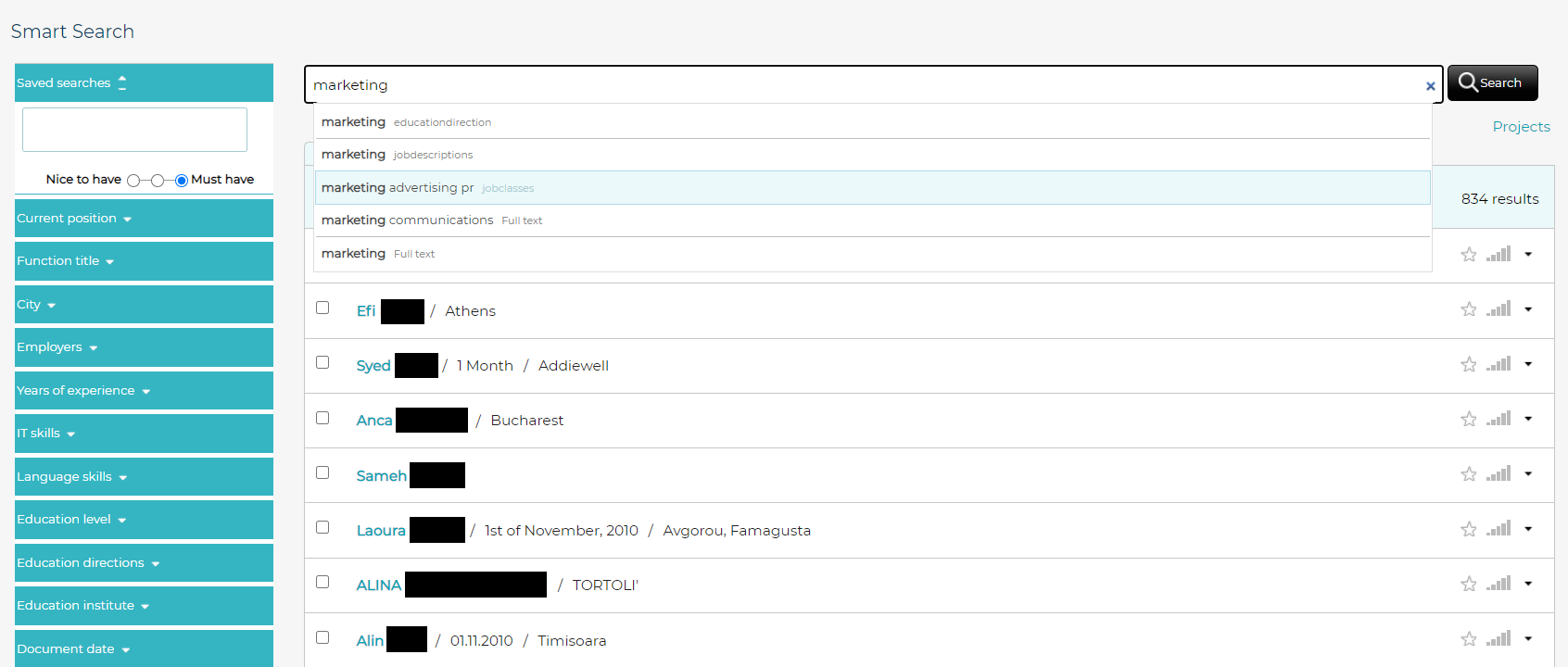
To start your smarter searching, follow the steps below.
Example:
You know that your organisation will need to recruit a Customer Support Manager in the near future, and you want to check if there are candidates already in your Jobtrain database who meet your requirements.
- The first step is to add 'Customer Support Manager’ as the main search term.
As you type, Jobtrain will 'suggest' job title options that are saved in the platform.
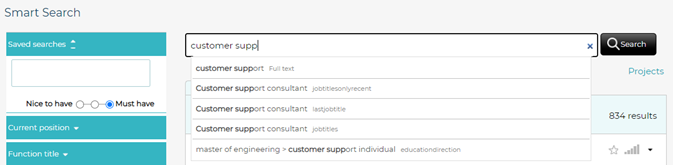
The number of candidates displayed will automatically update as filters are added - the number of matches now are those associated with the role 'Customer Support Manager':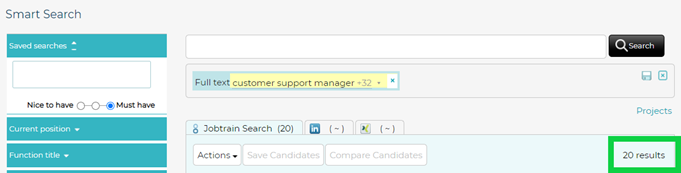
You will no doubt wish to narrow the search down to find your ideal candidate. To do this, simply use the options in the left-hand actions menu or type any additional criteria into the search bar.
|
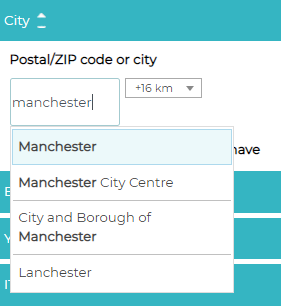
For example, your ideal candidate may live within 16km of Manchester. This information can be added as criteria under the City section: |
 |
|
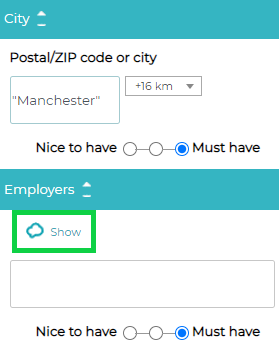
You may also want to search for candidates with previous experience at one of your competitors. To add these criteria, use the Employers option and rather than add lots of competitor names, simply select Show to display all options. |
 |
By selecting the competitor names in the display cloud, you will narrow down the search results to only show all candidates who have worked for the employers you have selected.
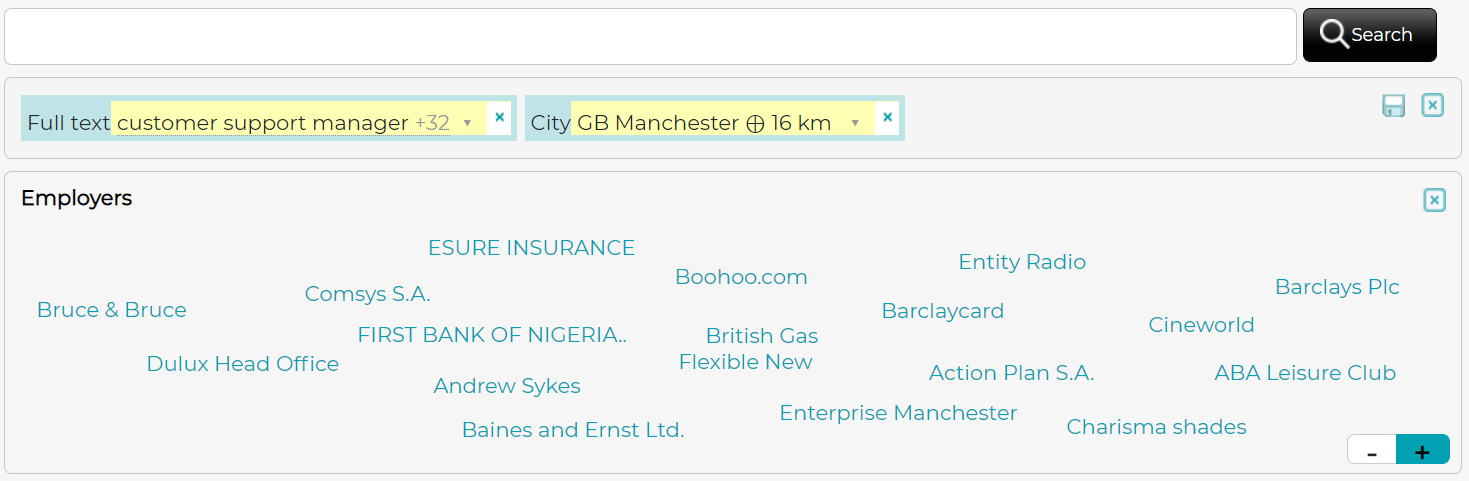
Each competitor name will appear in the tag cloud box - the larger the word, the more candidates have worked for that competitor.
As additional filters are added, the list of candidates will re-order automatically to display in the order which they meet your requirements.
|
Hovering over the signal indicator to the right of a candidate’s name will highlight what criteria the candidate has met: |
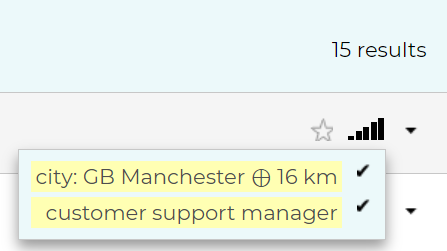 |
There are lots of different search options, outlined below:
|
Saved searches |
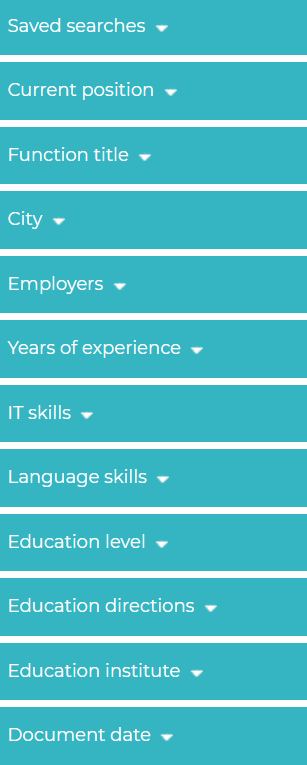 |
Education directions
Choose what qualifications the candidate must have here, such as GCSEs, A Levels, Fire Marshall training, etc.
Education institute
If you need candidates to have studied at a particular education establishment, add the search criteria for this here.
Document date
Filter your search by the length of time since the candidate's record was added to Jobtrain.
For each of these filters, there is an option to mark whether the criteria is a must have or a nice to have to help further refine the search.
To view further details about each candidate, simply click the candidate’s name:
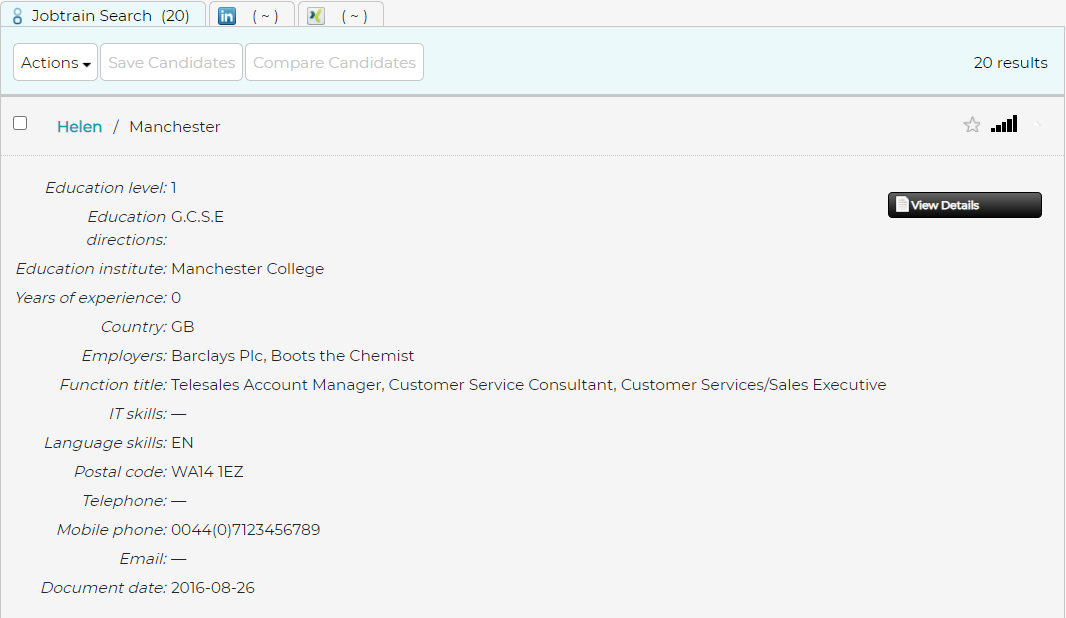
From here, there are several options:
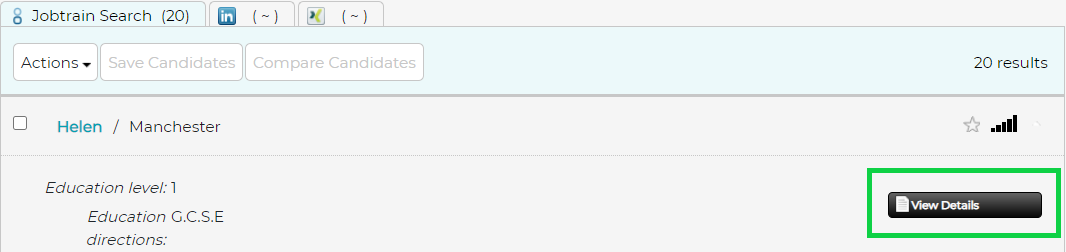
View Details: view which jobs this candidate has applied for previously and access their full Jobtrain record.
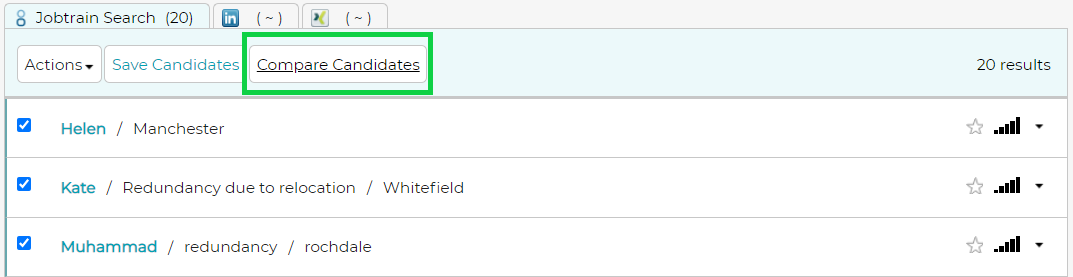
Compare Multiple Candidates: select multiple candidate records and click Compare Candidates to view an on-screen comparison:
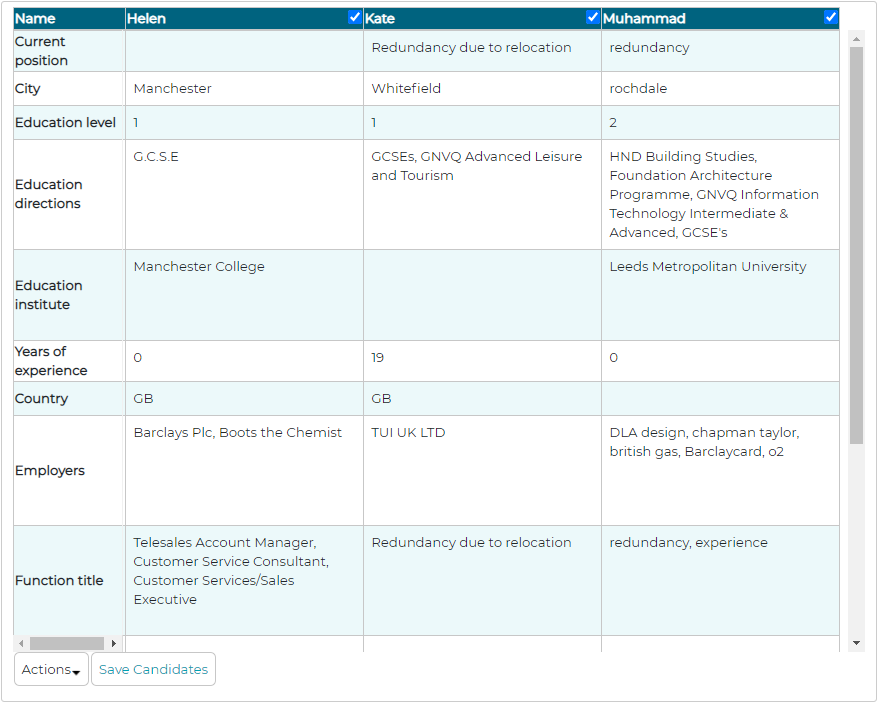
A pop-up box will be displayed showing details for each candidate to compare their suitability for the role, along with a view details link at the bottom of the table which allows you to access the candidate's record:
Actions menu
Tables can't be imported directly. Please insert an image of your table which can be found here.
|
The Actions menu has several options: |
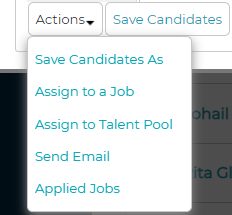 |
Save Candidates As: save all selected candidates to a project for you to return to the list of chosen candidates at a later date.
Candidates can be added to an existing project or create a new project by adding a name and pressing Save. When a candidate is added to a project, the name of the project will be displayed under the candidate’s name.
Assign to a Job: assign the selected candidate(s) to a role, as in the standard Jobtrain functionality:
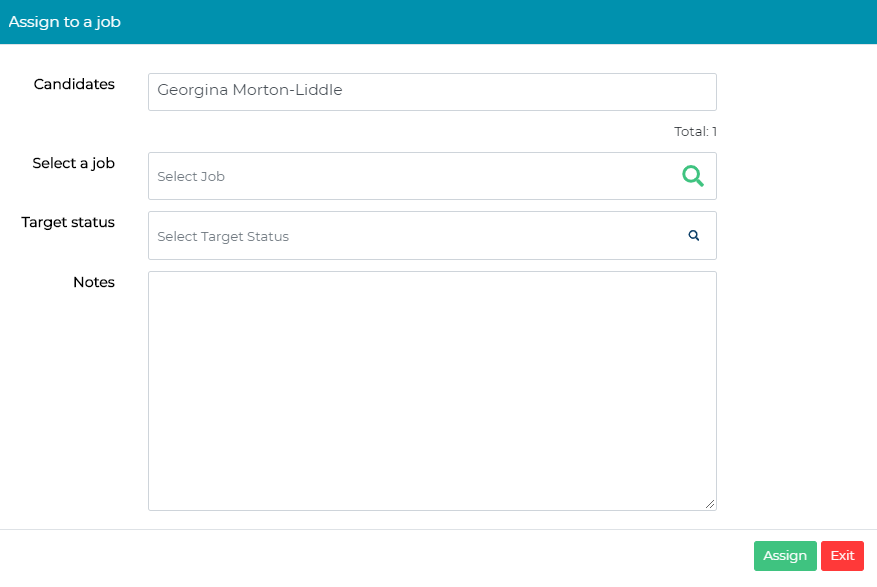
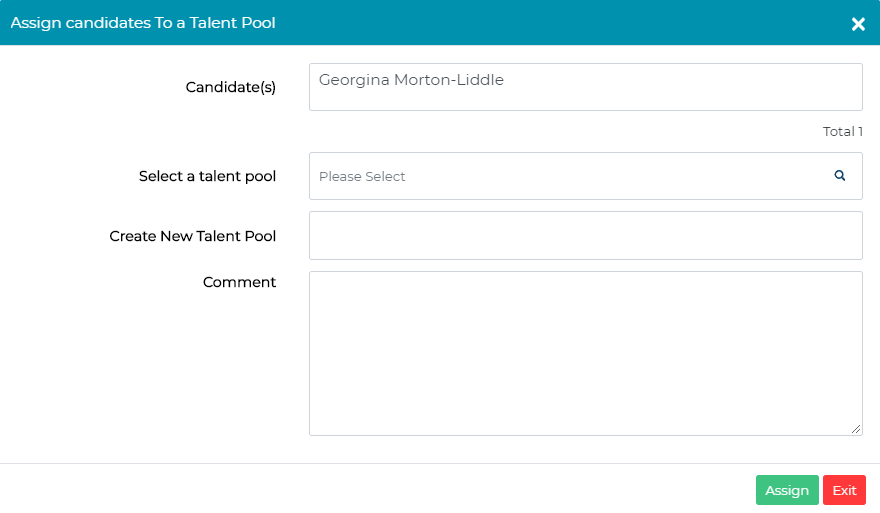
Assign to a Talent Pool: if your organisation uses Talent Pools within Jobtrain, this option will allow you to assign the candidate(s) to your preferred Talent Pool:
Send Email: send an email to your chosen candidate(s).
What could this email include?
Contact your preferred candidates to ask if they want to be included in the selection pool for an upcoming role that they are a good fit for. Or let them know of an upcoming role that you think they would be perfect for and ask them to apply via the website.
As this email is sent from Jobtrain, you can use any templates that are already stored in your email templates library.
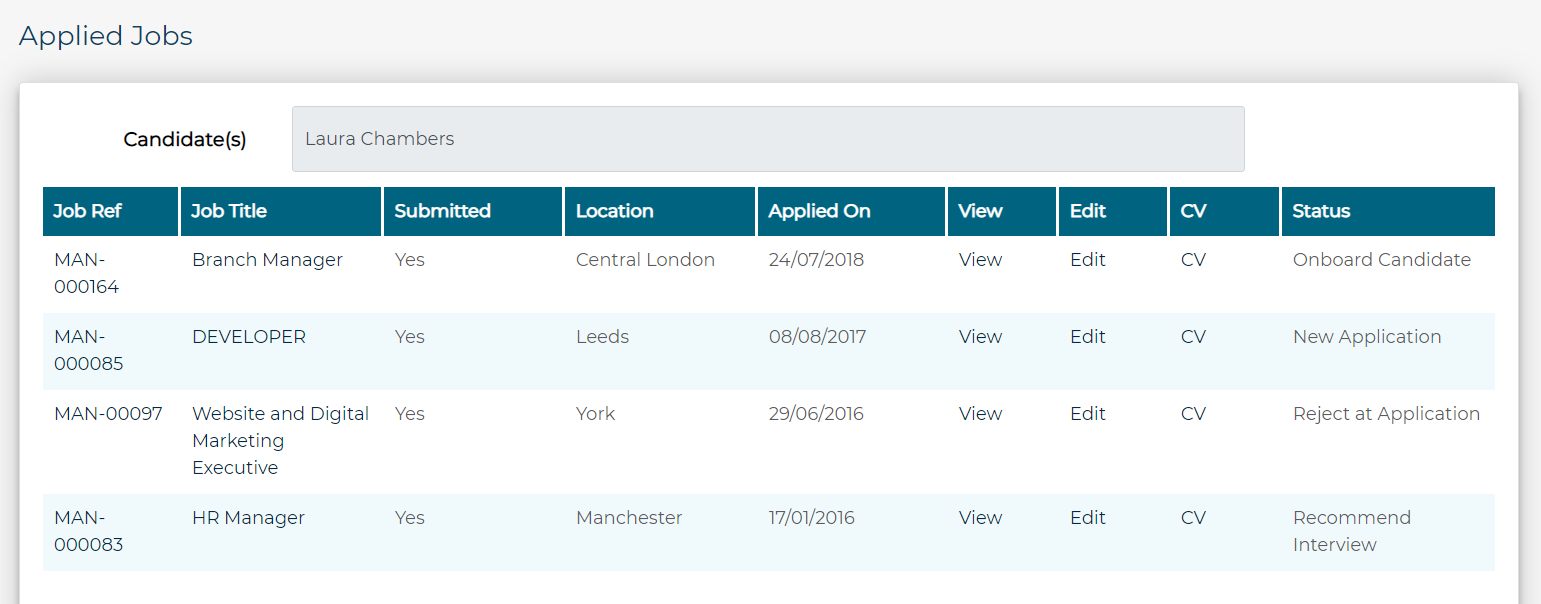
Applied Jobs: view all the jobs the selected candidate(s) have applied for previously. If you have more than one candidate selected, it will display the list of jobs by candidate.
LinkedIn Search
If you find that your Jobtrain database doesn’t yet hold your perfect candidate, you can extend your search to LinkedIn.
To do this, add your search criteria following the steps above then select the LinkedIn tab to view the search results.
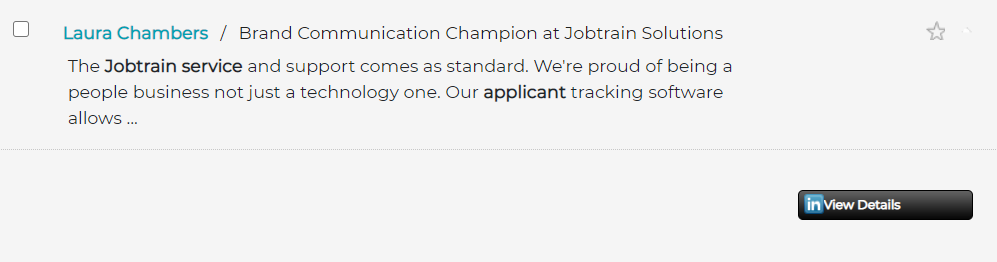
When the results are returned, simply select View Details to read their LinkedIn profile and contact them directly about your role.
FAQs
Do I need a LinkedIn Recruiter licence to use the search functionality within LinkedIn?
No, this is not necessary. As this feature only searches publicly available information on LinkedIn, there is no requirement to have a Recruiter licence to view this information.
Contacting candidates would be done in the same way as you would without the Smart Search, however, the functionality makes searching for candidates within LinkedIn much quicker and easier.
Can I restrict who has access to this functionality?
Absolutely. As with most areas of Jobtrain, this functionality can be restricted in Security Roles within Settings.
If you need support with updating access using Security Roles, please contact your Client Success Consultant or the Support Team who will be happy to help.
I’ve followed the guidance notes and have some further questions.
For any questions about using Smart Search and Match (or any other Jobtrain functionality), please contact our Support Team on +44(0)161 8502004.