
Talent Pooling can mean different things to different people. What does Talent Pooling mean to your organisation? At Jobtrain we have defined two distinct activities:
- Keeping people on file for potential future opportunities, either:
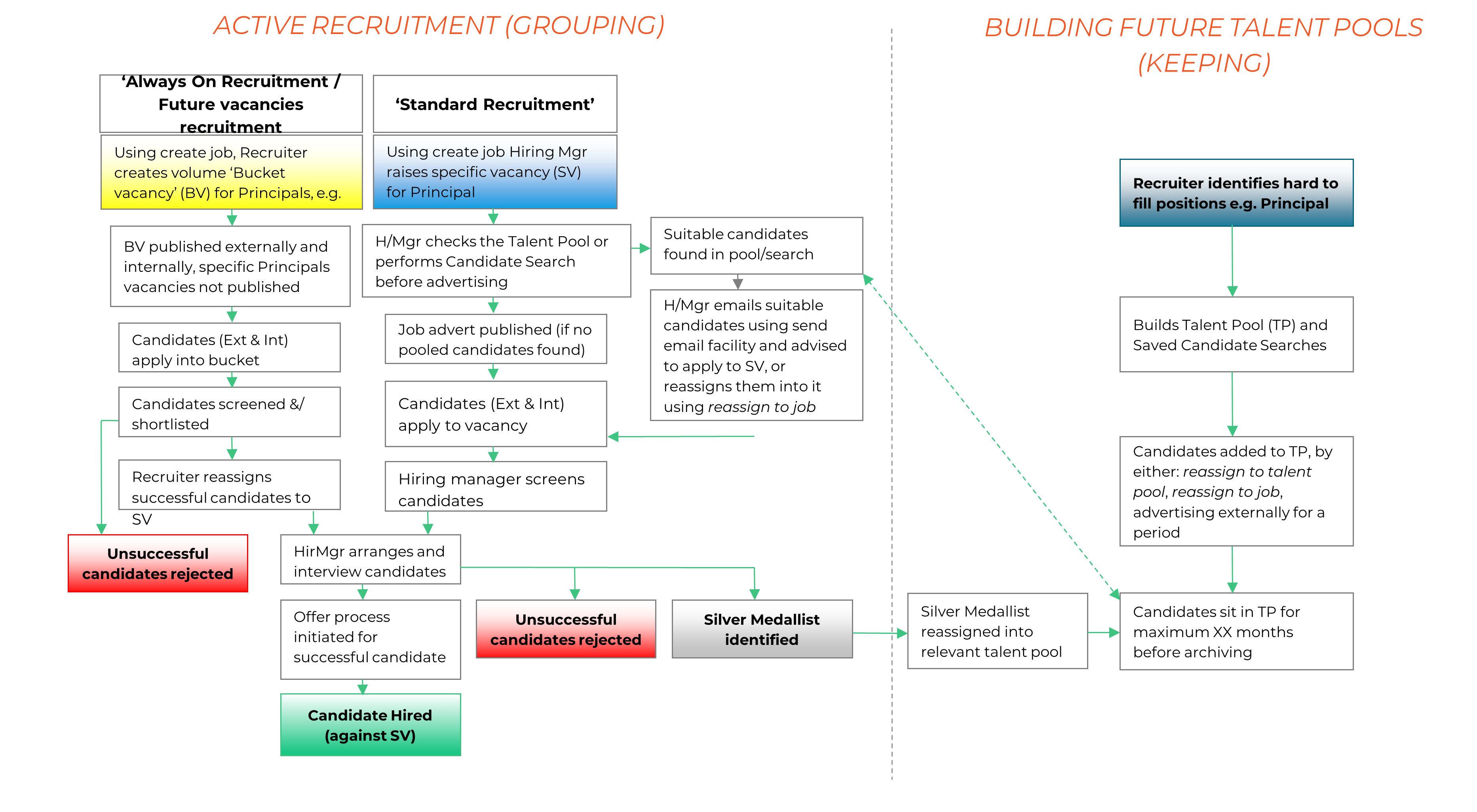
- Those you’ve assessed and would like to keep on file - 'Silver Medallists'
- Speculative CVs you’ve collected
- Grouping applications in a way that helps fill a number of similar/identical vacancies
- 'Bucket' / open-ended jobs where there are very frequently recruited for vacancies, rather than advertise each individually, one advert and 'bucket' vacancy is used to gather applications
- The same concept may also be applied for bank staff
There is no one set function or method in Jobtrain for Talent Pooling. There is flexibility to support these two distinct activities (Keeping or Grouping) in a number of ways. This guide covers the following functionality:
- Utilising the functionality labelled 'Talent Pools'
- Utilising the standard Job functionality for Talent Pools
- Searches & Alerts
What's included in this guide
- Setup - Creating a Talent Pool
- Setup - Communications
- Setup - Candidate Statuses
- Setup - Security Roles
- Managing Candidates in Talent Pools
- Using Job Functionality for Talent Pools
- Creating a Talent Pool Job
- Talent Pool process flow
- Example email content
Setup - Creating a Talent Pool
In the main menu, click on the menu option Talent, then click Talent Pools.

You will then land on the page below. From here you can see a list of all public Talent Pools that have already been created and any private talent pools you have been granted access to.
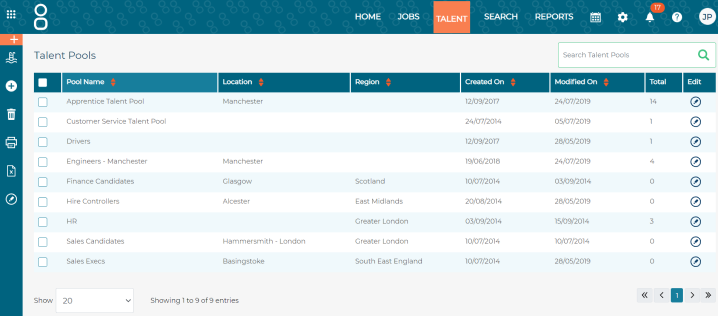
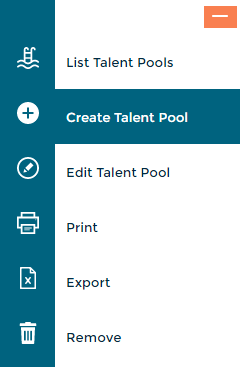
To create a new Talent Pool, select Create Talent Pool from the left-hand menu.
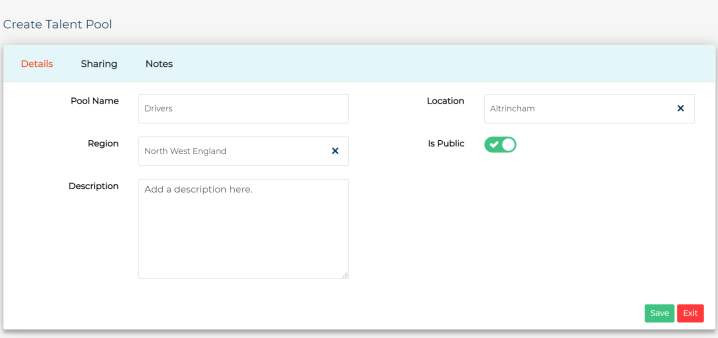
A new window will be displayed. Enter all required information and press Save.
- Pool Name: Label your Talent Pool clearly.
- Location: Add a location here. This is simply to make it clear for other users.
- Region: Add a region here to help other users when viewing Talent Pools.
- Is Public: If this is toggled to Yes, then this pool will be visible to any users assigned to a security role that grants access to Talent Pools. To keep some Talent Pools private, toggle this to No. Users can then be granted specific access in the Sharing section.
- Description: Use this section to add guidance for colleagues to clearly communicate what the purpose of this Talent Pool.
After saving, two additional sections will be displayed - Sharing and Notes. It's not essential to complete these but we've explained this functionality below.
- Sharing: If the Talent Pool is private, this is where you would grant individual users access to the Talent Pool by selecting Add Users.
Your name will automatically be displayed here as the creator of the talent pool.
- Notes: Use this section to add any notes as the Talent Pool evolves by selecting Add Note.
You have now created your Talent Pool!
Setup - Communications
The next step to consider is how to communicate with candidates regarding their assignment to a Talent Pool. The most effective way is via email as there will be a record of these communications in candidates' sent emails.
You may wish to create a few email templates to cover different scenarios such as:
- Unsuccessful after application/interview/assessment but you have been assigned to a Talent Pool for future opportunities
- Your skills are better suited to another role/position, so we have assigned you to a Talent Pool for future opportunities within that business area
- You have been assigned to a Talent Pool
To create a new email template, go to Settings > Communications.
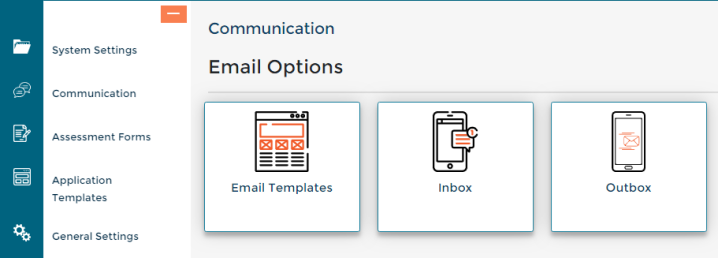
- Select Email Templates
- A list of all existing email templates will be displayed. Simply select Create Email Template from the left-hand menu
- Once selected a new window will open for you to add in your email content
GDPR consideration: In line with GDPR we advise including information in email templates advising candidates how they can have their details removed from a Talent Pool.
All candidates are given the ability to delete their application, delete their profile and unsubscribe from job alerts. Instructions of how to do so are automatically tagged on to the end of emails sent to candidates so you won't need to include this in your email template. However, as candidates are unable to remove themselves from a Talent Pool you will need to advise them to contact your company directly if they wish to only be removed from the Talent Pool but for their details to remain on the system.
To remove a candidate from a Talent Pool, go to the relevant Talent Pool, select the candidate, and then choose Remove from the left-hand menu.
Setup - Candidate Statuses
How will you identify the candidates who are assigned to a Talent Pool within a job? Our advice is to create a candidate status to indicate this.
You might want to create a variety of candidate statuses to cover different scenarios, especially if you plan to attach emails to the statuses.
To create a new candidate status, go to Settings > General Settings > Candidate Application Statuses.
Some example candidate statuses are:
- Rejected after Interview - Assigned to Talent Pool
- Assigned to Talent Pool
- Better suited for another role – Assigned to relevant Talent Pool
Archiving consideration: You may wish to exclude candidates at the talent pool statuses from archiving.
However, bear in mind that all candidates will receive the archiving emails, so would therefore opt in for any future opportunities. So not excluding them from archiving may reduce the risk of stale talent pools as all candidates will have actively chosen to have their details remain in the database
Setup - Security Roles
Next, you need to enable the relevant security role(s) access to Talent Pools and the statuses you have just created.
Access to Talent Pools
To access Security Roles' candidate status, go to Settings > Security Roles.
This will display a list of existing security roles. To amend an existing security role, select the title and a new window will open.
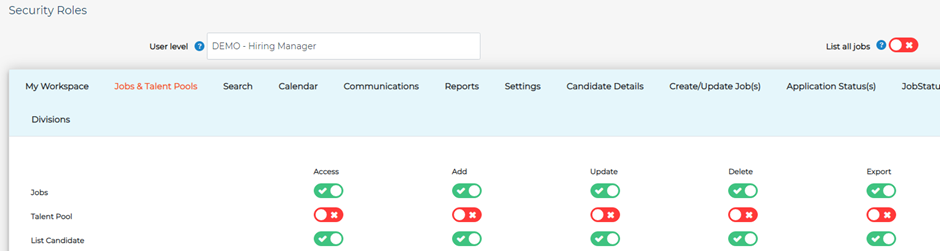
- Go to the 2nd tab named Jobs & Talent Pools
- In the second option on this list, Talent Pool, toggle on each option next to this
- Do the same against List Candidate - Assign to a Talent Pool
Enabling access to all Talent Pools
When a talent pool is created there is an option to make the talent pool public or private. Superusers (or other user groups) may wish to have access to all talent pools regardless of whether they have been marked private or not.
To enable global access, go to Security Roles > Jobs & Talent Pools and enable Talent Pools – Global Access.

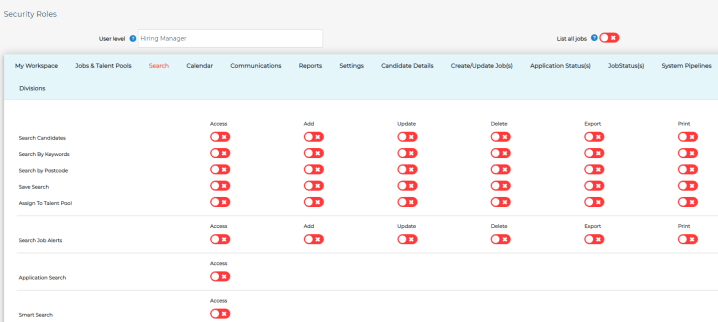
Now we need to enable access to search Talent Pools. Go to the Search section within Security Roles. Toggle on against Assign to Talent Pool.
Access to Candidate Application Statuses
Finally, we need to grant the security role access to the candidate application status(es) you have created:
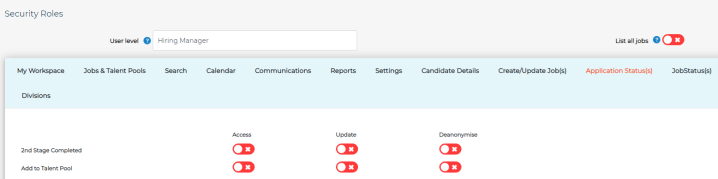
- Go to Application Status(s) tab
- Toggle on the Access column and Update column. This allows users to see candidates at this status and also change candidates to this status
Assigning candidates to a Talent Pool
Now that the setup is complete, you are ready to start assigning candidates to the Talent Pools.
Check the box beside a candidate's name, then select Assign to a Talent Pool from the left-hand menu.
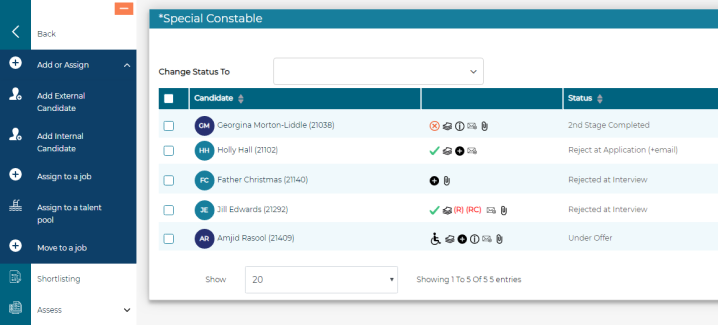
A new window will open. Choose a Talent Pool and press Assign.
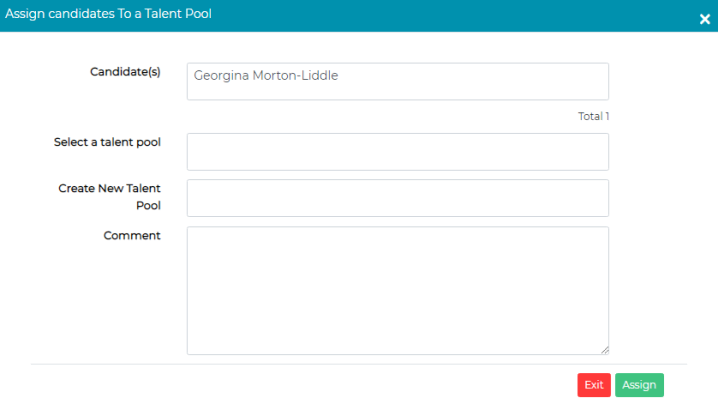
A message will be displayed advising that the candidate has been assigned to the Talent Pool.
Next, you will need to update the candidate's status to the relevant application status. If an email is not attached to the status, you will also need to send an email to the candidate advising they have been added to a Talent Pool.
Viewing candidates in Talent Pools
To view Talent Pools and the candidates assigned to them:
- Select the menu option Talent, then Talent Pools
- Select the relevant Talent Pool
- You will then be taken through to a list of candidates who have been assigned to this Talent Pool
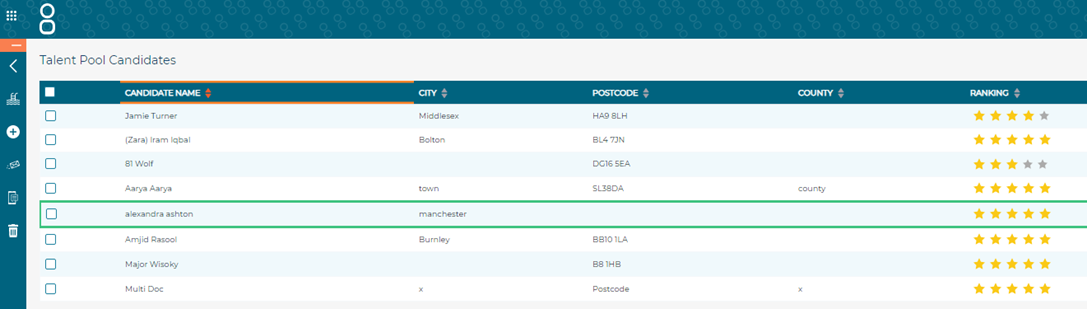
Select the candidate’s name or the eye icon to view the candidate:

You will then be able to view all the jobs the candidate has previously applied to and the status of their application(s). This is where the Talent Pool candidate status comes in handy as you can clearly identify which job they have been assigned to from a Talent Pool.
Talent Pooling, unsurprisingly, is typically a centrally managed recruitment tool driven by users with Superuser access. The Talent Pooling functionality allows you to assign candidates who have already applied for roles (or registered for job alerts) to Talent Pools but doesn't allow you to manually add candidates to Jobtrain.
Managing Candidates in Talent Pools
Within the Talent Pool in the left hand menu, you can carry out the following actions for each candidate:
- Assign to Talent Pool
- Assign to a Job
- Communicate via email & SMS (this will be documented in the candidate’s history and sent emails / SMS tabs within the candidate record)
- Remove from Talent Pool
If you remove a candidate from a Talent Pool by accident you can assign the candidate back into the Talent Pool if required.
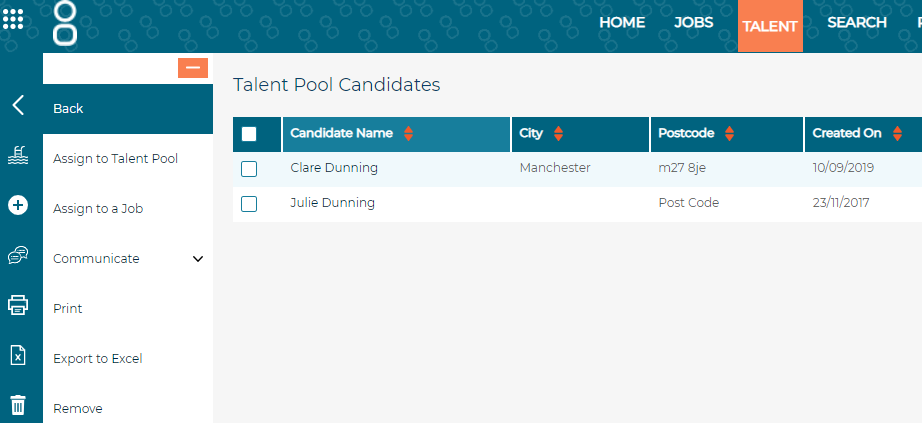
Hiring manager access consideration: The screenshots we’ve used are from a Superuser view. Please bear in mind that a Talent Pool is essentially a list of candidates deemed to have the right skills for a certain role/business area.
Therefore, their application record and associated documents (screening forms, notes etc) all exist on the original job that you assigned the candidate to the Talent Pool from. So, when you view a record, you are taken to the candidate's record and a list of the jobs they have applied for (and the corresponding status). As a Superuser this is not a problem. As a Hiring manager it’s likely it will be a problem as they can only access their jobs. This isn’t a problem if each Talent Pool corresponds to a Hiring manager and only contains candidates who originally applied to their vacancies.
What if you need to create Talents Pools where you can:
- Upload speculative CVs/candidates
- Where you can grant access for managers to view all candidates (instead of Talent Pools of candidates in jobs they do not have access to)
- Or a speculative Talent Pool/job where candidates can apply directly
In cases such as this, we advise to create a job as a Talent Pool so you can:
- Manually add your candidates
- Grant hiring managers access
- Advertise the job on your candidate site to allow candidates to express their interest in working for your company along with submitting their CV and some basic personal details
Using Job Functionality for Talent Pools
This is used to support:
Keeping activity
- Where hiring managers (or non-SuperUsers) can access jobs
- Where you wish to invite speculative applications directly from candidates
Grouping activity
The benefits of using jobs for Talent Pooling are:
- Manually add your candidates
- Grant hiring managers access
- Advertise the job on your candidate site to allow candidates to express their interest in working for your company along with submitting their CV and some basic personal details
- Complete all the typical actions you perform against your non-Talent Pool candidates such as screening forms, forward details, panel shortlisting etc.
This functionality takes the same logic as standard Talent Pools but this time instead of creating a talent pool, you will need to create a normal job vacancy, but we are going to set this up slightly differently.
Communications consideration: Before you start to build your Talent Pool job, you may wish to build some additional acknowledgement emails for Talent Pooling purposes. As each time a candidate applies for or is assigned to a job an acknowledgement email is sent to the candidate.
Creating a Talent Pool Job
Follow the steps below in order to create a new role:
- Select Jobs in the menu at the top of the page
- Then Create New Job in the left-hand menu.
- You can choose to create your new job by copying from a template, copying an existing job or by creating a new job.
Details: complete this section as normal.
- You may consider leaving the closing date blank if you plan to advertise this job on your candidate portal to gather speculative applications
- Employment Type and Reason for Vacancy - contact our helpdesk team if you wish to add Talent Pool to this dropdown list
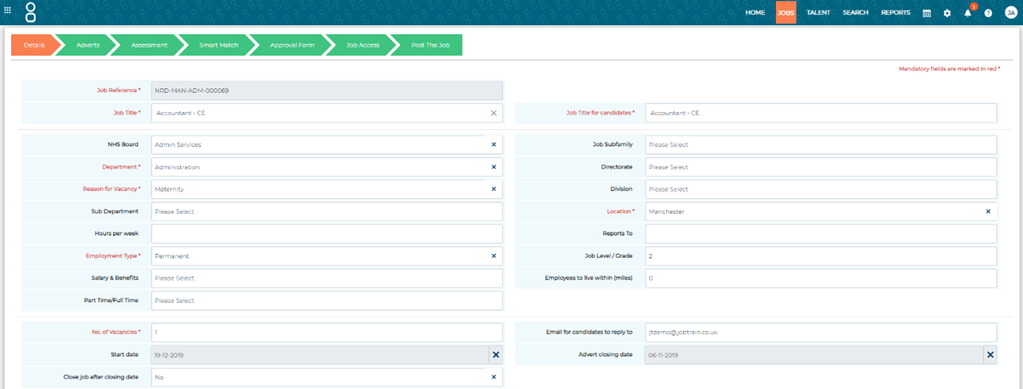
Top Tip: Bulk Recruitment Jobs are really useful for Talent Pool jobs, as you can select a list of specialisms for candidates to choose from, which is very handy when searching for candidates within your talent pool job.
Assessment:
- External & Internal Application Form: You will either be manually adding candidates to this role or candidates will be submitting their details to be entered into the Talent Pool job. Therefore, you may want to create an application form that's specifically for talent pools, that captures basic contact details and CV so that it's a quick process to apply and to manually add candidates
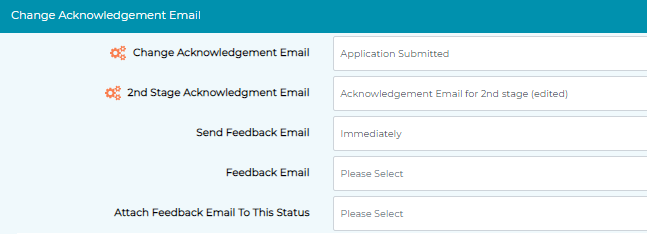
- Acknowledgement email: Tailor the acknowledgement email here that candidates receive when applying for the job/or being added to the job, as this will probably differ from your standard acknowledgement email.
- Approval Form: As this is not a live job being advertised which requires approval, you shouldn't need to send the job for approval so you can skip these pages
- Job Access: Grant access to any user you choose
- Post the Job:
- If you are simply using this job to manually add candidates, you may want to assign this job to the status of Talent Bank (or similar) to distinguish the job as a Talent Pool
- If this job is created for candidates to register their interest, change the status to Live.
Adding candidates to a Talent Pool Job
Select Search in the main menu, then Search Jobs.
Then select Job Statuses in the left-hand menu and choose TalentBank (or equivalent) from the dropdown list and click to view the results.
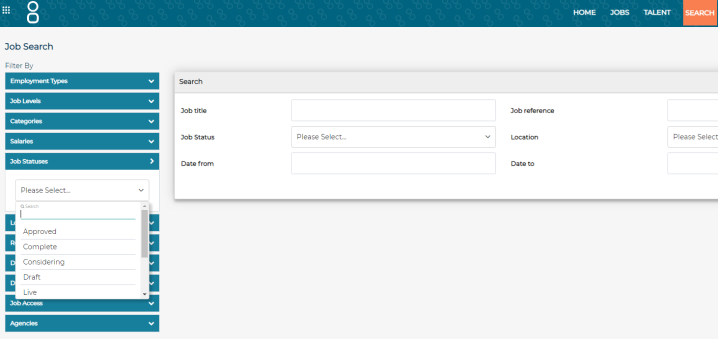
- Click on the relevant job and select Add Candidate from the left-hand menu
- Select Add External or Add Internal
- A new window will be displayed for you to complete the application form
Complete the required information and submit the application. This is when having a short application form is useful as it makes adding candidates simple and quick. The candidate will now be displayed in the list of candidates page in the job at the candidate status of New Application.
Assigning candidates to Talent Pool Jobs
If your candidate already exists within Jobtrain, you can simply assign them to the Talent Pool job. This is very similar to assigning to a talent pool process.
- Identify the candidate you would like to assign to the talent pool job
- Select Assign to a Job in the left-hand menu (if within a list of candidates against a job), or the actions menu button (if in the candidate search)
- Either use the magnifying glass and select TalentBank (or equivalent) to filter the list of jobs, or simply type the reference or title to help find your specific Talent Pool job
- Update the target status to the relevant Talent Pool status
- Add notes if required – these will go in the candidate(s) history
- Press Assign
Consideration: Assigning from a candidate search will copy core personal data. Copying from the list of candidates against a job will copy application data.
Talent Pool process flow
Example email content
For some inspiration for your email communications to Talent Pool candidates, we have included some example templates below.
Email Template: Reject at Application but assigned to Talent Pool
Dear {CANDIDATES.FIRSTNAME},
Job title: {JOBS.JOBTITLEFORCANDIDATES}
Job reference: {JOBS.JOBREFERENCE}
Department: {JOBS.DEPARTMENT}
Thank you for your application. We will not be taking your details forward for this role, but we would like to retain your information as part of our Talent Pool to contact you about any other suitable opportunities. Please contact us if you wish to opt out of the Talent Pool.
Thank you for your interest in this role.
Kind regards
{SYSTEMUSERS.EMAILSIGNATURE}
{SYSTEMUSERS.EMAILADDRESS}
Email Template: Reject at Interview but assigned to Talent Pool
Dear {CANDIDATES.FIRSTNAME},
Job title: {JOBS.JOBTITLEFORCANDIDATES}
Job reference: {JOBS.JOBREFERENCE}
Department: {JOBS.DEPARTMENT}
Further to our recent telephone conversation following your attendance at interview, I’m writing to formally confirm that on this occasion your application will not be progressing further at this stage.
We would like to retain your information as part of our Talent Pool in order to contact you about any other suitable opportunities. Please contact us if you wish to opt out.
Thank you for your interest in this role.
Kind regards
{SYSTEMUSERS.EMAILSIGNATURE}
{SYSTEMUSERS.EMAILADDRESS}
Email Template: Talent Pool Acknowledgement Email - Candidates added
Dear {CANDIDATES.FIRSTNAME},
We think you would be a great candidate for future roles at Jobtrain in our {JOBS.DEPARTMENT} team! We have added your details to our Talent Pool and will be in touch when a vacancy arises that you would be suitable for.
If you would like to subscribe to job alerts so you are kept up to date of any opportunities at Jobtrain, please click here to login to the system and select job alerts from the menu. (Don’t forget to add the hyperlink to the login page of your candidate site).
Please note, if you have been added to our system and therefore did not set a password upon registering you will need to follow the forgotten password link when logging in for the first time.
If you would like your details to be removed from our database, please follow the instructions below to remove your details.
Kind Regards,
Jobtrain Recruitment Team.
Email Template: Talent Pool Acknowledgement Email - Candidates applied
Dear {CANDIDATES.FIRSTNAME},
Thank you for your interest in working at Jobtrain, your details will be kept on file for future opportunities that suit your skillset and experience.
Did you know you can also subscribe to job alerts? Simply click here to login to your account and selecting job alerts from the menu.
Kind Regards,
Jobtrain Recruitment Team