
What's included:
What is the Careers Site Builder?
Careers Site Builder gives you the tools to update the branding on your candidate site.
What are the benefits of it?
One of the main benefits of using the Careers Site Builder is the ability to make updates and create new content for your site in just a few clicks, without relying on a third party.
Accessing Careers Site Builder
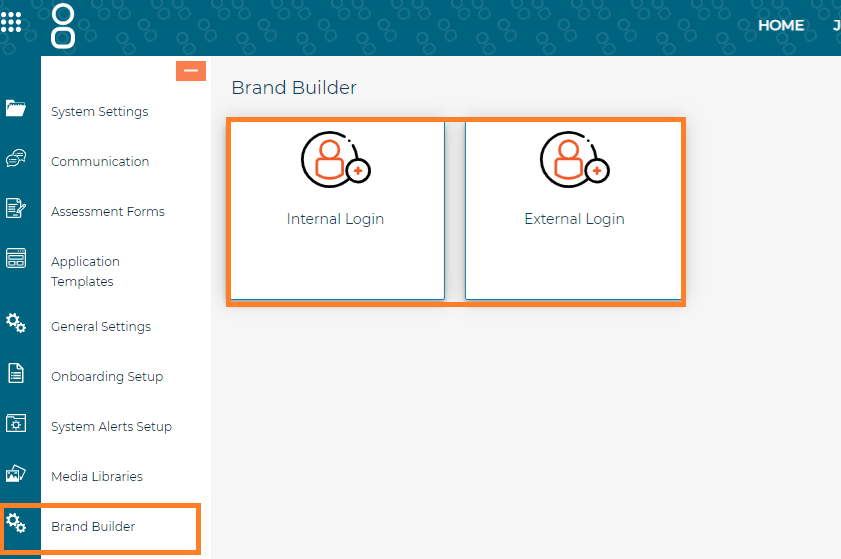
You can access Careers Site Builder via Brand Builder by following the steps below:
Log into the Jobtrain system user profile. Go to Settings > Brand Builder. Select Internal/External Login depending on which site you wish to amend.
The brand builder site will then be displayed where you can start to make changes and build your site.
Can I restrict access?
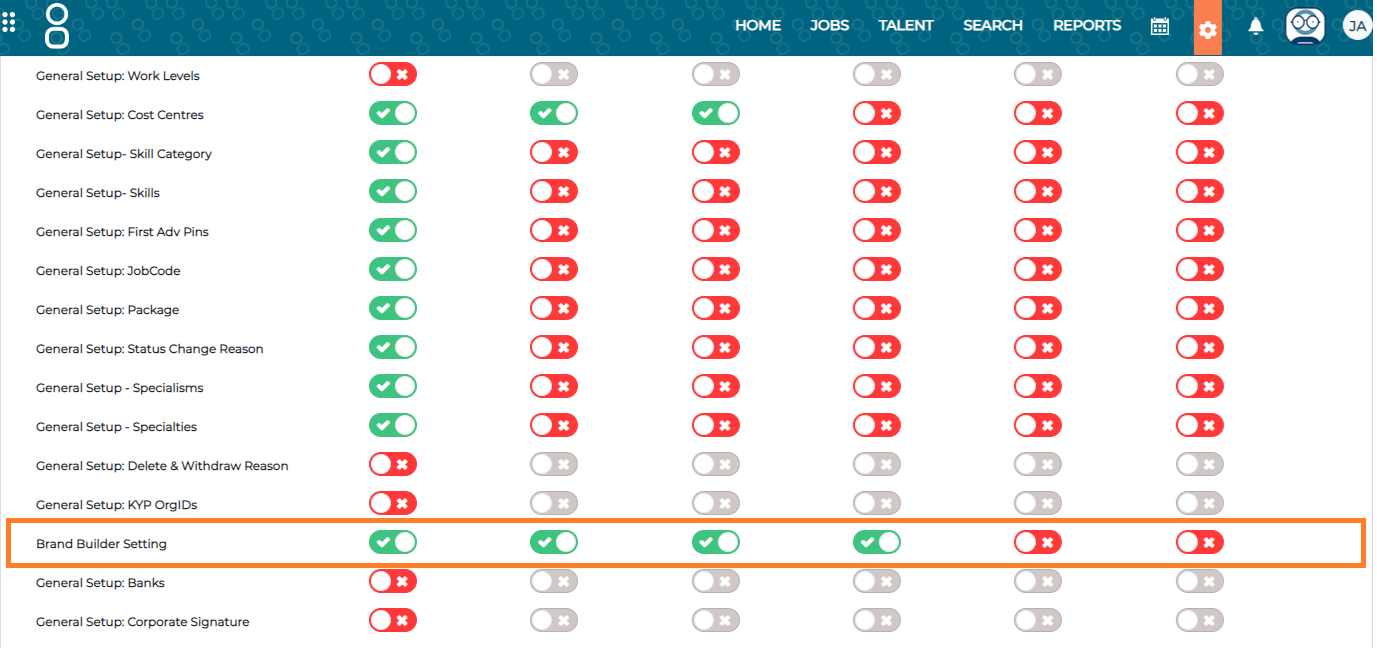
You can provide and restrict access to the Careers Site Builder via Brand Builder per security role by following the below steps:
Settings > Security Roles > Settings > Brand Builder Setting.
How do I use the Careers Site Builder?
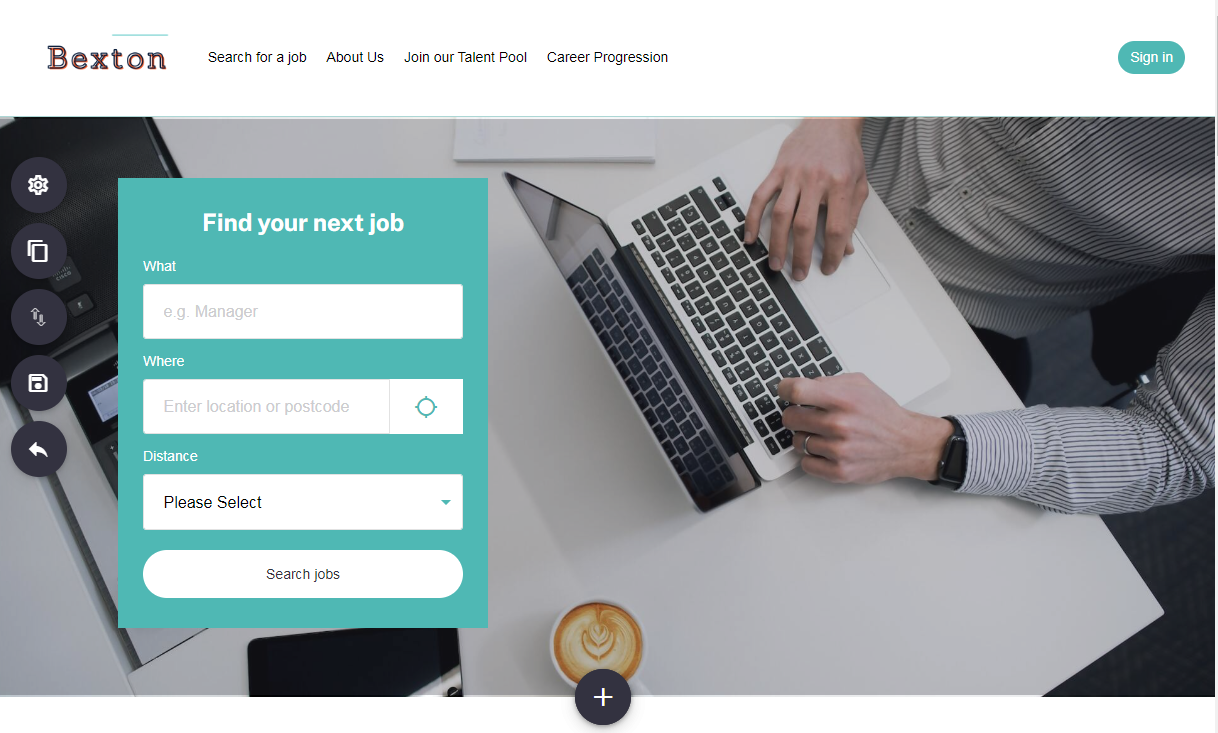
When you first log into your site, you will be presented with the homepage, along with five buttons on the left-hand side.
These are what you will use to navigate and create your way through the setup of each page.
 Brand Settings:
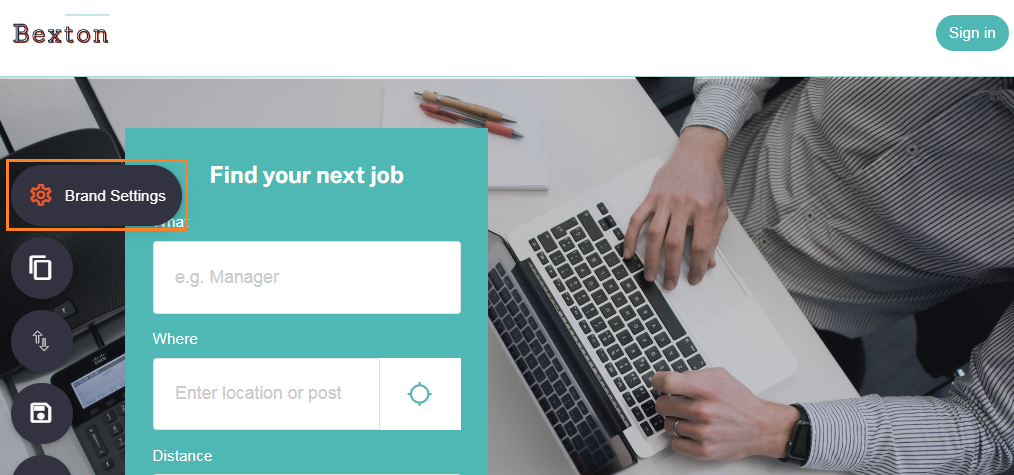
Brand Settings is accessed by clicking the cog icon. It’s here you can manage the following:
- Logo
- Website title
- Home URL
- Company URL
- Primary colour
- Secondary colour
- Body font style
- Header font style
- Button shapes
You can see any changes you make to your candidate site by going to your vacancies site.
We always recommend making changes to your candidate site on your test site before making these changes in your live environment, as these updates take place in real time.
Logo
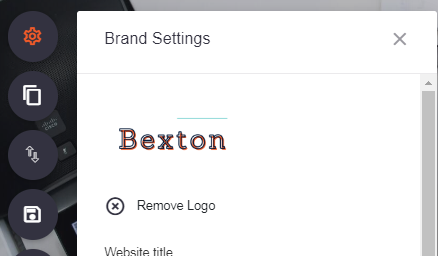
Within Brand Settings, the first item you will see is the existing logo on your candidate site.
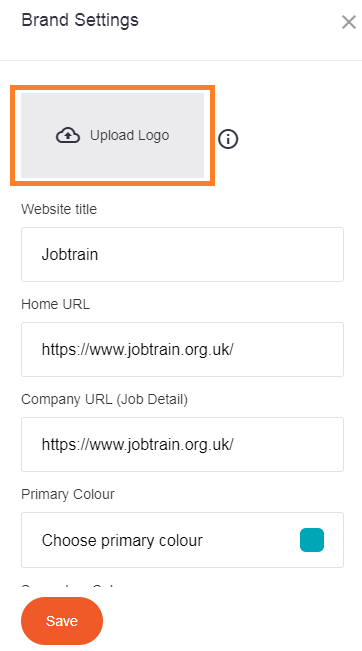 |
Once you press Remove Logo, you will be presented with the Upload Logo button to enable you to upload a new logo. Select the image you wish to upload and then select Save. |
Website title
This is the text that will appear at the top of the tab.

Home URL
This is the webpage you are taken to when clicking on the logo.
Company URL
This gives you the option to add a URL to the bottom of the page on the job advert.

Primary Colour
The primary colour links with the following:
- Headers
- Boxes
- Benefits component
- Social media icons
- Company URL box
Secondary Colour
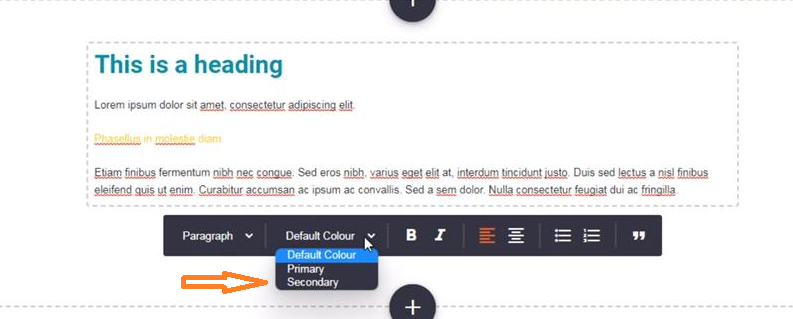
This is an additional function that is optional. It allows you to change the colour of some elements (detailed below), using the secondary colour.
- Adding a new section to your page, you can change the colour of the text to the primary colour or secondary colour.
Body and header font styles
Select the font styles that will be used throughout your site for both the body of your text, along with the font style for your headers!
Button shape
We provide a choice of the shape of the buttons on your site - either pill or square-shaped.
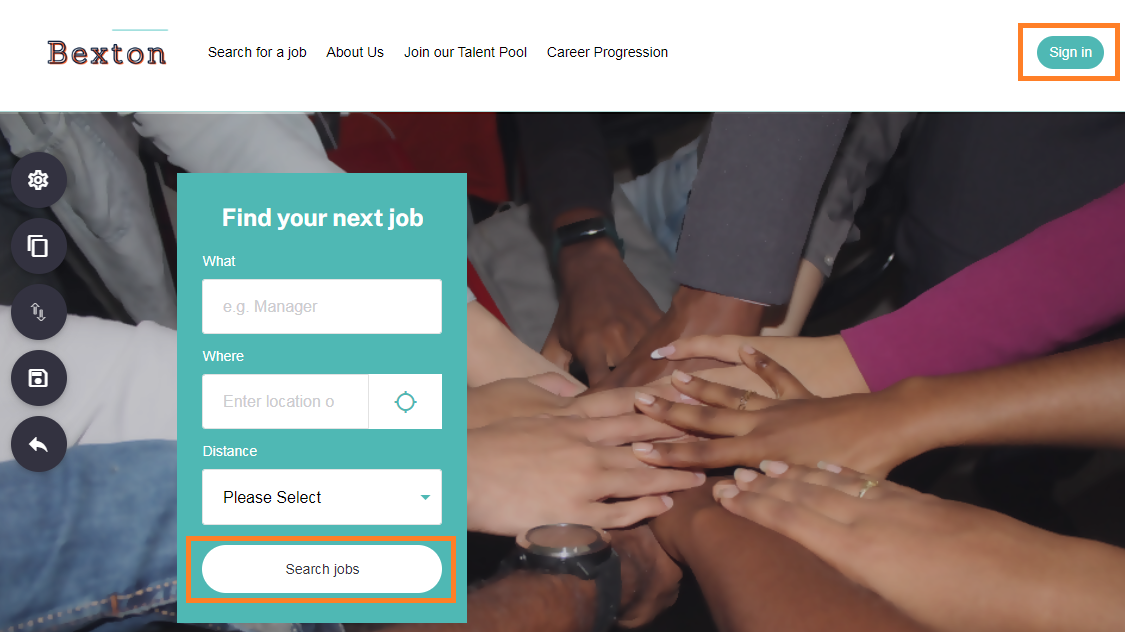
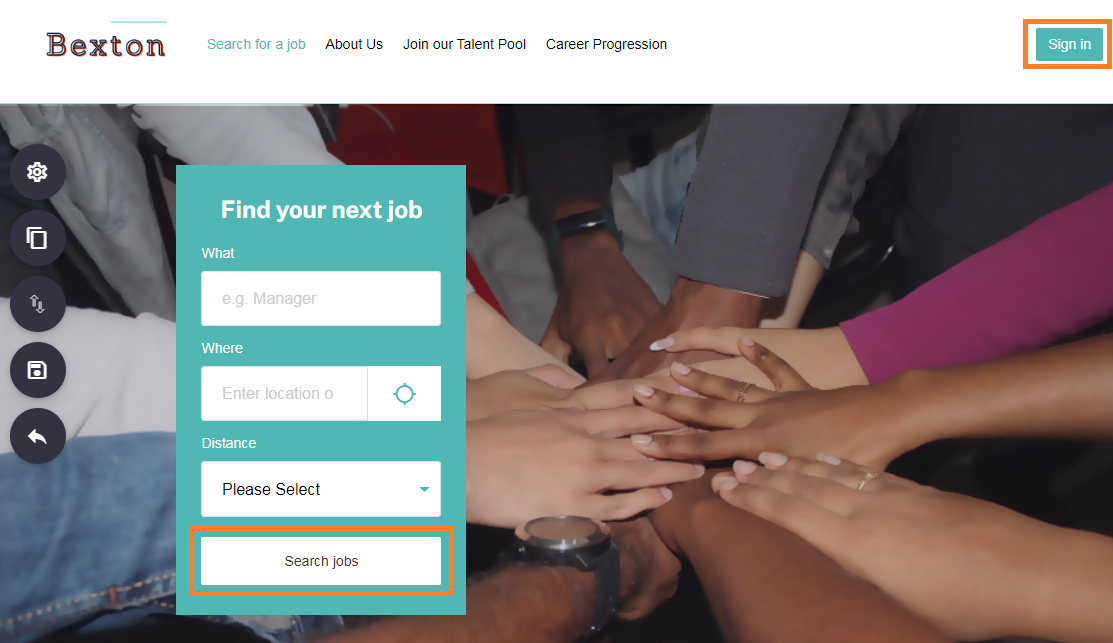
Once you make a change using Brand Builder, we recommend saving the changes by clicking Save within each component, along with clicking the Save icon in the left-hand menu to ensure all changes are saved.
Pages
Here you can tailor the content on each page to include text, images, and videos. You can:
- Add up to 10 pages in total and amend the wording/include dropdowns on these pages.
- Add pages to appear as drop-down lists from a ‘Header’.
To build the page as a drop-down, drag the New Page and indent the page. This will then appear as a drop-down under a header at the top of the page.
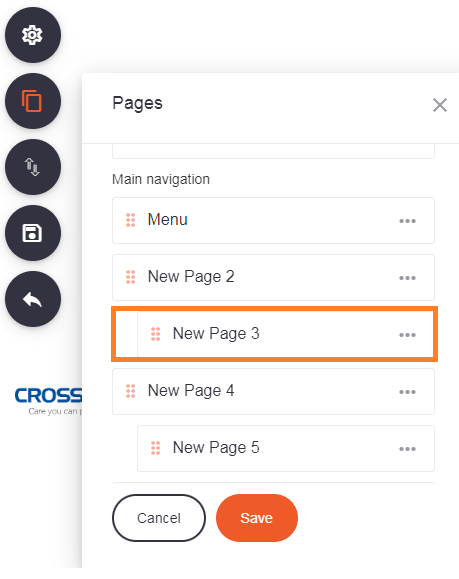
Please note, the drop-down pages are included within the 10-page limit.
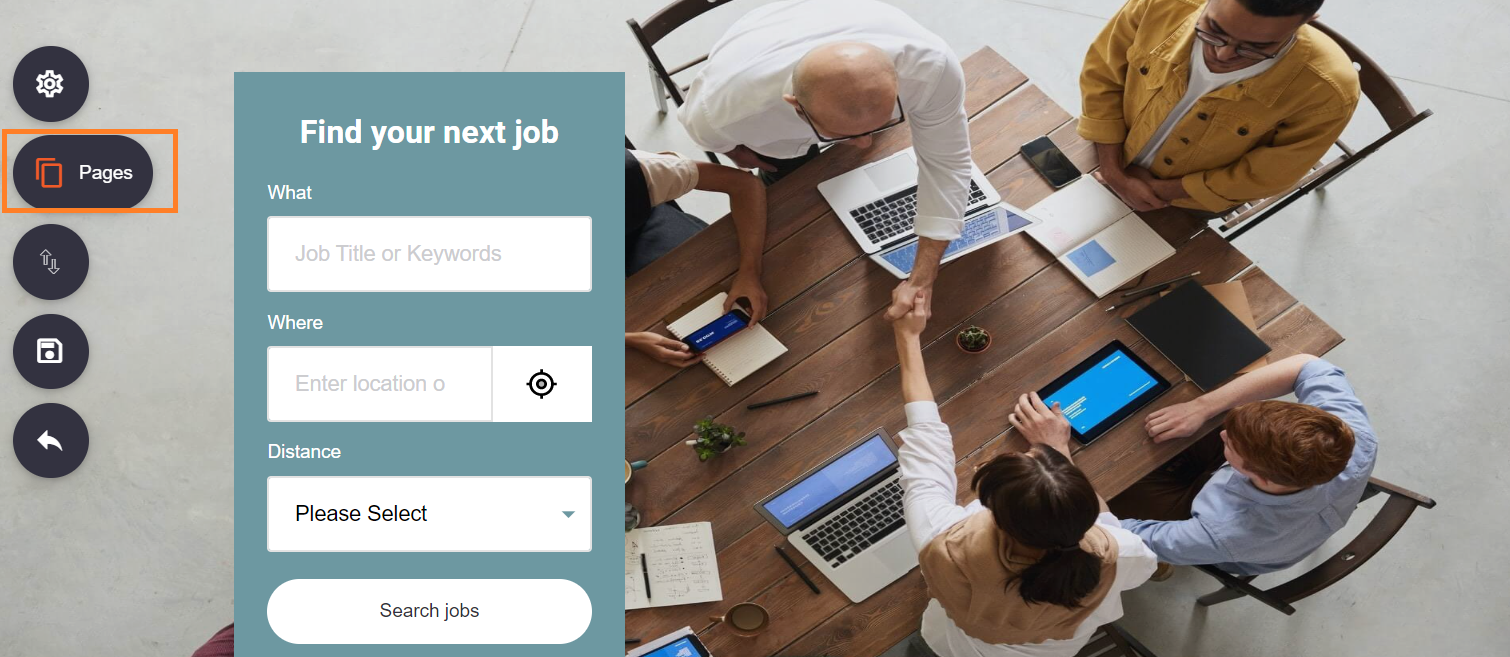
You can build your content for each page and choose if it should be displayed immediately on your candidate site.
To do this, click Pages then the three dots next to the page to make changes to. If the page should be displayed, toggle on against Show Page, then save.
Equally, if the page needs to be reviewed before being displayed on your candidate site you can toggle this off, then save.
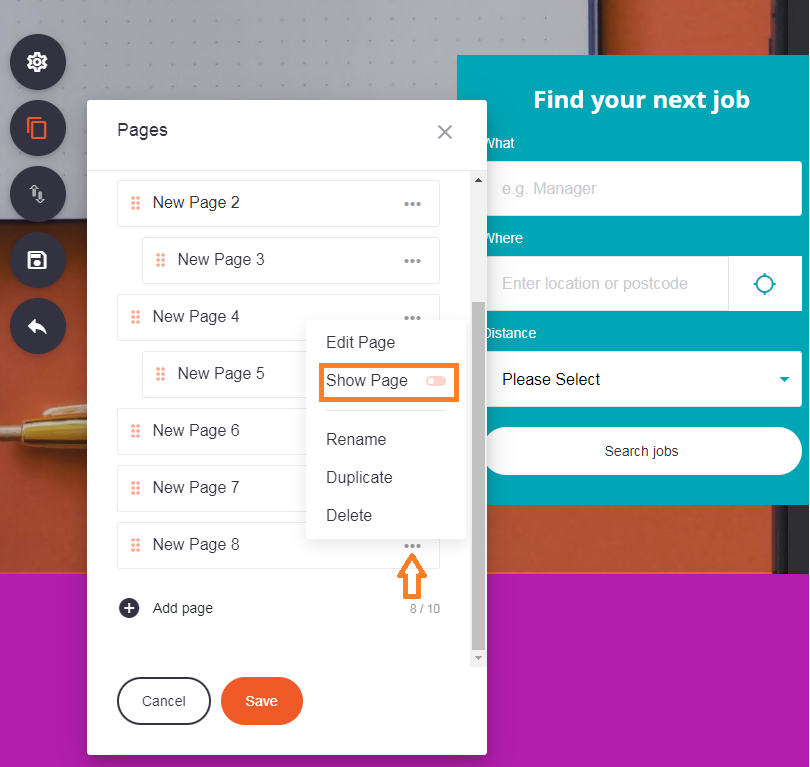
Header images for the landing page (as shown below) must have the image dimensions of 1520 pixels x 580 pixels.
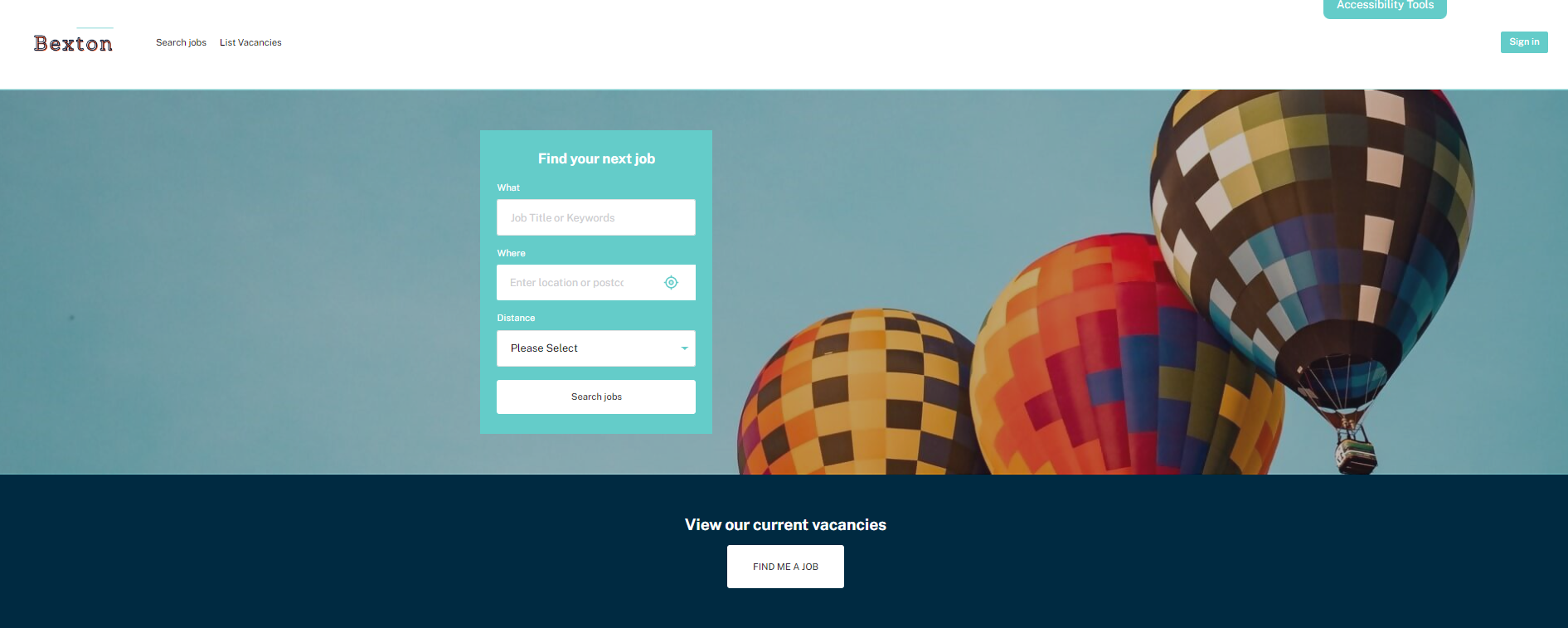
Header images when adding a new page, must have the image dimensions of 1520 pixels x 360 pixels.
Organise Components
This button let’s you re-arrange the following items on the page.
- Text
- Image
- Text and Image
- Gallery
- Video
- Benefits
- Testimonials
- Accordion
- Calls to action
You can re-arrange the order by using the drag-and-drop method.
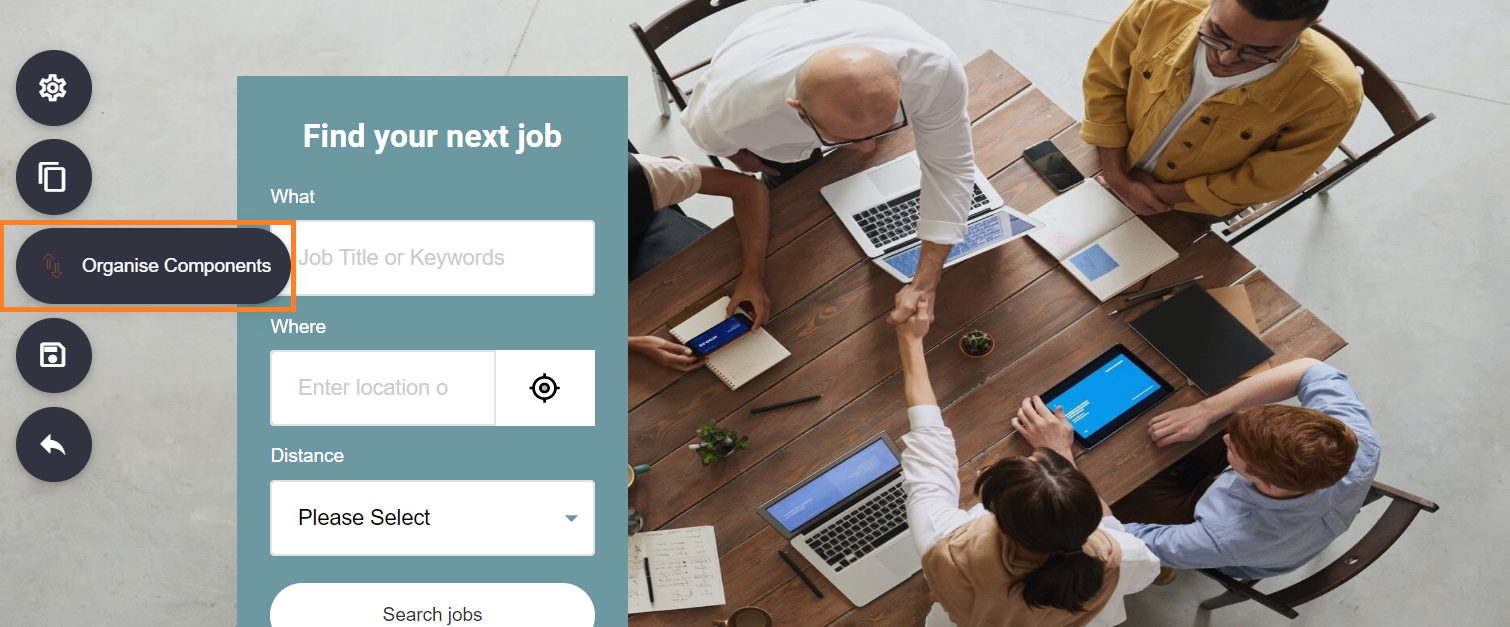
Adding additional items to your page
On each page are ‘+’ buttons which provide you with the option to add the following components:
- Text
- Image
- Text & Image
- Gallery
- Video
- Benefits
- Testimonials
- Accordion
- Calls to action
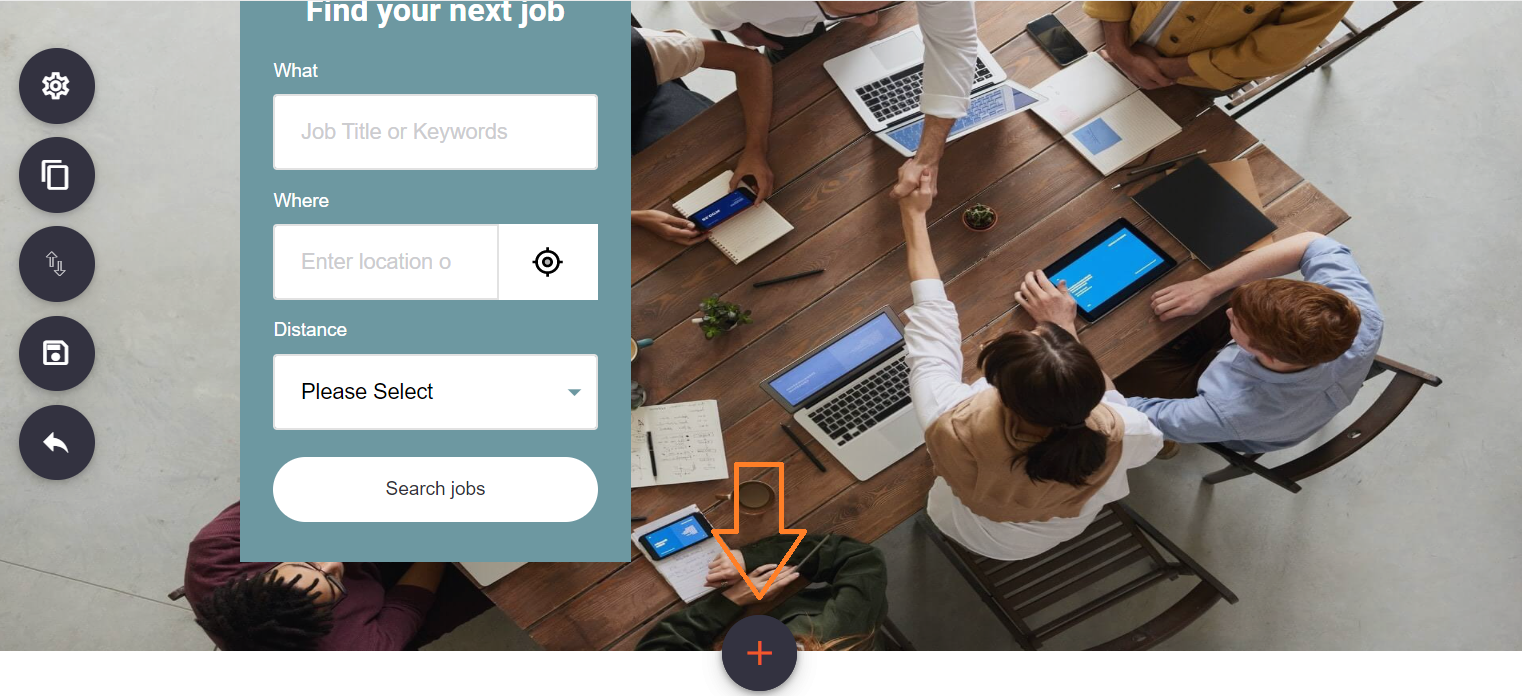
After clicking the ‘+’, you can select any of the options from the list above.
When clicking the '+' icon, any components you select here will provide you with the option to use your secondary colour.
Text
This provides you with a text section to add a heading along with a text box below.
If you would like to remove the header or the text, simply select the pencil icon next to the section to edit, then delete the wording from the text.
Image
All images that are uploaded must have dimensions of 980 pixels x 330 pixels.
Here you can upload an image along with an image caption.
- To upload an image, select the cloud icon. This will open your files on the device you are using.
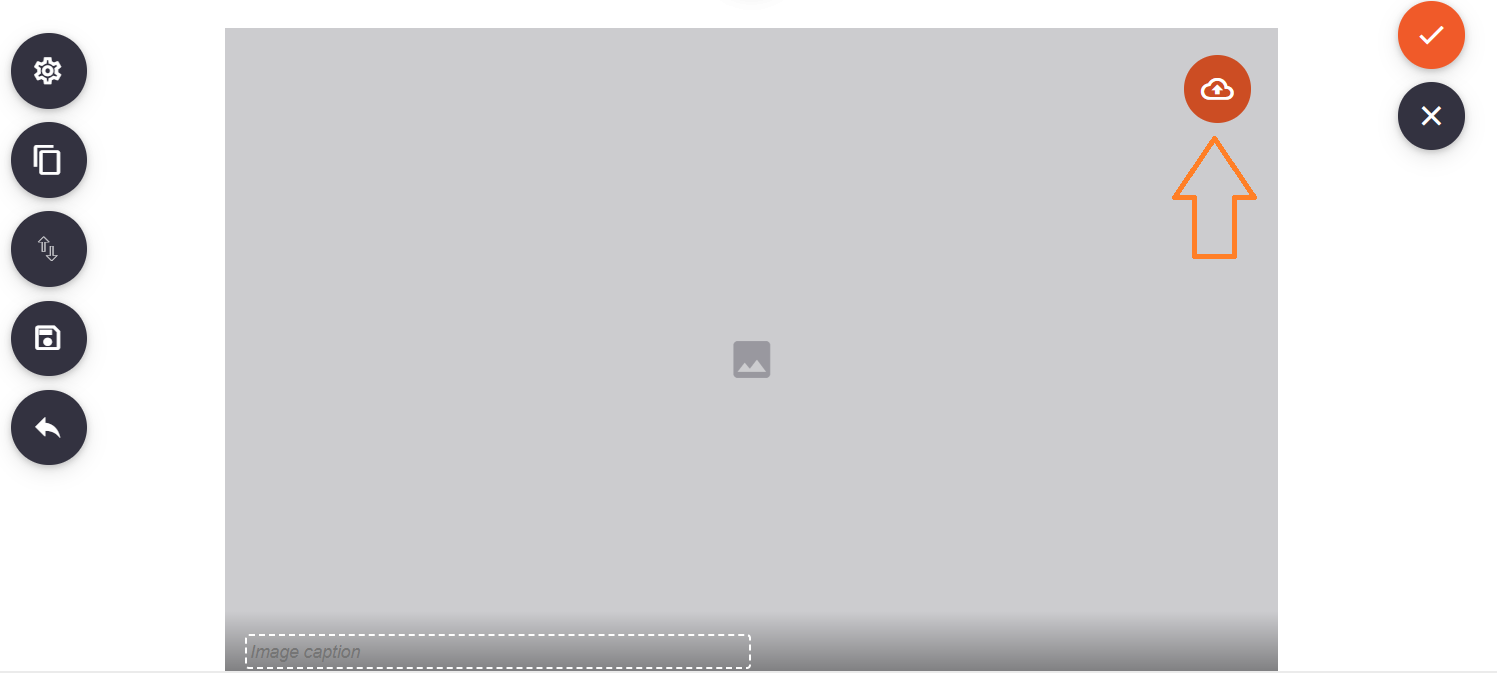
- Once you’ve chosen the image, you can select which part of the image you would like to use.
- After adding the image, select the tick icon which will lock the image in place.
Press the Save button on the left-hand-side to save these changes.
Text and Image
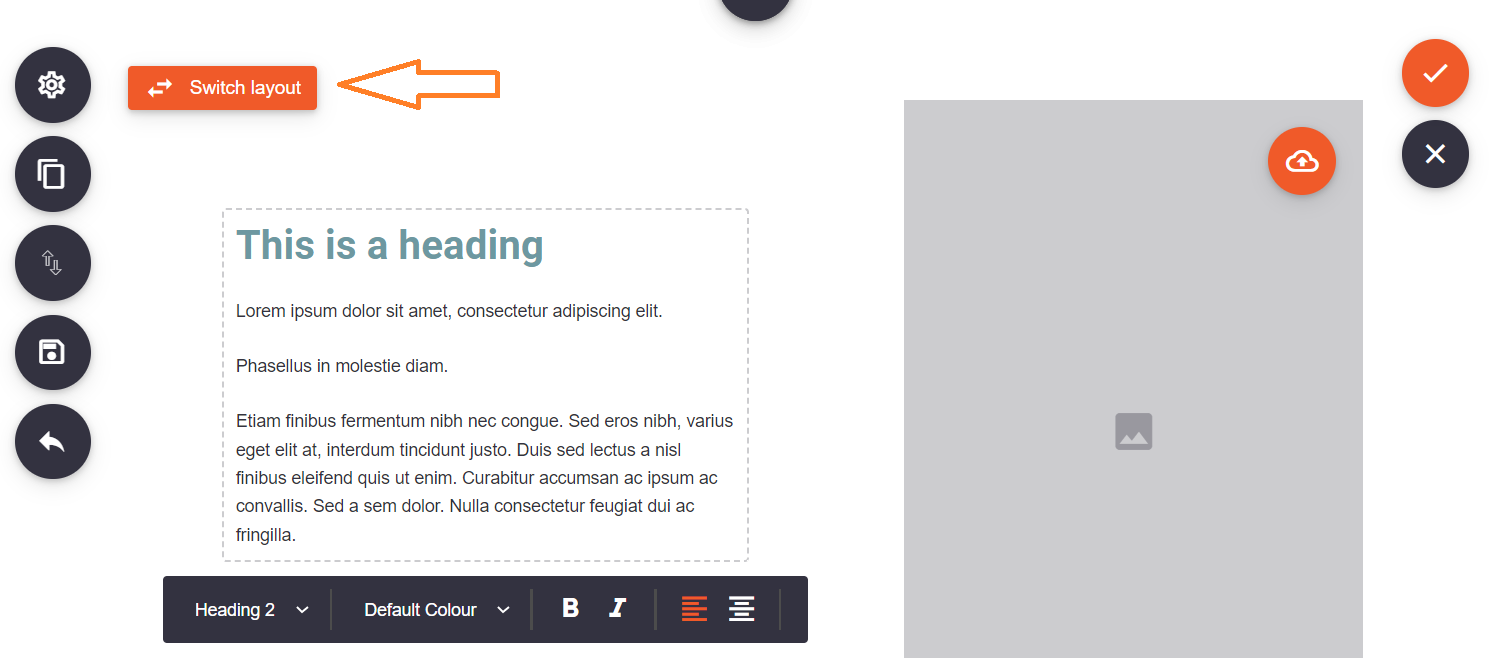
All images that are uploaded here must have dimensions of 440 pixels x 440 pixels.
This allows you to add text, alongside an image. You can also switch the layout of the text and image.
Gallery
Images uploaded here in the gallery must have the image dimensions of 675 pixels x 375 pixels.
The gallery is a component where up to 5 images can be added.
- If you don’t want to show all 5 images, you can press the bin icon which will remove the selected image slot.
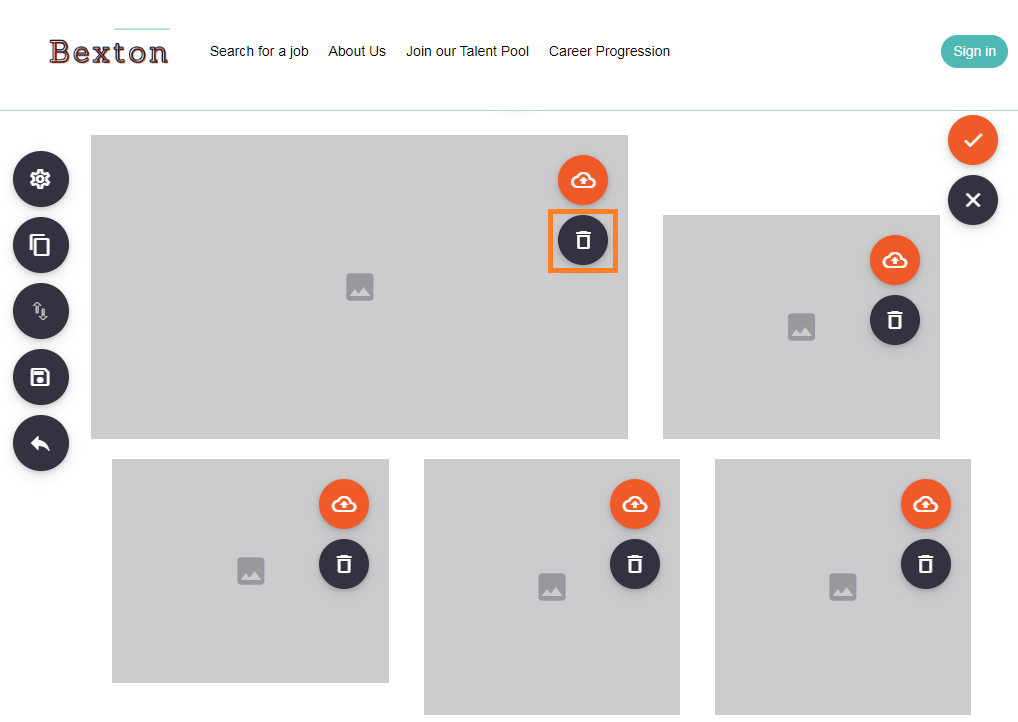
Within the gallery, there are different image dimensions, please see below:
Image 1 = 675 pixels by 375 pixels
Image 2 = 338 pixels x 272 pixels
Image 3 = 350 pixels x 282 pixels
Image 4 = 322 pixels x 322 pixels
Image 5 = 322 pixels x 332 pixels
Video
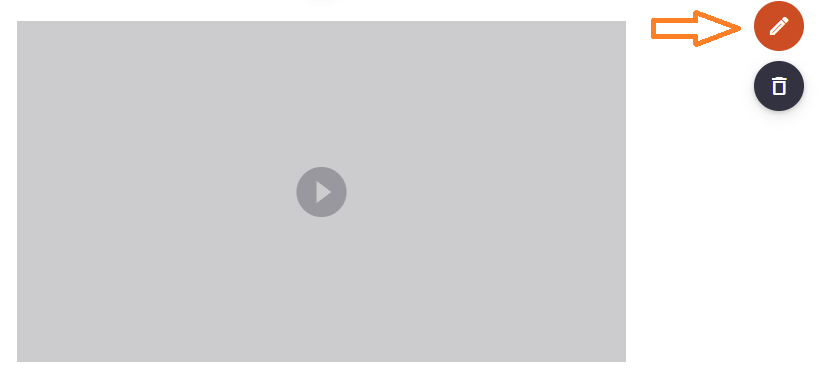
1. When uploading a video, ensure that you select the pencil.
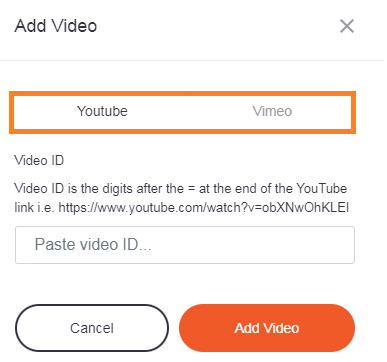
2. You will then be able to add the video from YouTube or Vimeo.
Example:
If we added this YouTube video: https://www.youtube.com/watch?v=BzZ-VXKoszI , we would insert BzZ-VXKoszI into the Video ID field.
Example - if the 11 digits are between = and &:
If we added this YouTube video: https://www.youtube.com/watch?v=hA46h6G71xo&t , we would insert hA46h6G71xo into the Video ID field.
After adding the digits in this field, click Add Video.
Benefits
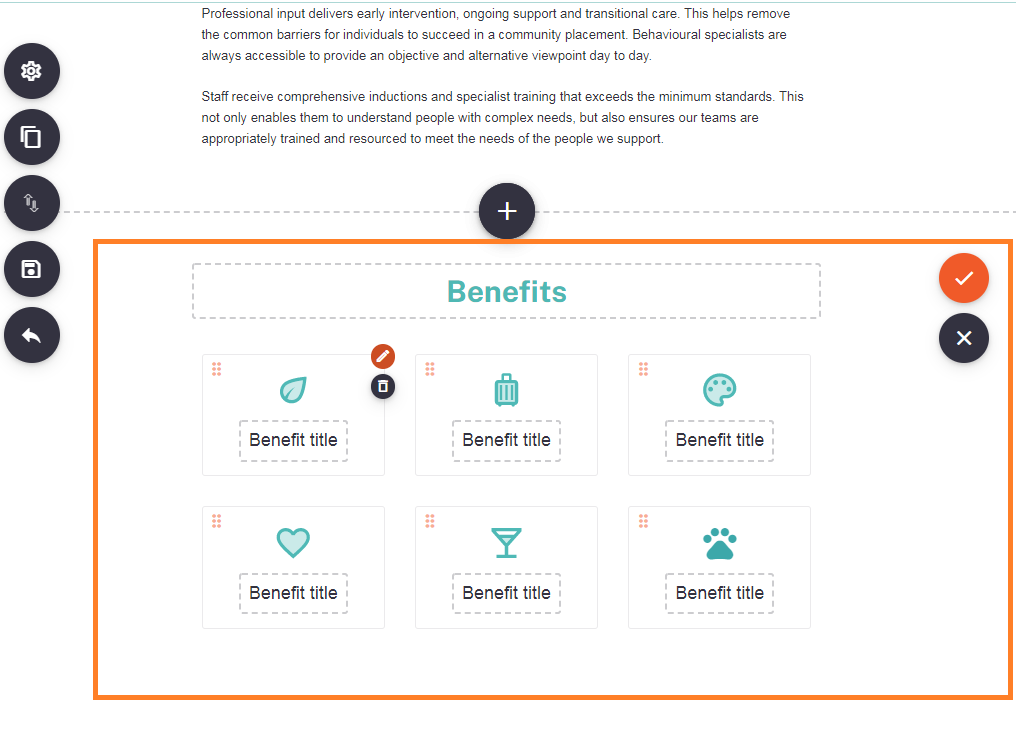
Add benefits and manage the icons by clicking on the pencil icon next to each benefit. This is a great place to showcase to future employees some of the benefits of working for your organisation.
Testimonials
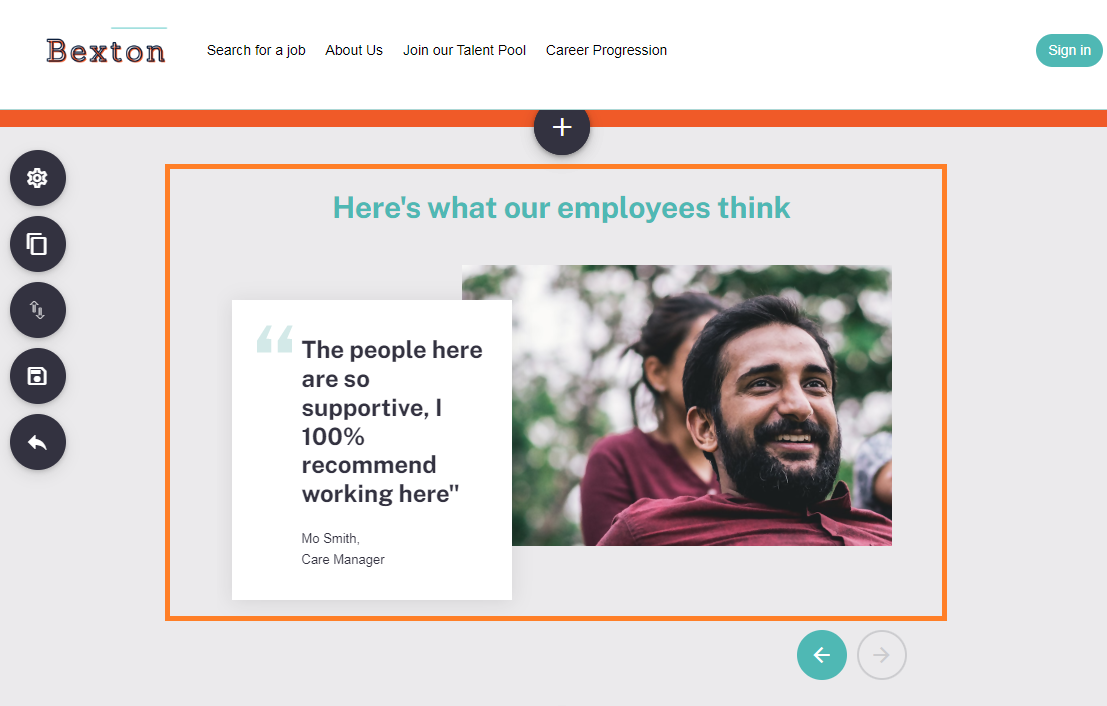
All images uploaded here must have image dimensions of 550 pixels x 315 pixels.
The Testimonials component gives you the opportunity to add an image, alongside a text box with quotation marks. You can use this to add quotes from colleagues about what it’s like to work there, along with their name and job title!
Accordion
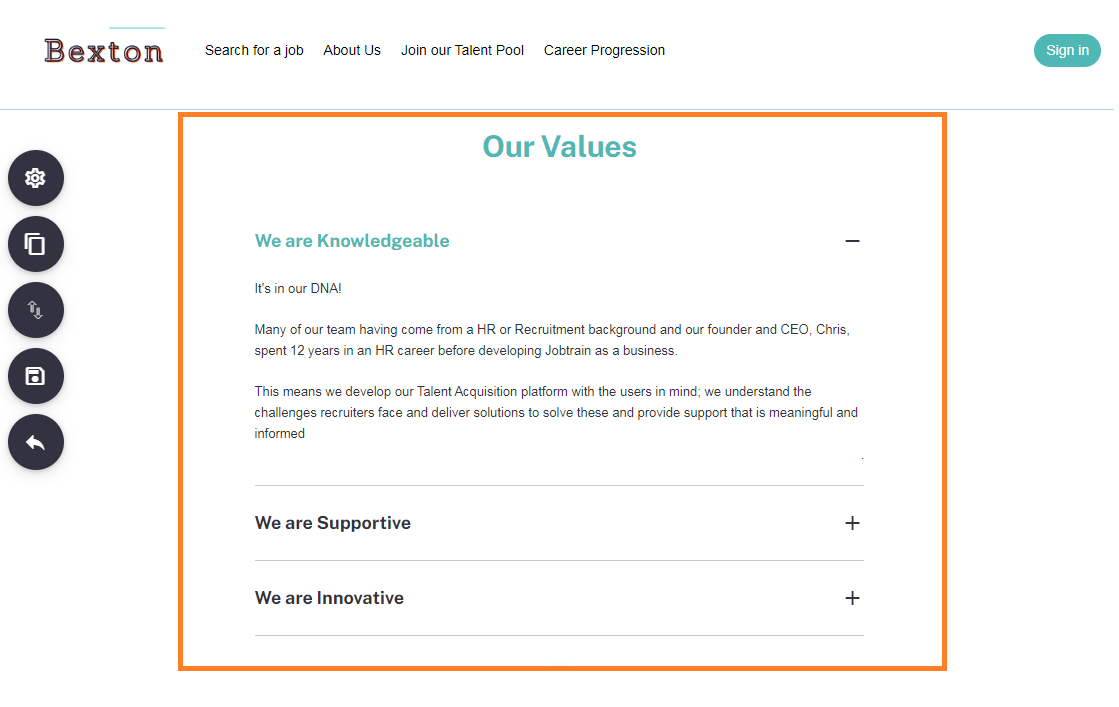
The accordion provides you with a different way to display additional information about your company. You could add information about your values, how the business came around - the choice is yours!
Call to action
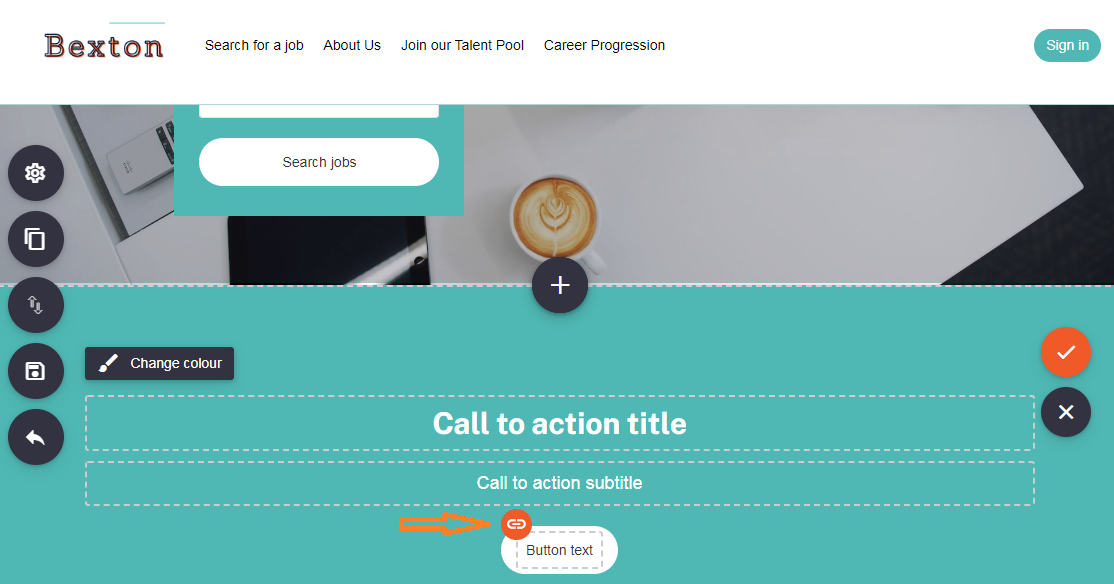
Call to action (CTA) are a beneficial way to draw attention to prospective candidates. You could use a CTA to ask candidates to search for your vacancies and apply, or direct them to a Talent Pool page you’ve created. There are no limits!
- Simply click on the link icon to add a URL to the button. You will then be able to add the URL you would like the candidates to be directed to.
Save
The save button will save everything on the page that has been updated.
After making a change within the Careers Site Builder, we recommend using the Save button on the left-hand side to ensure all information that has been updated is saved.
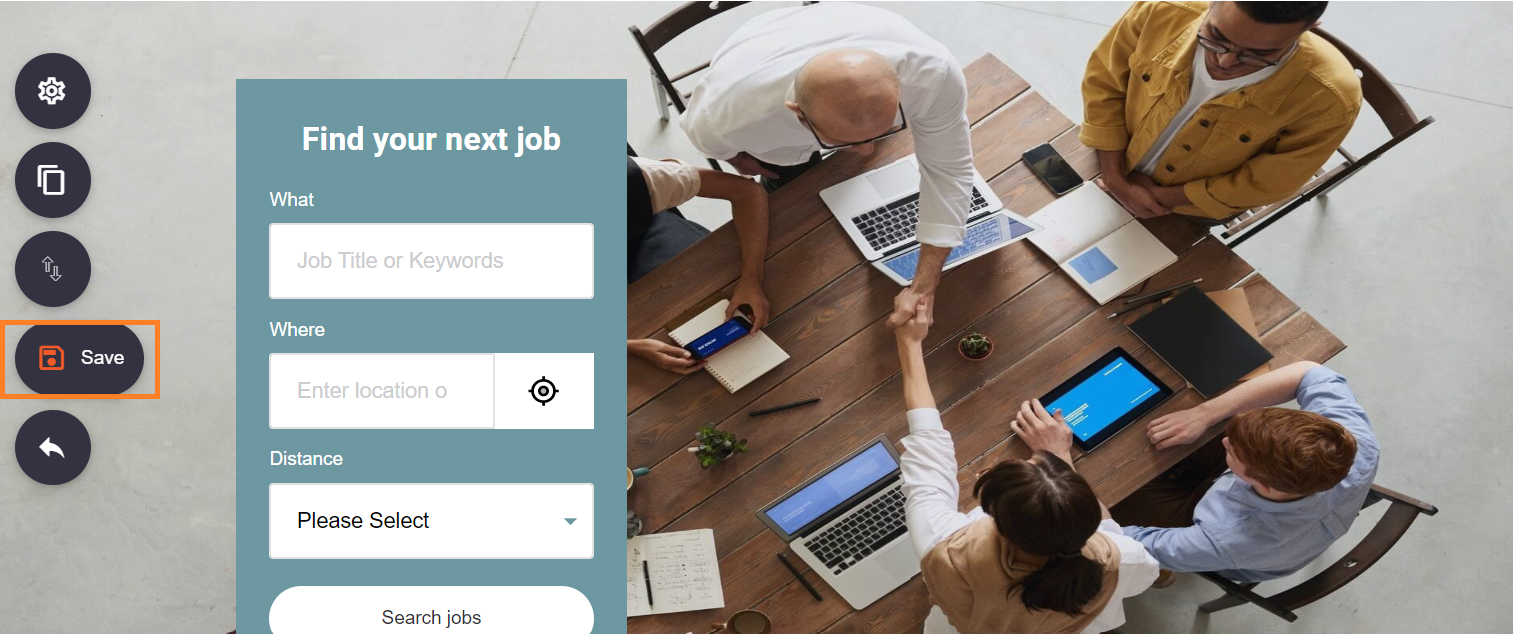
Once you have made any updates to the site and pressed save, take note that these changes are made in real-time on the live candidate site. This means candidates will be able to see any updates you have made to the site immediately.
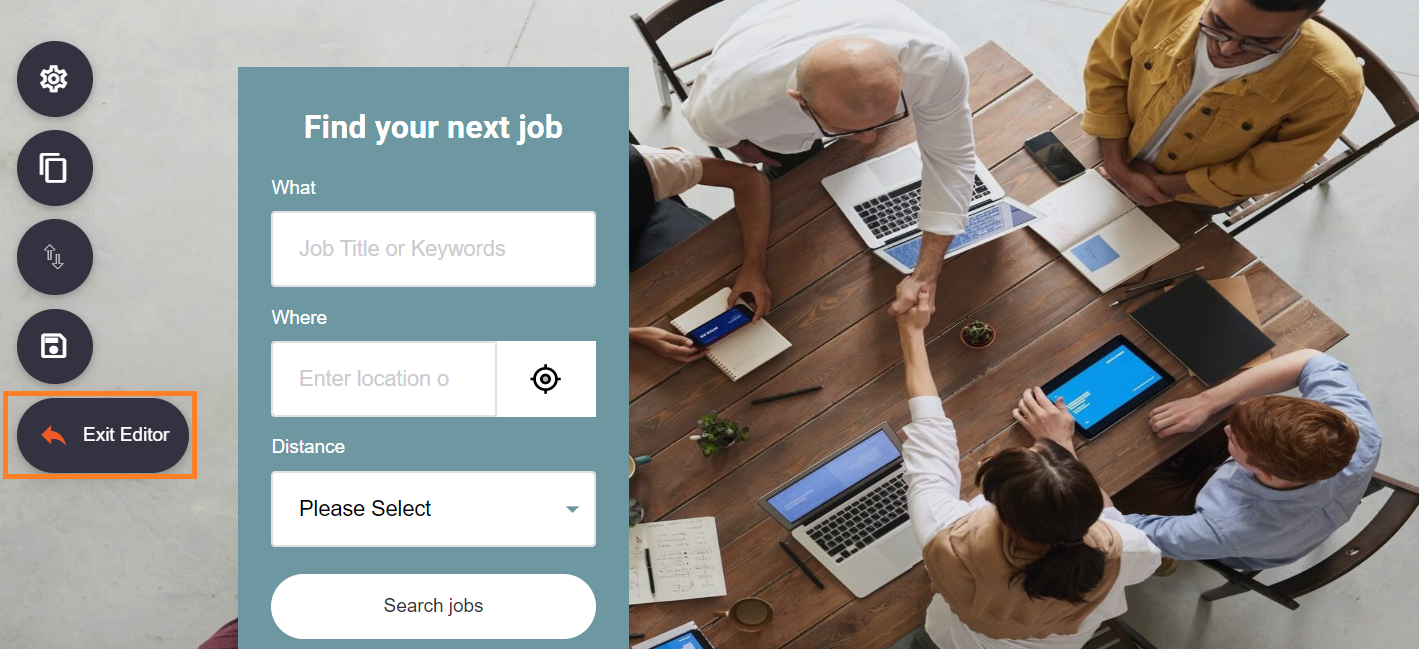
Exit Editor
The Exit Editor button will divert you away from the Careers Site Builder site and straight to Google search.
FAQs
Can I restrict who has access to this functionality?
Absolutely. As with most areas of Jobtrain, this functionality can be restricted in Security Roles within Settings.
You can restrict access to Brand Builder per security role by following the below steps:
Settings > Security Roles > Settings > Brand Builder Setting.
If you need support with updating access using Security Roles, please contact your Continuous Improvement Consultant or the Support Team who will be happy to help.
I’ve followed the guidance notes and have some further questions.
For any questions about using Careers Site Builder (or any other Jobtrain functionality), please contact our Support Team on +44(0)161 8502004.