
System users guide
What’s included in this guide:
User Settings
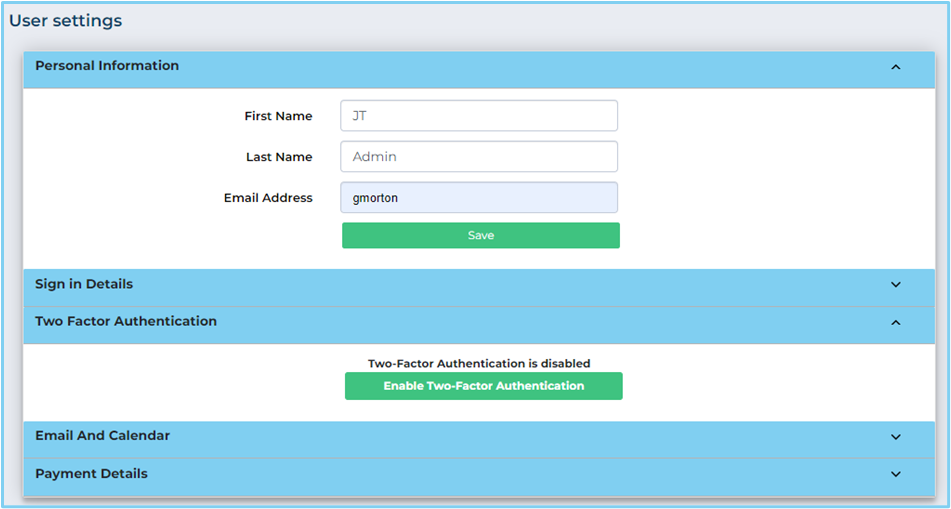
This area of JTGO contains your basic personal user details.
Tables can't be imported directly. Please insert an image of your table which can be found here.
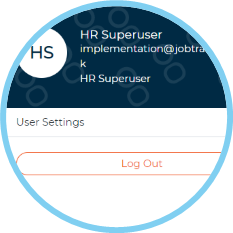
To access your user settings simply select Your initials (top right) > User Settings.
From here you can view and update the below information. To make any changes simply amend the relevant entry and then select Save.
System Users
Video guide
Tables can't be imported directly. Please insert an image of your table which can be found here.
This section is where you can create and update existing users’ profiles.
To access it, select Settings > System Users.
Amending User Profiles
Tables can't be imported directly. Please insert an image of your table which can be found here.
Your JTGO ATS comes with 10 pre-set user profiles which can be allocated to your system users.
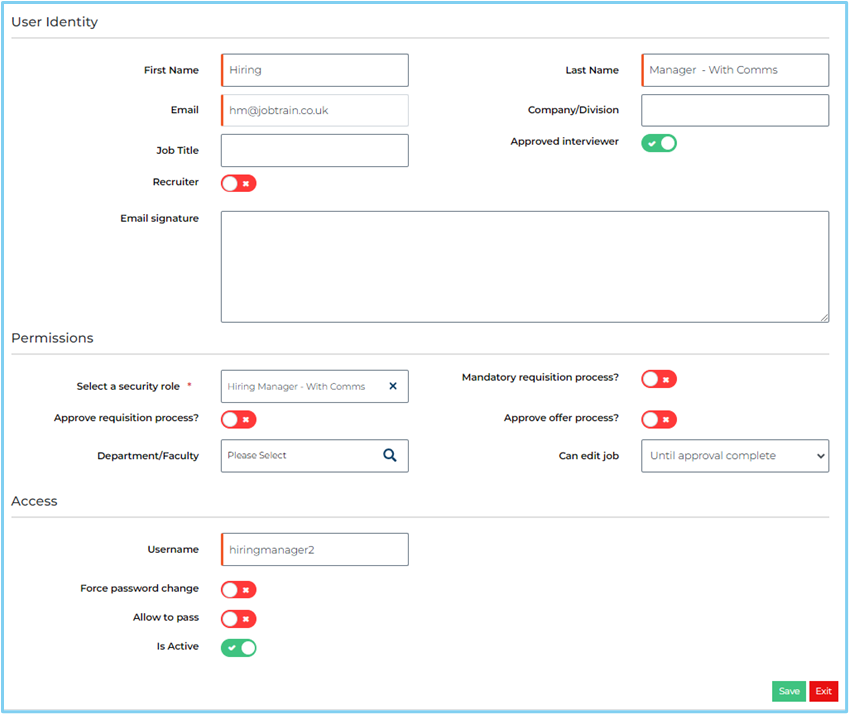
Select Edit against any of the user profiles that have not yet been allocated. Update the First Name, Last Name, Email and Job Title of the user.
Select the appropriate Security Role (either HR Superuser or Hiring Manager).
If your system user must have jobs approved before they can be advertised, toggle Mandatory requisition process on.

Create a unique and memorable username for the user.
Detail FirstLast NameUsernamePasswordSecurity RoleEmail Address,Is ActiveSave
Tables can't be imported directly. Please insert an image of your table which can be found here.
Name of field
Instruction
First Name
Add a first name
Last Name
Add a last name
Username
This must be unique. There can be no more than one user in the platform with the same Username
Password
Can only be added here upon setting up a new user, passwords cannot be reset from this page
Is Active
If toggled to yes, the user can access the platform. If toggled to no, the user will be unable to access the platform
Approved Interviewer
This should be enabled for the user to be added as an interviewer in the Calendar Event Manager feature
RecruiterEmail address
Add an email address
Department / Faculty
Leave this field blank. If a department is included here, the user will only be able to see jobs in that department that they have been granted access to
Company
Add a company name
Job Title
Add a job title
Email Signature
If an email signature is included here it can pull into any emails that user sends if {SYSTEMUSERS.EMAILSIGNATURE} merge field is used. Please note this excludes any automated emails sent on the back of a status change
Mandatory requisition process?
If toggled to yes, any jobs this user adds must go through approval
Can edit job
Use this field to specify the approval stage at which a user's editing rights are restricted, if applicable.
Except from adding job notes.
The options are:
- Until approval complete: Users can edit jobs until all approvers have approved the request. Editing is locked after approval.
- At any time: Users can edit the job at any stage of the job authorisation process (or at any point in future processes).
- Until approval started: Users can edit jobs until the job approval request is sent. Editing is locked once the approval process starts.
Override approved requisition
If toggled to no, this user is unable to make changes to a job after it has been approved (except from update the status of a job)
Approve offer process
If toggled to yes, the user can approve offers
Security role
Set the security role. This defines the user’s access levels
Force password change
If toggled to yes, this user will be forced to change their password once it's been changed for them e.g. if they are a new user
Allow to pass
Leave this marked as yes
Forgot Password

There are several other sections within a system user’s profile. Below is an overview of what each section does:
Application Status
Historically, this section defined which candidate application statuses managers could see and change to (within the jobs they had access to), however it has become less important since Security Roles were introduced that allow users much more flexibility when defining a user’s access levels.
If statuses are selected here, then this will override the security role settings and will only allow that user to see and change to the statuses listed in this section.
Jobs
View a list of jobs this user has been granted access to. For those users whose security role lists all jobs, then what is shown here will not be a true reflection of all the jobs they have access to. It will only display a list of jobs where the user’s name has been added in Job Access within a job.
User Log
Here you can see the user's activities for last three months.
Update Password
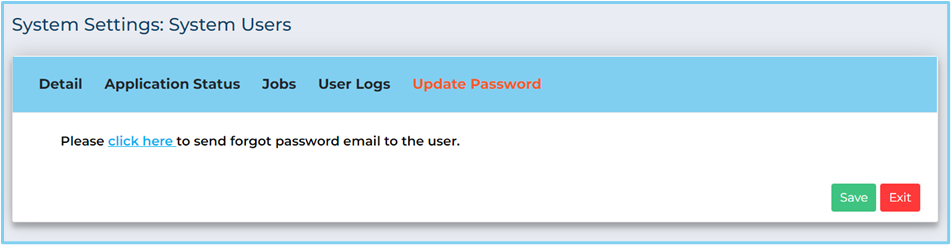
Reset a system user’s password by selecting here.
Locked Accounts
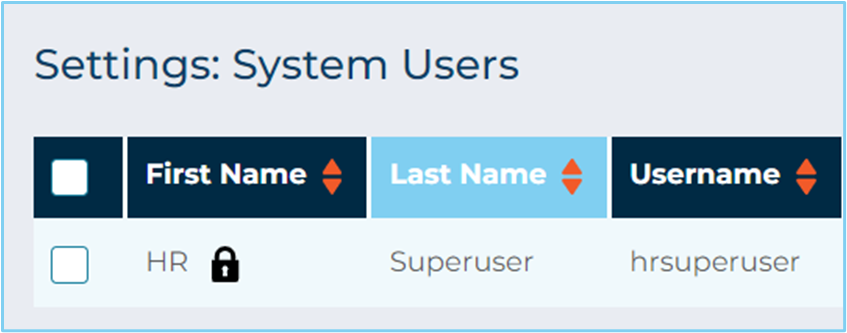
A System User's account is locked if they have entered the correct username, but the incorrect password 4 times in a row. You can identify users with locked accounts in the list of System Users as there will be a padlock icon next to the System User's name.
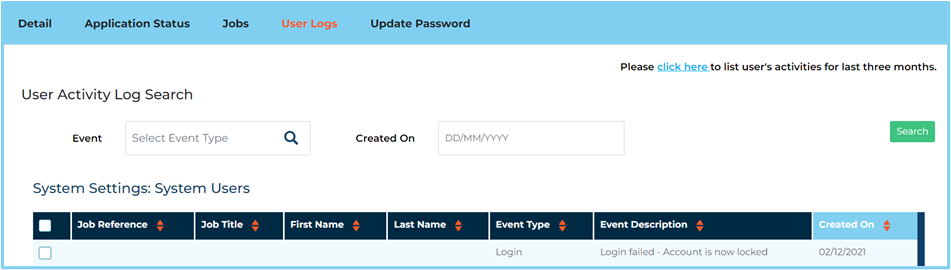
This will also be recorded in the User’s log as illustrated below:
Unlocking Accounts
Any user with access to edit a System Users' profile can unlock an account.
Simply click the Edit button, click on Update Password, and trigger a password reset to that user.
When the locked user completes the password reset, their account is unlocked. The same is true if the user resets their password from the Login page.
Making a User Inactive
If a user is absent for a long period of time, you may prefer to make the user inactive rather than removing them from the system completely. The user will not be able to log into Jobtrain but will remain a user in the system.
Tables can't be imported directly. Please insert an image of your table which can be found here.
Is ActiveDetail

(356 KB)