
Communications
The communications section is where all system communication templates are created and held.
What’s included in this guide:
- Email Options
- Creating Email Templates
- Amending Email Templates
- SMS Options
- Creating / amending SMS Templates
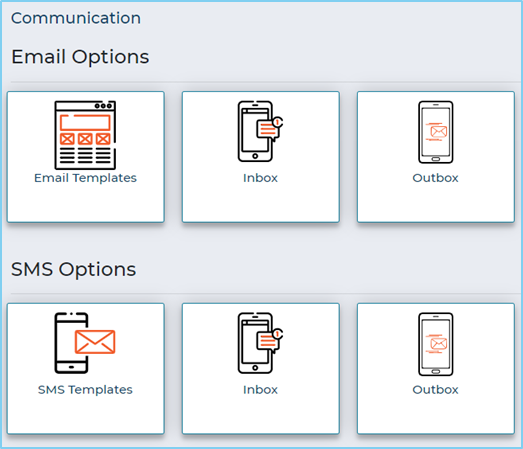
To access this, go to Settings > Communications in the left-hand menu. There are two available options in this section:
- Email Options
- SMS Options
Email Options
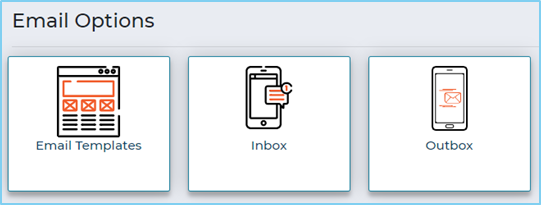
There are three available tiles in the Email Options:
- Email Templates: this is where you can create or update email templates to be used within JTGO
- Inbox: this displays all emails that have been received from candidates via JTGO
- Outbox: displays a list of all emails that have been sent out from JTGO
Creating Email Templates
- In Email Options, select Email Templates
- Choose Create Email Template from the left-hand menu which will open a new window:
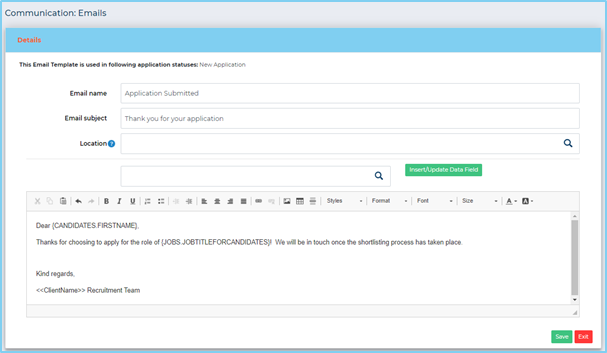
- Add the Email name and Email subject that will be sent to the recipients. Whilst not essential, you can also add a location if required to help when users are searching for the correct email template to use
Important note for clients utilising the Email & Calendar Integration :mustMerge field to be used:Did you know?
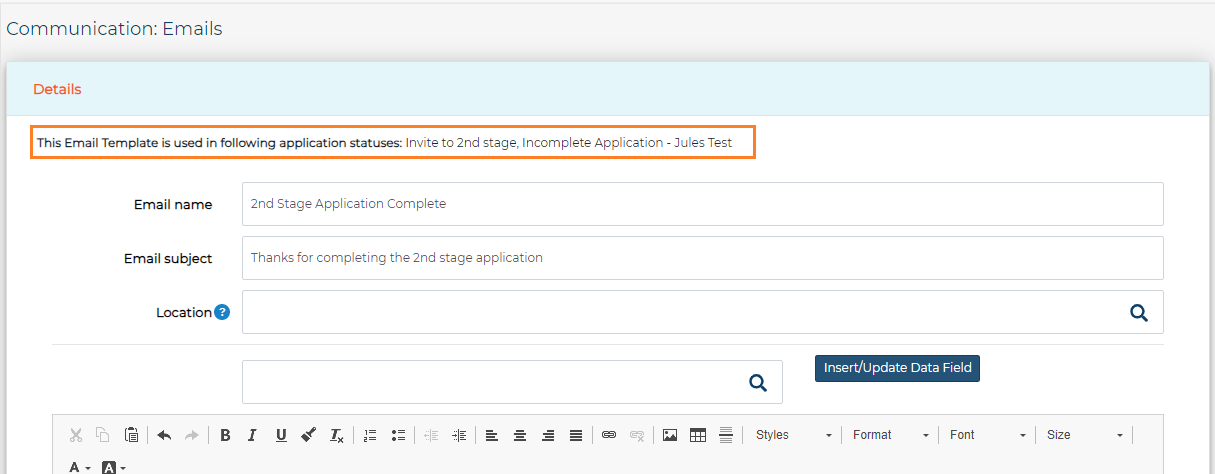
- Add the main body of the email content using the formatting tools available to make any format changes
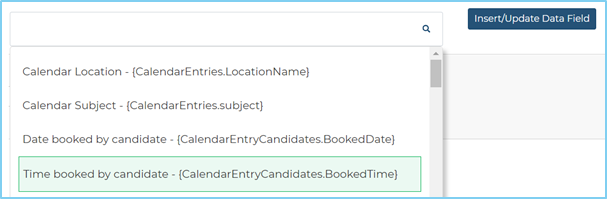
- To add merge fields, place your cursor in the area you wish to add the merge field. Start typing the name of the merge field or select from the dropdown menu and click Insert/Update data field
Tables can't be imported directly. Please insert an image of your table which can be found here.
How to add a link/URL to a website:
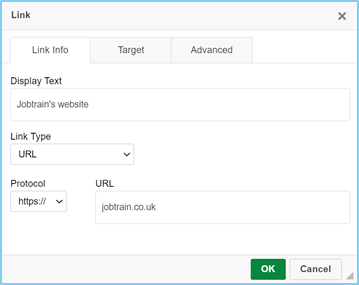
- Select the paperclip icon
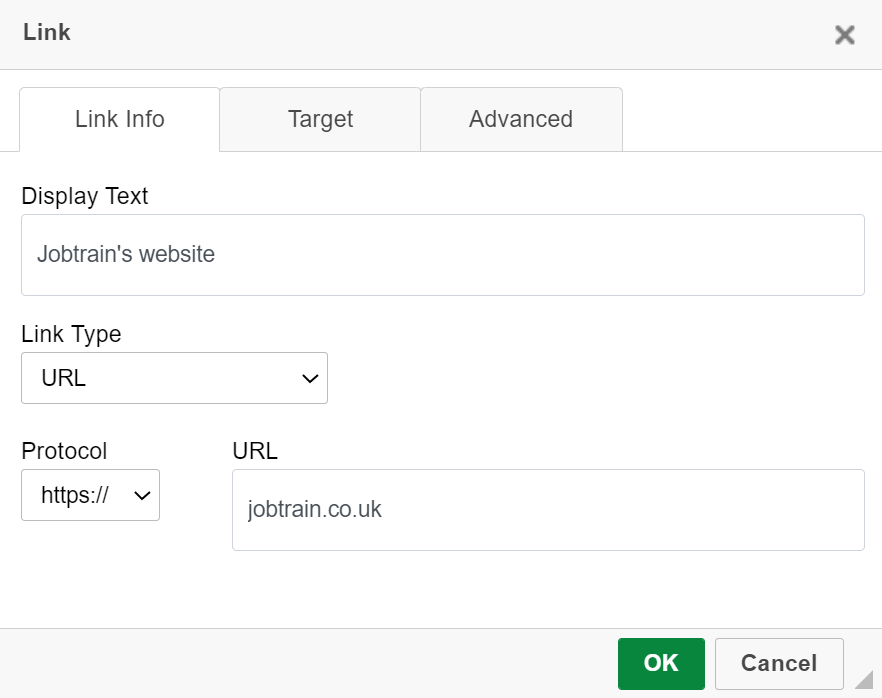
- A pop-up box will open
- Add Display Text: this is the wording that will be displayed in the email
- Link Type: select URL
- Protocol: choose what precedes the URL - https:// or http:// or one of the other options available
- URL: add the URL/link
- Press OK
Tables can't be imported directly. Please insert an image of your table which can be found here.
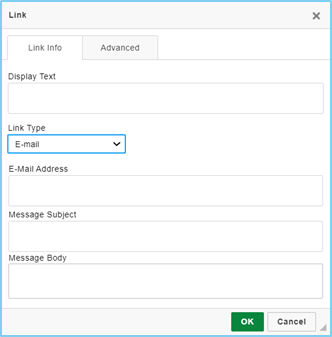
To add a link to an email address:
- Select the paperclip icon
- Link Type: select E-mail
- E-Mail Address: add the email address here
- Message Subject: add the message subject
- Press OK
To attach a document from the document library to an email template:
Tables can't be imported directly. Please insert an image of your table which can be found here.
- First, copy the URL of the document you wish to attach to the email
- Go to Settings > General Settings > Document Library
- Select the document you would like to attach and then Copy Url
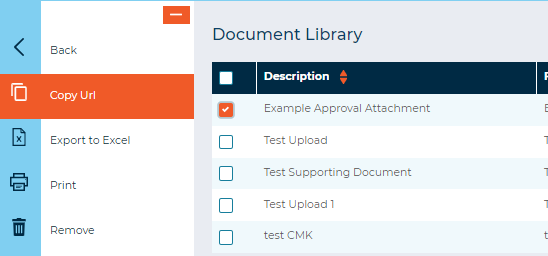
The page will then refresh to show the Url.


- Copy Url
- Go back Settings > Communications > Email Templates
- Open up the relevant email template
Tables can't be imported directly. Please insert an image of your table which can be found here.
- Select the paperclip icon
- A pop-up box will open
- Add Display Text: this is the wording that will be displayed in the email, so add in the name of the document
- Link Type: select URL
- Protocol: choose what precedes the URL - https:// or http:// or one of the other options available
- URL: add the URL/link
- Press OK
When candidates then click on this link it will download a copy of the attached document.
Once all formatting is complete and you have added all required merge fields to the email template, click Save and Exit.
Amending Email Templates
To amend any existing email templates, simply find the template in the list of templates (or use the Search emails function at the top of the email templates page). Select the email name to open the editing window.
Make any required changes, then click Save and Exit.
Unused email templates can also be archived. Simply check the box next to the template and select Archive in the left-hand menu.
SMS Options
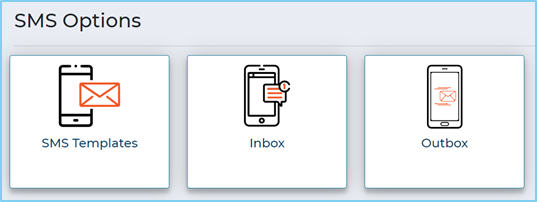
Prefer a video walkthrough? Follow these steps in the video:Similar to the email options, there are three areas in SMS Options:
- SMS Templates: create or update SMS templates used within JTGO
- Inbox: you can disregard this section as JTGO SMS feature is a one-way messaging service therefore candidates cannot respond to SMS messages
- Outbox: displays a list of all text messages sent out from JTGO
Creating / amending SMS Templates
- Under SMS Options, select SMS Templates
- Select Create SMS from the left-hand menu - a pop-up window will be displayed
- Or select SMS Subject to open and edit an existing text message template
- Add the SMS name and, if required, add a location to help users search for the correct template to use
- Add the text message content in the main text box
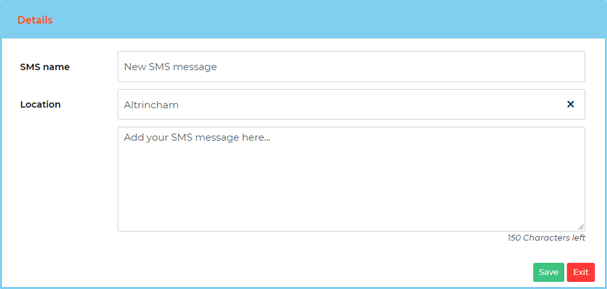
Once the content is complete in the SMS template, press Save then Exit.

(376 KB)