
For: Recruiters, Superusers
Control which task categories appear for each user type based on their responsibilities.
I want to:
- Choose which task types are shown to which users
- Understand how task visibility works based on job access and role
Assign task permissions by role
You control which users see which tasks by updating Security Roles > My Workspace.
This lets you match task visibility to the user’s responsibilities (e.g. shortlisting, referencing, onboarding).
To configure
- Go to Settings > Security Roles.
- Open the relevant role (e.g. Hiring Manager, Recruiter).
- Select the My Workspace tab.
- Enable the toggles for the tasks you want this role to see.
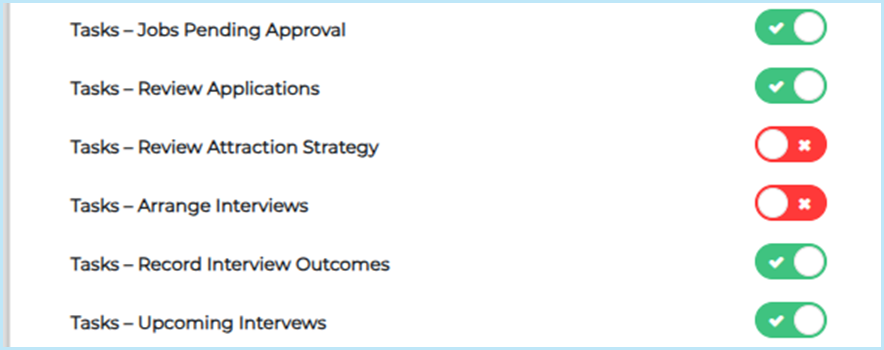
Available task types and configuration
Use this table to map task visibility to the correct Security Roles and check the status/configuration triggers needed to activate each task.
| Task category | Security role permission | Required status / trigger | Where to configure |
| Job Approval | Tasks – Jobs Pending Approval | Job status = Waiting for Approval | System Customisation > Job Statuses |
| Applications | Tasks – Review Applications | Application status = New Application | System Customisation > Application Statuses |
| Tasks – Review Attraction Strategy |
Job live > 14 days AND all applicants in: Reject after Application, Recommend Reject, Offer Rejected OR none |
System Customisation > Application Statuses | |
| Interviews | Tasks – Arrange Interviews | Application status = Shortlisted, Recommend Interview | System Customisation > JT Mobile Statuses (Consider) |
| Tasks – Record Interview Outcomes | Application status = Interview Accepted AND interview date is in the past | System Customisation > Interview Statuses | |
| Tasks – Upcoming Interviews | Application status = Interview Accepted or Invited to Interview AND interview date is in the future | System Customisation > Interview Statuses | |
| Offers | Tasks – Offers to Prepare | Application status = Recommend Offer, Request Offer, or similar (client-specific) | This task requires configuration by Jobtrain. Please raise a request with our support team, and reference which application status indicates there is an offer to prepare. |
| References | Tasks – Review References | Status = onboarding target status AND reference % complete = 100% | Application Statuses > Onboarding |
| Tasks – Chase References | Reference started > 7 days ago AND % complete < 100% | Not applicable | |
|
|
All reference attempts declined or cancelled | Not applicable | |
| Compliance | Tasks – Chase Compliance | Status = onboarding/compliance target status AND compliance started > 7 days ago AND % < 100% | Application Statuses > Onboarding |
| Onboarding | Tasks – Chase Onboarding | Status = onboarding/compliance target status AND onboarding started > 7 days ago AND % < 100% | Application Statuses > Onboarding |
| Tasks – Prep for New Starters | Onboarding + Compliance = 100% AND application at onboarding complete status | Application Statuses > Onboarding |
Tip: Roles can be updated at any time without needing to log out.
For more information about the conditions that affect the display of each task, see Manage recruitment actions using My Tasks .
How task visibility works
A task will only appear to a user when all of the following conditions are true:
- The rule conditions are met (e.g. candidate has a new application, interview due etc.)
- The user has access to the job (e.g. listed in Job Access) or for Onboarding, Compliance and Reference tasks, is the assigned onboarding/ref admin role.
- The relevant task permission is enabled in their security role
If any of these are missing, the task won't show up at all.
Best practice tips
- ✅ Start by enabling only a few key task types (e.g. “Review Applications”) to test the user experience.
- ✅ Align permissions with responsibilities. For example, only enable “Arrange Interviews” for users responsible for scheduling.
- ❌ Don’t enable every task for every role - this may overwhelm users with irrelevant notifications.
FAQs
Do I need to configure anything else for this to work?
No - once the security roles are updated, the default rules will run automatically.
Can I add my own task rules?
Not at the moment - all rules are pre-defined. In future phases, clients will be able to configure their own rules.
What happens when a task is complete?
Tasks automatically disappear when the trigger condition no longer applies (e.g. application status changes).
Can users see past tasks?
No - only active tasks will be shown.