
My Tasks helps you stay on top of recruitment by showing only the actions you’re responsible for - in one organised place.
It automatically identifies what needs your attention based on live events, such as a job awaiting approval, candidates requiring shortlisting, interviews needing scheduling and onboarding steps that need follow-up.
For: Recruiters, hiring managers, onboarding admins
I need to:
- Understand what I can do in My Tasks
- Access My Tasks
- Understand what each task means
- Update who can see tasks
What you can do in My Tasks
My Tasks replaces manual checks across multiple screens with one live, personalised list of tasks.
You can:
- See everything you need to action.
- Navigate directly to the relevant screen to complete a task
- Monitor progress across interviews, offers, compliance and onboarding
⚠️ Task accuracy and custom configurations
Default task rules have been designed to support the most common workflows across our client base. However, in systems with extensive customisation - such as multiple job statuses, unique workflows or non-standard triggers - some tasks may not align perfectly with your specific setup.
If your organisation uses a highly bespoke configuration, certain tasks may not appear or behave as expected.
Coming soon: We’ll be offering Talent Intelligence consultancy to help define bespoke task logic tailored to your workflows and system rules.
How to access My Tasks
1. Select the bell icon in the top menu bar.

2. The bell shows a numbered counter indicating your outstanding tasks.
3. Select the bell to open your task workspace.
View your task list
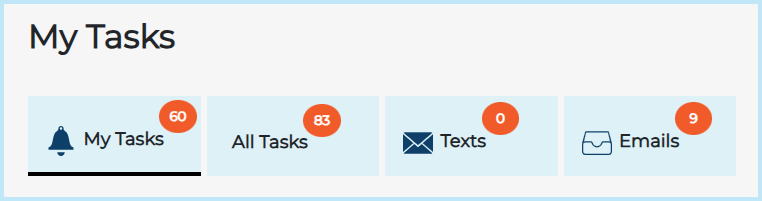
Tabs at the top of the My Tasks panel help you filter which tasks you see.
My Tasks
Shows tasks for jobs you’re actively working on - i.e. where your name is listed in the Job Access list.
Use this tab to focus only on your responsibilities.
All Tasks
Shows all tasks across jobs you have visibility of - even if you're not on the Job Access list.
Use this tab if you support multiple teams, manage job access centrally, or need a wider overview.
Tip: If you’re not seeing a task you expected under My Tasks, try switching to All Tasks — it may belong to a job you can view, but aren’t directly assigned to.
Texts and emails
If your security role allows it, you’ll also see the Texts and Emails tabs at the top of your My Tasks panel.
These are only visible for certain user profiles — typically recruiters or administrators.
- Texts - shows all candidate text replies
- Emails – shows all emails received via your system inbox
Each tab works like an inbox, so you can keep track of recent communication.
Understanding your tasks
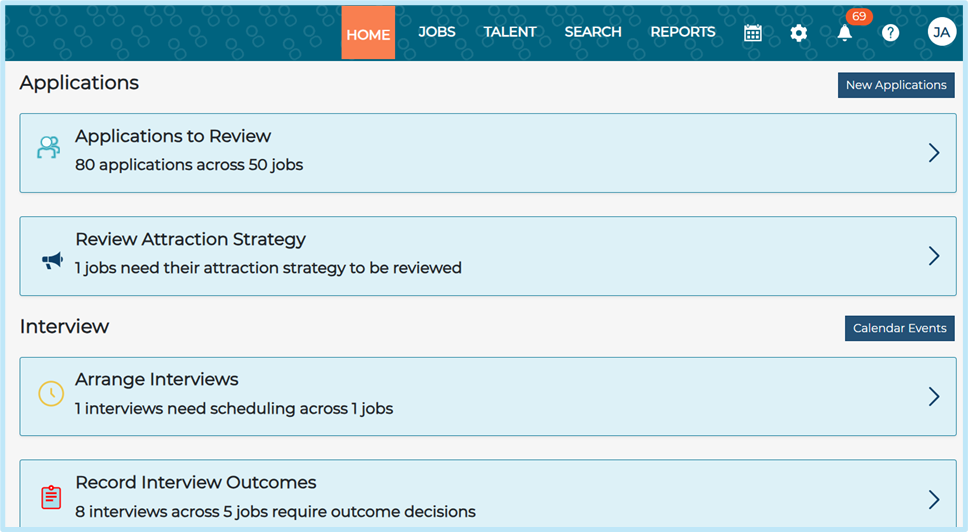
You’ll see tasks grouped by category, based on your role and access.
Each task panel shows:
- A short summary of what’s needed
- The number of jobs or candidates affected
- A list of items to action
- Links directly to the relevant screen to perform the action
Once the required action is completed, the task disappears automatically.
Tasks can’t be manually dismissed. If it’s still visible, something still needs action.
What each task means
Tasks are generated automatically based on real-time system rules. Here’s what each one means and what you should do:
Job approval
Jobs waiting for approval
Meaning: A job you have access to is waiting for approval.
What to do:
- Select the Job Title to review the request.
- If you are the approver, select Approve or Reject.
- If vacancy approval reminders are configured, they’ve already been sent.
- If not, you can select Send Reminder to prompt the approver.
Applications
Applications to review
Meaning: New applications have been submitted.
What to do:
- Select the Job Title to review new applicants and begin shortlisting as required
Review attraction strategy
Meaning: Your job has been live for over 14 days with no viable applicants (no applications or all rejected/marked unsuitable).
What to do:
- Consider promoting the job using Job Board Marketplace .
- Reassess your job boards or attraction strategy.
Tip: Ask your recruiter for advice on which job boards work best for this role.
Interviews
Arrange interviews
Meaning: Candidates have been shortlisted and are ready to be interviewed.
What to do:
- Select the Job Title and begin scheduling interviews for suitable candidates.
Record interview outcomes
Meaning: An interview date has passed, but the candidate’s application status hasn’t been updated.
What to do:
- Update the Application Status to reflect the outcome of the interview (e.g. Interview Successful, Unsuccessful, Hold).
Upcoming interviews
Meaning: Interviews have been scheduled and are approaching.
What to do:
- No action needed right now - just be prepared to attend or host the interviews.
Offers
Offers to prepare
Meaning: A candidate has reached the offer stage based on their current application status.
What to do:
- Select the Job Title and open the candidate record
- Prepare the offer using the Make Offer section.
NOTE: This rule requires configuration by Jobtrain – please raise a ticket to request which of your application statuses should be mapped to your ‘Offers to Prepare’ rule.
References
References to review
Meaning: A referee has submitted a reference for one of your candidates.
What to do:
- Review the reference content for quality and suitability before proceeding.
References to chase
Meaning: A reference request has been outstanding for more than 7 days.
What to do:
- If reference reminders are configured, they’ve already been sent.
- You can follow up directly with the referee and/or candidate if needed.
Request further references
Meaning: All previous reference attempts have failed (e.g. reference cancelled).
What to do:
- Contact the candidate and ask for an alternative referee.
Compliance
Compliance delays
Meaning: Compliance steps started over 7 days ago but is still incomplete.
What to do:
- Check progress and follow up with the candidate or the person responsible for the next step.
Onboarding
Onboarding delays
Meaning: Candidate onboarding began more than 7 days ago but has not been completed.
What to do:
- Review the candidate’s record and chase any outstanding actions or documents.
Get Ready for New Starters
Meaning: Compliance and onboarding are complete - your new hire is ready to begin.
What to do:
- Prepare any required equipment, access or local induction steps.
Tip: Let your internal IT or facilities teams know about the start date in advance.
Why you're seeing a task
You’ll only see a task if:
- You have access to the job or candidate
- Your security role is set to view that task type
- The system rule for that task has been triggered
- The job’s Live Date (advertised date) is within the past 180 days
If any of the above don’t apply, you won’t see the task.
Set up which roles can see each task
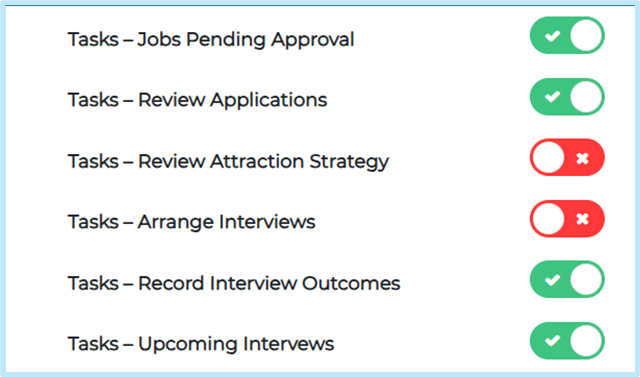
Superusers / System Admins can control which tasks appear for different security roles:
- Go to Settings > Security Roles > My Workspace.
- Tick the task types each role should see.
- Save your changes.
If no task types are selected for a role, users in that role will not see any tasks.
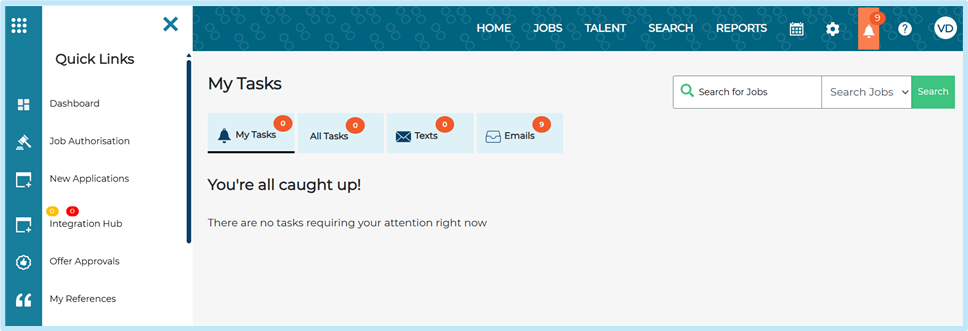
What if there are no tasks?
If there are no actions assigned to you, the page will confirm that everything’s up to date. You won’t see a blank screen.
View texts and emails
Select the Texts or Emails tab at the top to view recent activity:
- Texts – SMS message replies from candidates
- Emails – Any emails received in your system inbox
These work the same way they did in the old notification panel.
FAQs
Can I dismiss a task?
No - tasks disappear automatically when the action is completed or no longer relevant.
Why don’t I see any tasks?
Check that:
- You have access to a relevant job or candidate
- Your role has permission to see that task type
- The condition for the task has been triggered (e.g. status change or time delay)
What’s the difference between My Tasks and All Tasks?
- My Tasks shows actions for jobs you're assigned to.
- All Tasks includes everything you can view — even if you’re not listed in Job Access.
Use My Tasks for focus, and All Tasks for broader visibility.
Can I view someone else’s task list?
No. My Tasks only shows actions assigned to your login.