
No recent searches
Popular Articles

Sorry! nothing found for
Offer approval user guide
Modified on Fri, 7 Jan, 2022 at 3:15 PM
Jobtrain automates your offer approval processes to ensure all offers are approved as efficiently and accurately as possible. The process is automated, and all activity is logged and easily tracked within Jobtrain.
This guide includes information on:
- Creating system users
- Creating approvers
- Creating approval templates
- Completing the New Starter Form
- Starting the offer approval email process
- Tracking the progress of offer approval
- Approving offers in Jobtrain
- Example offer approval email content
Creating system users
An approver must already have a system user account to be able to approve roles – read our guide on System Users as a reminder of how to add them.
Creating approvers
To set users up to use the offer approval process, go to Settings > Authorisation Users > New User.
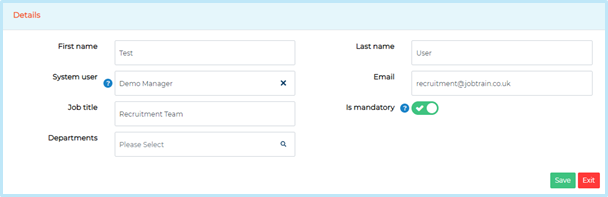
Complete the fields:
- First and Last Name: These fields are required to help find corresponding records. Try to use the same details used when creating the System User
- System user: Approval user profiles are linked to the corresponding System User by selecting the system user from this look-up field
- Job title and Email: These fields are always required
- Is mandatory: This should always be toggled on if the user is to approve vacancies
- Department: This is not a required field but can be useful when creating approval templates by department
Once all relevant details are entered, press Save.
Add all users who need to be included in approval templates.
Creating approval templates
Click on Settings > Authorisation Templates > New Template and add an email subject and content in the email body.
Select Offer Approval from the Template Type and choose the appropriate candidate statuses in the drop downs that appear:
- Offer Status: The candidate will automatically be changed to this status when the offer approval process is triggered
- Offer Approved Status: The status a candidate is at after all approvers have approved the offer
- Offer Declined Status: If any approver declines the offer, the candidate will be set to this status
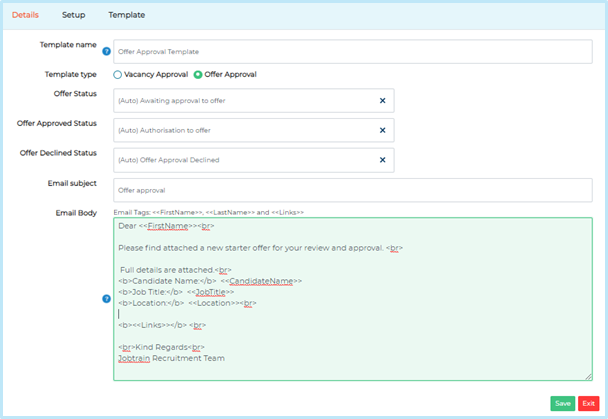
When all the content is complete, press Save.
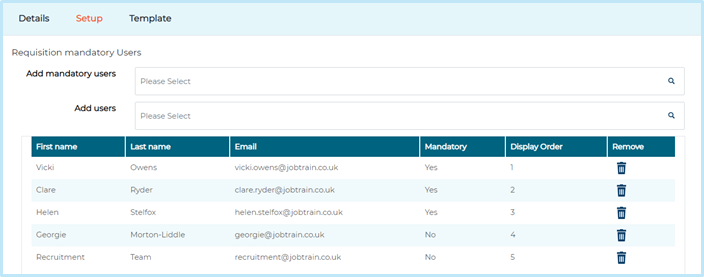
Select the Setup tab and add all required approvers to the template by clicking Add mandatory users and selecting from the available options. Once added, press Save.
Completing the New Starter Form
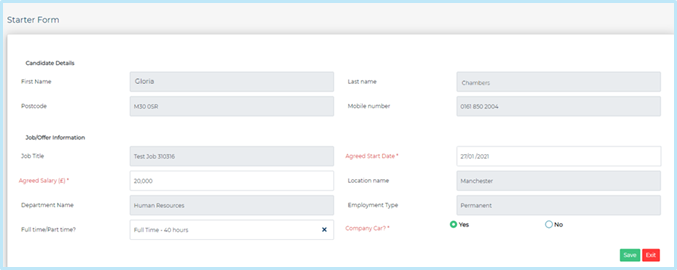
Check the box against the candidate you wish to make an offer. Then in the left-hand menu select Make Offer and then Starter Form.
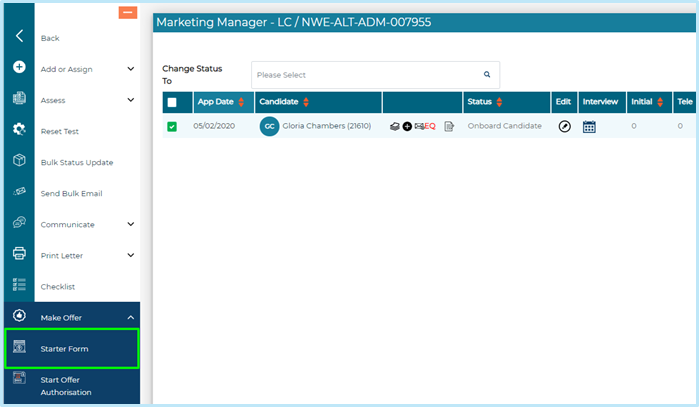
Once you have completed all the information, select Save at the bottom of the page. You can part-complete the form, save then return to update the rest of the form at a later time.
Starting the offer approval email process
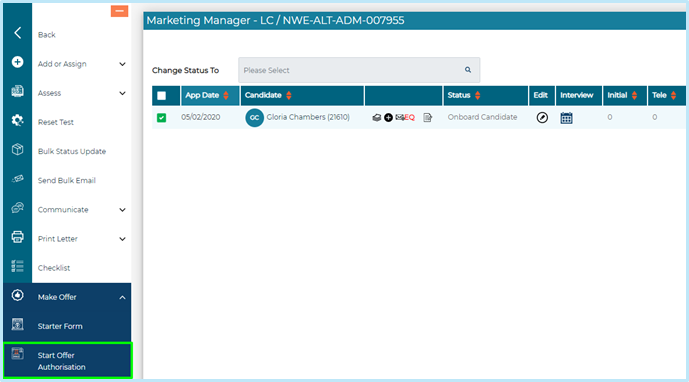
From the candidate listing page, select the candidate(s) you wish to make an offer to and select Start Offer Authorisation in the left-hand menu.
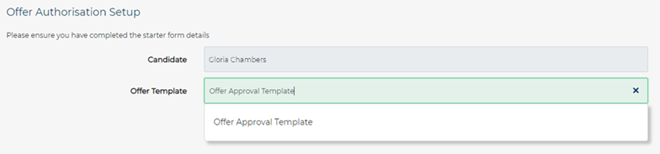
In the pop-up that opens, select the relevant approval template from the drop down and select Save & Continue.
The candidate status will automatically update to the status that was selected in the Offer Status box when creating the offer approval template.
An email with a copy of the new starter form attached will be sent to the first approver in the approval template. When they click approve on the email and save, an email is generated to the next approver, and so on until all approvers have approved the role.
The candidate status will then automatically update to the status you selected in the Offer Approved Status field when creating the offer approval template and an email will be sent to the user who started the approval process to confirm the offer has been approved.
If an approver rejects a candidate’s offer, the candidate's status will automatically update to the status selected in the Offer Declined Status and an email will be sent to the user who started the approval process to advise that the offer has been declined.
Tracking the progress of offer approval
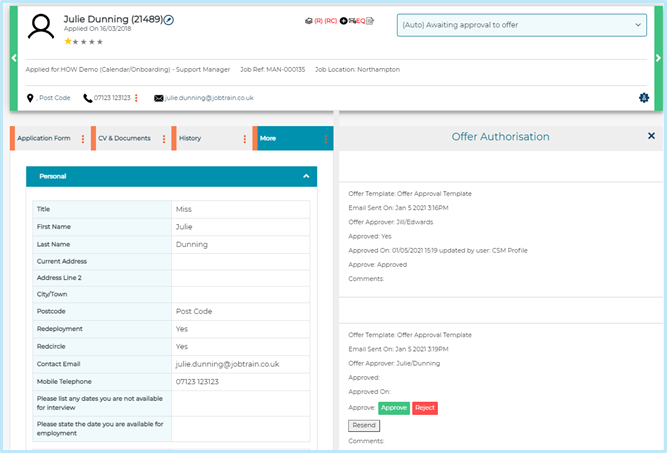
Go to the candidate’s record. The offer authorisation tab will be available in the More tab. Here you will be able to see which approvers have already approved the offer, along with the date, the time, and any comments. You can also see which approver the offer is currently with and, if necessary, resend the email.
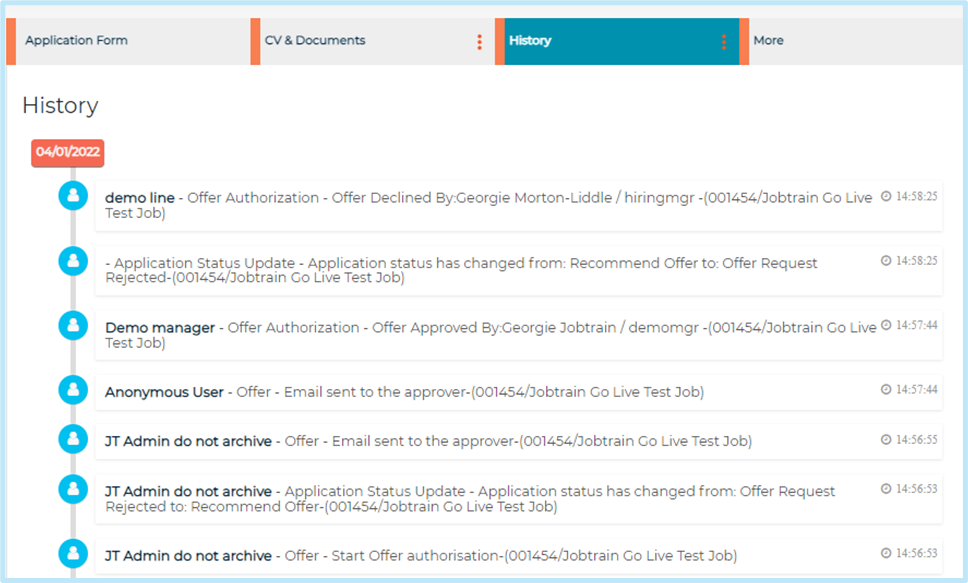
You can also track the progress of offer authorisation in the candidate's history. You will be able to see the following:
- When the offer authorisation process was started
- When the offer authorisation emails were sent
- Whether an authorisation user has approved or declined the offer including the name of the authorisation user
Approving offers in Jobtrain
Jobtrain allows certain users to approve offers on behalf of another approver. This functionality can be useful for HR/Recruitment teams when an approver isn’t available to approve a candidate’s offer that needs to be made live quickly, or if an approver is absent and has an approval sat with them.
Visit the candidate’s record that needs to be approved and under the More tab select Offer Authorisation.
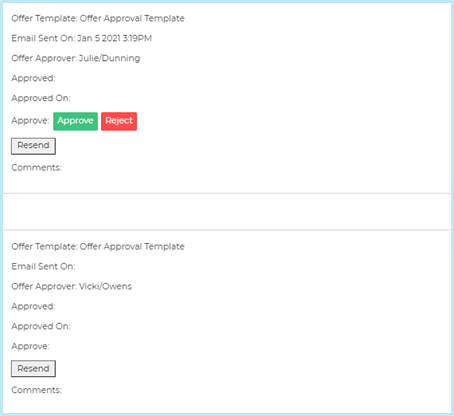
You will see two options in the Approve column against each approver – Approve or Reject. By clicking Approve, Jobtrain will send an email to the next approver in the list.
If you have selected the wrong offer approval template when starting the offer authorisation process, don’t worry you can simply start the process again.
Example offer approval email content
Dear <<FirstName>> Please find attached a new starter offer for your review and approval. Full details are attached. <<Links>> Kind Regards The Recruitment Team
Attachments (1)
Offer Approval Client User Guide Jan 22.pdf
535 KB
Was this article helpful?
That’s Great!
Thank you for your feedback
Sorry! We couldn't be helpful
Thank you for your feedback
Let us know how can we improve this article!
Feedback sent
We appreciate your effort and will try to fix the article
X