
I want to:
- Invite candidates to complete Right to Work (RTW) and/or DBS checks using TrustID.
- Review the progress of TrustID Right to Work or DBS checks
Before you begin
Supported check providers:
You can use TrustID, Yoti or First Advantage to run Right to Work (RTW) and DBS checks within Jobtrain.
This guide covers the process for TrustID. For other providers, see:
TrustID setup and activation
TrustID must be enabled in your system. Contact our support team to request activation.
Invite candidates to RTW and/or DBS check
1. Go to the job > select one or more candidates.
2. Go to Employment Checks in the left-hand actions menu.
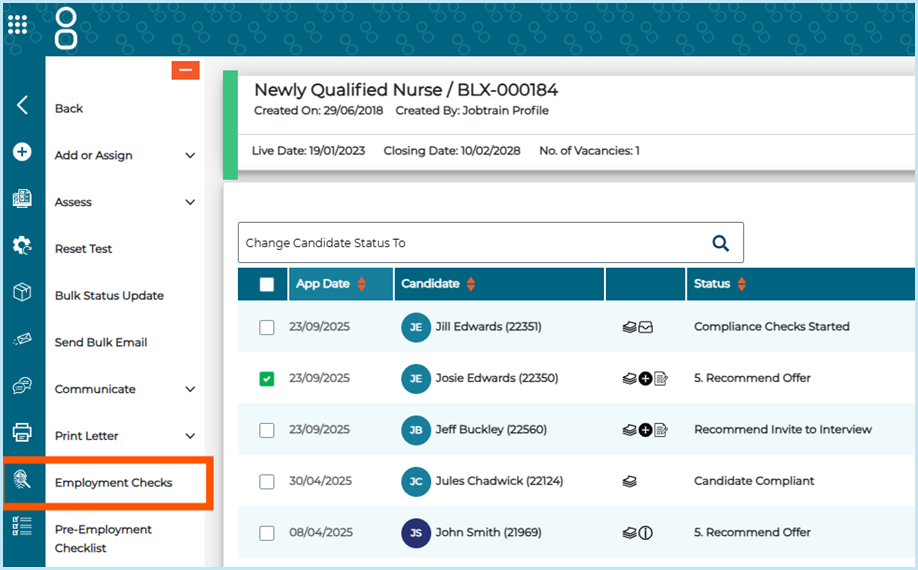
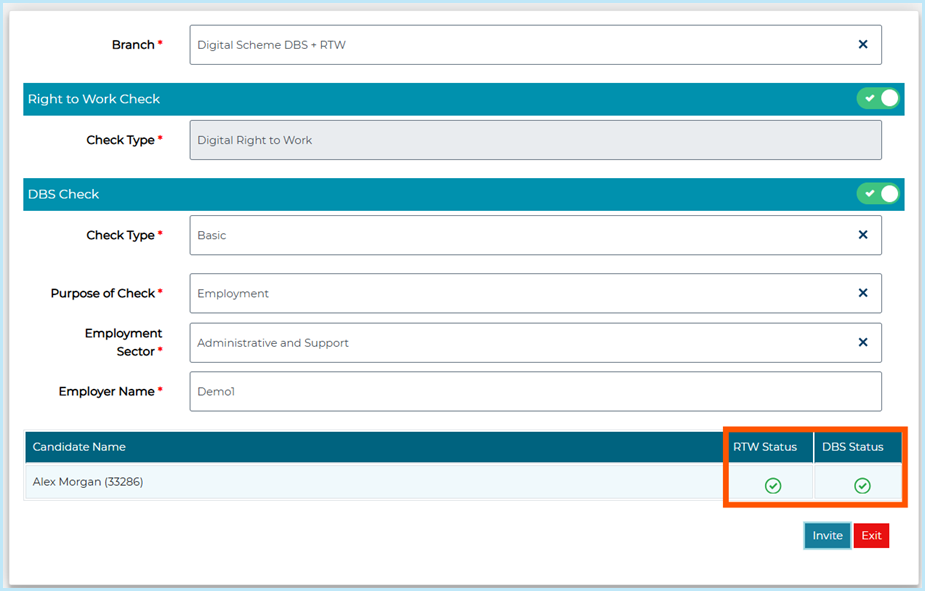
3. In the Start Employment Checks page, choose a TrustID branch from the dropdown.
Read about branches here: Branches and TrustID check types
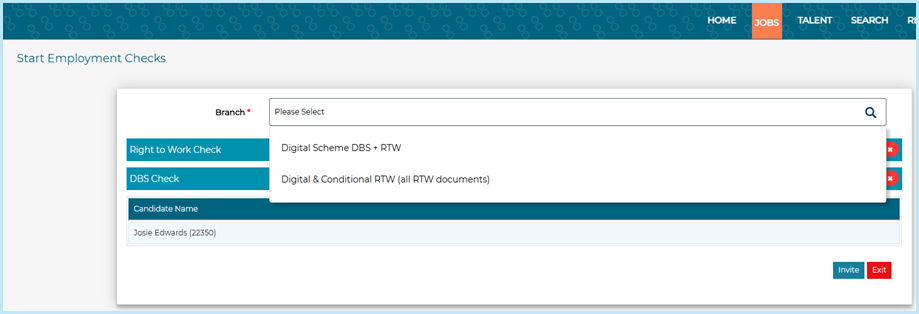
4. Toggle on which checks to start:
- Right-to-Work Check
and / or
- DBS Check
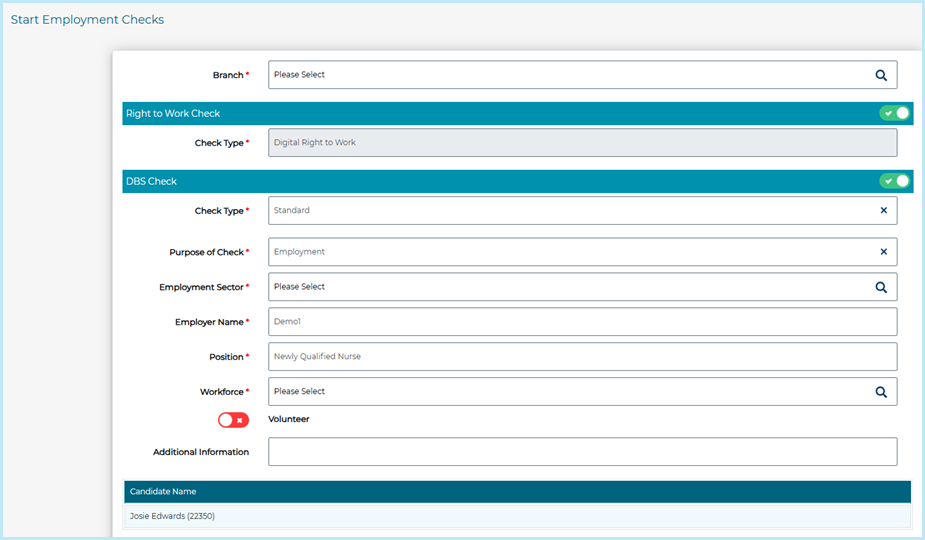
5. For DBS checks, complete:
- Check type: Basic, Standard, or Enhanced
- Purpose of check: e.g. Employment (default)
- Employer name and position (pre-filled, can be edited)
- Workforce type and optional fields (depending on check level)
6. Select Invite to send the check(s).
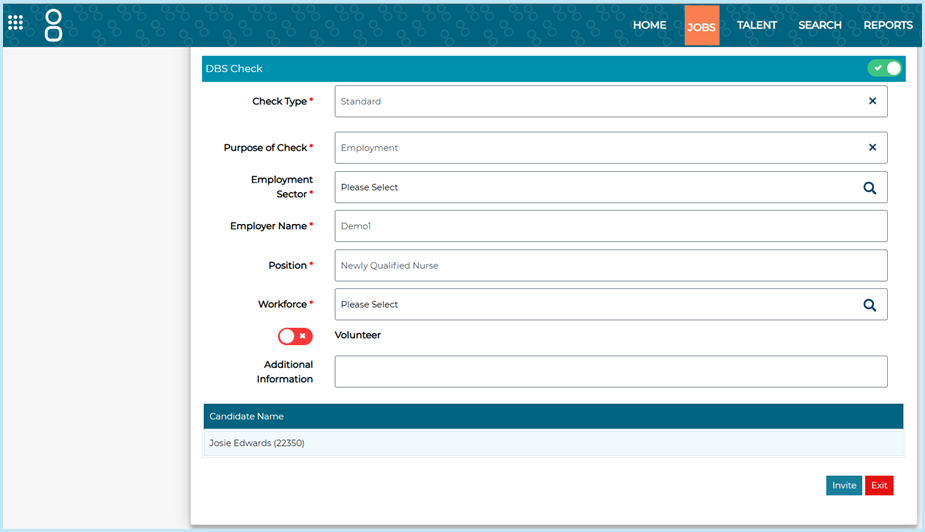
- You’ll see a green tick icon next to the candidate’s name once the check is successfully started.
- The application status will automatically update to Identity Check Requested or equivalent, as configured in Settings > System Customisation.
- TrustID will email the candidate with instructions on how to complete the checks.
DBS and identity check requirements
⚠️ When you select a DBS check, the identity check is always included. You cannot run a DBS check without first verifying the candidate’s identity.
⚠️ The DBS check will only begin once the identity check has passed.
If the identity check fails or needs manual verification, the DBS check will remain in a pending state until it’s resolved.
You'll see this clearly in the Check Progress panel and the Onboarding Hub, where the DBS column will show a pending icon until the identity stage is complete.
About TrustID branches and check types
When you start employment checks, you’ll be asked to choose a TrustID branch.
Branches are used to separate different types of check or employing entities. For example:
- Some organisations have a single branch for all checks.
- Others might use separate branches for different subsidiary companies or to separate Right to Work only checks from Right to Work + DBS checks.
The branch you select is passed to TrustID when the check starts and ensures the results are returned correctly.
Note: Branches are set up in Jobtrain by your system administrator during configuration. Recruiters will normally just need to select the correct branch from the dropdown when starting a check.
Types of Right to Work (RTW) check in TrustID
When starting checks, you may see different branch options depending on how your organisation is configured:
Digital RTW + DBS
A fully digital Right to Work and/or DBS check is carried out.
- If the identity check passes, the DBS check (Basic, Standard or Enhanced) can begin straight away.
- Both checks are linked together in the same branch, so you only need to invite the candidate once.
Digital to Conditional RTW
TrustID first attempts a fully digital Right to Work check.
- If the digital check succeeds, the process ends and the Right to Work verification is complete.
- If the digital check cannot be confirmed, TrustID automatically falls back to a conditional check. This means a TrustID operator will review the candidate’s original documents.
- This fallback reduces the chance of a failed RTW check by giving candidates a second opportunity for verification.
Note: If a Right to Work check is completed using the conditional route, a DBS check cannot be submitted digitally via TrustID. In this scenario, a manual DBS application must be made outside of Jobtrain.
The candidate experience
Video: Right to work & enhanced DBS candidate journey
Video: Digital to conditional right to work candidate journey
Track progress of RTW and DBS checks
Where to track
- The candidate’s record
- The Onboarding Hub > Employment Checks area
Candidate’s record
A progress sidebar will appear against the candidate’s record when checks are active:
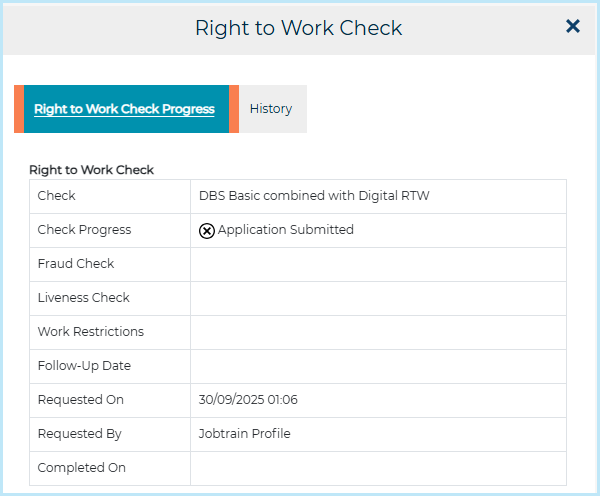
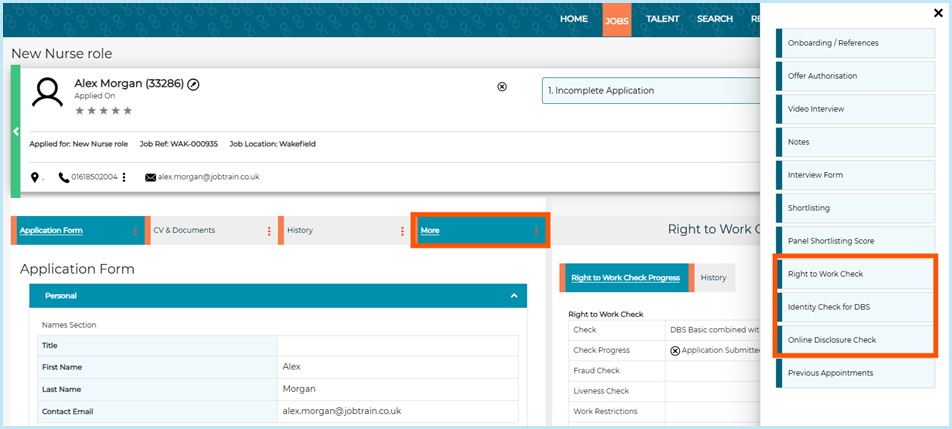
- This sidebar opens automatically when you select the candidate’s name if checks are in progress. You can also open it manually by selecting the three dots menu in the candidate’s record.
- Using the More menu also shows options to view Right to Work Check, Identity Check for DBS, or Online Disclosure Check, depending on which checks were started.
Onboarding Hub
Use the Onboarding Hub for a quick overview of which checks are in progress or completed against multiple candidates.
- The Employment Checks tab in the Onboarding Hub displays the Employment Check progress for each candidate:
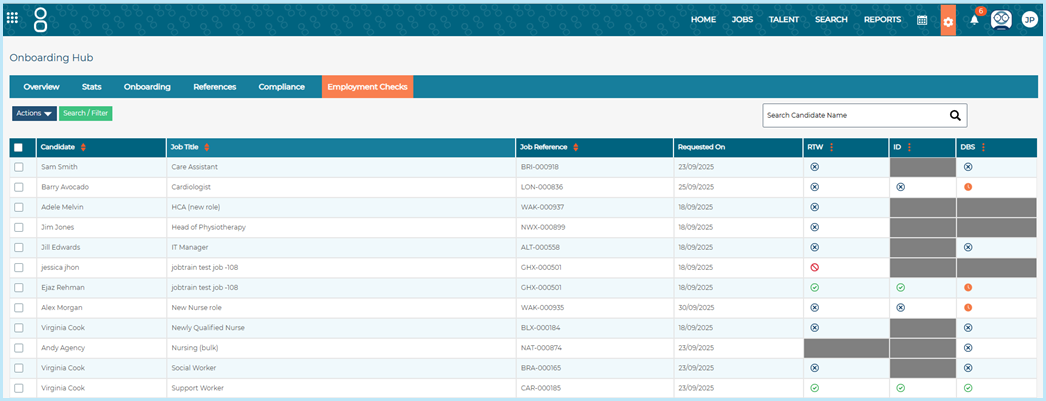
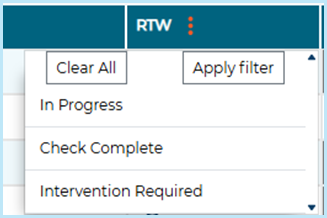
- You can filter using the three-dots on the RTW, ID Check and DBS columns to review employment checks by status.
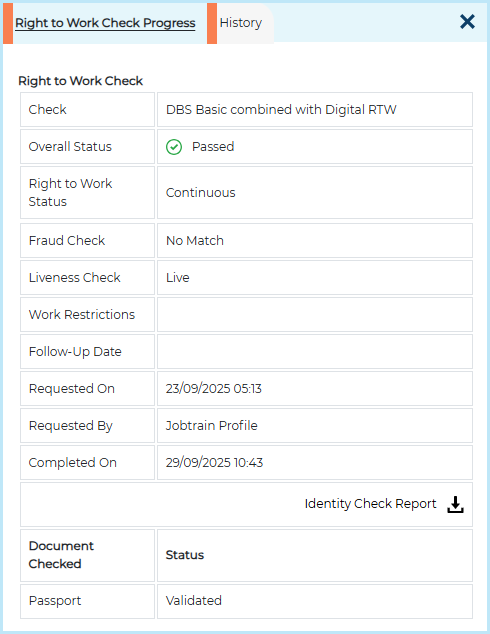
- Selecting the status icon in the Onboarding Hub displays the relevant Employment Check Progress sidebar.
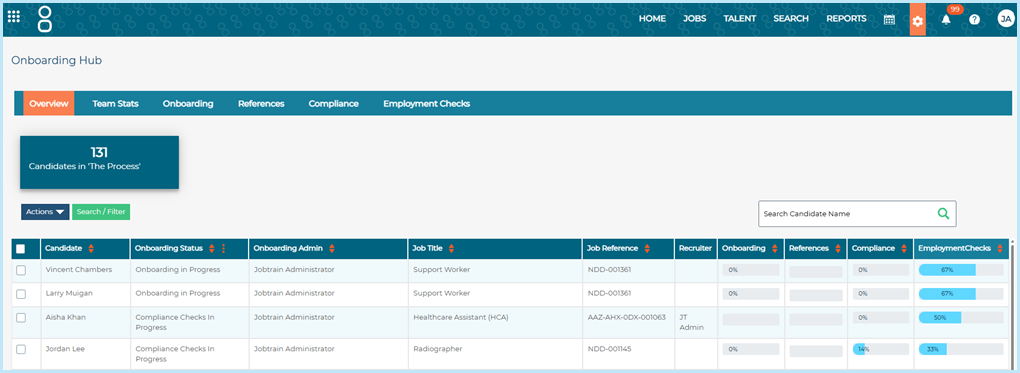
When onboarding or compliance is started for a candidate, the Employment Checks column on the Overview tab shows a progress percentage.
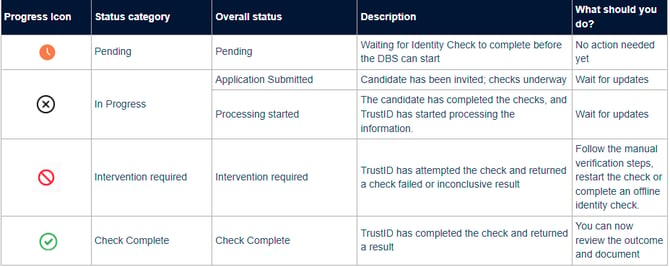
Understanding employment check statuses
- The employment check Overall Status and associated progress icon show how far the candidate has progressed through the TrustID employment check.
These appear in:
- The candidate record > Progress sidebar
- The Onboarding Hub > Employment Checks tab
Understanding application status updates and email notifications
When you start Right-to-Work (RTW) or DBS checks using TrustID, Jobtrain will automatically update the application status and send system notifications based on progress and results.
Understanding application status updates and email notifications
When you start Right-to-Work (RTW) or DBS checks using TrustID, Jobtrain will automatically update the application status and send system notifications based on progress and results.

When application statuses are updated
Application statuses update automatically at key points in the TrustID workflow, as follows:
| Event | Application Status update |
| RTW or DBS check started | Identity Check Requested |
| RTW or ID check passed | Identity Check Completed |
| DBS check initiated (after identity passes) | Disclosure Check Requested |
| DBS check completed | Disclosure Check Completed |
| Identity check fails or is inconclusive | Intervention Required |
These statuses are controlled in System Customisation > Integration Statuses.

You can customise labels and automate further actions (like forward emails) from Settings.
Note:
- If you start both RTW and DBS checks together, once the identity check passes the DBS check will begin automatically. In this case the system may skip the Identity Check Completed status and move straight to Disclosure Check Requested.
- If an identity check fails, the application status will stay as Intervention Required until you either restart the check or complete the manual intervention. Completing the manual intervention will then trigger the Disclosure Check Requested status so the DBS check can proceed.
When emails are sent
System emails will automatically be sent to the user who initiated the check when action is needed.
| Trigger | Email Sent |
| Identity check fails or needs intervention | Intervention Required email |
All emails will be logged in the Sent Emails tab of the candidate’s record for auditing.
This email is managed in System Customisation > Emails > Identity Check Emails.

System Alert notifications
To configure additional system alert notifications throughout the employment check process, this can be configured using either our Forward Email or System Alert functionality.
Expiry and timeout rules
- Identity Check guest links expire after 14 days of no candidate activity.
- If expired, TrustID deletes the guest link and in Jobtrain, users must cancel and restart the check.
- DBS checks do not expire once documents have been submitted because the check is owned by DBS.
View the results of a TrustID check
Once a check is completed, the system will automatically:
- Update the Check status in the progress sidebar.
- Show the outcome, including any Right to Work restrictions or notes provided by TrustID.
- Display the document type used for the check (e.g. Passport, ID Card).
- Store a PDF report for Right to Work and Identity checks - available to download from the progress menu (note: DBS checks do not include a PDF report).
- Update the application status to Identity Check Complete or DBS Check Complete, based on your configuration in Settings > System Customisation.
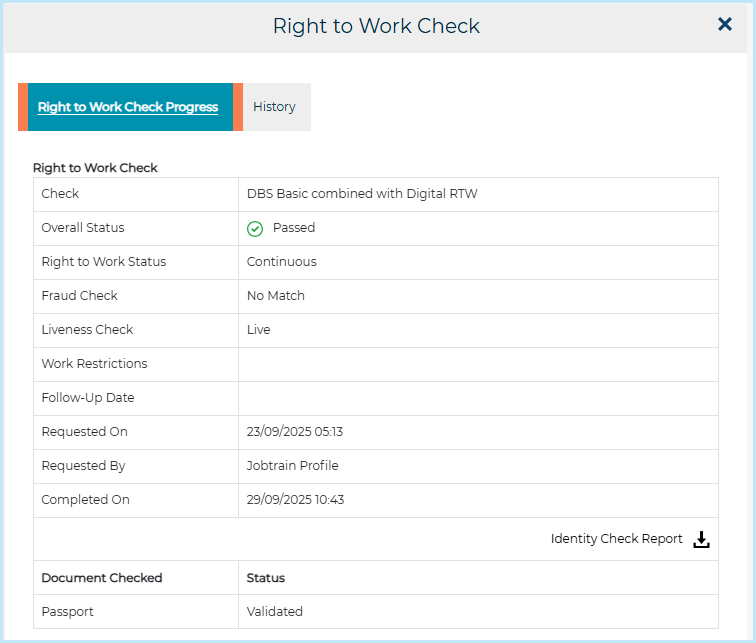
If you started both RTW and DBS Checks for a candidate and the RTW is returned as Passed, the DBS check will commence automatically.
To resolve any issues with a failed or inconclusive identity check, see Trust ID - Interpreting results and resolving failed checks .
View the progress of a DBS check
After a candidate (or user following the Manual Identity Verification process) submits their documents, the DBS check begins processing. The status in the system will update automatically as it progresses. To view the status:
- Go to the candidate’s record.
- Select Compliance > Online Disclosure Progress
- The current status will display. While processing, it will show: In Progress (Awaiting DBS Check Completion)
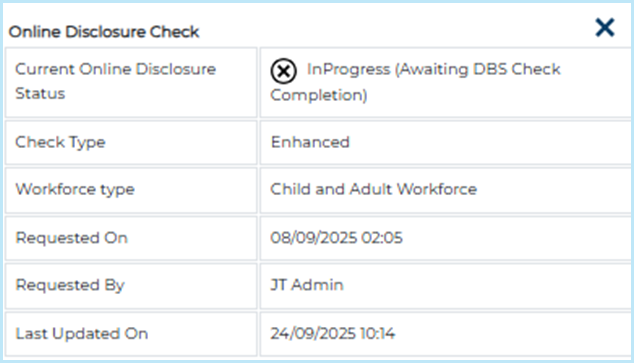
Once the check is complete, the result will be returned and the status will update.
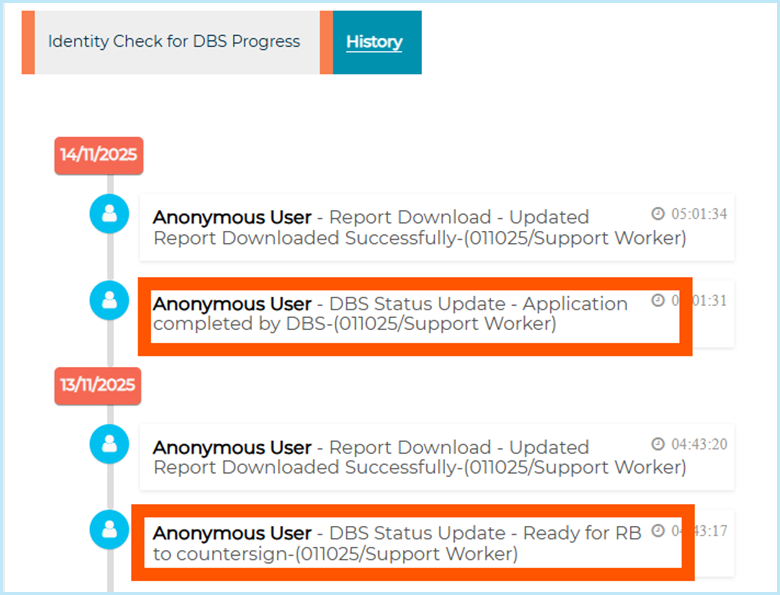
Find DBS history
Every DBS status update is recorded in the History section of both:
- Identity Check for DBS Progress
- Online Disclosure Progress
This provides a full audit trail of the check's progress.
Unlike identity checks, where the guest link expires if the candidate does not upload their documents within 14 days, DBS checks do not expire once the candidate has submitted their documents.
After submission, the DBS check continues to progress until the Disclosure and Barring Service returns a result.
No action is needed during the “In Progress” stage - just monitor the system for the final result.
View DBS check results
Once a check is completed, the system will automatically:
- Update the check status in the progress sidebar.
- Show the DBS Outcome, including Certificate Number, Issued Date and DBS Customer Reference.
- Update the candidate’s application status to Online Disclosure Complete, or equivalent, as configured in Settings > System Customisation.
- Send any notification emails that you have connected to the Online Disclosure Complete application status.
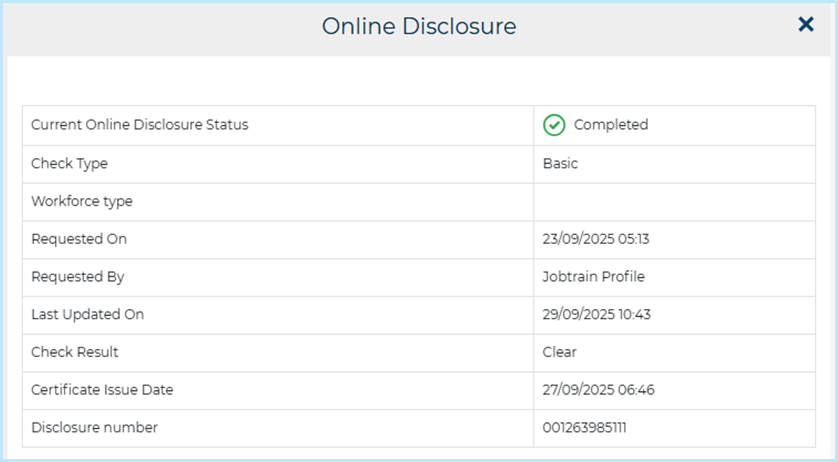
DBS never provides digital certificates (unlike RTW and identity checks) – so there is no PDF report to display. Only the candidate receives a paper certificate.
FAQs
Starting and sending checks
Can I run a DBS check without a Right to Work check?
Yes, you can request a DBS check only - but it still includes an identity verification stage.
If the identity check fails, the DBS check won’t begin until manual verification is completed.
Why does the application status update to “Identity Check Requested” when I’ve only started a DBS check?
All DBS checks start with an identity verification. This is the first stage of the process.
Once the identity check passes, the DBS check begins automatically.
Can I invite the same candidate to complete checks for different jobs?
Yes. If the candidate is applying for multiple jobs, you can request separate checks for each one.
This is helpful if different roles require different vetting processes.
Can I cancel a TrustID check after it’s started?
Yes, checks can be cancelled if candidates have not yet completed their actions.
Why can’t I restart employment checks?
You can’t restart checks if there is already a pending or in-progress check for the same job.
In this scenario, you must cancel the outstanding check before restarting or requesting a new one.
How do I resend a TrustID invite?
To restart or cancel checks, see Trust ID - Interpreting results and resolving failed checks.
Tip: Make sure the candidate’s email is correct and also ask them to check their spam/junk folder.
What to do if there is an error in the candidate details after submitting a DBS check ?
If caught immediately (before DBS processing progresses):
- Log into TrustID directly (if you have access) and amend the record, or
- Contact TrustID Customer Service straight away and ask them to update it
If the check has already started:
- Contact TrustID support immediately and request a withdrawal/cancellation
- You may need to resubmit a new check
- Charges will usually still apply once initiated
Some name formatting differences can occur due to passport/government data standards. If the legal identity is verified and the check passes digital identity validation, the DBS remains valid.
Only amend if:
- The legal name is genuinely wrong
- Spelling is incorrect
- Key identity data is inaccurate
Tracking progress and delays
What if the candidate doesn’t complete the check?
The check will remain in a pending state.
You can restart it after the original attempt expires or is cancelled. You might need to contact the candidate to remind them or check their details.
To restart or cancel checks, see Trust ID - Interpreting results and resolving failed checks.
How long does it take to get TrustID results?
Most checks are completed within 1–3 working days.
Delays can occur if the candidate doesn’t respond or if manual verification is required.
Who receives email updates about employment checks?
The user who started the check receives system emails (e.g. for failed identity verification). Additional alerts can be configured in System Alerts or Forward Emails in the Settings area
Manual identity checks and issues
Why can’t I complete a manual identity check?
You’ll only see the Complete Manual Identity Verification option if the digital identity check fails or returns an Intervention Required status.
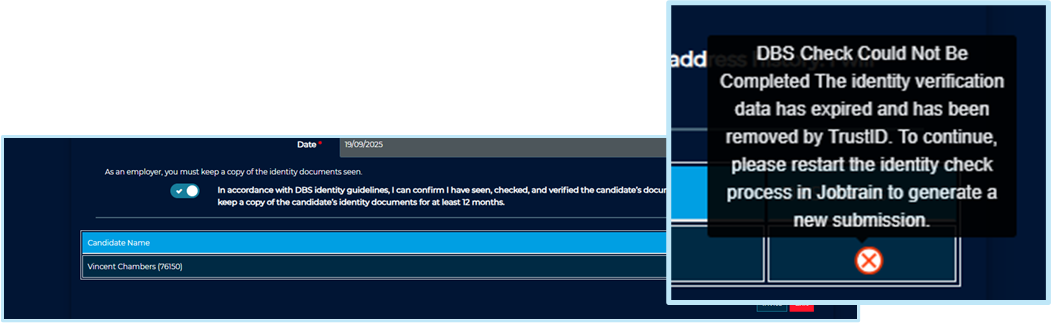
I’m trying to complete a manual identity check, but I see the error “identity check verification data has expired”
This means the candidate’s ID data has expired in TrustID (usually after 30 days).
You’ll need to restart the identity check to capture new verification data.
What does it mean if the Names Verification fails?
When a candidate’s identity check is returned from TrustID, in Jobtrain a summary of the individual verification results is displayed - including Names Verification.
If the Names Verification result shows as Failed, this usually means that the details provided didn’t exactly match the information extracted from the candidate’s documents.
Common examples include:
- Slight name differences (e.g. Jon vs Jonathan, Meera vs. Mira)
- Use of middle names or initials in one version but not the other
- Minor formatting or spacing differences
This doesn’t necessarily mean the candidate’s identity is incorrect or fraudulent - it simply means the digital check couldn’t automatically confirm an exact match and therefore didn’t reach the confidence level required for an automatic pass.
What should I do if Names Verification fails?
If all other checks (such as document authenticity and liveness) passed and the TrustID report only flags minor name differences or an address verification issue, you can continue the process by completing the Manual Identity Verification step.
Viewing results and documents
Can candidates see the employment check results?
Not in Jobtrain.
For DBS checks, the candidate receives a paper certificate by post from the Disclosure and Barring Service. TrustID does not provide results to the candidate digitally.
Are TrustID comments or outcomes visible to candidates?
No, TrustID results are only visible to internal users.
However, the information may be disclosed if the candidate submits a Subject Access Request (SAR).
Can I view the candidate’s uploaded ID documents?
Jobtrain does not store uploaded documents.
For Right to Work or identity checks, a PDF summary is available via TrustID and may include excerpts. DBS checks do not include a preview or downloadable report.