
What's included in this guide:
- What is Job Status Automation?
- What determines when a job status will change?
- Designing the workflow
- Limitations and best practice
What is Job Status Automation?
Job Status Automation automatically updates the Job Status of a vacancy when the configured automation criteria are met—specifically, when candidates’ application statuses align with the rules you set.
The job status then advances automatically to reflect the correct stage of the recruitment process.
Watch our video walking through Job Status Automation.
Positive statuses
Indicate that candidates are still progressing through the recruitment process. e.g. Application Received, Invited to Interview, Offer Made.
Each stage of your recruitment process will have positive application statuses associated with that stage, and these application statuses are then used to indicate that the job has reached that particular job status.
For example, if all applicants are at invited to interview, or interview booked statuses, this would indicate that the job status has reached Interview stage.
There can be multiple positive statuses per stage throughout the process and you can add any statuses here that fit your process.
Negative statuses
Indicate that candidates are no longer in contention for the job. E.g. Rejected, Withdrawn, Unsuccessful after Interview. Negative statuses are ignored when calculating whether a job can advance to the next Job Status.
Important: Incomplete applications always count as Negative statuses.
What determines when a job status will change?
A job will only move from the stage it is at when it meets certain requirements.
A job advances only when every application is either:
-
At a negative status or
-
At a positive status that belongs to the current stage or any later stage.
If one or more candidates are still on the default “Acknowledged” status (set in System Customisation → Application Statuses), the job remains where it is.
Designing the workflow
Open General Settings → Job Status Automation.
1. Automation Stages:
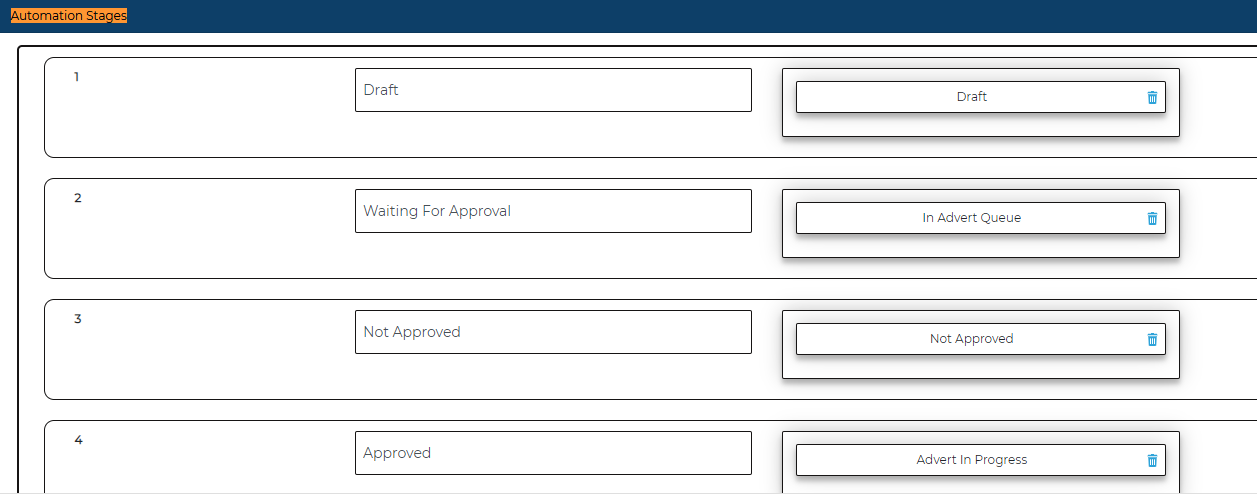
Here, build your end-to-end job workflow.
Default
There are six fixed stages that will be there for every job:
- Not submitted for approval
- Waiting for approval
- Not approved
- Approved
- Live Advert
- Shortlisting
Custom
Add as many stages as you need (limited only by the number of job statuses). Re-order them with drag-and-drop. Custom stages can be inserted anywhere between Shortlisting and Complete.
Complete
The Complete job status will indicate the end of the workflow. This is typically where applications will be at a status of Hired or Started.
Each stage requires one unique Job Status. A Job Status can belong to only one stage at a time.
To configure your Job Status Automation workflow, drag one or more positive candidate statuses from the top container into each stage. The job moves into that stage when all applications are either at the positive statuses assigned to that stage or at a negative status.
System note: If configured correctly, when a vacancy reaches its closing date or you manually toggle Live off, the system automatically sets the job to stage 6 (Shortlisting).
2. Negative Statuses
-
Drag any candidate status you regard as “terminal” (rejected, withdrawn, etc.) into the Negative Statuses box.
-
Candidates at these statuses are not counted when the system decides whether a job can progress.
-
You can update this list at any time, but changes affect all open jobs that rely on the automation workflow.

3. Notifications
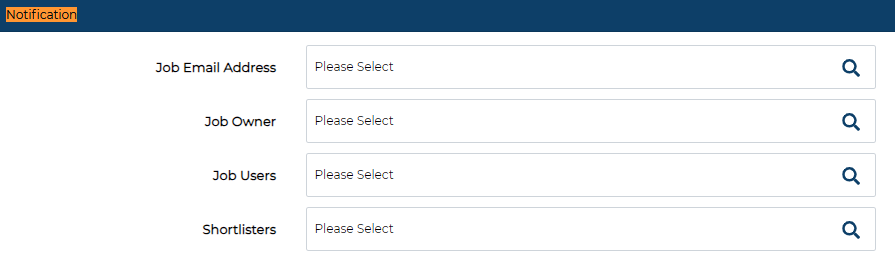
Notification emails trigger when a job updates into a new job status - they are sent only for Custom and Complete stage changes (the Default stages have their own email triggers elsewhere). For each eligible stage, toggle any combination of:
-
Job Email Address – the “candidate reply‑to” email in Job Details
-
Job Owner – the user who created the vacancy
-
Job Users – anyone listed under Job Access
-
Shortlisters – panel members added during Add a Job
Attach an email template to every user type you intend to notify.
Skipped stages: If automation jumps over several stages at once, only the final stage in that jump sends notifications.

Limitations and best practice
- Only one Job Status Automation workflow can be active at a time.
- Ensure the workflow is fully configured—including negative statuses and notification rules— Incomplete setup may stop the automation from running correctly.
- Give every stage a clear name.
-
Make sure every candidate status appears once—either as a positive status inside a stage or in the Negative Statuses area—never both.
-
Always test new workflows in your Test/sandbox environment before using them in Live/production.