
I want to:
- Understand what Indeed Apply is and what it does for my organisation
- Set it up, including the application form candidates complete
- Advertise a role using Indeed Direct Apply
- View and manage the applications I receive
- Report on applications and manage status sharing with Indeed
What is Indeed Apply?
Indeed Apply lets candidates apply for a job from within Indeed, without leaving Indeed to complete an application on your Jobtrain vacancies site. Their CV and application details from their Indeed profile transfer automatically into Jobtrain as a submitted application.
Benefits include:
- Less drop-off from candidates, since Direct Apply carries their basic details across automatically rather than asking them to register on a separate site
- More applications for roles advertised on Indeed
- Better application conversion. One Jobtrain client saw a 19% increase within 3 days of switching on Direct Apply
Your jobs are included in the wider Indeed network when advertised this way, not only indeed.com. This includes other Indeed-owned sites such as SimplyHired and Glassdoor.
Once Indeed Direct Apply is switched on, it applies to every role posted through Jobtrain.
You cannot choose which vacancies use it and which do not.
Before you start
Check the following before requesting activation:
- Your job locations have the City and Postcode fields completed in Settings > General Settings
- You have a user with access to Security Roles to complete the setup below
- You're comfortable that Direct Apply will apply to all roles, not just some
Step 1: Request activation
Indeed Direct Apply is switched on for your organisation by our Implementation or Support team. Contact our Support Team to request activation of Direct Apply functionality before completing the steps below.
Step 2: Enable user access
- Go to Settings > Security Roles and open the relevant security role
- Go to the Settings tab
- Enable access to:
- Application Templates: Direct Apply Application Form

Step 3: System Customisation
To make sure candidates receive a confirmation email after applying:
- Go to Settings > System Customisation > Email
- Select Set Direct Apply Email
- Select the acknowledgement email template you want to use

Step 4: Build your Direct Apply application form
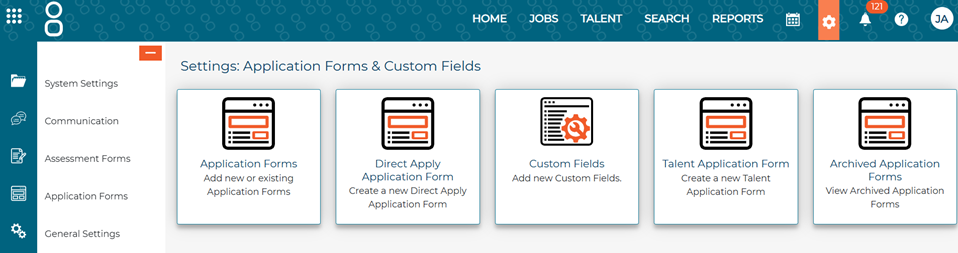
You can only have one Direct Apply application form across all of your job board routes. Go to Settings > Application Forms > Direct Apply Application Form to build it.
The form has several tabs. This guide covers the two every client uses, Application Form and Personal Details.
Good to know: Any Pre-Assessment or Assessment questions already set up on the job itself are automatically included as mandatory screening questions when that job is advertised through Indeed Direct Apply, there's nothing extra to set up.
Application Form tab
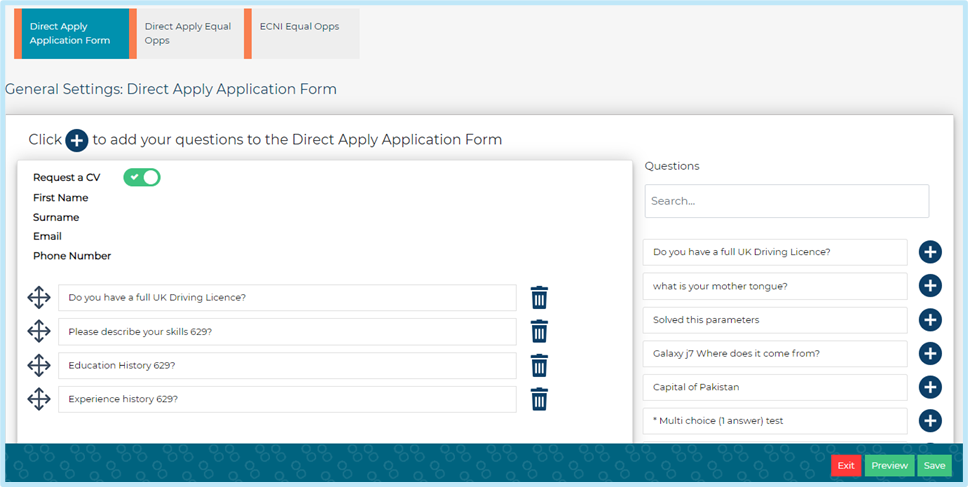
Use this tab to collect key candidate details and ask additional assessment questions.
The following details pull through automatically from the candidate's Indeed profile, you do not need to configure them:
- First name
- Surname
- Email address
- Phone number
You can also choose to include a CV upload option.
Adding questions from the Assessment Form Question Bank
- On the right-hand side of the form builder, review the list of compatible questions pulled from your Assessment Form Question Bank
- Select the + button beside a question, or drag and drop it into the application form area
Added questions appear on the left-hand side, this is what candidates see when completing the form. You can add up to 10 assessment questions.
Supported question types:
- Textbox
- Multi-choice (one answer)
- Multi-choice (multiple answers)
Use drag-and-drop to reorder questions, or select the bin icon to remove one.
To manage the underlying questions, go to Settings > Assessment Forms > Question Bank.
Buttons and actions
- Preview: view the candidate version of the form before making the job live
- Save: save your edits to the form
- Exit: leave the form without saving changes
Personal Details tab
Use this tab to enable standard fields that map automatically into offers, contracts and new starter forms. Toggle on any of the following as needed:
- Title
- National Insurance Number (Indeed does not validate this field)
- Address Line 1
- Address Line 2
- Town/City
- County
- Country
- Postcode
Advertising a role via Indeed Direct Apply
Once your job is live, it's added to the Indeed feed automatically.
- The job joins the Indeed feed as soon as it's made live
- Indeed refreshes the feed every 6 hours (4 times a day) to pick up new or updated jobs
- Your role appears on Indeed once it's been picked up in one of these refresh cycles, allow up to 6 hours from going live.
Indeed Direct Apply candidates always complete the Direct Apply application form, plus any of the pre-assessment or assessment questions set for that job.
Tip: If your job doesn’t appear on Indeed right away, allow up to 6 hours from the time it was made live.
The candidate experience
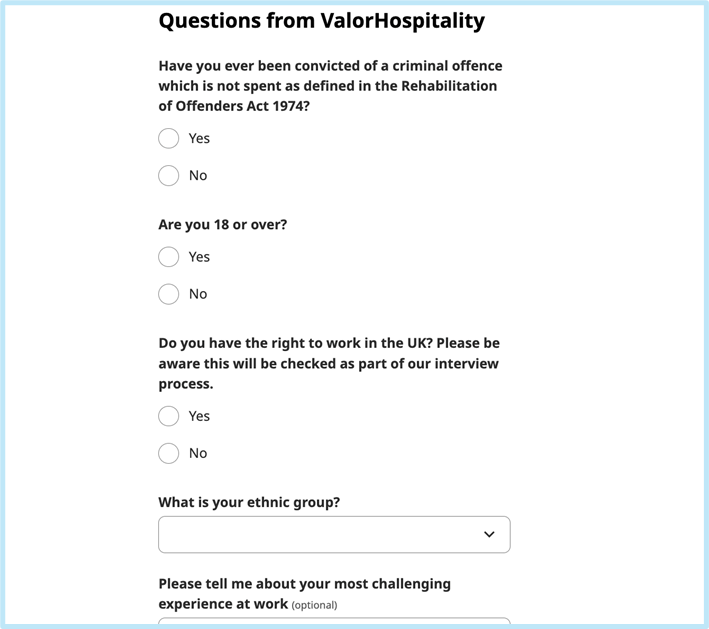
Candidates applying via Indeed Direct Apply see, in this order:
- Any Direct Apply Personal and Application questions you've set up
- Any job-specific Pre-Assessment (screening) questions
- Any Equal Opportunities questions you've configured
All Pre-Assessment and Equal Opportunities questions must use a Direct Apply-compatible question type (Text, Multi-choice, Date).
After a candidate submits:
- Their application is sent to Jobtrain automatically
- They receive the acknowledgement email you configured in step 3, with instructions on accessing their Jobtrain account
- If Indeed cannot send their data to us (for example the closing date has passed or their CV is not a compatible format), they're directed to the job advert on your vacancies site to apply there instead
Viewing candidates’ applications
Once a candidate has applied, find them in the list of candidates against the role and select their name to open their record.
Identifying Indeed Direct Apply candidates
An icon reading Applied via: (Indeed icon) appears on the candidate card and at the top of the application.

If a candidate is moved to a different role from the one they originally applied to, this label moves with them, even if the new role doesn't have Direct Apply enabled.
How will I know which candidates have applied using this method?
When viewing the candidates’ applications, there is icon on the candidate card and at the top of the application, which reads Applied via: (Indeed icon).
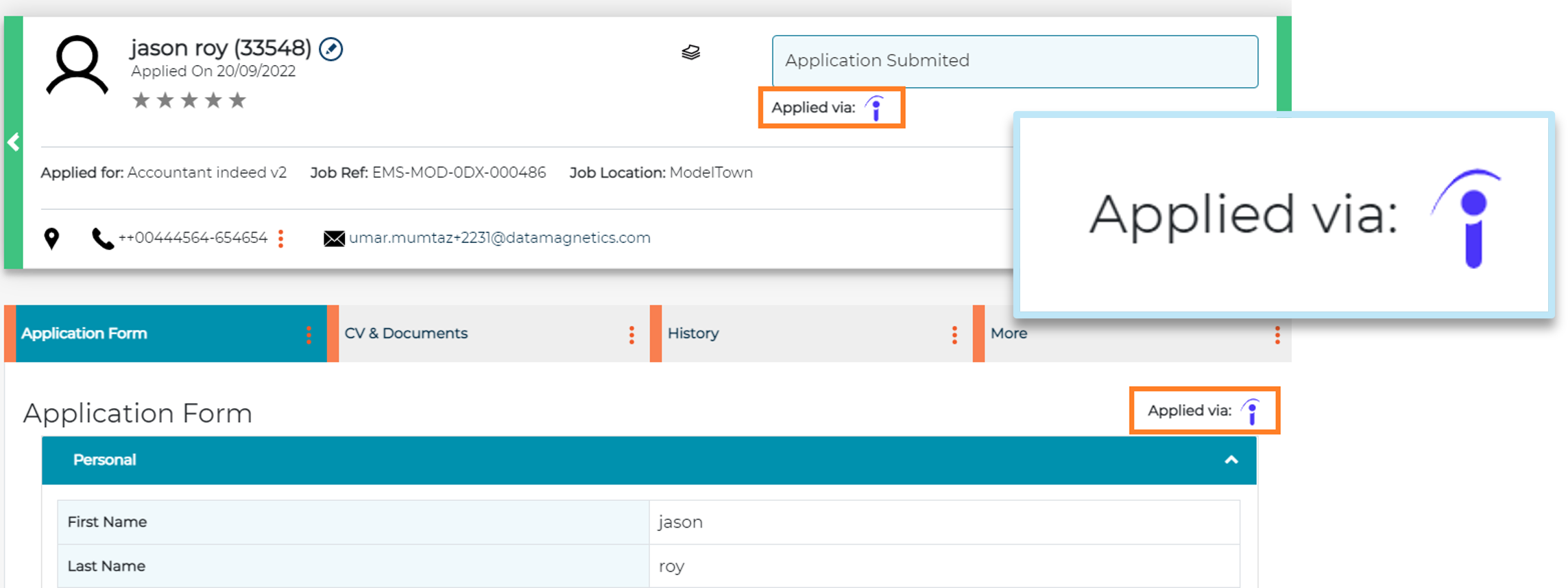
If a candidate is moved from a role where they originally applied via the Indeed Direct Apply method, please be aware that this information will be copied to the new role.
It will appear as though the candidate has applied directly using Direct Apply, even if the role does not have Direct Apply enabled.
Viewing application questions and the CV
- Any additional questions you added to the application form appear under the Application Form tab, in a section called Assessment Form A
- The CV appears under the CV & Documents tab
- If a CV was required, its content is parsed and can support any second stage of the process
Every candidate appears in the job's candidate list regardless of which apply method they used.
Viewing pre-assessment (screening) answers
- In the Application Form section, select the three dots menu
- Select Pre-Assessment Form
A green tick shows a correct answer, an orange cross shows an incorrect one, with the response highlighted in orange. Where a question allows multiple answers, each option is marked the same way, correct answers in green, incorrect in the candidate's selected colour.
If you've configured automatic pass/fail status updates and candidate emails, these are sent as soon as a Direct Apply application is received, based on whether the candidate passed or failed.
Viewing Application Questions & CV
- Any additional questions that have been added to the Indeed Direct Apply Application form will appear under the ‘Application Form’ tab section entitled Assessment Form A
- The CV is displayed under the ‘CV & Documents’ tab.
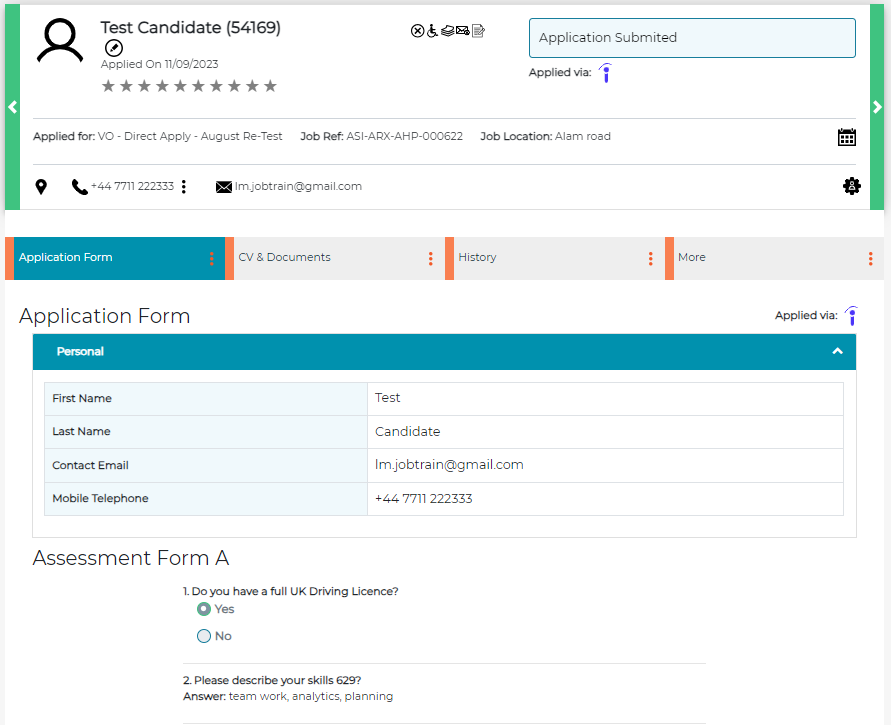
If a CV was required when setting up the application form, the information from the CV will be parsed, which can be used to assist the candidate if there is a 2nd stage process in the application journey.
No matter which apply method a candidate has used, they will appear in the list of candidates against the job advertised.
Viewing Pre-Assessment / Killer Questions
You can review the candidate responses to the pre-assessment / killer questions by selecting the three dots in the Application Form section and then selecting Pre-Assessment Form.
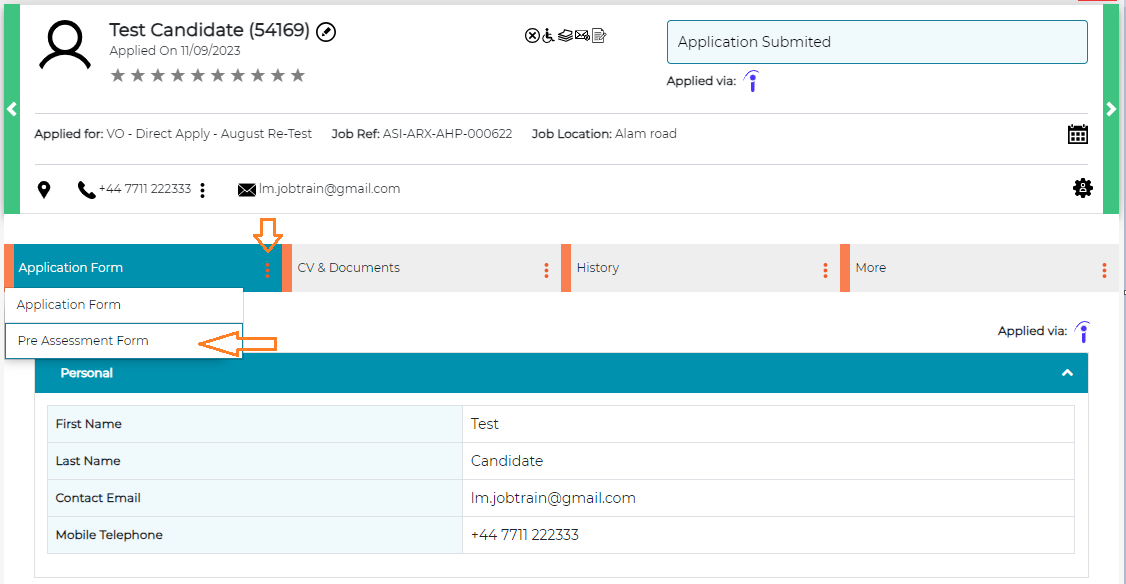
The green tick and orange cross icons indicate the candidates answer to the question:
- If a candidate answers correctly, you'll see a green tick (Q1 in the below image)
- If a candidate answers a question wrong, you'll see an orange cross, and the response will be highlighted in orange (Q2 in the below image)
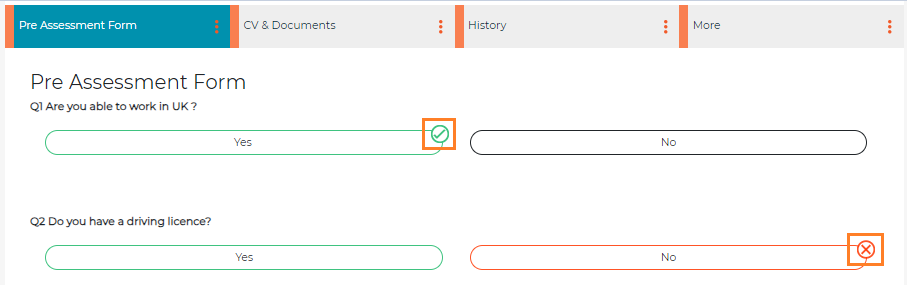
Please note: All correct answers in the pre-assessment/killer questions form will be shown in green. If there are multiple correct answers, they will all be highlighted in green as shown in the image below.

Multi-choice (More than one Answer) responses
If the question allows candidates to choose multiple answers, the responses will be shown in the same format:

In the example above the candidate has selected two options:
- GCSE which is incorrect
- A-Level which is correct
If configured, automatic Pass/Fail status updates and candidate emails will be sent upon receiving a Direct Apply application, depending on whether the candidates' have passed or failed.
Viewing Equal Opps Information
Candidate responses to the Equal Opps and ECNI Equal Opps questions will be saved against the 1st stage application form Equal Opps section.
Depending on System Configuration, this will be accessed within the ‘More’ menu, or the Application Form menu of the candidate’s application record as highlighted below:
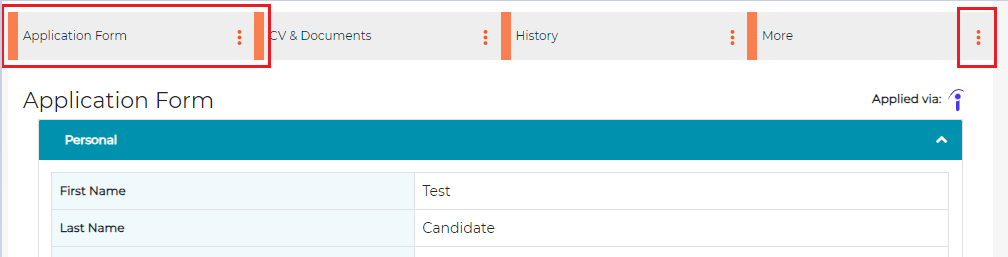
Existing security role controls will still apply, so only those users with access to view Equal Opps will be able to see the actual candidate responses.
If automatic Pass/Fail status updates and candidate emails have been configured within the Pre-Assessment settings of the job, then these will occur upon successful receipt of a Direct Apply application based on whether the candidates have passed or failed.
2nd Stage Applications
You can invite candidates who have applied via Indeed Direct Apply to complete a 2nd stage application form following the normal process.
If both the Direct Apply and 2nd stage forms include equal opportunities questions, candidates' responses to the standard equal opps questions from their initial Indeed application are automatically filled in.
Candidates can change their answers, which will overwrite responses in both stages if changed.
Please note: If custom fields have been used in the Indeed Direct Apply Application form these are not automatically filled in and will need completing again by the candidate.
Reporting
Source Tracking
The candidate source will automatically be tagged which allows you to report using the Source Tracking Report. This will appear as Indeed-Direct-Apply.
Equal Opportunities Reporting
Equal Opps responses from direct apply applications will be reflected in any standard equal opps reports, dashboard graphical displays and in data that is available to report via the Advanced Insights Reporting Suite.
Status Updates (Disposition Integration)
From 1st April 2025, clients using Indeed Direct Apply will automatically be opted in to share application progress updates (for applicants received via the integration) with Indeed. This means Jobtrain will share the status of any applications submitted through Indeed.
If you would prefer to opt out of sharing these status updates or sending disposition updates for your applicants, please complete this form to submit your opt-out request.
Why share disposition data?
Sharing status updates with job board providers can offer several benefits:
- Transparency for candidates
Applicants who apply directly via a third party gain clearer visibility into the status of their application. - Insights for Job Boards
Disposition data helps job boards understand application outcomes, supporting more effective sourcing strategies and better-informed decisions.
That said, this is your organisational data, and it’s entirely your choice whether to share it and provide feedback on job board performance.
FAQs
Are CVs mandatory for this apply method?
No, CVs are not mandatory for this apply method. There is a toggle within the Direct Apply Application form to turn the CV option off.
My Job is not appearing on Indeed, why could this be?
As Indeed consumes the feed and refreshes the job content 4 times each day (every 6 hours from the time of the last request) your job may not instantly appear on Indeed. Please read our Advertising on Indeed article for further information and tips.
Why is my question not appearing in the Direct Apply application form?
If you are adding a new question to the Indeed Direct Apply application form, you will need to add this to the question bank first.
If the question is already added in the question bank and it’s not appearing in the Direct Apply application form, then you may have selected a question type that is invalid. The valid question types are multi-choice (one answer) and Textbox.
Can I build more than one Direct Apply application form?
No, only one Direct Apply application form can be created. This can be controlled and edited by going to Settings > Application Forms > Direct Apply Application Form.
Are candidates using this apply method asked to complete pre-assessment / killer questions?
Yes, if a job is advertised that includes Killer Questions / Pre-Assessment questions, the job-specific pre-assessment form questions are to be added to the screening questions sent to Indeed and candidates are required to complete these.
Are Equal opportunities questions mandatory?
No, Equal opportunities questions remain optional. If you don't wish to capture equal opportunities information for all initial Indeed Direct Apply applications, simply leave the Equal Opps section of the form empty by not activating any questions.
If none of the questions are enabled, then the candidates will not be asked to complete this information.
I have activated the Direct Apply Equal opps section of the Application template but some candidates who have applied via Indeed Direct Apply have this data missing, why is this?
The equal opps direct apply section of the application form was a new addition as of October 2023. Any candidates who applied prior to this date will not have this information included in their Indeed application.
Can I track if candidates have come from the Indeed Direct Apply method?
Yes, the candidate source will automatically be tagged which allows you to report using the Source Tracking Report. This will appear as Indeed-Direct-Apply.
Can I restrict who has access to this functionality?
Absolutely. As with most areas of Jobtrain, this functionality can be restricted in Security Roles within Settings.
If you need support with updating access using Security Roles, please contact your Continuous Improvement Consultant or the Support Team who will be happy to help.
What is disposition data?
Disposition data refers to the status or outcome of a job application after it has been submitted. It shows what happened to each applicant throughout the recruitment process.
For example, disposition data might include statuses like:
- Application received
- Interview scheduled
- Rejected at screening
- Offered
- Hired
When shared with job boards (such as Indeed), disposition data helps them understand how candidates performed after applying. This can improve the quality of future applicants by refining how and where your jobs are advertised.
Note: Sharing disposition data is optional and fully under your organisation’s control. Please let us know if you would like to opt-out of sharing this information.
I’ve followed the guidance notes and have some further questions.
For any questions about Indeed Direct Apply (or any other Jobtrain functionality), please contact our Support Team on +44(0)161 8502004.