
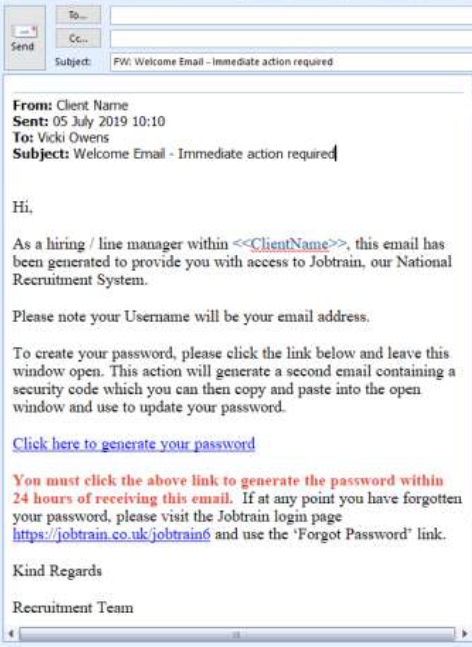
The Welcome Email provides clients with a simple and secure way of granting system access to new users of Jobtrain.
By issuing the Welcome Email, you can provide your system users with a secure link to generate their own password and login details to access Jobtrain going forwards.
You may also wish to use the Welcome Email to communicate guidance around your recruitment processes, training guides or other information as appropriate for new system users.
Making changes to the default Welcome Email
For new clients, we have added a default Welcome Email into your email template communications, however you can update this should you want to.
Go to Settings > Communication > Email Templates and find the email named System Access Welcome Email.
The Welcome Email can be as formal or as friendly as you like, and you can also include hyperlinks or embedded documents for users to download. This can help support communications about appropriate recruitment processes, training guides or other information as required to your system users.
Useful tips
The merge field to pull through a user’s name is {SYSTEMUSERS.FIRSTNAME} however as this email does not relate to specific jobs or candidates within the system, other merge fields will not be relevant and will not display any information.
There is a time-limit of 24 hours in which to click the ‘generate password’ link; we recommend this instruction is made clear within the email content.
Settings
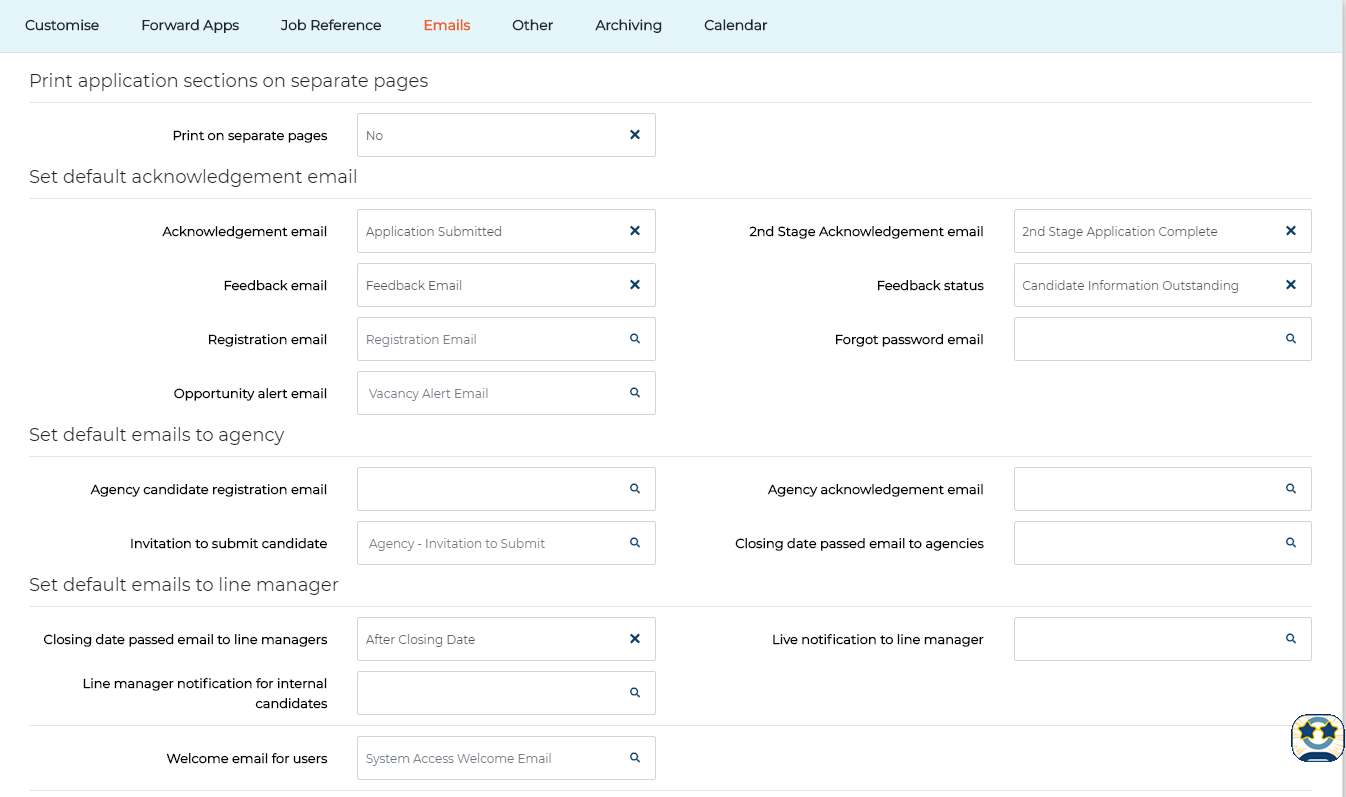
Click Settings > System Customisation > Emails to find which email is connected as your Welcome Email.
To update, begin typing within the email field or select the magnifying glass icon to search the email templates and choose the appropriate email. Press Save.
Triggering a Welcome Email
To issue the Welcome Email, select Settings and the tile will appear on the right-hand side of the page.
Search options are displayed on the Welcome Email page so you can filter the list of system users (as required).
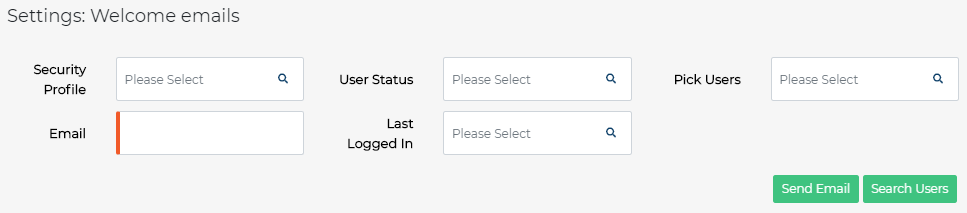
| Security Profile Filters the list of users by their Security Profile |
User Status Filters the list of users according to the 'Is Active' setting of their System User account |
Pick Users Filters the list of users based on if they have been sent a Welcome Email previously |
| Email Allows you to send an individual Welcome Email to a specific system user by searching for an email address |
Last Logged In Filters the list of users depending on whether they have previously logged into Jobtrain |
Pay Number Send an individual Welcome Email to a specific user by searching for their Pay Number (Note: not all of our systems capture Pay Number) |
Add the required filter options and select Search Users. The search results will be displayed below.
Select Send Email and the email will be generated immediately (depending on the number of system users selected this may take a few minutes to process so please remain on the page).
When the Welcome Email has been sent, an Email Successfully Sent message will be displayed, including the number of users the email was sent to.
Users have 24 hours to follow the ‘Generate Password’ link. To ensure our platform remains secure, the link will expire after 24 hours.
If users attempt to generate a password after this time, they will be directed to the 'Forgotten your password?' link which guides them through the process to login and create their password.
Single Sign-On
For those clients using Single Sign-On, your system users do not require passwords to access Jobtrain.
You may still find the Welcome Email useful to issue new system users the URL to access Jobtrain or provide other information to get them started.