
1. Go to Settings > System Customisation
2. Click on the Application or Job Status field to update
If you find that these fields are greyed out, you may need to update Security Role permissions – see Security Role Permissions
3. Select the appropriate Application Status or Job Status from the list
4. At the bottom right, click Save
About System Customisation: Statuses
Core Application Statuses
These statuses are essential for managing the entire lifecycle of an application. They help track each application’s progress (e.g., incomplete, submitted), facilitate invitations to second-stage forms and ensures hired candidates are correctly marked as internal applicants for future job applications.
Integration Statuses
These statuses relate to any integrations your organisation has enabled, such as DBS (Disclosure and Barring Service) checks, identity checks, video interviews or psychometric testing. The system only displays the integration statuses relevant to your configured integrations.
Interview Statuses
These statuses support your interview scheduling and management processes, whether managed manually or via calendar invitations. They include key actions like sending, accepting or declining interview invitations.
Job Statuses
Job statuses are crucial for managing actions related to job postings, including their creation, approval and tracking. These statuses ensure that each phase of the job lifecycle is clearly defined.
Security Role permissions
Naturally, we want to ensure that only those system users with the highest level of authority can make changes to the Core Application Statuses area of System Customisation.
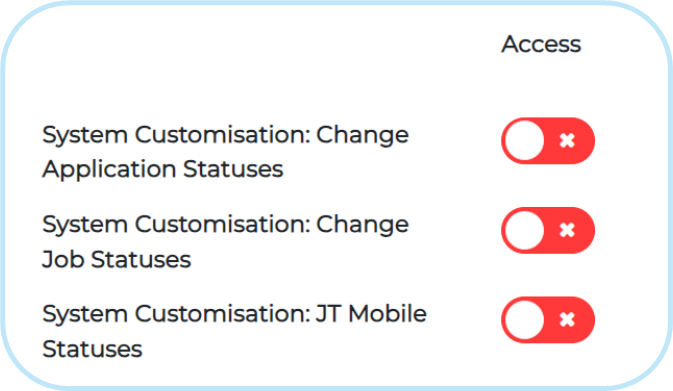
Three Security Role controls in the Settings tab of Security Roles allow clients to manage who can make changes to Core Application Statuses, Job Statuses and Mobile Statuses within Settings > System Customisation.
As an organisation, you should decide who has the level of authority to decide global changes to your system (which can affect reporting and other automated system actions) and enable access for those Security Roles.
FAQs
I can’t select the status, because the field is greyed out.
Check your Security Role permissions to make sure you have access to update System Customisation. See our section on Security Role Permissions .
The status that I need isn’t available
You may need to make the status visible or even add a new Application Status. See How to Add an Application Status .
I’ve followed the guidance notes and have some further questions.
For any questions, please contact our Support Team on +44(0)161 8502004.