
What's included:
What is Brand Builder?
Brand Builder is functionality that allows you to update the branding on your candidate site.
What are the benefits of it?
One of the main benefits of using Brand Builder is the ability to make updates in real time and in just a few clicks.
Accessing Brand Builder:
You can access Brand Builder by logging in to Jobtrain.
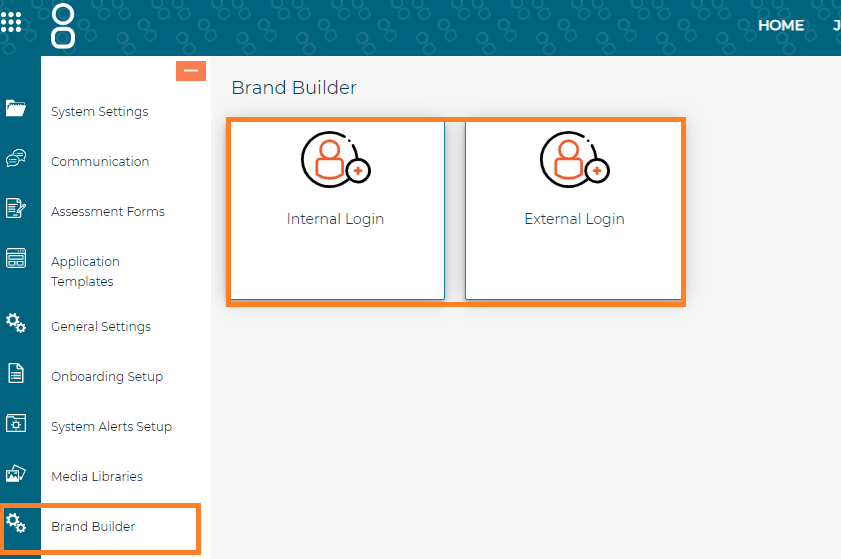
Go to Settings > Brand Builder Setting > External Login.
Here you will see the Brand Builder site where you can start to make changes and build your site.
Can I restrict access to Brand Builder?
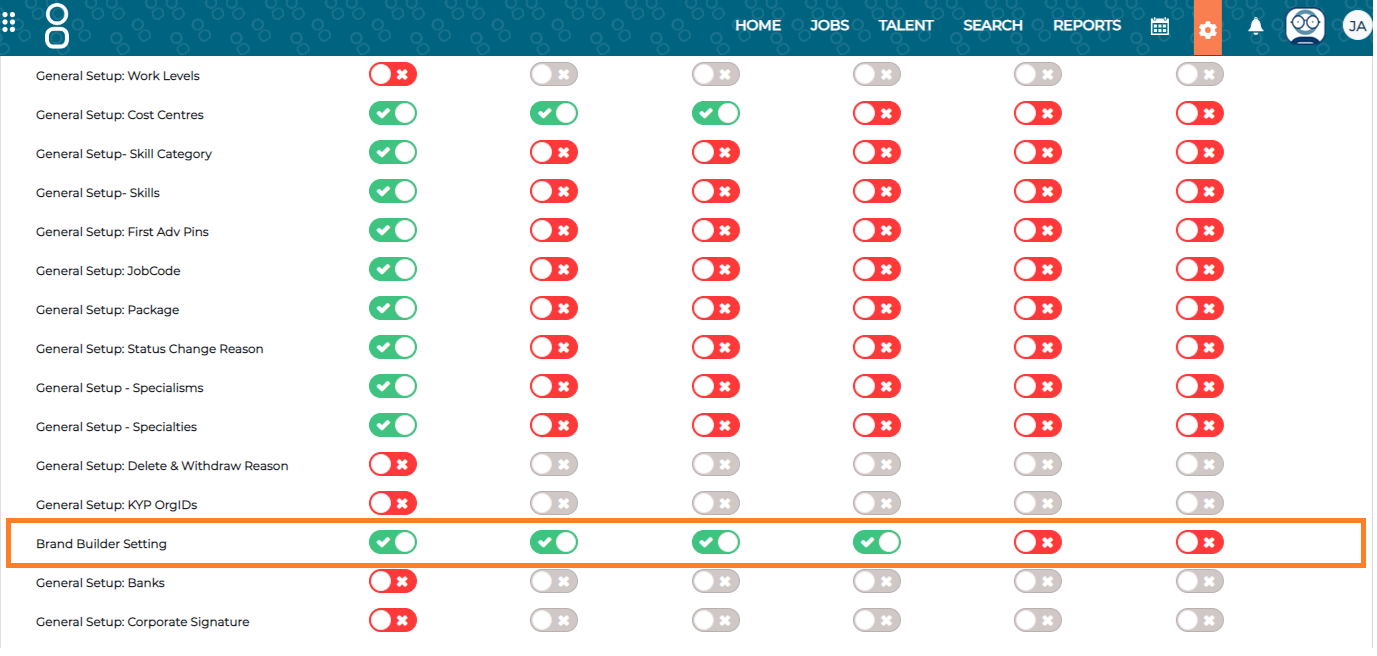
Yes, you can provide and restrict access to Brand Builder per security role by following the below steps:
Settings > Security Roles > Settings > Brand Builder Setting.
How do I use Brand Builder?
When you first log into your site, you are directed to the Brand Builder configuration page which displays your current brand setup.
There are five buttons on the left-hand side menu. These are what you will use to navigate your way through making changes to your branding.
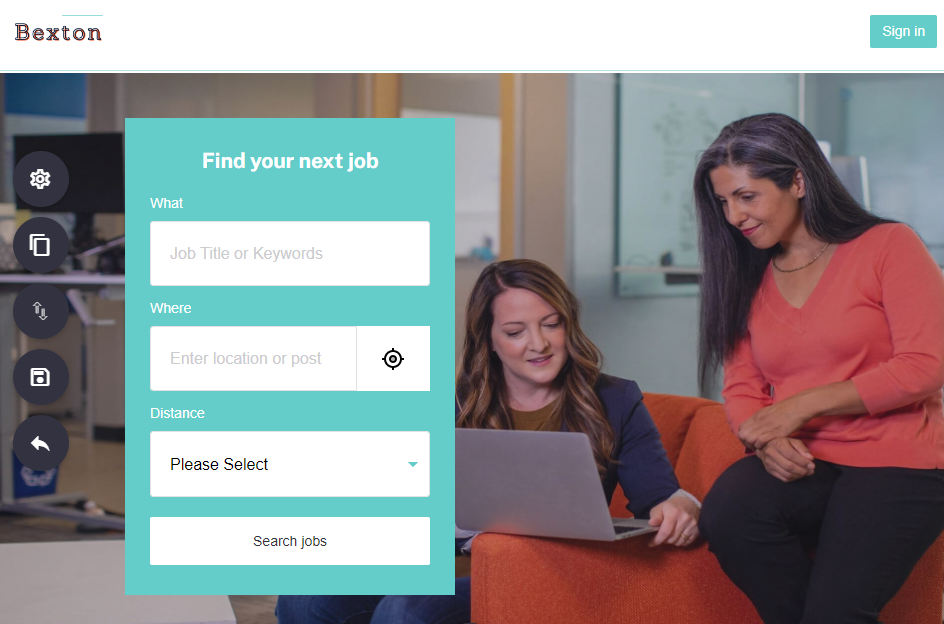
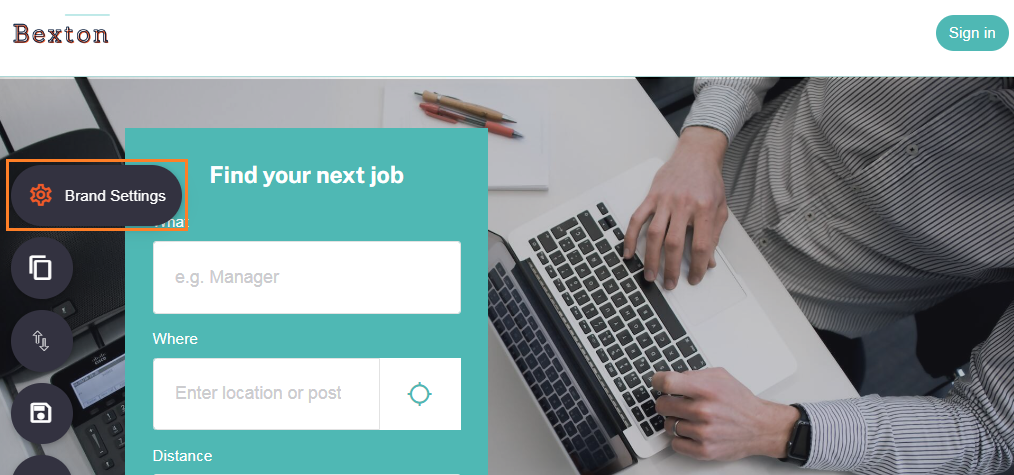
Brand Settings
Brand settings are accessed by clicking the cog and it’s where you will manage the following:
- Logo
- Website title
- Home URL
- Company URL
- Primary colour
- Body font style
- Header font style
- Button shapes
You can see any changes you make to your candidate site by going to your vacancies website.
We always recommend making changes to your candidate site on your test site before making these changes on your live environment as these updates take place in real time.
Logo:
Within brand settings the first item you will see here is the existing logo on your candidate site:
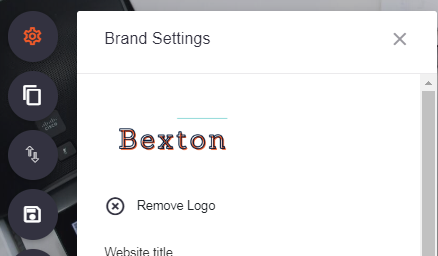
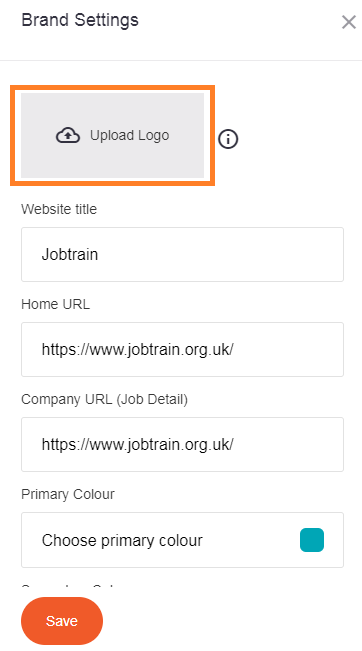
If you remove logo, you will be presented with the Upload Logo button which allows you to upload a new logo.
Select the image you wish to upload and then select Save.
Website title:
The website title is the text that will appear at the top of the tab.

Home URL:
This is the page you are taken to when clicking on the logo in the top left corner of the site.
Please note that the URL must be added with its Security Protocols (i.e. https://)
For example: https://jobtrain.co.uk/
Company URL:
This gives you the option to add a URL to the bottom of the page, on the job advert. It can be different to the Home URL.
If nothing is added here, then the ‘Take a look around the company’ section will still be presented but there will be no link for candidates to click.

Please note that the URL must be added with its Security Protocols (i.e. https://)
For example: https://jobtrain.co.uk/
Primary colour:
The chosen primary colour links with the following:
- Headers
- Boxes
- Benefits component
- Social media Icons
- Company URL
Body and header font styles:
You can select the font styles that will be used throughout your site for both the body of your text, along with the font style for your headers!
Button shape:
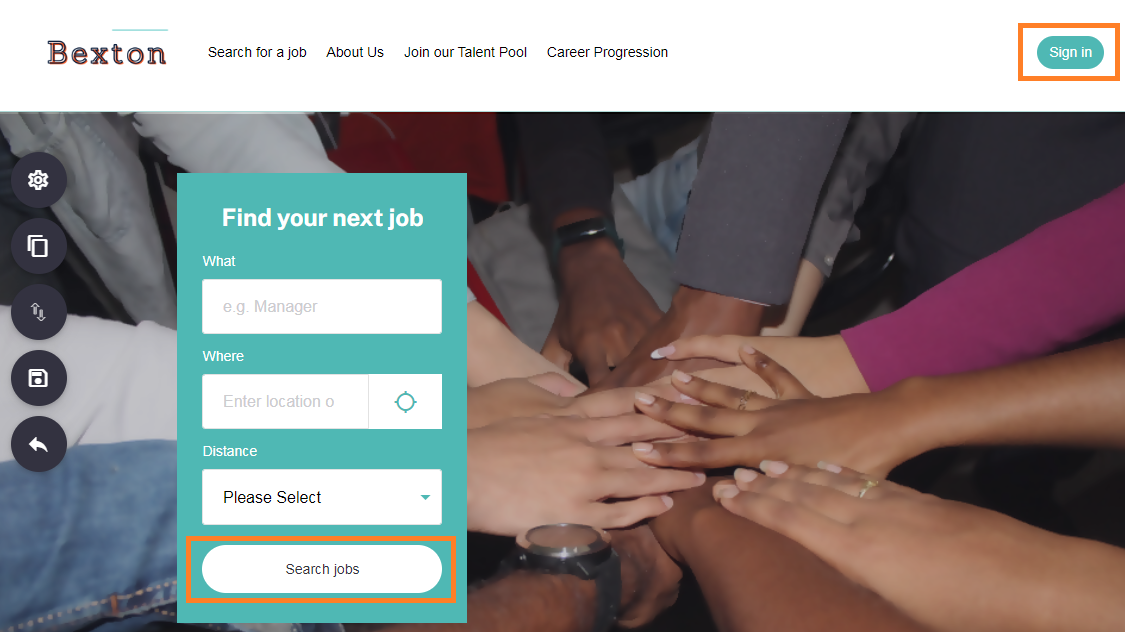
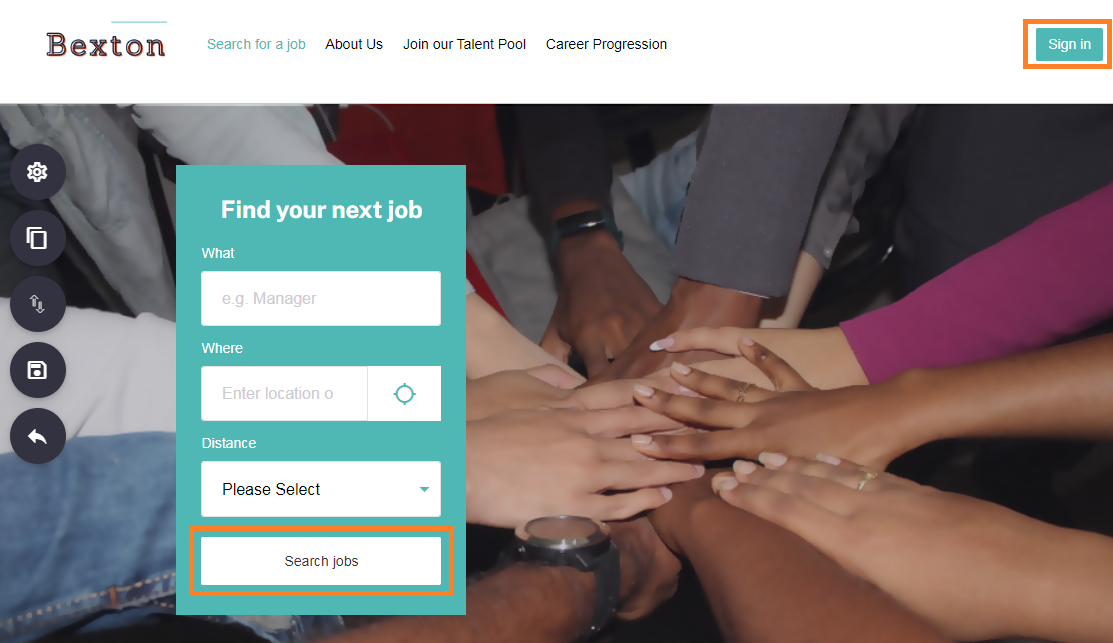
Choose the shape of the buttons on your site - either a pill or a square shape.
FAQs
Can I restrict who has access to this functionality?
Absolutely. As with most areas of Jobtrain, this functionality can be restricted in Security Roles within Settings.
You can restrict access to Brand Builder per security role by following the below steps:
‘Settings’ > ‘Security Roles > ‘Settings’ > ‘Brand Builder Setting’.
If you need support with updating access using Security Roles, please contact your Client Success Manager or the Support Team who will be happy to help.
I’ve followed the guidance notes and have some further questions.
For any questions about using Brand Builder (or any other Jobtrain functionality), please contact our Support Team on +44(0)161 8502004.