
What's included in this guide
- Adding Job Authorisation to Quick Links
- Adding and amending Authorisation Users
- Authorisation Templates
Adding Job Authorisation to Quick Links
A new security role toggle has been added to Jobs & Talent Pools to enable the Job Authorisation under Quick Links.
Toggle:

Quick Links: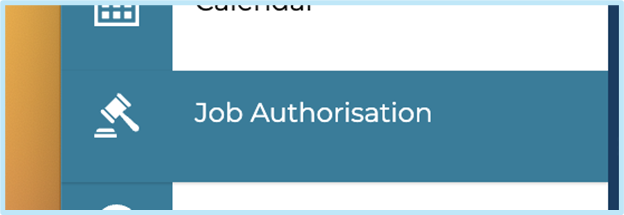
Adding and amending Authorisation Users
Go to Settings > Authorisation Users
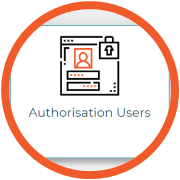
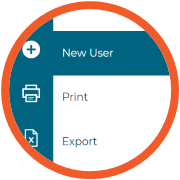
Select New User in the left-hand menu or choose an existing user's name to open and edit their record.
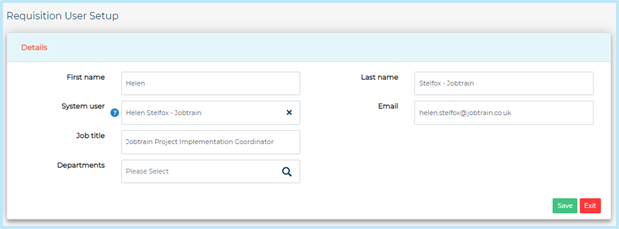
A new window will appear. Add all required information and press Save.
- First and last name: these fields are required. For ease when finding corresponding records, try to use the same details that were used when creating the system user
- System User: approval user profiles are linked to the corresponding system user by selecting the system user from this look-up field
- Email: enter an email address of an approver – this is a mandatory field
- Job Title: this is not a required field but can be used to capture this data if required
- Department: this is not a required field but can be helpful when creating approval templates
If you update a system user's email address and they are also an authorisation user, you will need to update in here too.
Deleting a User
Deleting a user will remove them from the system. To remove a user, simply check the box next to their name and select Remove from the left-hand menu.
Authorisation Templates
Authorisation templates allow you to define who is required to approve vacancies/offers and the order in which the approval should go.
Configuring Default Approval Emails
Go to Settings > System Customisation > Emails
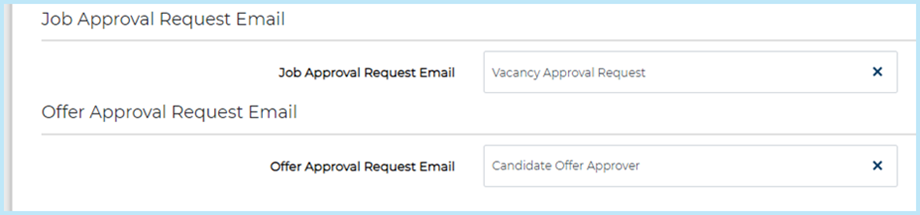
Use the look up fields to select the default job and offer approval email.
These lookup fields link to Settings > Communications > Emails.
When new job or offer approval templates are created, the default content for the approval request email configured in System Customisation will automatically be copied to the template.
You can still edit and tailor the email content for individual approval templates as required.
Adding / Amending a Vacancy Authorisation Template
Select New Templates in the left-hand menu or choose an existing template to open and edit the record
Tip: you can search by Template Type and approver's first and last name
A new window will appear. Add all required information and press save.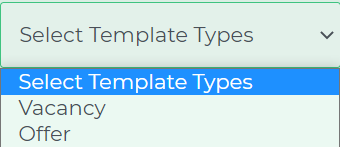
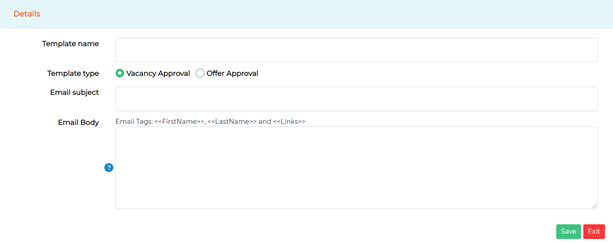
- Template name: Add a template name - make sure it's nice and clear so users know which template to select
- Template type: Vacancy Approval
- Email subject and email body: When creating new job or offer approval templates, the default approval request email from System Customisation will automatically be copied into the template. You can edit the email content as needed. If no email is set in System Customisation, this section will be blank and require filling in.
Tip: to ensure the correct merge fields and links are used, copy the email content from a previously created vacancy approval template within Jobtrain where possible.
If you are still unsure, please contact the Jobtrain Support Team who will be able to provide you with the correct links and merge fields.
Press Save - two new tabs will then appear:
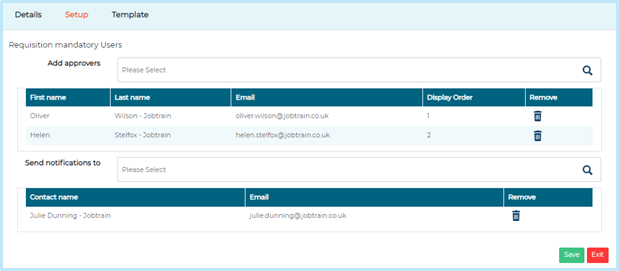
- To add all required approvers to the template, go to the Setup tab
- Against Add approvers option, select the required approvers from the list. Once complete, select Save
Note: If you need to amend the order that the approvers are required to approve in, drag and drop the users to amend the approval order.
If you would like to remove a user from an existing authorisation template, we recommend copying the authorisation template and then removing the user from the new copy and using that in future job approvals. Removing a user from an existing template may cause issues for any jobs currently going through the approval process using that template.
Notification only
(For users who are not required to approve)
If you would like for users to be notified of a new vacancy going through the approval process but they are not required to approve, you can utilise the Send notifications to option and select the required users from the address book.
This option will send one email at the beginning of the approval process, which is a copy of the approval email minus the links.
- To do so within the authorisation template, go to the Setup tab
- Against Send notifications to option, select the required users from the list. Once complete, select Save.
The Send notifications to feature only works for Vacancy Authorisation templates and pulls a list of users from Settings > General Settings > Address Book.
These users will not be listed on the Approval page of the add a job process as they are not required to approve the role and are only being notified of the approval process being started.
Tip: add HR/Recruitment team as the final approver so the system alerts them, and they can change the job status from approved to live.
Merge Fields for use in Vacancy Authorisation Templates
You can now include any available job merge fields in the job approval email template. A list of merge fields is available in the Insert/Update Data dropdown when creating/editing your default email template at Settings > Communication > Email Templates.
The merge fields below are required to pull in the Approved and Not Approved links and a link to the advert copy and must be included in your template:
- <<AdvertCopy>>
- <<Links>>
The merge fields below can be used to pull in comments from other approvers throughout the process:
- <<RequisitionUser>>
- <<JobNotes>>
The merge field below adds a link to any supporting documents attached on the Approval form page:
- <<RequisitionAttachmentLinks>>
Tip: When your site was implemented, you may have relabelled fields on the Job Details page. For example, ‘Department’ may have been relabelled to ‘Business Unit’.
If you are unsure which merge field to use to pull in the correct information, please contact our support team who will be able to advise.
Adding / Amending an Offer Authorisation Template
Follow the above steps to create or amend an authorisation template, select Offer Approval as the template type.
Once you have done this, the below boxes will appear: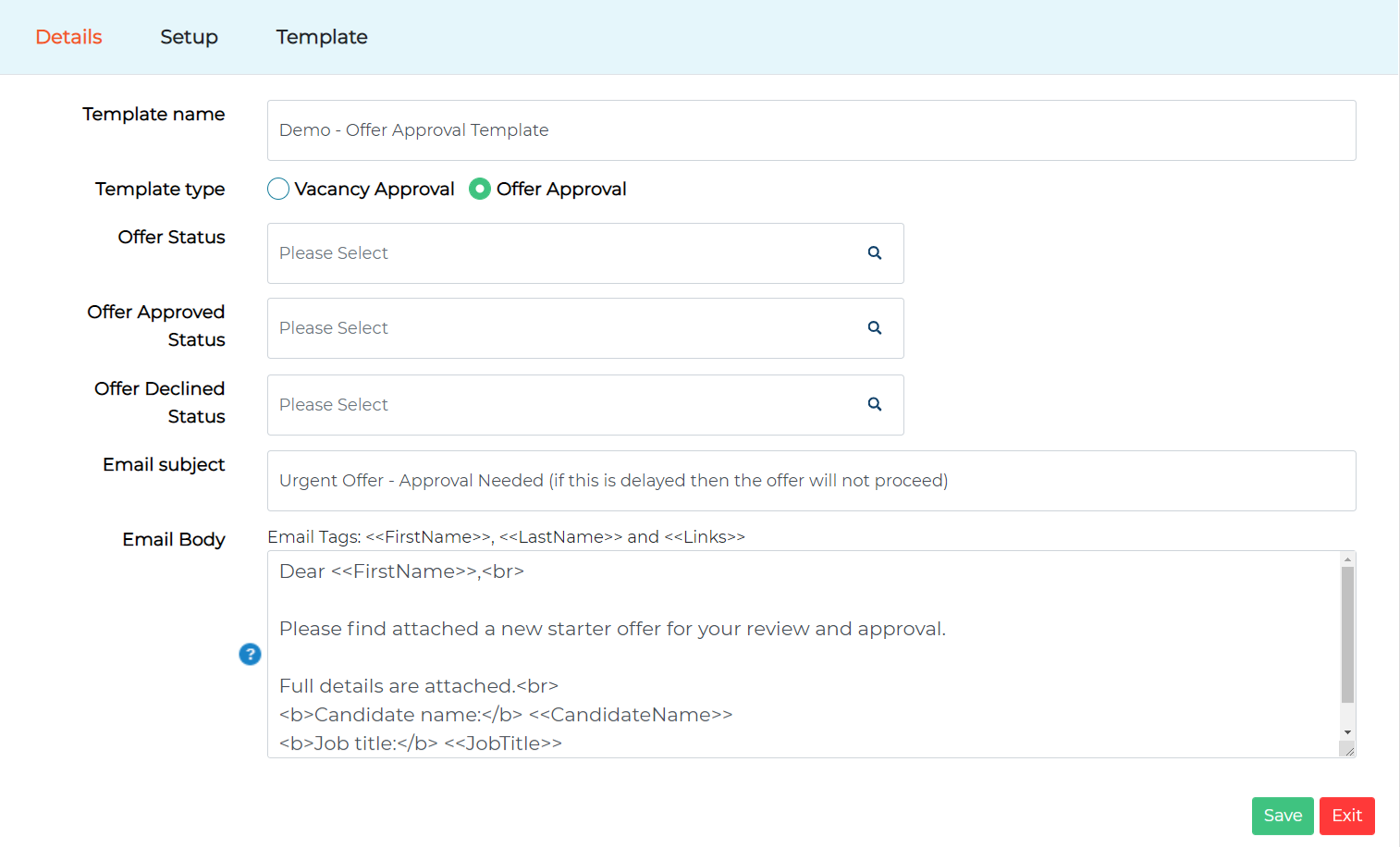
- Offer Status: the status candidates will be updated to whilst going through the approval process
- Offer Approved Status: the status the candidate will be updated to if the offer is approved
- Offer Declined Status: this is the status the candidate will be updated to if the offer is declined
Tip: You can set up system alerts to enable a notification when candidates are updated to the above statuses. You may also want to have this added to the notifications panel on your homepage - please speak to the support team to enable this.
- Add the Email Subject and Email Body. When creating new job or offer templates, the default approval request email from System Customisation is automatically included and can be edited. If no email is set in System Customisation, this section will be blank and must be filled in.
To ensure the correct merge fields and links are used, copy the email wording from a previously created offer approval template within Jobtrain where possible.
If you are unsure, please contact your Client Success Manager who will be able to provide you with the correct links and merge fields or refer to the full list of available merge fields in the next section of this guide.
- To add approvers, follow the same steps covered in the vacancy authorisation template instructions.
Note: If you need to amend the order that the approvers are required to approve in, drag and drop the users to amend the approval order.
If you would like to remove a user from an existing authorisation template, we recommend copying the authorisation template and then removing the user from the new copy and using that in future offer approvals. Removing a user from an existing template may cause issues for any candidates currently going through the approval process using that template.
- Press Save
Merge Fields for use in Offer Authorisation Templates
You can include any available job & candidate merge fields in the offer approval email template. A list of merge fields is available in the Insert/Update Data dropdown when creating/editing your default email template at Settings > Communication > Email Templates.
The below merge field is required to pull in the Approved and Not Approved links and must be included in your template:
- <<Links>>
The merge fields below can be used to pull in comments from other approvers throughout the process:
- <<RequisitionUser>>
- <<OfferNotes>>