Private Jobs offers a discreet advertising and application method, making it ideal for secondment opportunities, redeployment needs, or situations where clients prefer to invite only selected candidates to apply for roles.
Invited applicants can access the job through a private link allowing them to apply without the job being publicly advertised on other candidate sites. This feature provides enhanced flexibility and confidentiality in your recruitment processes.
Private jobs is feature-based and can be enabled via ATS control – detailed steps of how to do so are covered below.
Step 1: ATS Control
Go to ATS Control > Client > Client Configuration.
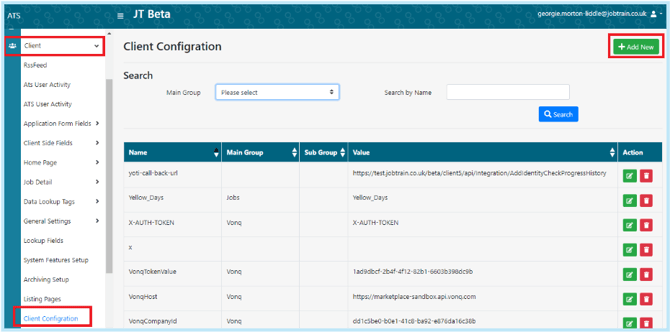
Select Add New
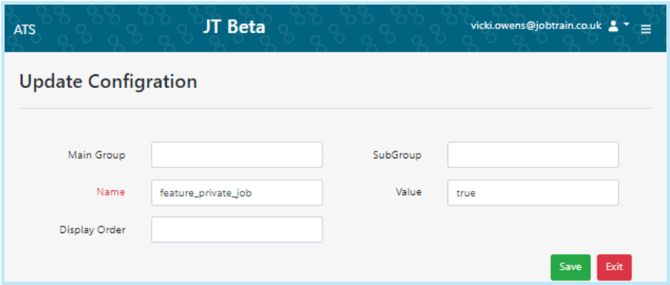
Name = feature_private_job
Value = true
Step 2: Client Side Emails
Go to Settings > Communications > Email Templates
Create two new email templates:
- Private Job Invite For New Candidates
- Private Job Invite For Existing Candidate
Example email content
Please see below example default emails. These can be tailored on a per client basis, but it is vital that the following merge fields are included:
- {LinkWithJobTitle} = This is the private link to the job
- {PASSWORDLINK} = This is required for new candidates to create their account
|
Private Job Invite Email For New Candidates
Dear {CANDIDATES.FIRSTNAME} {CANDIDATES.LASTNAME},
We're delighted to share a new job opportunity for {JOBS.JOBTITLEFORCANDIDATES}. We invite you to complete and submit an application for consideration.
To access comprehensive job details, including specifications and requirements, please visit this link: {LinkWithJobTitle}
Once you have created your account, simply login to edit and complete the necessary information to submit your application.
Your interest in this opportunity is greatly appreciated. We eagerly await your application.
|
|
Private Job Invite Email For Existing Candidates
Dear {CANDIDATES.FIRSTNAME} {CANDIDATES.LASTNAME}
We're delighted to share a new job opportunity for the {JOBS.JOBTITLEFORCANDIDATES}. We invite you to complete and submit an application for consideration.
To access comprehensive job details, including specifications and requirements, please visit this link: {LinkWithJobTitle}.
To initiate your application, kindly log in to your account to edit and complete the necessary information. If you have forgotten your password, please click here: {PASSWORDLINK}.
Please note that this job posting is exclusive to this email and is not publicly advertised.
Best regards, Recruitment Team |
Step 3: System Customisation
Configure the default invite emails in Settings > System Customisation > Emails.
Scroll down to Private Job Email section, add in the email templates and select Save.

Step 4: Security Roles
Enable Access to Create Private Jobs/Invite Candidates
Enable relevant Security Roles access to add private jobs and invite candidates to apply.
Go to Settings > Security Roles > Jobs & Talent Pools: Enable Add Job – Private Job in the relevant security roles

Once enabled, then users will have access to the Private job and Invite Candidates button on the post the job page.

Access Rules: Visibility of Private Jobs Visibility of private jobs follows the same principals as existing Job Access so if any of the following criteria is met then they will be able to view the Private Job icon, job details, candidate list etc. - Users are assigned access via the Job Access page within the job - OR the job is in the assigned division/location for ‘access by location / division’ functionality - OR have List all Jobs = Yes in Security roles.
Step 5: Testing
Ensure the following buttons are visible on the post the job page (see user guide):
a) Private Jobs toggle
b) Invite Candidate button appears once the private jobs toggle is enabled
2. Invite Candidates opens a new window and the default emails are pulled through
3. Follow the steps detailed in the Private Jobs user guide to ensure the functionality works paying particular attention to the following:
a) Making the job private
b) Invite candidates:
i) Ensure the default email templates pull through and are correct
ii) Invite an existing candidate
ii) Add a new candidate:
- Add a new candidate
- Test adding an existing candidate and ensure that you get a pop up advising that the candidate already exists with the option to invite the existing candidate to
c) Emails testing:
i) Ensure that the invite emails are triggered to the candidates and the links work to view the advert content and for resetting passwords etc
ii) Use the CC / BCC to copy in a system user and ensure that they receive the emails and these are logged in the candidate history / sent emails too
d) Invitation History:
i) Ensure that the Invitation History section updates with all invitees
ii) Ensure that when clicking View applications you are directed to the list of candidates for the private job and that incomplete applications show in the main list by default (without having to use the Search/ Filter options to see these)
Please note: Only the View applications button will default to showing incomplete applications in the main list of candidates. When accessing the list of candidates via the list of jobs / search jobs page Incomplete applications are hidden from the standard view and can be accessed using the Search / Filter option as per standard functionality.
4) Ensure that the private job has a padlock icon in the ‘Is Live’ column on list of jobs page
5) Ensure that the private job is not visible on the external / internal portal
6) Try and make a job that has previously been advertised externally / internal private and check the below works:
a) Should a user attempt to make a 'Live' job private, display an on-screen message "This job has already been publicly advertised and cannot be made private."
7) Apply as a private candidate:
a) Ensure the candidate application status updates accordingly once submitted
b) Check that the advert source report on the homepage reflects the advert source of the candidate who has applied for a private job as Jobtrain Private Invite
Once all testing is completed update the client ensuring that you share the Private Jobs user guide and the option to book in a call to walk through how this works.