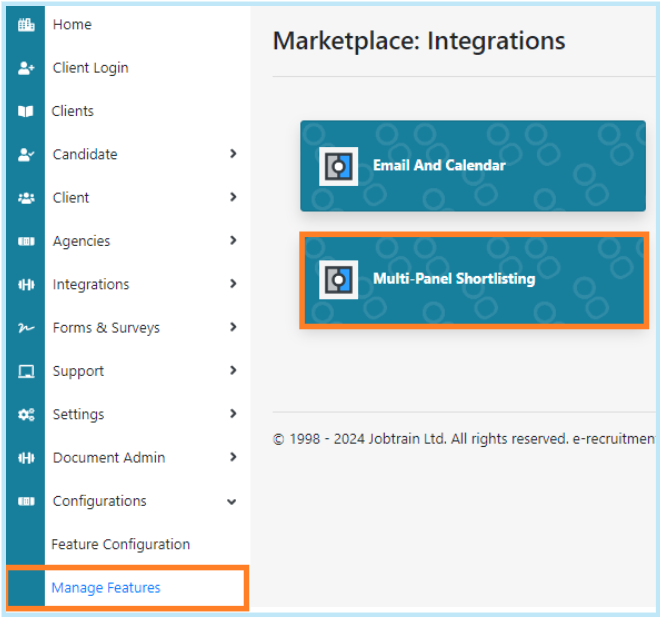
Go to ATS Control > Admin Login > Configurations > Manage Features > Multi-Panel Shortlisting.
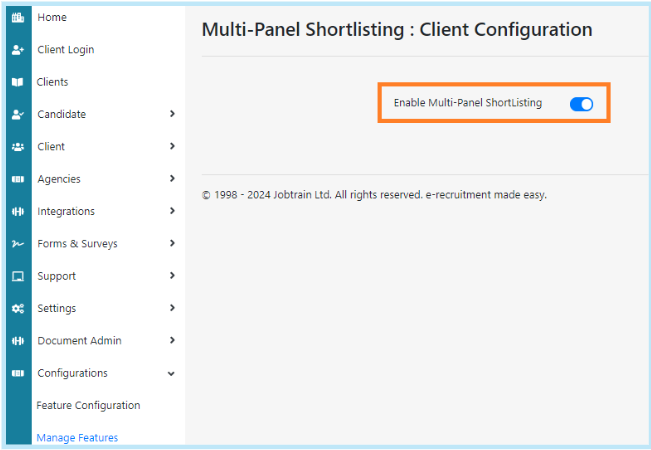
Toggle on Enable Multi-Panel Shortlisting > Save.
Client side
Go to Settings > Security Roles > select the relevant security role that required Multi-Panel Shortlisting.
In Jobs & Talent Pools > List Candidate – Multi-Panel Shortlisting = Toggle on access, add, update, and delete > save.

Testing
Please follow the steps below to ensure this is working as expected.
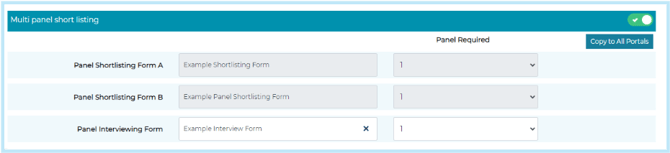
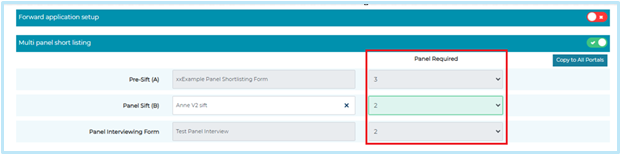
1. Use a Jobtrain test role > edit the job and go to the assessment page > there is now a section that appears at the bottom Multi panel shortlisting.
- Toggle this on and select at least two panel shortlisting forms
- In the "Panel Required" column, indicate the minimum number of panel members needed to complete the shortlisting form for it to be considered complete.
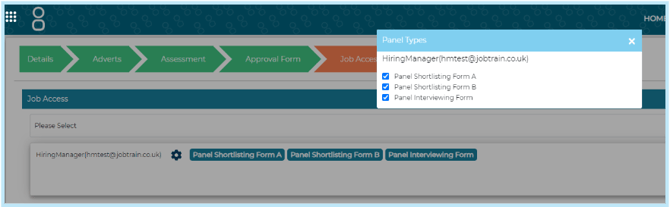
2. Go to job access. Under Job Access, add the relevant users that you would like to have access to the role and multi-panel shortlisting.
There is a settings cog next to each user, this is where you provide them with access to the multi-panel shortlisting forms.
Tick the forms you would like the users to have access to complete.
3. Go to the list of candidates against the role and complete the multi panel shortlisting forms against the users and ensure you can add information and save.
4. Icons - Test that the correct shortlisting icons display next to each candidate:
STEP 1: CHECK THAT THE RELEVANT ICONS DISPLAY TO MANDATORY SHORTLISTERS AND SYSTEM USERS
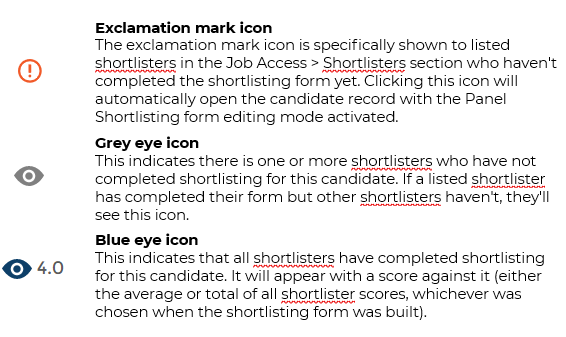
There are 3 different icons that will be displayed throughout the panel shortlisting process:
STEP 2: CHECK THAT THE RELEVANT ICONS DISPLAY FOR NON MANDATORY SHORTLISTERS:
Scenario One: Shortlister hasn't completed the form, but the specified number of mandatory panel shortlisters have completed the shortlisting form.
- Icon display will be as follows:
- Blue eye icon (mandatory shortlisters have completed).
- Exclamation mark icon will also be displayed (as the non-mandatory shortlister hasn't completed the form).
- Shortlisting score will be listed.
Scenario Two: The shortlister hasn't completed the form, and not all mandatory shortlisters have:
- Icon display will be as follows:
- Display an exclamation mark icon instead of the eye icon in the panel shortlisting column:
- As the shortlister has not completed the form
- The specified number of shortlisters haven’t completed the shortlisting form
- There will be no score to display as mandatory shortlisters have not completed shortlisting
- Display an exclamation mark icon instead of the eye icon in the panel shortlisting column:
Scenario Three: The Shortlister has completed the form, but not all mandatory shortlisters have:
- Icon display will be as follows:
- Display the grey eye icon as per current functionality
STEP 3: CHECK THAT THE FILTER OPTIONS WORK ON THE LIST OF CANDIDATES PAGE:
A filter option is available to shortlisters, mirroring the options on the jobs page, with three choices:
- Test that the panel shortlisting filter options on the list of candidate’s page work correctly for multi panel shortlisting:
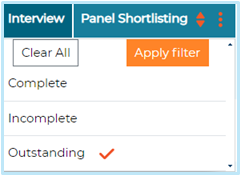
- Complete: This option shows candidates where all the specified number of mandatory shortlisters have completed their shortlisting.
- Displays candidates with the blue eye icon and a score.
- Exclamation mark icon will also be displayed to shortlisters who haven’t completed the form but where the specified number of mandatory panel shortlisters have completed the shortlisting form.
- Incomplete: This option shows candidates who have been shortlisted by the user, but the specified number of required shortlisters haven't completed their shortlisting yet.
- Displays any candidates with the the grey eye icon (where the user has completed the shortlisting form but not all required shortlisters have)
- Outstanding: Lists candidates with an exclamation icon. This option specifically displays candidates where the user is listed as a shortlister but hasn't completed the shortlisting form.
-
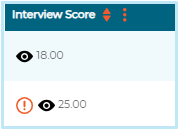
- 1 = Displays any candidates that have just the exclamation mark icon
- 2 = Displays any candidates with both the exclamation mark icon AND the blue eye icon with the score (as although the specified number of required shortlisters have completed the form the user themselves has not completed the form)
This filter option only applies to designated shortlisters.