Summary
Activate the Bank Details feature so users can request, view and manage candidate bank details during onboarding.
I want to:
- Activate Bank Details in ATS Control
- Show the Request Bank Details & NI toggle in Onboarding Templates
- Show Bank Details in the Candidate Record
- Control whether Bank Details appear in OB Hub and Starter Forms
- Configure which Bank Details fields are shown or mandatory
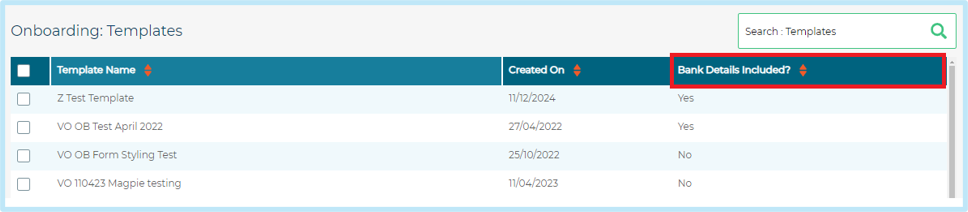
- Show or hide the Bank Details Included column in Onboarding Templates
Activate the Bank Details feature in ATS Control
Use this task to enable the main Bank Details feature for a client.
Steps
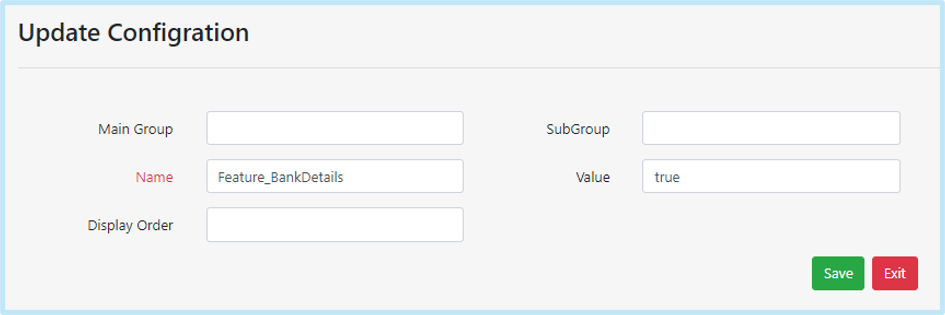
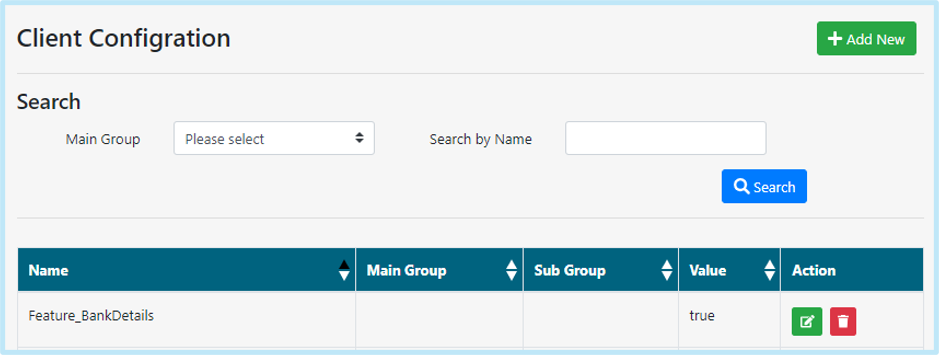
- Go to ATS Control > Client > Client Configuration.
- Select Add New.
- Enter the following configuration:
- Name:Feature_BankDetails
- Value:true
- Select Save.
What this enables
When Feature_BankDetails is set to true, the following Bank Details options can display:
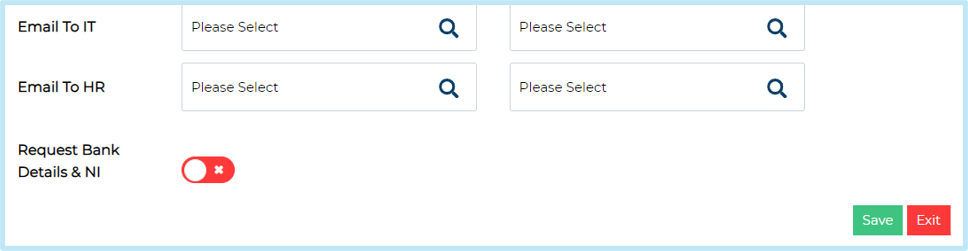
- The Request Bank Details & NI toggle in Onboarding Templates
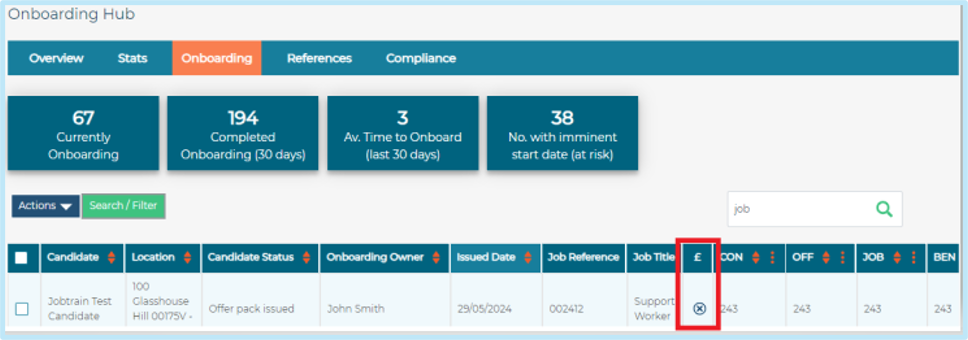
- The Bank Details column in OB Hub for OBV2
- Onboarding Bank Details Complete in the Starter Form
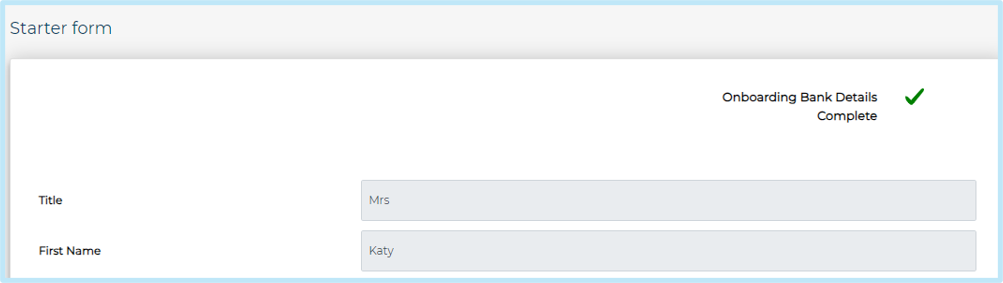
- Bank Details in Candidate Record > Onboarding Progress (if configured in Security Roles)

To configure in Security Roles:
- Security Roles > List Candidate - Bank Details being enabled within the users security role.

Please note: Even when activated for that Security Role, it will only be displayed if Bank Details are included in the OB Template.
Enabling/Disabling 'Bank Details Included' Column to Onboarding Templates
The 'Bank Details Included' column on the Onboarding Templates page is controlled separately via ATS Control. To enable/disable this column follow the below steps:
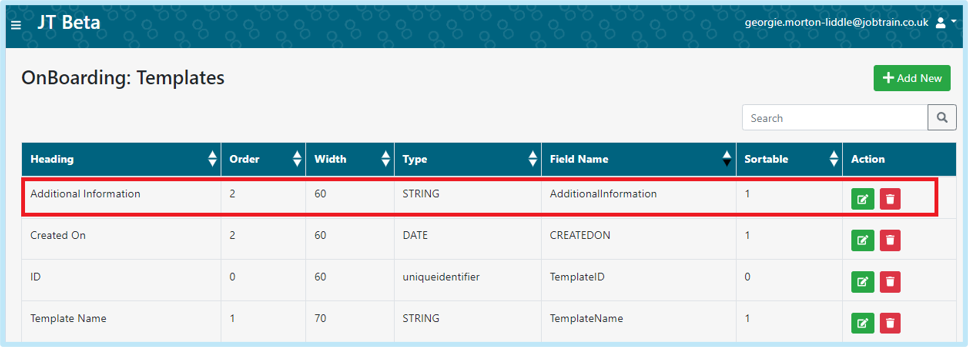
- Go to ATS control > Client > Listing pages > onboarding templates
- Example URL: CLIENTURL/ats/UpdateListingPage/Create?id=934&PageId=152
- Select Edit
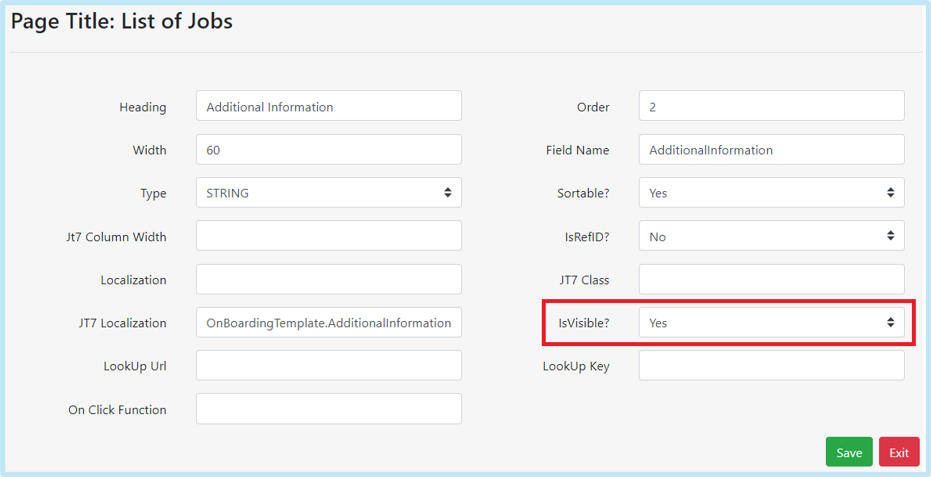
- Then select Edit against ‘Additional Info’
- Use ‘IsVisible’ to control whether the column should display or not
Disabling 'Onboarding Bank Details Complete' in Starter Forms
In ATS Control go to Client > Config
- Add New
- Name: show_bank_detail_on_starter_form
- Value: false
If there are instances where this is not displaying on the starter form, simply add this config variable in and set the value to ‘true’
Configure Bank Details field visibility and mandatory rules
Use this task to control which Bank Details fields display and which fields are mandatory.
Session variables
|
Session variable |
What it controls |
Value |
|
|
BankDetails_BankName_IsMandatory |
Makes the Bank Name field mandatory |
true or false |
|
|
BankDetails_Maritalstatus_IsMandatory |
Makes the Marital Status field mandatory |
true or false |
|
|
BankDetails_NationalInsuranceNumber_IsMandatory |
Makes the National Insurance Number field mandatory |
true or false |
|
|
BankDetails_Show_BranchName |
Shows or hides the Branch Name field |
true or false |
|
|
BankDetails_Show_RollNumber |
Shows or hides the Roll Number field |
true or false |
|
|
BankDetails_SortCode_Validation_RegularExpression |
Sets the regular expression for Sort Code validation |
string |
|
|
isDisableBankDetailForm |
Disables the full Bank Details form |
true or false |
|
|
is-skip-marital-status |
Shows or hides Marital Status |
true or false |
Important note
Gender currently cannot be hidden using a session variable.
Best practice
Confirm the client’s required Bank Details fields before changing mandatory rules. Some fields may not be configurable in every client setup.
Relabel Bank Details fields
Bank Details fields can be relabelled using specific page IDs.
Page IDs
Use one of the following page IDs:
- 25
- 27
- 202
- 201
Relabel fields one by one to confirm the correct field is updated.
Best practice
After relabelling each field, check the Bank Details form in the client site before changing the next field. This helps confirm the correct page ID and label combination.
Activation checklist
Before completing the activation, confirm:
- Feature_BankDetails is set to true
- The Onboarding Template includes Bank Details
- The Request Bank Details & NI toggle displays in Onboarding Templates
- The correct users have Security Roles > List Candidate - Bank Details
- Bank Details display in Candidate Record > Onboarding Progress, where required
- The OB Hub Bank Details column displays for OBV2, where required
- Onboarding Bank Details Complete displays or is hidden in Starter Forms as required
- Any required Bank Details fields are shown, hidden or mandatory
- Any required field relabelling has been tested one field at a time