This request will need to be raised with UK Development Team and the Field Technician as David Keeling .
Ticket Template = Activate Email and Calendar Integration
Please activate Email and Calendar for (CLIENTNAME)
CLIENT-SIDE URL: Which email/calendar type should be activated (Personal/Corporate)? |
Once tech have come back to us to let us know this has been actioned, you will need to follow the below steps in ATS control.
ATS ControlSystem Features Setup
Enabling the feature
Go to Client > System Features Setup.
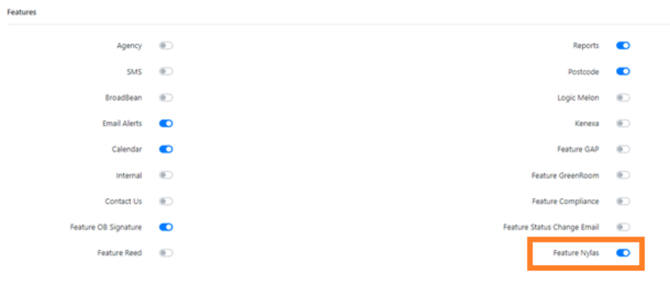
Scroll down to Feature and enable ‘Feature Nylas’.
Homepage Setup
Go to Client > Home Page > Home Page SetUp > HomePageItems
For a JTGO client, toggle on:
- My Emails
- My Calendar
For JTGO clients this should already be set up when the system was created so is more of a sense check this Is enabled.
For a JT7 client, toggle on:
- Email Inbox (Corporate)
- Calendar (Corporate)
For Jobtrain clients this will need enabling for each client.
Client Configuration Check
Log into ATS Control > ‘Client’ > ‘Client Configuration > Select the ‘Main Group’ as ‘Email and Calendar’.
Here, you need to ensure that the Values for each option match with the below:
nylas-base-url: https://ireland.api.nylas.com/
nylas-auth-url: https://auth.jobtrain.co.uk/
IndividualAccount_CallbackUrl:
This will vary per client due to their individual URLs but should end in the following:
client/api/Integration/EmailandCalendarCallback?ngsw-bypass=true
Client_Secret: apykrrqvudz8k94uz7rmxunzr
Client_Id: 8veslmhf44qfi0lsveo1ezxw5
ATS_Master_CallbackUrl: https://client.jobtrain.co.uk/ats/api/v1/EmailandCalendar/EmailandCalendarCallback
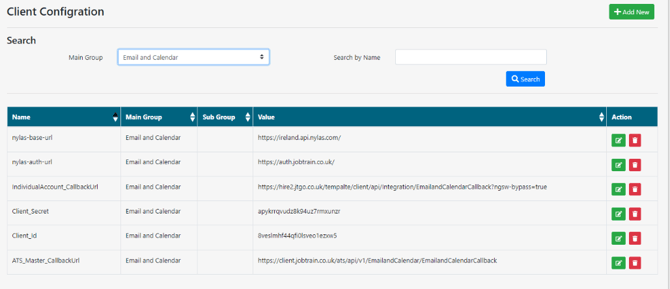
Email Calendar can be activated individually for Personal Account and Corporate account, using the feature-nylas-personal-account or feature-nylas-corporate-account options. These should be set to '1' or '0' to enable/disable.
Update ‘Response To Email’
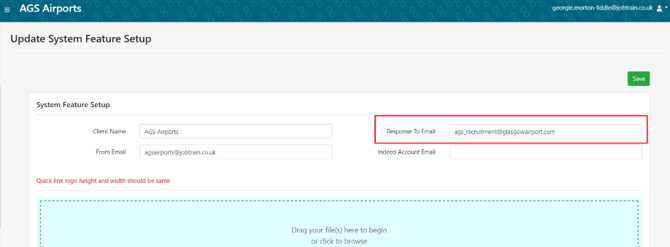
Important: Auto-system emails like acknowledgement emails will continue to be from 'client@jobtrain.co.uk'. If candidates reply to an auto-system email, the response will be routed to whatever email address is in ATS Control > System Features > Response To Email. To ensure that emails are logged correctly then the Response To Email field needs updating to match the corporate email address the client plans to use.
To update the Response To Email go to:
- ATS control
- System Features Setup
- Update ‘Response To Email’ to the clients corporate email address
- Save
Client Side
Security Roles > Jobs & Talent Pools – enable the following:
- Email Integration
- List Candidate – Received Emails
- List Candidate – Unread Email Icon
Security Roles > Settings
- General Setup: Corporate Signature: This allows clients to set up the email & calendar integration by entering their login credentials and signature, a feature usually restricted to superusers.
- System Setup: Email Inbox Master Account: This enables access to the corporate inbox and the ability to send emails from the corporate account.
- System Setup: Calendar Master Account: This enables access to the corporate calendar.
- My Emails and My Calendar should be added to the HR Superuser Quick Links.
Emails
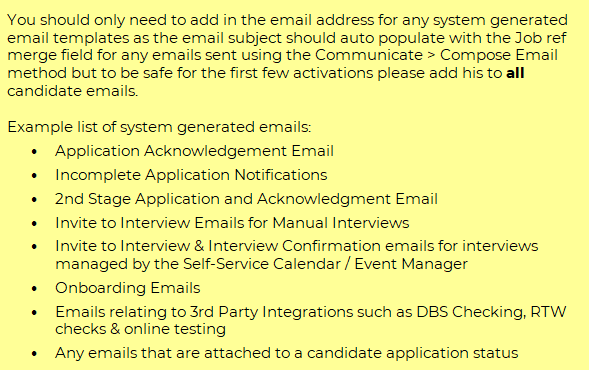
- {JOBS.JOBREFERENCE} should be added to the Subject of any candidate emails.
Client Handover
Once activated please book in call with the client to talk them through the setup required on their end and go through any queries.
Following this meeting please book in a follow up call once they have completed the setup and started utilising the feature to ensure there is an opportunity to ask any follow up questions.