Setup process
Step 1 – JTAdmin
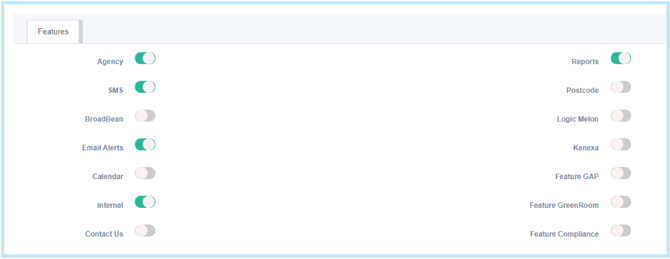
Ensure the feature is enabled in JTAdmin > Client > System Features Setup.
Step 2 – Security RolesGeneral Access
For security roles that need access to release jobs to agencies and manage communications with agencies, follow the below steps:
- Settings
- Security Roles
- Click on the name of the security role
- Go to Jobs & Talent Pools tab
- Toggle on ‘Email Agency

- Go to Create / Update Jobs (s)
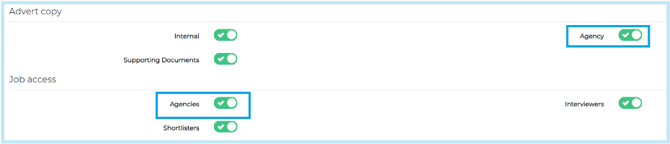
- Under Advert Copy section toggle on Agency
- Under the Job access section toggle on Agencies
For security roles that need access to create and manage agencies within setting, follow the below steps:
- Settings
- Security Roles
- Click on the name of the security role
- Go to Settings tab and enable General Setup: External Consultancies

Enabling this section allows users to create new agencies and add new agency users.
As long as General Setup: External Consultancies has Access + Add toggled on then this will allow access for new agency users to be created without the user also needing to have Security Roles > Settings > System Setup: System Users enabled.
Step 3 – Create an Agency Application Form
Build an agency application form within Settings > Application templates ensuring you have used the correct fields to capture the Agency / Consultant's email address & the candidate’s email address
- Agency / Consultant's Email address - To capture the Agency email the ‘Agency Email Address’ field must be used to
- Candidates email address – To capture the candidates email address the ‘Contact Email’ field must be used to capture this information.
Top tip: When creating the agency application form, copy on of their existing external application forms then you can ensure you are using the same fields as the standard application form should the client wish to report on data.
Step 4 – Agency Email Templates
In communications create the following email templates:
- Invitation to submit candidates email
- Agency acknowledgement email
- Closing date has passed email
Where do the agency related merge fields pull information from?
When creating email templates in Settings > Communications there are two agency related merge fields.
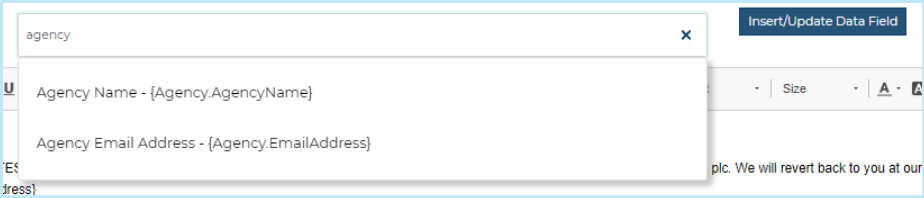
- {Agency.AgencyName}: pulls through the agency name from General Settings > External Agencies > Agency details
- {Agency.EmailAddress}: pulls through the agency email from General Settings > External Agencies > Agency details
These can be used in any emails to the agency and to any candidate applications that have been submitted by an agency.
Example Email content:
Invitation to submit candidates email
|
Dear {Agency.AgencyName}
<Insert Client Name> are currently recruiting for the role of {JOBS.JOBTITLE}.
Please click here to login and review further details and submit candidates for this role through the Jobtrain Agency portal before {JOBS.CLOSINGDATE}.
For any further queries, please contact the recruitment team at <Insert Client Name>
Kind regards,
<Insert Client Name> Recruitment Team |
Agency acknowledgement email (Please note: Agency Name merge field is different due to how these emails are generated)
|
Dear {Agency.AgencyName},
Thank you for your application / submitting {CANDIDATES.FIRSTNAME} {CANDIDATES.LASTNAME} for the role of {JOBS.JOBTITLEFORCANDIDATES} based in {JOBS.LOCATIONNAME}.
Should you have any questions relating to candidates submitted, then please do not hesitate to contact the recruitment team at <Insert Client Name>.
Regards,
<Insert Client Name> Recruitment Team |
Closing date has passed email
|
Dear {Agency.AgencyName},
The role of {JOBS.JOBTITLE} is now closed. We are no longer accepting further candidates for this role.
If you have any further questions, please contact your recruitment contact at <Insert Client Name>.
Kind regards,
<Insert Client Name> Recruitment Team |
Step 5 - System Customisation
Once you have created your email templates, you then need to set these in System Customisation
- Settings
- System Customisation
- Go to Emails subtab
- Scroll down to Set default emails to agency
- Set the relevant emails in the field below

NB: Do not add an email in Agency candidate registration email section as this doesn’t work
Step 6 – Adding a test Jobtrain Agency
| System Settings > General Settings > External Agencies. Complete all details on the page and select the required Candidate Exclusivity period from the dropdown. |
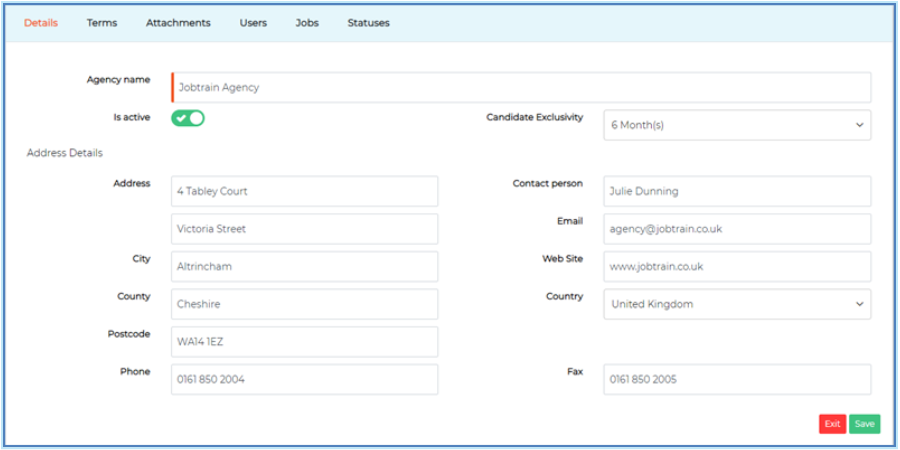
When the auto email to submit candidates is sent, this will go to the agency user on the main agency page, not the users added on the user tab.
If you would like the agency to have access to Jobtrain, ensure Is active is toggled on.
Press Save and several more sections will be displayed with more options to complete.
What do the sections/tabs mean?
Terms: Information is displayed to the agency (this cannot be edited by the agency).
Attachments: Add a document relevant to the agency (i.e. signed agreement). The document is not visible to agency.
Users: Add New Consultant(s). Tip: Ensure the user 'Is active'.
Jobs: Displays the jobs that the agency has been assigned to. You can remove access to job(s). Jobs can also be assigned to an agency on this page. Note: the automated notification is not generated.
Multiple users (consultants) can be added to one agency account.
All users log into the same portal/account and can see each other's candidates. Agencies CANNOT see (or search for) candidates submitted by a different agency.
Step 7 – Go Live checks
Before handing the Agency portal over to the client, follow the below checks to ensure all is working as it should.
|
AGENCY PORTAL CHECKS |
|
|
Checked? |
Are you able to log in as an agency consultant? |
|
GENERAL WORDING |
|
|
Checked? |
Check the correct support link is listed on agency side (if applicable), if not, please update to https://agencysupport.jobtrain.co.uk/support/home. |
| Checked? |
Check FAQs wording has been added and is correct. |
| Checked? |
Test that the advert copy that pulls through when select to view advert is the Agency advert copy. |
|
SUBMITTING A CANDIDATE |
|
|
Checked? |
Click Submit Candidate - is the agency application form correct? |
|
Checked? |
Declaration page - check the agency declaration is displayed here (to amend agency declaration go to JTAdmin > candidate > List All Pages (Candidate) > Declaration). |
| Checked? |
Check that when you submit a candidate as the agency the red dot appears next to the candidate on the client side. |
| Checked? |
Submit a candidate who is already listed in the system - does the duplicate candidate message appear as expected? |
|
Checked? |
Check the candidate status name is the candidate friendly version (not the internal version). |
|
CALENDAR |
|
|
Checked? |
If the client has calendar self-service, cancel an interview slot on behalf of the candidate via the agency portal. |
|
Checked? |
If the client has calendar self-service, book an interview slot on behalf of the candidate via the agency portal. |
|
ADDITIONAL DETAILS |
|
|
Checked? |
Test adding in a candidate's email via the button on list of submitted candidates page - ensure it saves and pulls through to the client side. |
|
Checked? |
From the agency portal, test assigning a candidate to another role using the reassign option in the list of submitted candidates page and that all data pulls across into the new role. |
| Checked? |
Test that you can generate logins for candidates so they can do onboarding or just access their account for future use through Jobtrain and test logging in as candidate when logins are generated. |
| Checked? |
Test the agency is able to amend their Agency Details. |
|
Checked? |
Test sent emails appearing. |
|
EMAILS |
|
|
Checked? |
Check invitation to submit email is sent to the email address entered on the agency details page. |
|
Checked? |
Ensure that if the agency has provided the candidates email address that all emails sent are sent to both the candidate AND the agency email address added into the application form. |
|
Checked? |
Check the email agency option sends an email to the email address entered on the agency details page. |