The edit application after submission feature allows candidates to edit their application after they have submitted it. Candidates can edit their application as many times as they wish, up to the point of the closing date.
This guide includes information on:
Edit application after submission
How does this feature work?
The edit application after submission feature allows candidates to edit their application after they have submitted it. Candidates can edit their application as many times as they wish, up to the point of the closing date.
When the closing date is reached, the system blocks candidate from editing their application > if closing date has passed and when candidate presses Edit button, there is a message on screen to say "This job is no longer live so your application cannot be updated".
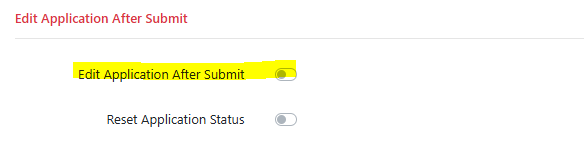
Activating this featureLogin to JTadmin and go to System Features Setup and toggle on Edit Application After Submit.
Reset Declaration
You can request for candidates to re-sign their Declaration each time they edit their application. To do so toggle this on within System Features Setup.

If this feature is enabled the candidate is required to re-sign their Declaration page i.e. click the Yes / Submit Application on final/ Declaration page.
If this is not enabled a declaration window pop ups on the page the candidate is editing.
For example, if candidate is updating their Personal Details page message pops up to say “I declare that the information changed in this Application Form is correct to the best of my knowledge”.
On the Decaration page, there is another message to say "Your application has already been submitted"

In order for a candidate to edit the Assessment Form, the "Reset Declaration" toggle must be toggled to YES.
Cautionary note: The 'reset declaration' toggle was built in as part of the advanced assessment function developed for Derbyshire Fire and Rescue Service. Bear in mind, or at least ask the client - if they have auto pass/fail turned on for their assessment forms, they should not use this option without first considering the reason for resetting the declaration.
Reset Application Status
(We wouldn’t recommend using this for the reasons below)
If Reset Application Status is enabled, when the candidate edits their application, the candidate status will revert back to Incomplete Application and if Reset Declaration is not enabled, there is a message on the Declaration page to say, “Your application has already been submitted”.
Essentially the system will not allow the candidate to re-sign the declaration and the candidate would sit at the incomplete application status. This would be frustrating for system users and candidates.
Scenarios
- If Reset Application Status is NOT enabled and Reset Declaration is NOT enabled, the candidate status remains at its current status following edit of application by candidate.
This is the preferred method of setup and how most clients use this. For a live example have a look at Saxon Weald.
- If Reset Application Status is NOT enabled but Reset Declaration IS enabled, the candidate status will go back to New Application status following edit of application (i.e. Reset Declaration over-rides the Reset Application status).
System User View
So that system users can easily identify candidates that have edited their application after submission there is an icon to flag this and it is recorded in the candidate’s history.
Within the list of candidate’s page within the relevant job you will see the below edit icon listed next to the candidate.

Within the candidate history you will be able to see the below entry, above this you will also be able to see which page the candidate edited. In the example below the candidate edited their personal details page:
FAQs
Can candidates edit their application after the closing date?
No, once the closing date has passed the candidate will no longer be able to edit their application.
How do I identify candidates that have edited their application after submission?
There will be an icon next to the candidate’s name in the list of candidates page.