Step 1 – Activate in ATS Control
To mandate this for all users
To switch on the feature:
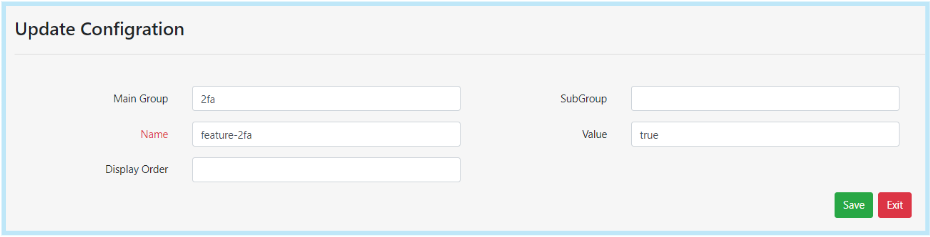
- Go to ATS control
- Client configuration
- +Add New
- Main Group = 2fa
- Name = feature-2fa
- Value = true
- Save
Still within Client config also add the following key:
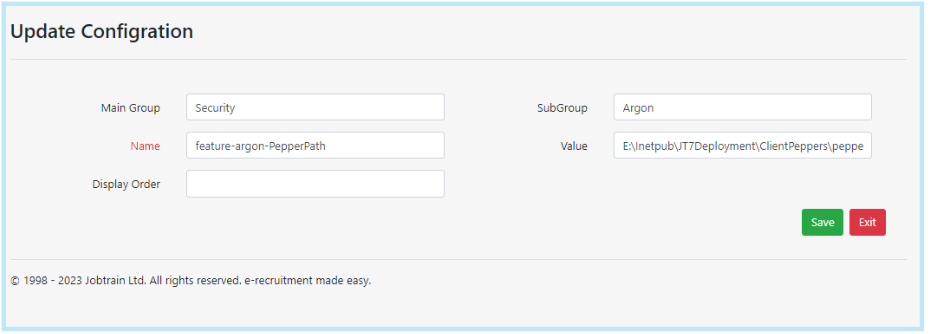
- +Add New
- Main Group = Security
- SubGroup = Argon
- Name = feature-argon-PepperPath
- Value = E:\Inetpub\JT7Deployment\ClientPeppers\pepper.json
- Save
The feature is now enabled and will appear below in client config
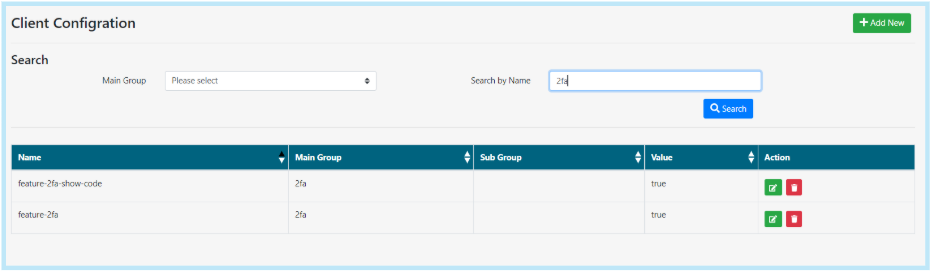
Please note - Activating 2FA does not make it mandatory for all users to use this feature. If the client wishes to mandate this for all users, then please follow the steps below.
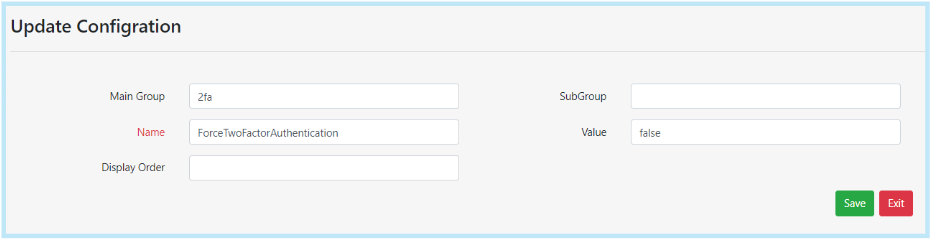
If clients want to mandate this for all users, there is another setting in client configuration to force 2FA that needs to be set to true:
- +Add New
- Main Group = 2fa
- Name = ForceTwoFactorAuthentication
- Value = true
- Save
Step 2 – Client Comms
Once this is activated the client can then setup their 2-factor authentication and user guide can be shared.