
I want to:
- Understand what Dashboard is
- Personalise my own Dashboard, if my role allows it
- View a colleague's Dashboard using View As
What is Dashboard
Dashboard is your homepage in Jobtrain, built around what your role needs to act on. Depending on your role, you might open onto your live jobs, see how your candidates are progressing, or see who's due to start. Your system administrator sets up which dashboard your role sees.

Good to know: Most dashboard data refreshes overnight, so the figures reflect the position as at the last refresh meaning your dashboard is ready for you to log in and act on your key actions at the start of the day.
Personalising your own Dashboard
If your Security Role allows it, you can personalise your own dashboard layout, adding and removing widgets and moving them into the order that suits how you work.
Watch our short video below or follow the written steps that follow.
Video: How to personalise your Dashboard
Steps to personalise your dashboard
- Select the circular icon showing your initials.
- Select User Settings from the menu.
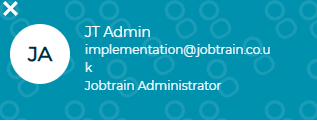
- Open the Dashboard Builder section.
- Select the Dashboard Builder button to edit your layout, or change your default landing page from the same screen.

Important: If you personalise your dashboard, it stays as you've set it each time you log in. The exception is if your system administrator applies a template update to everyone in your role, in which case your personalised layout is replaced by the new template.
To see what each widget shows before you start to personalise, see our Dashboard widget reference guide.
Viewing another user's Dashboard (View As)
View As lets you see another user's Dashboard exactly as they see it, and act from it if you need to. Watch our short video below or follow the written steps that follow.
Video: Viewing another user's Dashboard
If your Security Role has Advance Dashboard and List all jobs enabled, a View As dropdown appears at the top of your Dashboard, defaulting to "Me (Current User)".

Select another user to see their Dashboard view. The filter bar shows "Viewing as: [Name]" while active, and you can clear it to return to your own view.
Anything you do while viewing as another user is recorded against your own account, not theirs. If you take action on someone's behalf, it will show as having been done by you.
When this is useful
- Helping a colleague who says they can't find something
- Seeing what your team sees, so you know what they're working from day to day
- Picking up where a colleague left off while they're on leave, by seeing the jobs and tasks on their dashboard
- Confirming a template change has landed as expected for a particular role
FAQs
The numbers on my dashboard have not changed since yesterday, is something wrong?
No. Some of the dashboard is refreshed overnight rather than updating as you work, so it shows the position as at that refresh. Any activity from today will appear on your dashboard tomorrow.
Why does my dashboard look different to a colleague's?
Dashboards are set up per Security Role, so colleagues on a different role see a layout built for what they need to act on. If you're on the same role as your colleague, one of you may have personalised your own layout.
I personalised my dashboard but it has changed back to a different layout, why?
Your system administrator has applied a template update to everyone on your role, which replaces personalised layouts. Your previous personalisation can't be restored, so you'll need to set it up again if you want to.
Why can't I see the View As dropdown?
View As only appears if your Security Role has both Advance Dashboard and List all jobs enabled. Speak to your system administrator if you think you should have it.
I don't land on my dashboard when I log in, how do I get to it?
Use the Quick Links menu to open your dashboard. If your Security Role allows you to modify your dashboard, you can also change where you land when you log in from the Dashboard Builder section in User Settings.
Why does selecting a widget say access denied?
Some widgets, such as Candidates by status, open Search filtered to that status. If your Security Role doesn't have access to Search, you'll see an access denied message. Speak to your system administrator if you need it.
For any questions about using your Dashboard (or any other Jobtrain functionality), please contact our support team on +44(0)161 850 2004.