
I want to:
- Understand the different ways a candidate can complete two-factor authentication
- Weigh up the options and decide which setup is right for my organisation
- Contact the Jobtrain support team to enable 2FA or change which setup is used
- Know what to tell a candidate who has not received their login email
- Know what to tell a candidate who has lost access to their authenticator app
- Reset two-factor authentication for a candidate who has lost their authenticator app and their recovery codes
How candidates complete two-factor authentication
Two-factor authentication (2FA) (also known as Multi-Factor Authentication or MFA) adds a second security check when a candidate logs in, on top of their username and password. There are two methods a candidate can use for this second check, a secure email link or an authenticator app, and both provide the same level of account protection. Your organisation decides how 2FA is set up, and that setup applies to all your candidates.
Secure email link
The candidate is sent a one-time link by email each time they log in. They select the link to complete their login.
Authenticator app
The candidate uses an app on their phone (such as Google Authenticator, Microsoft Authenticator or Authy) to generate a six-digit code, which changes every 30 seconds. They enter the current code to complete their login.
When a candidate first sets up an authenticator app, they are also given six one-time recovery codes. These let the candidate log in if they ever lose access to their phone or their app.
How 2FA is set up for your organisation
When we enable 2FA for your organisation, we configure it in one of three ways. This applies to all your candidates, not on a per-candidate basis.
1. Secure email link only
Every candidate logs in with a one-time email link each time. No authenticator app is involved.
2. Authenticator app (optional)
Candidates are prompted to set up an authenticator app but are not required to. A link at the bottom of the setup screen lets them continue without one. Any candidate who skips setup simply keeps logging in with the secure email link, so no one is left without a second step. This is the recommended balance of security and accessibility.
3. Authenticator app (mandatory)
Every candidate must set up an authenticator app to log in. There is no skip link and no email fallback, so this is the most secure option but the least flexible for candidates.
Enabling two-factor authentication for your candidates
Two-factor authentication is not switched on by default. It is enabled by the Jobtrain support team, who will switch on the setup you choose for your organisation. Use the comparison below to decide which setup is right for your candidates.
Comparing your options
All three setups add the same level of protection to your candidates' accounts. The decision on which to use rests with your organisation. The pros and cons below are set out to help you choose the option that best fits your candidates and how you recruit.
1. Secure email link
Pros
- No app to install, candidates only need access to their email
- The simplest option for candidates, which can help with high-volume or fast-turnaround recruitment
- Well suited to candidates who may not always be applying from a smartphone
Cons
- Depends on the candidate being able to access their email inbox at the time of login
- Login links expire after 5 minutes, so candidates need to check their inbox promptly
2. Authenticator app (optional)
Pros
- An additional layer of security, independent of the candidate's email account
- Candidates get their own recovery codes, so they can usually get back into their account without contacting you
- Candidates who would rather not use an app can skip it and keep using the email link, so no one is blocked
Cons
- Candidates who want the added security need to install and set up an app on their phone
- Candidates who lose their phone and their recovery codes will need you to reset their 2FA
3. Authenticator app (mandatory)
Pros
- The strongest option, as every candidate secures their account with an authenticator app
- Login does not depend on the candidate being able to reach their email inbox at the time
Cons
- Every candidate must install and set up an app with no option to skip, which can slow down high-volume or fast-turnaround recruitment
- Candidates who lose their phone and their recovery codes will need you to reset their 2FA before they can log in
Contact the Jobtrain support team to:
- Enable two-factor authentication for your candidates, using the setup you have chosen
- Change your existing setup, if your requirements change
Good to know Once 2FA is enabled, it applies to all your candidates and cannot be turned on for some candidates only.
If a candidate contacts you about a login problem
Candidates may contact your organisation directly if they are struggling to log in. Use the guidance below depending on what they tell you. In most cases, candidates can resolve their own issue using recovery codes or by requesting a new link.
The candidate has not received their login email
Ask the candidate to:
- Check their spam or junk folder and refresh their inbox.
- Wait for the on-screen timer to count down, then select Click here to resend the email to send a new link.
- Check the time on the newest email so they open the most recent link.
The candidate has lost access to their authenticator app
If the candidate still has their recovery codes, they do not need your help. On the code entry screen, they can select Lost access to your device? Click here to login another way, then enter one of their saved recovery codes to log in. We recommend they reset their two-factor authentication and generate new recovery codes once they are logged in.
The candidate has lost their authenticator app and their recovery codes
If the candidate cannot access their authenticator app and cannot find their recovery codes, they cannot recover their own account. You can reset two-factor authentication for them directly from their candidate record.
- Open the candidate's application record.
- Select the gear icon (Actions menu) in the top-right of the candidate record.
- Select Reset 2FA.
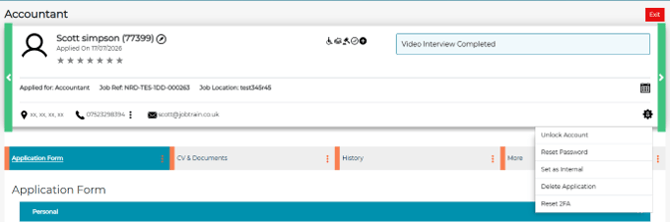
This sends a secure sign-in link to the candidate's registered email address. The candidate selects the link to complete two-factor authentication and log in, using their email address instead of their authenticator app.
Important You will only see the Reset 2FA option if your security role includes this permission. If you cannot see it, contact your system administrator.
Important Resetting two-factor authentication removes the need for the candidate's authenticator app or recovery codes, and lets them straight back in by email. Confirm who you are speaking with before using this option, in the same way you would before making any other change to a candidate's account.
Security role setting required
The Reset 2FA option is only visible to system users who hold the List Candidate - Reset Two FA security role.
This option can be enabled in
Settings > Security Roles > Jobs & Talent Pools

FAQs
Can I see or reissue a candidate's recovery codes myself?
No. Recovery codes are shown to the candidate once, on screen, when they set up their authenticator app. They are not retrievable afterwards, so they cannot be looked up or read out on the candidate's behalf.
Does resetting 2FA change the candidate's password?
No. Resetting 2FA only affects the candidate's two-factor authentication setup. Existing password reset processes are separate and are not affected by this action.
Does the candidate need to set up their authenticator app again after a reset?
They may need to, depending on how their account is configured. Either way, no further action is needed on your part, the candidate simply follows whatever on-screen steps they are shown after signing in with the reset link.
Who can I contact if I need the Reset 2FA permission added to my account?
Contact your system administrator, who can add the List Candidate - Reset Two FA security role to your account. Resetting 2FA remains a client-side action, so your organisation manages who holds this permission and confirms the candidate's identity before it is used.