Some recruitment campaigns generate very high volumes of applications resulting in shortlisting processes taking place over a number of days.
A shortlisting complete button allows the shortlister to control when the 'shortlisting complete' notification email is sent to relevant system users to prompt the next stage in the recruitment journey.
Similar notifications can be configured using System Alerts functionality which is based on all application status updates made that day.
The Shortlisting Complete functionality has been introduced to provide an alternative method of notification where shortlisting may take place over multiple days.
What is the Shortlisting Complete button?
The Shortlisting Complete button sends an instant email notification to system users who have access to that job advising that shortlisting has now been completed. This then prompts the next stage in the recruitment process.
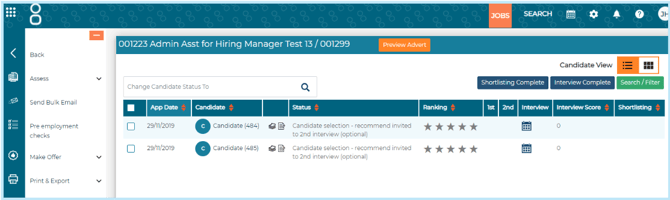
There are a number of checks to ensure that the shortlisting complete notification is only triggered at the appropriate point in the recruitment process.
The shortlisting complete button will only appear:
- For system users with a security role that’s configured to display the button (typically shortlister or hiring manager security profiles).
- When 'Live for Candidates' is set to No. This is to ensure the job is not open to candidate applications (i.e. the job is not advertised).
- When all application statuses have been updated following shortlisting (which application statuses this corresponds to can be configured in Settings > Security Roles).
The email notification can only be generated:
If a user attempts to send the Shortlisting Complete notification whilst there are still applications at shortlisting statuses, an on-screen error message will display, indicating why shortlisting cannot be marked as complete:

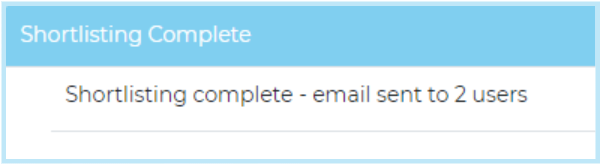
Once the shortlisting complete email notification has successfully been triggered, an on-screen message will indicate this has been generated successfully:
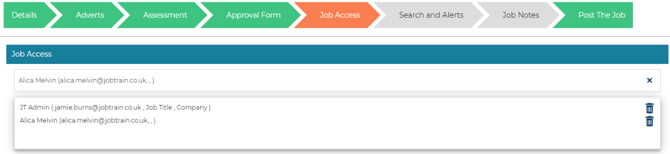
The Shortlisting Complete email notification is sent immediately to any system users added in the Job Access tab for that job, and where the Shortlisting Complete notification is enabled for their security role.
A 'Shortlisting Complete' email can be created in Communications.
Merge fields which relate to the job or system user can be used in the Shortlisting Complete email. However as this is a generic email relating to all candidates that have been shortlisted, candidate merge fields are not operational.
In System Settings > System Customisation, connect the appropriate email that should be sent when the Shortlisting Complete button is clicked.

Whether the shortlisting complete button appears for users or not can be configured in Security Roles.
To enable the shortlisting complete button, go to Settings > Security Roles and edit the required security role.
On the Jobs & Talent Pools tab, select the 'Access' checkbox against the 'List Candidate – Shortlisting Complete' option.

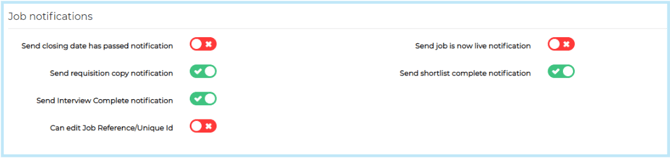
Whether users who are added into the job’s Job Access tab receive the shortlisting email notification or not can also be configured in Security Roles.
To enable the shortlisting complete email notification, go to Settings > Security Roles and edit the required security role.
On the Create / Update Jobs tab, go to 'Send shortlist complete notification' and select Yes.
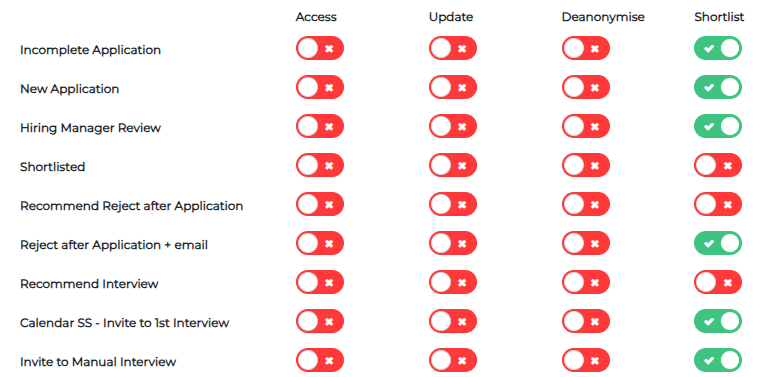
To prevent the Shortlisting Complete email from being generated at the wrong time, in System Settings > Security Roles you can configure which statuses should prevent the Shortlisting Compete email from being sent.
Within a Security Role, find the Application Status(s) tab then the 'shortlist' column.
If the application status checkbox in this column is ticked, the shortlisting complete email will not be sent if there are applications currently at that status against the job.