
I want to:
- Understand what Direct Apply is
- See why it matters
- Know what candidates see
- Review my Direct Apply application form
- Know what happens once candidates have applied
What is Direct Apply for JobBoard Reach?
When your jobs go out through JobBoard Reach, whether to the free job board network or as a boost, candidates apply on the job board itself rather than clicking through to your Jobtrain vacancies site. This is called Direct Apply. Their application arrives in Jobtrain as a new application, in your usual candidate list for the job alongside candidates from your other sources.
See it in action. Our short video shows how Direct Apply works, from the job board to Jobtrain.
What application details are collected?
Candidates are not redirected to your Jobtrain vacancies site, so they do not complete the full application form you normally attach to a job. On the job board, they complete:
- the job’s pre-assessment (killer) questions, if the job has any
- your Direct Apply application form, which our Support team sets up for you and you can review using this guide
Why it matters
- You get more completed applications. Candidates apply in a few steps, on the site where they found your job.
- Candidates arrive in Jobtrain straight away as new applications, in your usual candidate list and ready for your usual recruitment process.
- You can see what is working. As candidates move through your process, you can run reports to show which boards bring in quality candidates.
What candidates see
Candidates find your job on the job board and apply there, without leaving the site. They answer the job’s pre-assessment (killer) questions, if it has any, and your Direct Apply application form, then submit their application and receive your acknowledgement email. They do not see your Jobtrain vacancies site at this stage.
Before you start
Already using Indeed Quick Apply? You have one Direct Apply application form, shared by JobBoard Reach, Indeed Quick Apply and any other job boards that use Direct Apply. If you already have a Direct Apply application form set up, check it still asks for everything you need. Any change you make applies everywhere the form is used.
Set up Direct Apply
There are three steps to get it ready: give the right people access, review your Direct Apply application form and review the acknowledgement email candidates receive.
Step 1: Give access to the Direct Apply application form
Our Support team turns this on for your superuser role when they activate Direct Apply. Follow these steps only if you want to give access to other roles.
- Go to Settings > Security Roles and select the relevant role.
- Open the Settings tab.
- Turn on Application Templates: Direct Apply Application Form.

Step 2: Review your Direct Apply application form
Our Support team sets up your Direct Apply application form when they activate Direct Apply. Check it asks for everything you need and make any changes.
-
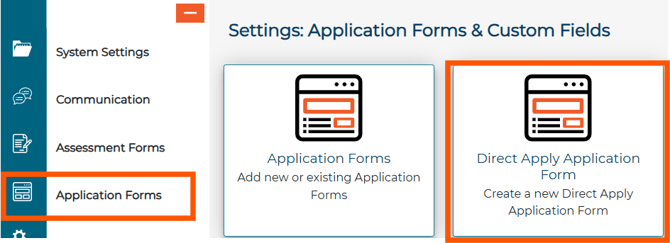
Go to Settings > Application Forms > Direct Apply Application Form
The form has several tabs:
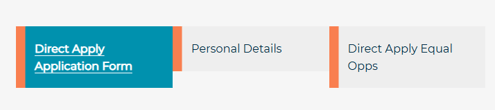
Application Form tab
Use this tab to ask up to 10 additional assessment questions. You can also choose whether to ask for a CV.
- Review the compatible questions in your Assessment Form Question Bank.
- Select the + button beside a question, or drag it into the form. You can add up to 10 questions.
- Drag questions to reorder them, or select the bin icon to remove one.
- Select Preview to see the form as candidates will, then select Save.
Tip: Only Textbox and Multi-choice questions can be used. To add a new question, add it to the question bank first under Settings > Assessment Forms > Question Bank.
Personal Details tab
Use this tab to collect key candidate details. First name, surname, email address and phone number are included as standard. Toggle on any of the following as needed:
- Title
- National Insurance Number (this field is not validated)
- Address Line 1
- Address Line 2
- Town/City
- County
- Country
- Postcode
Direct Apply Equal Opps tab
Equal opportunities questions are optional. Turn on the standard questions you want to ask using the toggles in the Visible column, or add custom fields from your Custom Fields library.
If you do not want to capture this information, leave the Equal Opps section of the form empty.
Step 3: Review the acknowledgement email candidates receive
Our Support team sets up a Direct Apply acknowledgement email for you, which candidates receive once they submit their application.
- Go to Settings > Communication > Email templates.
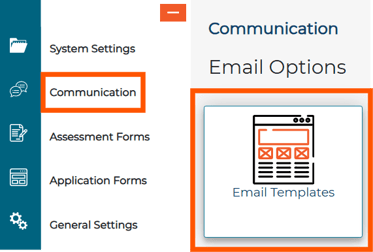
- Search for Direct Apply.
- Select the Direct Apply acknowledgement email template and amend as required. Do not remove the links to create an account or to your candidate site.

What happens once candidates have applied
- Their application arrives in Jobtrain straight away as a new application, in your usual candidate list for the job.
- They receive the acknowledgement email you reviewed in Step 3.
- As they move through your process, you can run reports to show which boards bring in quality candidates.
What next?
Your Direct Apply form is ready. If you are setting up JobBoard Reach for the first time, go back to Step 3 in Get ready to use JobBoard Reach. If only your superusers need access, you’re ready to start. See How to use JobBoard Reach.
FAQs
Can I have a separate Direct Apply form for JobBoard Reach?
No. You have one Direct Apply application form, shared by JobBoard Reach, Indeed Quick Apply and any other job boards that use Direct Apply.
Is a CV mandatory?
No. You can turn the CV option off in the Application Form tab.
Can I restrict who can change the form?
Yes. Only users whose security role includes Application Templates: Direct Apply Application Form can edit it.