
Feature: Assessment Forms
For: Superusers, Recruiters
I want to:
- Create a scored assessment form
- Add scoring to Choice or Order of Importance questions
- Define pass marks and total scores
- Copy questions from the Question Bank
- Configure multiple-answer logic
- Attach a scored assessment form to a job
Create a scored assessment form for candidates
- Go to Settings > Assessment Forms.
- Click New Form.
- Complete the form details:
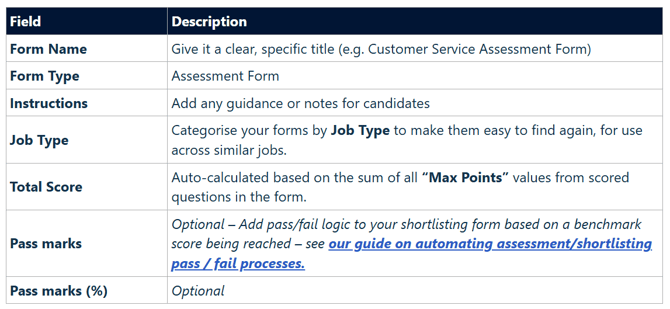
- Click Save.
Add scored questions to an assessment form
Choose to:
- Add a question from the Question Bank
- Search the question bank
- Select the checkbox against the question(s) you wish to add
- Select Copy
- A copy of the selected questions will be added to your assessment form.
- Create new questions
| Step 1 | Select the question type: | |
| Choice | Order of Importance | |
| Step 2 |
|
|
| Step 3 |
If using multiple answers: Use Select total options to define how many options can be selected:
|
|
| Step 4 |
Add Scoring to a Choice Question
|
Add Scoring to an Order of Importance Question
|
| Step 5 |
Make the question mandatory / non-mandatory |
|
Once you have added in all required questions Click Save.
Don't forget – final scoring setup
For scoring to work, every option with a score assigned must also be marked as correct
Set a clear Pass Marks value before exiting the form to ensure scores are assessed correctly and support automated status changes where configured
Attach a Scored Candidate Form to a Job
- Edit the job > then go to the Assessment tab.
- Toggle “Do you want to add Assessment Forms?” To Yes to enable the form selection field.
- Use the search-as-you-type field to find and select the correct form.
- Click Preview to check the shortlisting questions.
- Click Save to apply the form to the job.
FAQS
What’s the difference between a Scored and Non-Scored Assessment Form?
Scored Assessment Forms are used to evaluate candidate responses based on a points system. Each question includes correct answers and associated scores, and a pass mark can be set to filter candidates.
Non-Scored forms collect candidate input for review but do not assign scores or determine outcomes based on performance.
What does the “Randomise Questions” option do, and which forms support it?
The Randomise Questions setting shuffles question order for each candidate, reducing bias and pattern-based responses, especially in scored assessments. It applies to Candidate Assessment Forms (scored and non-scored) and Pre-Assessment Forms (Killer Questions), but not to Screening or Shortlisting Forms, which maintain a fixed order for consistent evaluation
Do I need to complete the Total Score and Pass Marks fields?
You only need to enter the Pass Marks. The Total Score is calculated automatically based on the scoring you've set up in the form. The system then uses both values to auto-calculate the Pass Marks (%).
Can I use questions from another form?
Yes, but only if they’ve been added to the Question Bank. To add them to your form, open the form you’re creating and click "Add from Question Bank."
If the questions aren’t in the Question Bank, you can choose to copy an existing form instead. However, best practice is to build reusable questions in the Question Bank so they’re easy to manage and consistent across multiple forms.
Can I change the Pass Mark % directly?
Yes, please see this guide for more details: automate status updates with pass fail logic .
How is scoring handled when a question allows multiple correct answers?
If multiple correct answers are enabled, the candidate earns points for each correct option selected. The Maximum Points field should reflect the total points available when all correct answers are chosen.
Can I use question types like Rating or Text in a Scored Form?
No. Scoring is only available on Choice and Order of Importance questions within Scored Assessment Forms.
What happens if I attach a scored form to a job but later change the pass mark or total score?
Changes to the Total Score or Pass Marks made after a form has been attached to a job will not update the job. These values are copied into the job setup when the form is first attached. Any later changes to the form will only apply when the form is attached to new jobs.
Can I configure automated status changes and candidate emails based on score thresholds if I attach two scored assessment forms to a job?
Only if the form is attached as Assessment Form A.
Automated actions (e.g. Status changes or candidate emails triggered by percentage thresholds) can only be configured using the scores from Assessment Form A.
Can I edit a Scored Assessment Form once candidates have started applying?
Yes, but proceed with caution. Editing questions mid-process could impact fairness or consistency in candidate evaluation.
Can I preview the form before it goes live?
Yes. You can use the Preview button while building the form to check the content. You can also preview the form again when attaching it to a job, to ensure everything looks correct before saving.
Why aren’t my scores working on a Choice question?
If you add scores to answer options but don’t also mark the correct option(s), the scoring will not work. To enable scoring, make sure at least one answer is both scored and marked as correct.