
The suite of reports can be accessed by clicking on Reports in the top menu.
Report overview
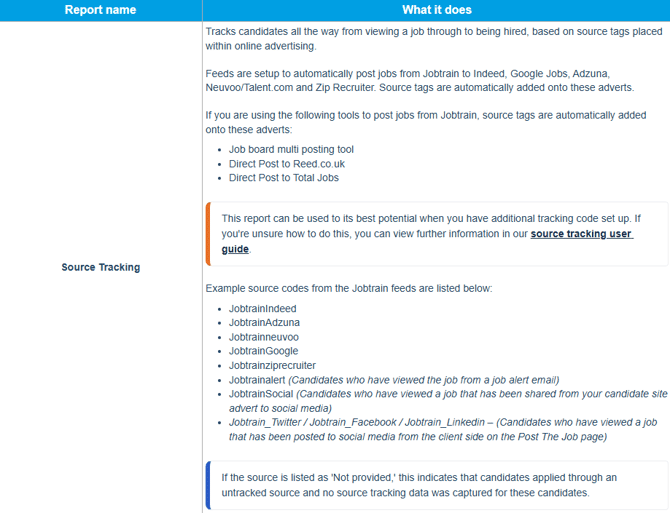
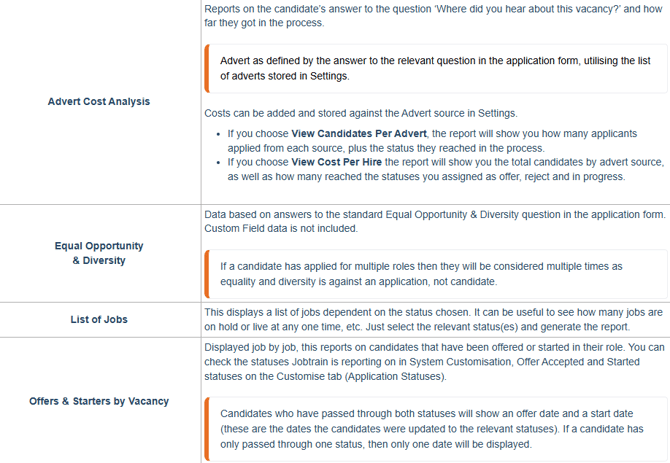
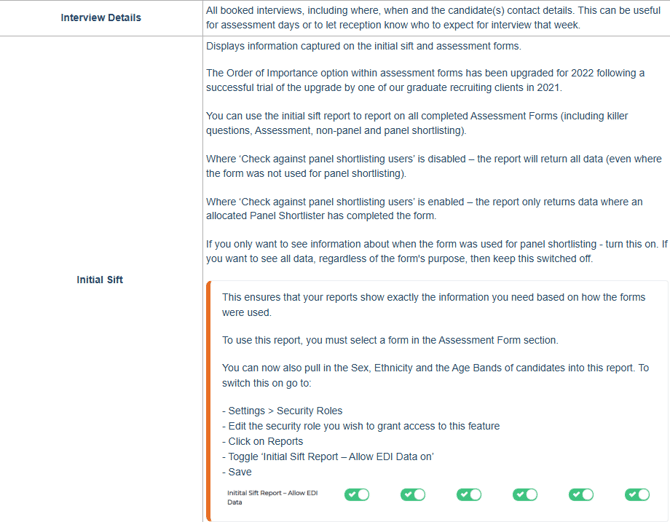
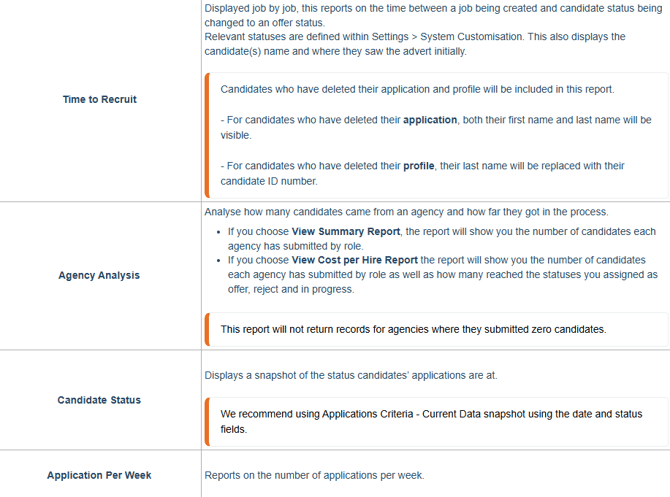
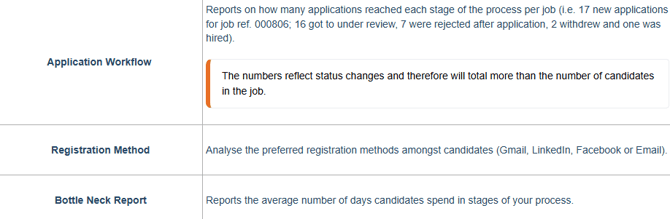
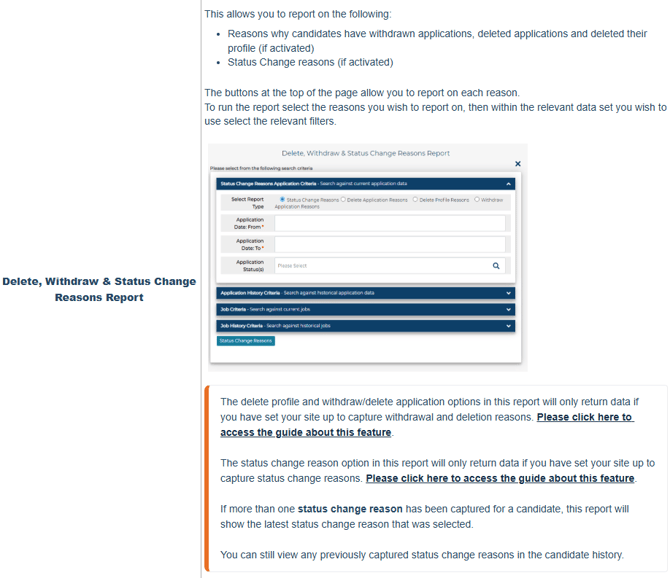

Filter Criteria
Within each report you can choose your desired criteria from a selection like this:
- Details entered into the Application Criteria and Job Criteria sections searches the current data snapshot (i.e. candidates currently at that status)
- Application History Criteria and Job History Criteria will search the history of the role (i.e. will search for candidates who have ever been at that status, so this will include every status change for an individual candidate)
Each blue bar expands when clicked and will reveal more options.
In most reports selecting criteria is optional, however, there are some exceptions. These are explained in the later section Exceptions.
Report production
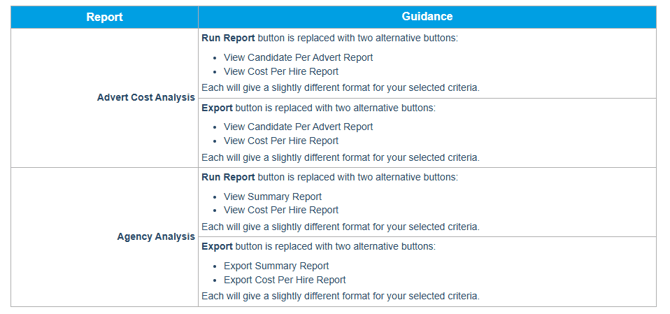
| To view the report click Run Report. | |
| To export the data to excel, select Export. |
Exceptions
Filtering

Production
Assessment Forms: Order of Importance Functionality
The Order of Importance option within assessment forms has been upgraded for 2022 following a successful trial of the upgrade by one of our graduate recruiting clients in 2021.
For candidates, the upgrade supports drag and drop answering rather than numerical input on the latest version of our candidate interface, and for clients it works hand-in-hand with an upgrade to the Assessment Form Report to make scoring and top slicing candidates easier.
What does the candidate see?
In this example, the candidate is asked to put a sequence in the correct order. Alternately, they could be asked to rank their preferences to a range of options, with ‘Most’ at the top, and ‘Least’ at the bottom, or by applying numbers (1 = Most).
What do you as a User see?
Within the assessment form section of the candidate record the candidate’s answer can be reviewed.
Within the Assessment Form Report, all the candidates’ answers can be reviewed. Scoring is optional and determined when setting up the form (see our Assessment Forms guide). There are two columns displaying the candidates answer in slightly different ways to suit different evaluation processes or preferences:
- OOI Ranking: This stands for the ‘order of importance’ and is the ranking they gave to answers.
- Display Sequence: Taking their OOI ranking, this column displays the resulting sequence.
To explain the difference let’s use this example, based on John Le Carre’s famous novel Tinker Tailor Solider Spy.
Mr Q. Wright is asked:
Please put these in the correct order...
| 1. | Spy | [4] |
| 2. | Tinker | [1] |
| 3. | Soldier | [3] |
| 4. | Tailor | [2] |
Mr Q. Wright’s answers are shown in orange font/brackets.
Based on this the OOI Ranking in the report would be 4,1,3,2. This is because he has ranked Option 1 as 4th, Option 2 as 1st, Option 3, as 3rd, and Option 4 as 2nd.
The Display Sequence in the report would be 2, 4, 3, 1. This is because as a result of his rankings, Option 2 (Tinker) would appear first, followed by Option 4 (Tailor), Option 3 (Soldier) and finally Option 1 (Spy).
Regardless of your preference, these reports can be easily exported to Excel for further manipulation or analysis, be it for ranking for selection decisions, or blending with other data.