
For: Recruiters, Superusers
I want to:
- Enable report permissions for different types of users
Assign report permissions by role
Control which users can build reports and create new public reports to share with others.
To configure:
- Go to Settings > Security Roles.
- Open the relevant role (e.g. Hiring Manager, Recruiter).
- Select the Reports tab.
- Enable the toggles for the permissions you wish to grant
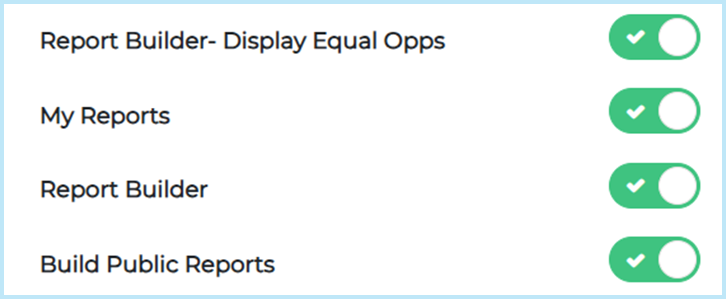
| Security Role Item | Description |
| Report Builder – Display Equal Opps | Where enabled, displays equal opps data (like BI module, reports can be filtered down to individual applicants, so consider if it is appropriate for that user to see equal opps information of applications). |
| My Reports | The most basic access – allows users to see standard and public reports that others have built. |
| Report Builder | Allows the user to build and save custom reports to their own My Reports page |
| Build Public Reports | Allows users to build reports and save them as public reports for others to view. |
NOTE: Users will see the legacy reporting interface unless My Reports is enabled.
How data visibility works
Users can only see reporting data they have permission to access.
- Report outputs reflect the jobs and candidates each user is allowed to see, based on Job Access and their Security Role.
- Two users running the same report may see different results if they have access to different jobs or applications.
- The system automatically checks each user’s access level when a report is opened or run. This ensures that no restricted data is included in the results.
This applies to all data sources and report types within Report Builder.