
The Redeployment feature provides a range of tools for HR teams and managers to effectively manage redeployment workflows, empowering organisations to prioritise internal talent mobility and reduce redundancies.
Key features of the Redeployment feature
- Dedicated Redeployment Hub
Redeployees gain exclusive access to a Hub showcasing jobs posted specifically for redeployees, ensuring confidentiality and ease of access. - Comprehensive Caseload Management
Redeployment Managers can track and manage redeployees with features such as:- Assigning redeployees to jobs that match their preferences and skills.
- Monitoring their status through customisable Redeployment stages.
- Viewing detailed Redeployment history to ensure transparency and compliance.
- Streamlined job matching and assignment
Redeployees can be matched to roles using advanced filters based on preferences such as location, job type and salary. Redeployment Managers can assign candidates to roles as incomplete applications, with key details pre-filled for efficiency. - Tailored notifications and communications
Built-in email templates keep redeployees informed at every stage of the process, including registration, job assignments and status updates. - Customisable Settings
You can tailor redeployment process to your organisation’s needs, with settings for:- Redeployment statuses
- Withdrawal reasons
- Redeployment forms for gathering preferences and qualifications.
What's included in this setup guide
Set up
| Complete? | Action |
| 1. Request activation. | |
| 2. Advertise existing internal (or other) vacancies on the new Redeployment Hub. | |
| 3 .Set up Security Role access for users who will be managing redeployment. | |
| 4. Add your Redeployment Managers as Jobtrain Users. | |
| 5. Add redeployment form(s). | |
| 6. Add Redeployment Form declaration wording. | |
| 7. Create Redeployment Statuses and connect ‘Placed’ to System Customisation. | |
| 8. Create Redeployment emails and connect to System Customisation > Emails. | |
| 9. Add Redeployment Withdrawal reasons. |
Please note: A pre-requisite to activate Redeployment is enabling Talent Networks. Please check that Talent Networks is activated on your system.
Activation
To activate Redeployment, contact your Success Consultant who will be able to advise on next steps and arrange for activation.
User Access and Security Role options
Access to redeployment features is controlled through Security Roles:
Security Roles > Jobs & Talent Pools
| List Candidate - Redeployment | This displays the candidate’s Redeployment form alongside job applications for users who are shortlisting / managing vacancies. |
| Redeployment Cases | Provides access to the Redeployment Caseload in the Talent menu. |
| Re-deploy – Assign to other Manager | Enables reassignment of redeployees to another manager’s caseload. |
| Redeployment Caseload – View All | Gives an overview of all redeployee candidates and allows filtering by manager. |
Security Roles > Settings
| Redeployment Settings | Gives access to Redeployment Settings (i.e. the options detailed below) |
| General Setup: Redeployment Form | Configure redeployment application forms. |
| General Setup: Redeployment Status | Configure redeployment statuses, to allow users to track redeployees’ progress through the redeployment journey. |
| General Setup: Redeployment Withdraw Reason | Configure Redeployment Withdrawal Reasons. |
System users
The individual system user is automatically tracked as the redeployment manager of candidates that they add to the redeployment caseload.
To allow a system user to add redeployees, follow these steps:
- Go to Settings > System Users
- Add or edit a system user.
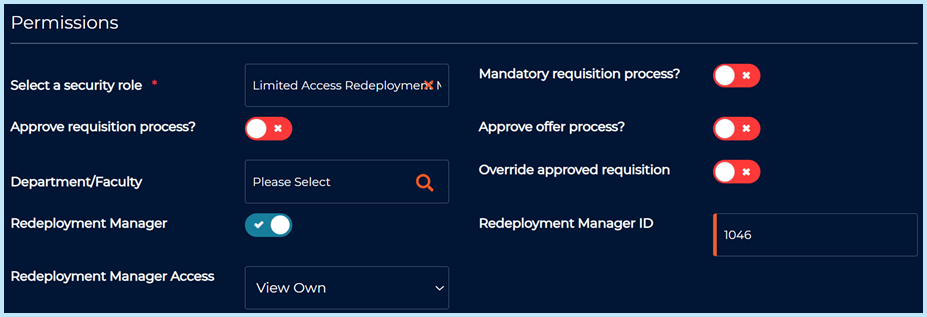
- Enable the Redeployment Manager toggle.
- Choose if the user should have visibility of only viewing their own redeployee candidates, by choosing View Own.
- If the user is to have access to other manager’s redeployees, choose View All.
- A unique Redeployment Manager ID will be generated. If you already have your own system for tracking redeployment users with an ID number, this can be overwritten with your own sequential tracking number, however it must be unique.
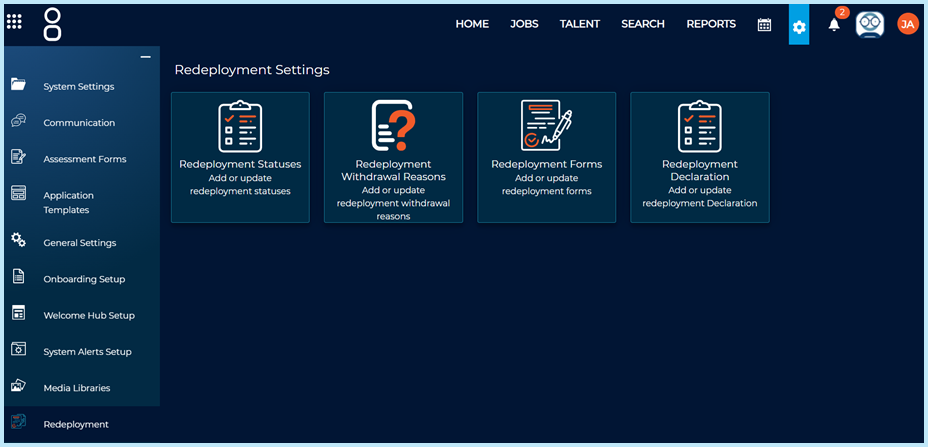
Redeployment Settings
All settings relating to redeployment can be found in the Redeployment Settings area in the General Settings menu.
Redeployment Forms
Capture redeployment preferences and qualifications using Talent Application Forms.
- Go to General Settings > Redeployment > Redeployment Forms to choose which of your Talent forms should be used for redeployment.
If only one Redeployment form is set-up, it will automatically be displayed when users select Add a Redeployee in the Caseload area.
If multiple Redeployment forms are set-up, users will be prompted to choose an appropriate form.
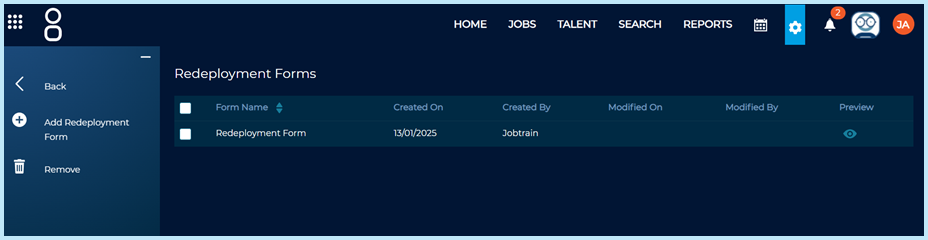
To add a new Redeployment Form:
- Go to General Settings > Redeployment > Redeployment Forms.
- Click Add a Redeployment Form.
- Select the appropriate Talent Application Form to use and click Continue.
The selected form will then be available when adding new redeployees.
Redeployment statuses
- Track redeployees’ progress through configurable statuses, enabling oversight of their journey through the redeployment process.
- Set statuses such as Active to indicate redeployees currently seeking roles, Placed for those successfully redeployed and Withdrawn for candidates no longer participating in redeployment.
- Custom statuses can be created to reflect specific stages of the process, such as Interview Scheduled or Pending Decision, allowing managers to identify bottlenecks and take targeted actions.
- These statuses improve workflow management by offering a clear view of each redeployee’s current stage, facilitating timely interventions and reporting for compliance or internal reviews.
To add a Redeployment status, follow these steps:
- Go to General Settings > Redeployment > Redeployment Statuses.
- Select New Redeployment Status.
- Name your status. If the status indicates that the candidate is no longer an 'active’ redeployee, toggle on Mark as Withdrawal Status.
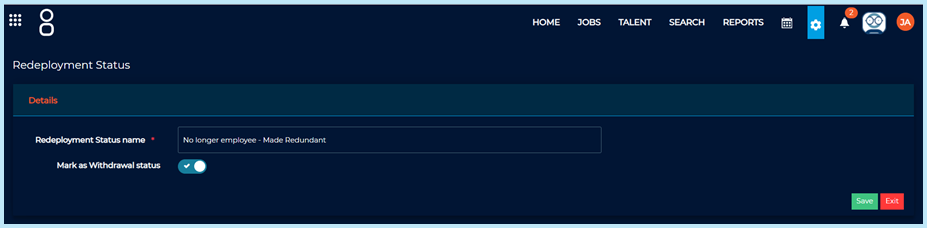
Any statuses marked as a Withdrawal Status will automatically move your candidate to the Previous Caseload area once they reach this Redeployment Status.
System Customisation
Once your Redeployment Statuses have been added, they must be connected in System Customisation > Redeployment Statuses.
| Redeployment New Redeployee Status | Choose which redeployment status newly added Redeployees should default to e.g. Active, Live, On the Caseload. |
| Redeployment Placed Status | Choose which redeployment status redeployees who are successfully hired should be updated to. |
Redeployment Withdrawal Reasons
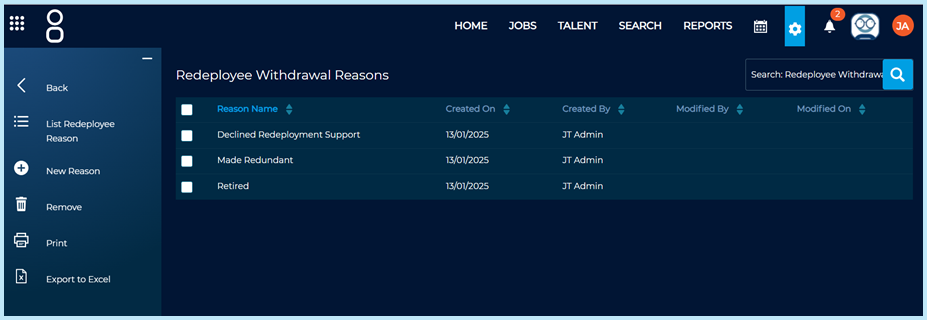
Where a candidate withdraws from the redeployment process, withdrawal reasons can be added to track why they have been removed from the redeployment process.
In General Settings > Redeployment > Withdrawal Reasons, create any number of reasons why a candidate may withdraw that you would like to track and monitor.
Emails
Redeployees will receive automated emails when:
- …Redeployment is started
- …they are registered as a new candidate
- …they are assigned to a job by a Redeployment Managers
- …they receive a job alert
These emails can be created in Settings > Communications and configured in System Customisation > Emails.
Examples of recommended emails are:
|
This email is sent when redeployment is started. Dear {CANDIDATES.FIRSTNAME}, We are writing to inform you that you have been added to the redeployment caseload as part of our commitment to supporting you in finding a new role within {ClientName}. Our redeployment Hub is now available for you to explore potential opportunities within {ClientName}. The redeployment Hub can be accessed at: {BaseURL}/redeployment To make the most of the Hub:
Please log in to the Hub using your candidate profile details to explore the available support and opportunities. If you require assistance navigating the site or have any questions, please contact your assigned caseworker: {Redeployment.ManagerName} or the HR team at [support email/phone number]. If this is the first time you have registered as a candidate, you will receive a separate email with your registration details and instructions on how to create a password. We are committed to supporting you through this transition and helping you find a suitable role within the organisation. Kind regards, {Redeployment.EmailAddress}
|
|
This is the redeployment version of the candidate registration email Hi {CANDIDATES.FIRSTNAME}, You have recently been added to our redeployment caseload for {ClientName} and a redeployee profile has been created. If you would like to return to search for available opportunities, complete an incomplete application or view your progress, you will need to complete the account creation process. Click here to change your password Many thanks, {ClientName} {BaseURL}redeployment
|
|
This is the redeployment version of the candidate registration email Hi {CANDIDATES.FIRSTNAME}, You have recently been added to our redeployment caseload for {ClientName} and a redeployee profile has been created. If you would like to return to search for available opportunities, complete an incomplete application or view your progress, you will need to complete the account creation process. Click here to change your password Many thanks, {ClientName} {BaseURL}redeployment
|
|
This is the redeployment assigned email Dear {CANDIDATES.FIRSTNAME}, Your caseworker has identified a role that may be of interest to you as part of the redeployment process. You have been assigned as an incomplete applicant to the following opportunity: Job Title:{JOBS.JOBTITLE} To review this opportunity and take further action:
Please ensure that your application is submitted within the specified timeframe for this role. If you have any questions or need assistance, feel free to contact your caseworker directly or the HR team at [support email/phone number]. We encourage you to take this step to explore a potential new role within the organisation and wish you the best of luck in the application process. Kind regards, {ClientName} Redeployment Team |
|
This is the redeployment version of the job alert email Hi {CANDIDATES.FIRSTNAME}, {Date} - The following Redeployment role(s) match your job alert criteria from {ClientName} <<RedeployJobs>> {Date} - new role(s) matching your job alert criteria from {ClientName} <<LinkWithJobTitle>> Not quite what you were looking for? You can change your job alert search criteria or delete job alerts at any time; just click here (internal candidates click here), log into your account and remove or update the alerts under the ‘Job Alerts’ section of your profile. To view all jobs currently available at {ClientName}, click here. {ClientName} Recruitment Team This is an automatically generated email; please do not reply to this email address. You have received this email as you have previously registered for job alerts with our organisation. |