
Our Multi-Panel Shortlisting feature provides the option to add multiple shortlisting forms, along with the choice to include multiple users for each form, per role.
What's included in this guide:
Activating the feature
If you would like to activate this feature, please contact our support team who will be happy to help.
Once the activation process has been completed by our support team, you will need to decide which Security Role requires access to set this up.
Go to: Settings > Security Roles > select the relevant Security Role that requires Multi-Panel Shortlisting.
Go to: Jobs & Talent Pools > List Candidate – Multi-Panel Shortlisting = Toggle on Access, Add, Update, and Delete. Then press Save.

How to use Multi-Panel Shortlisting
Assessment tab
After activating Multi-Panel Shortlisting, in the Assessment tab within a job, there is an additional section labelled Multi Panel Short Listing.
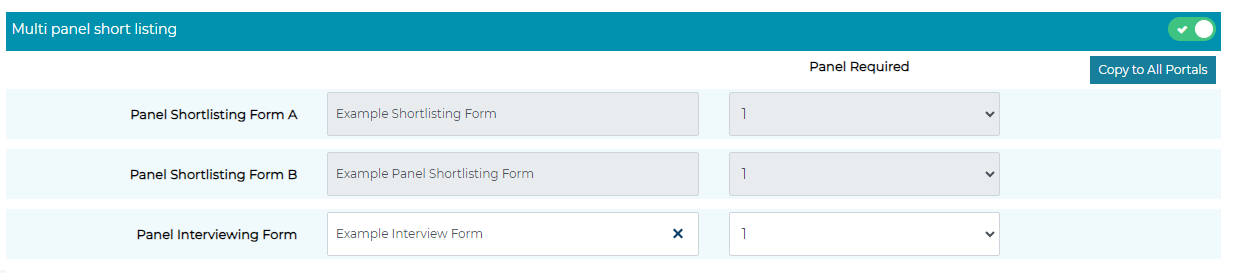
Within this section, you can add up to three panel shortlisting forms.
In the left-hand menu, choose which shortlisting forms to attach to the role. In the right-hand menu, select how many panel members are required to complete each of the forms.
Job Access tab
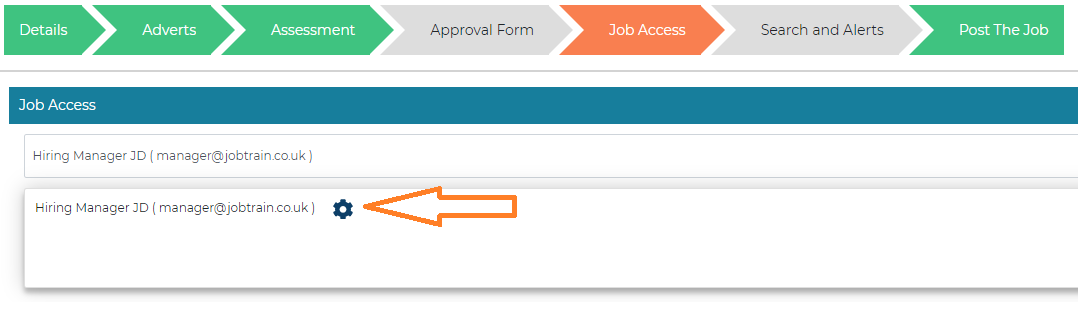
Within the Job Access tab is where Panel Shortlisters are added and given access to the relevant forms.
Step 1 – Add your users to the job access
Step 2 – Select the Settings icon next to each user
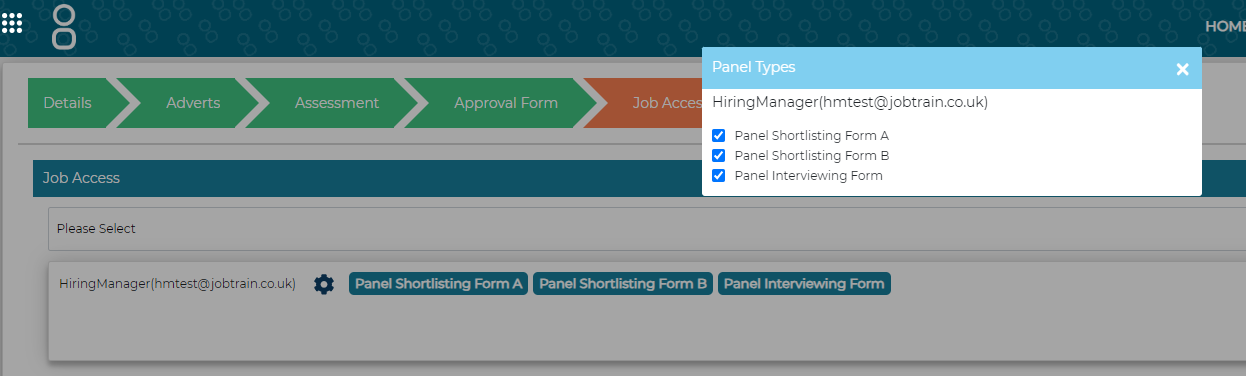
Step 3 – You will then see the added Panel Shortlisting Forms on the adverts page.
Select which forms you would like the users to have access to complete, as shown below:
FAQs
Can I restrict who has access to this functionality?
Yes. As with most areas of Jobtrain, this functionality can be restricted in Security Roles within Settings.
Go to Settings > Security Roles > select the relevant Security Role that requires Multi-Panel Shortlisting.
In Jobs & Talent Pools > List Candidate – Multi-Panel Shortlisting = Toggle on Access, Add, Update and Delete. Press save to complete.
Can I use the sortable buttons to organise the shortlisting scores?
Yes, you can sort the shortlisting scores once all shortlisters have completed the form. After setting the filter to 'Complete', use the up and down arrows to sort the scores in ascending or descending order.
To quickly find candidates whose shortlisting is incomplete, use the 'Incomplete' and/or 'Outstanding' filters according to your role as a designated shortlister.
I’ve followed the guidance notes and have some further questions.
For any questions about using Multi-Panel Shortlisting (or any other Jobtrain functionality), please contact our Support Team on 0161 850 2004.