
How to activate a Security Role
Go to Settings > System Settings > Security Roles
Choose the relevant security role(s) - typically the security role type that checks and makes adverts live, then select Settings:

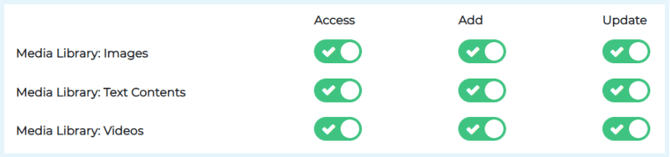
At the bottom of this page, go to the Media Library section and grant access using the toggles:
Where to find the Media Library and how to upload new content
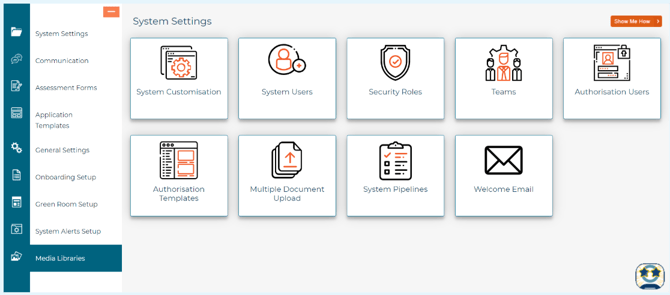
Go to Settings > Media Libraries (in the left-hand menu).
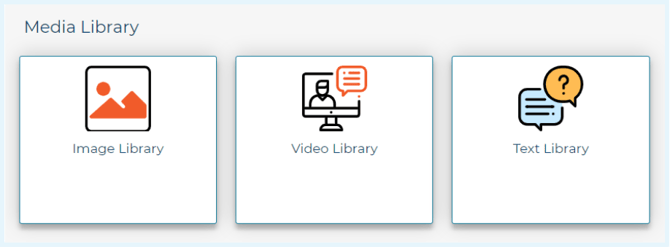
The Media Library contains the options below - this is where you start to add your own images, videos, and text.
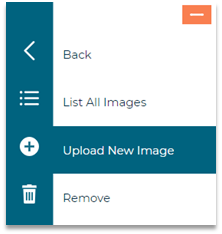
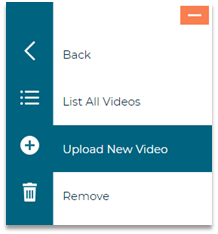
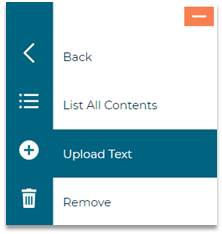
To upload new content, simply use the left-hand menu on the left to Upload New Image / Video / Text:
|
|
|
|
Uploading an image
From the Media Library, select Image Library, then Upload New Image.
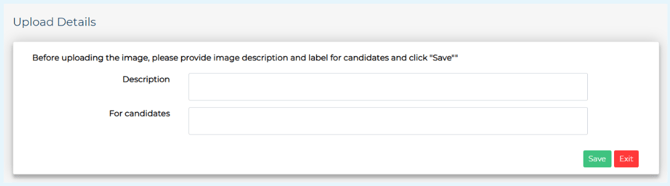
Label your new image accordingly:
- Description: this field is for internal use
- For candidates: this is the description candidates will see, so make it really clear
Images should be uploaded in either a PNG or JPEG format and in either of the following dimensions:
-
250px x 250px
- 750px x 250px
- 1100px x 250px
Upload the image
- From the options available, choose the correct dimensions of the image – 750px x 250px, 250px x 250px, or 1100px x 250px
- Select Browse to find your image to upload
- Press Save
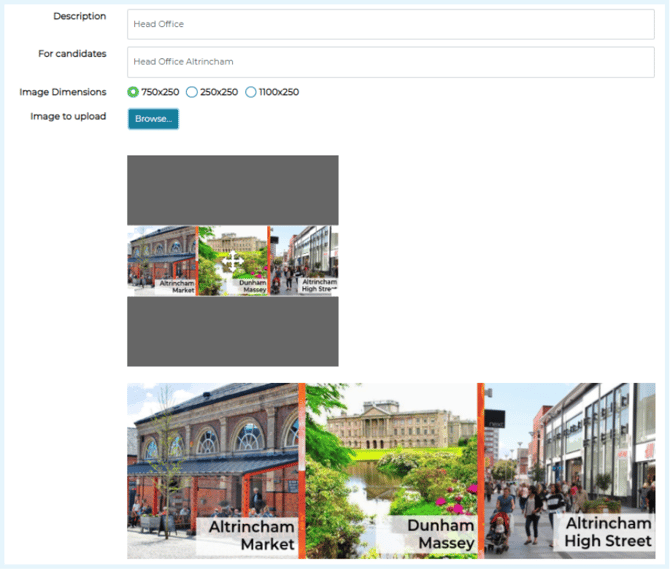
When the image is uploaded, the 'processing' message will appear. This means the image is going through the sanitisation process and will be visible shortly afterwards.
Add a video
From the Media Library, select Video Library, then Upload New Video.
Label your new video accordingly.
- Description: this field is for internal use
- For candidates: this is the description candidates will see, so make it really clear
To add your video, ensure you use the YouTube video URL - please see guidelines below.
Your video should be stored on Youtube, as this ensures the content is accessible universally from all media devices. The Video ID link is 11 digits.
Example:
YouTube link: https://www.youtube.com/watch?v=BzZ-VXKoszI
In this case, you would insert BzZ-VXKoszI into the Video ID field.
If the 11 digits are between = and &:
In this case: https://www.youtube.com/watch?v=hA46h6G71xo&t=7s you would just insert hA46h6G71xo into the Video ID field.
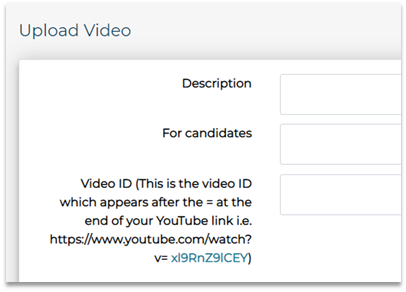
Upload the video
Once you’re happy with the description etc, select Save. You can view the video by selecting Preview:

Upload text
This section is for commonly used wording. When you're crafting the advert copy, you can simply select text content saved in the media library.
From the Media Library, select Text Library, then Upload Text.
- Add a Description
- Then add the text into the area below
Please remember to use the formatting tools above the text box (bullets, underline, bold etc). Once complete, select Save.
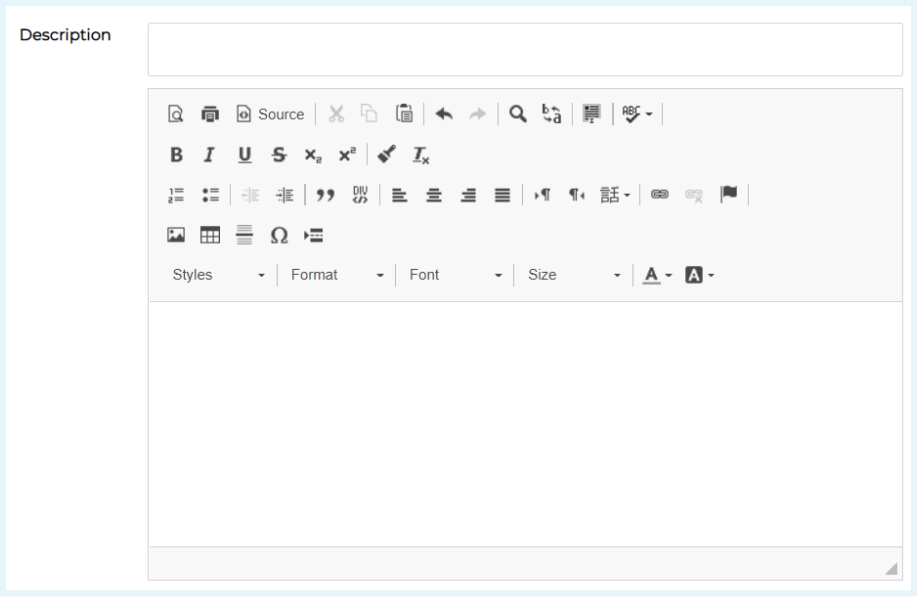
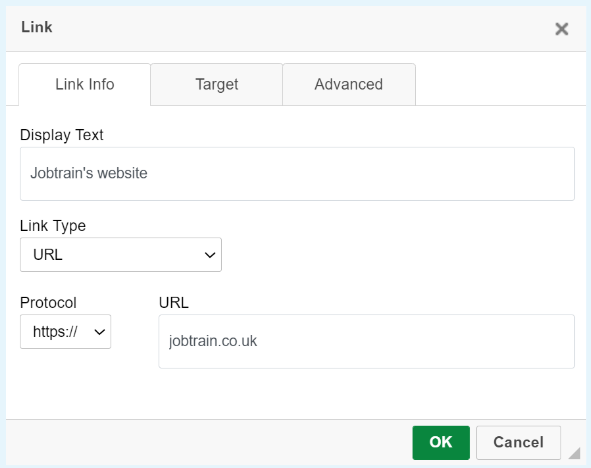
How to add a link/URL to a website:
|
|
To add a link to an email address:
|
|


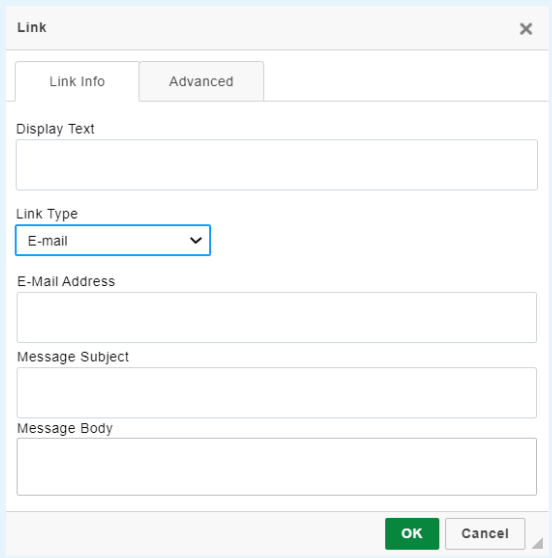
You can also set the email subject so when the recipient of the email clicks on the email link, the email subject is already filled out for them.
How to add media rich content to your advert copy
From the Job Details page of your job, go to the Adverts section.
From the drop-down, (Create your Advert – add section(s)), add in your chosen media rich placeholder sections.
Choose from:
- Image
- Image & Text on Right
- Image & Text on Left
- Text
- Video
- Video & Text on Right
- Video & Text on Left
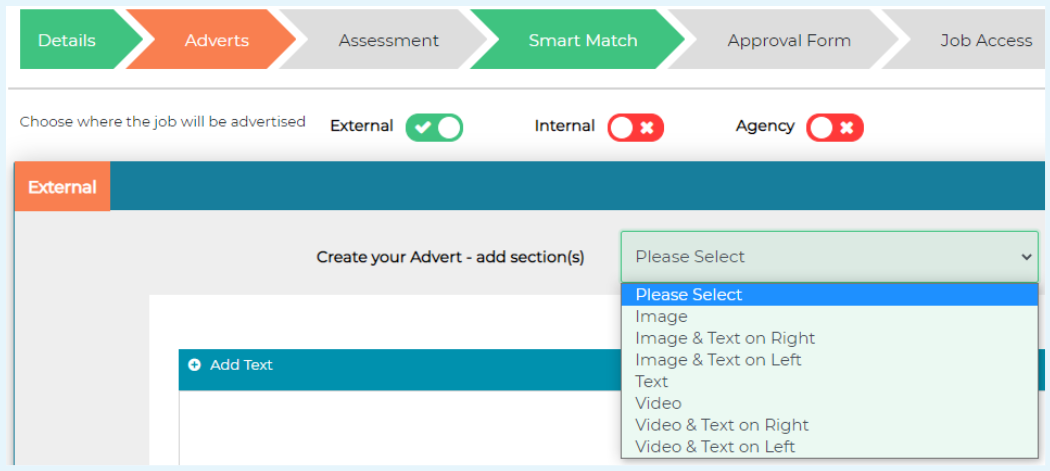
A placeholder box will then be displayed to add your chosen image/video/text (depending on which placeholder you chose).
Select Add Image / Add Video / Add Text to be presented with a list of content stored in the Media Library to add to the advert. Check the box next to your chosen content and then press Select.

Your chosen content will then be visible in your advert.
To preview your advert, simply press the Save & Preview Advert button to check what it will look like for candidates.

When adding an image from the image library, you will only be presented with a list of images that match the size of the image placeholder you have selected (e.g. 250 x 250)
If you cannot see the image, you are looking for it is likely that it's a different size to the image placeholder you have selected.
For placeholders that display 750x250, images with the dimensions of 750 x 250 or 1100 x 250 will be presented when selecting Add Image.
Summary
- The text library is designed for commonly used wording
- Videos added to Jobtrain should be videos stored in YouTube. MP4 video files cannot be added.
- If you use a template or copy a job that already includes media rich advert content, then the images/videos/text will also carry over to the new role.
- You can use the search options within the text, image, and video libraries to search for any existing content to avoid duplicates.