
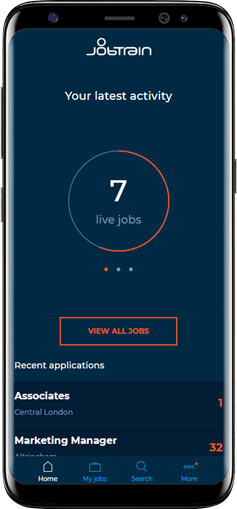
Specifically designed for busy Hiring Managers on the go, our mobile version of Jobtrain enables system users to manage their day-to-day recruitment activity, all from their mobile phone.
Functionality includes candidate management and search features, interview scheduling, visibility of job details, access to key contacts and new starter information and much more.
JT Mobile is designed to mirror your system access and configuration but in a simplified way which will enable Hiring Managers to review candidates, shortlist applications and move candidates through the recruitment process, all without having to login to their PC/Laptop.
This guide includes information on:
Introducing JT Mobile
Like all mobile apps, JT Mobile does not come with a user guide but is incredibly intuitive and simple to use for any Jobtrain user.
Below is an overview video highlighting some of the key features and benefits of JT Mobile.
Accessing JT Mobile
Accessing JT Mobile is easy. Simply change your Jobtrain client URL to replace the word client, with mobile.
For example:
Current URL: https://www.jobtrain.co.uk/bextonpartnership/client
Mobile URL: https://www.jobtrain.co.uk/bextonpartnership/mobile
Some clients have their Jobtrain platform locked down to specific IP addresses for additional security. In this situation, JT Mobile will only be available for users where their mobile phone is also using the agreed IP address.
The Setup
Grouping candidate applications
With clear visibility of jobs and candidates, Hiring Managers can shortlist on the go, quickly and easily.
Candidates are automatically grouped into five main groups based on their stage in the recruitment process:
- Unreviewed
- Shortlisted
- In for Interview
- Rejected
- Offered
Clients can determine which candidate statuses fall into each of the groupings above and can add new statuses to each group as required.
This short video demonstrates how to group candidate statuses:
How to group candidate statuses
Or follow the steps below:
|
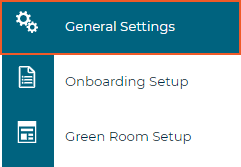
Access System Settings, then General Settings in the left-hand menu |
 |
|
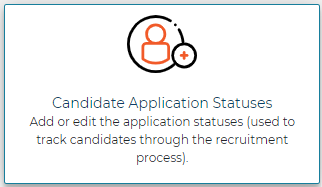
Select Candidate Application Statuses |
 |
3. Select one status at a time and map to the appropriate mobile grouping using the Status Group dropdown.
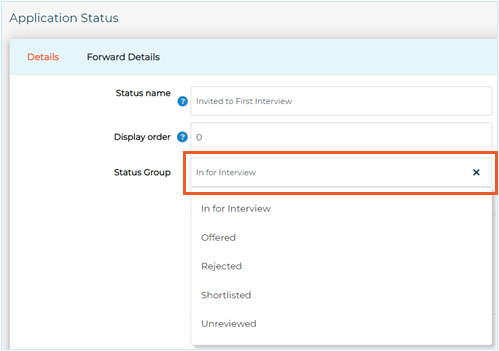
4. JT Mobile will update automatically, and candidates assigned to selected statuses will now be visible within the relevant status group.
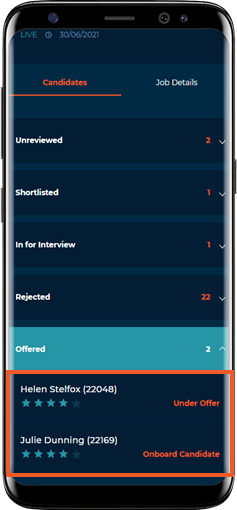
If you need support with grouping your candidate statuses, please contact your Client Success Consultant or the Support Team who will be happy to help.
Configuring status updates
When reviewing new candidate applications, the user will have the option to quickly update the candidate’s status by selecting Consider, Hold or Reject.
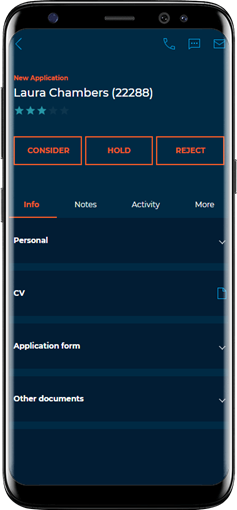
Clients can determine which status the candidate will be updated to for each option – these are defined in System Settings by following the below steps.
1. Access System Settings and then System Customisation.
2. In the customise tab, navigate to the Application Statuses section.
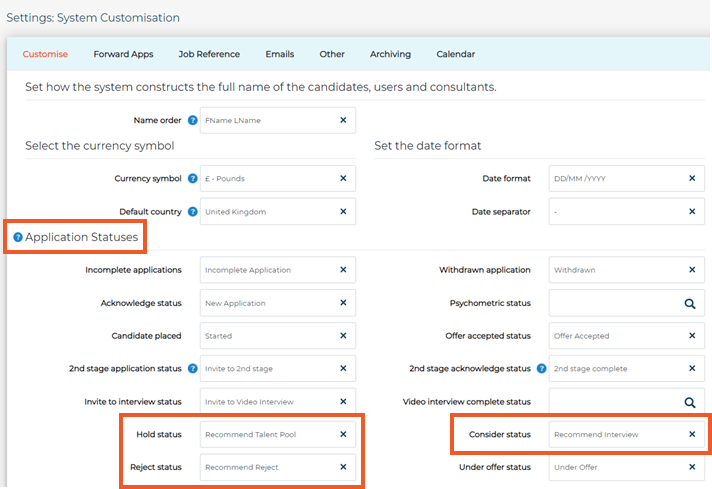
3. Add a relevant status against Hold status, Consider status, and Reject status.
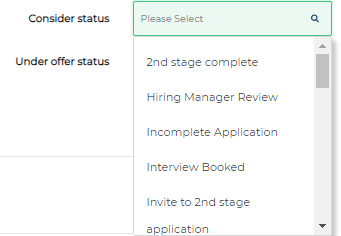
4. After adding the statuses press Save.
When this is completed, you will need to check the Settings against the Security Role type that should have access to these buttons.
- Go to Settings > Security Roles
- Choose the Security Role, then go to the Jobs & Talent Pools tab
- Against ‘List Candidate – Update Status’, ensure Add and Update are toggled to green:
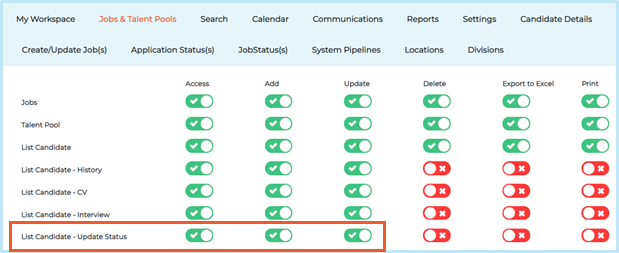
Once these options are added, users will be able to update candidate statuses using these buttons.
FAQs
How do I access JT Mobile if our organisation uses Single Sign On technology to access Jobtrain?
For clients accessing Jobtrain via single sign on, simply add /Login1 to the end of the mobile URL and use a traditional username and password for access.
i.e. https://www.jobtrain.co.uk/bextonpartnership/mobile/Login1
If you are unsure of your username and/or password, please follow the reset password process, which will be on screen.
Will users see all job or candidate information if they are accessing JT Mobile?
JT Mobile is connected to each user’s security profile so they will only see the same level of information as when they access the main Jobtrain platform.
I’ve followed the guidance notes and have some further questions.
For any questions about using JT Mobile (or any other Jobtrain functionality), please contact our Support Team on +44(0)161 850 2004.