
- Jobtrain Implementation clients.
- Organisations using Microsoft Entra ID (Azure AD) OIDC / OAuth for Single Sign On (SSO) into Jobtrain.
About Single-Sign-On
Single Sign-On (SSO) provides a method for authorised Jobtrain system users to seamlessly access the Jobtrain client system, where they may add jobs or manage vacancies according to their Security Role as set within Jobtrain.
To prepare for setting up Single Sign-On:
Within Jobtrain, the System Users account set up must have the User Principal Name (UPN from the connected Azure system) entered as the Username and/or Email Address of the account created within Jobtrain.
Who needs to complete this setup
Your Azure AD administrator or app owner who can edit app registrations.
If you’re unsure of who this is, please contact your IT Support Team.
What you’ll do (summary)- Create and configure new Azure app registrations for Test and Live Jobtrain environments.
- Having separate ones for Test and Live helps with testing, and ensuring no conflicts if trying to use the same app for two different environments.
- Add the SPA Redirect URI(s) provided below.
- Enable Access tokens in each Azure app’s Authentication settings.
- Capture your Application (client) ID and Directory (tenant) ID for both test and live environments and provide them (alongside confirmation of following these steps) to Jobtrain.
Before you start
Check:
- You have Azure portal access and permission to edit App registrations for your tenant.
- You have the Jobtrain SSO URLs for both of your Jobtrain environments (Test/Live).
- In Jobtrain, each SSO user’s Username and/or Email is the user’s UPN from your Microsoft tenant (this is required for SSO to match users).
Tip: If you can’t find an app later, check Azure AD → App registrations (Owned/All) and also Enterprise applications.
What you need to do (3 steps)
1) Create your Azure app registrations
For new implementations, you will always create new app registrations for both Test and Live Jobtrain environments. These two apps allow you to configure and test SSO safely before go live.
- In Azure Portal, go to Microsoft Entra ID → App registrations.
- Click New registration.
- Name it clearly, e.g. Jobtrain SSO – Test or Jobtrain SSO – Live.
- Leave Supported account type as Single tenant (unless instructed otherwise).
- Click Register.
- Repeat for the other environment so you have two separate app registrations.
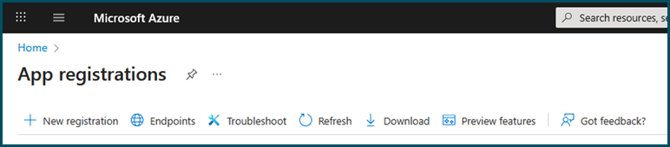
Figure 1: Select +New application registration
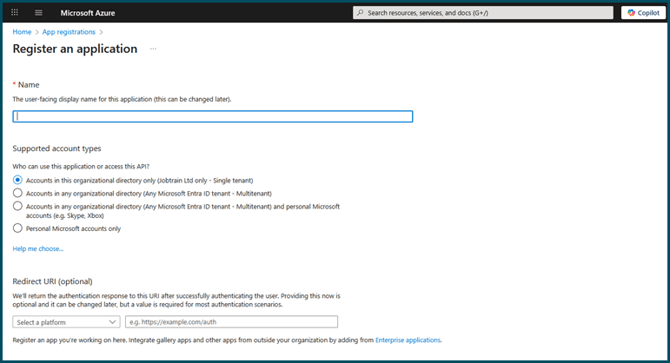
Figure 2: Name your application (e.g. Jobtrain SSO - Test or Jobtrain SSO – Live)
After completing this, you’ll return to these same apps in the next steps to configure redirects and tokens.
If your Azure portal layout differs, you can also reach the app via Home → Azure Active Directory → App registrations. If you created the app via Enterprise applications, you may need to open the corresponding app registration from there.
2) Add the SPA Redirect URI(s)
-
- In the app registration you just created → Authentication (left menu).
- Under Platform configurations, click Add a platform.
- Choose Single-page application (SPA).

Figure 3: Screenshot of Single-page application selection
4. In the SPA panel, paste the new Redirect URI provided by Jobtrain for that environment.
- Test / UAT: https://sso-uat.jobtrain.co.uk/
- Live: https://sso-live.jobtrain.co.uk/
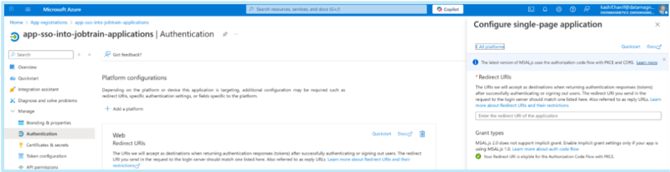
Figure 4: Paste the URL into the input box that pops up on the right-hand side of the screen.
4. Click Configure (or Save) to add it.
Important rules:
-
- Use the exact URI values supplied by Jobtrain.
- Please contact our Support team, or your Relationship Manager if you have any questions.
3) Enable Access tokens (keep ID tokens)
- In Authentication, scroll to Tokens (may appear as Implicit grant and hybrid flows or Advanced settings, depending on portal version).
- Enable Access tokens (ID Tokens are not required for this version of SSO).
- Click Save.
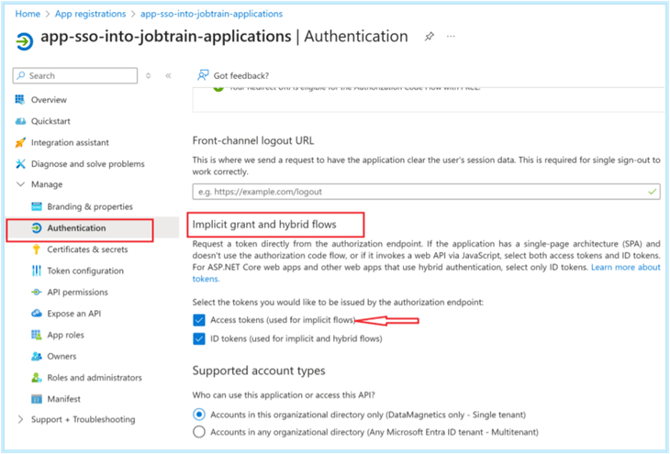 Figure 6: Screenshot with Access tokens box highlighted
Note: Depending on your Azure Portal layout, the Access tokens option may appear in one of two places:
- Under Authentication → Tokens (Implicit grant and hybrid flows), or
- Under Authentication → Advanced settings → Allow public client flows
If you don’t immediately see the Access tokens checkbox, expand the Advanced settings section and ensure Access tokens are enabled before saving your changes.
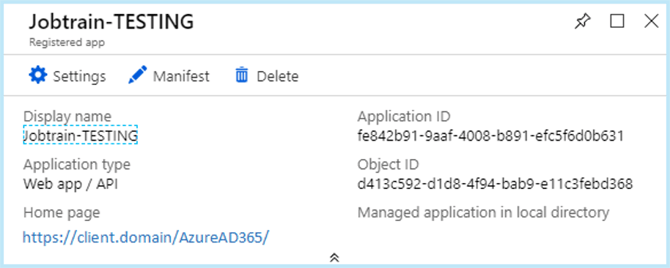
5) Capture your IDs for Jobtrain
From your app’s Overview page for both Test and Live:
- Application (client) ID
- Directory (tenant) ID
ACTION: Please provide Jobtrain with both details.
Jobtrain will then be able to finalise the setup of Single Sign-On for your system.
We will let you know when this has been completed and you can test Single Sign-On for your client site.
Frequently Asked Questions (FAQs)
Why do I need to create two app registrations (Test and Live)?
Each Jobtrain environment (Test and Live) requires its own Azure App Registration to ensure data isolation and avoid accidental redirection to the wrong environment.
It also allows your organisation to verify configuration and user access safely in Test before enabling SSO in Live.
Can I use one Azure App for both environments?
While some clients have succeeded with a single registration, Jobtrain strongly recommends creating two separate apps.
Separate Test and Live apps ensure:
- Full control of redirects per environment
- Independent testing and troubleshooting
- No risk of incorrect tokens or login sessions crossing between environments
This is the supported configuration during the interim period.
Where do I find the Access token settings?
Depending on your Azure Portal layout, these options may appear under:
- Authentication → Tokens (Implicit grant and hybrid flows), or
- Authentication → Advanced settings → Allow public client flows
You must ensure Access tokens are enabled for Jobtrain authentication to function correctly.
What do I enter for the Redirect URIs?
- Use only the exact URLs supplied by Jobtrain.
SPA Redirect URL:
- Test: https://sso-uat.jobtrain.co.uk/
- Live: https://sso-live.jobtrain.co.uk/
Make sure each URL includes a trailing slash and matches exactly as provided.
What if my Azure Portal looks different?
Microsoft occasionally updates the Azure interface. If the menus differ slightly, you can always navigate via:
Home → Microsoft Entra ID → App registrations → [Your App Name] → Authentication.
If your organisation uses the Enterprise Applications view, open the corresponding App Registration from there to access redirect URIs and token settings.
How do I confirm my setup is correct?
After completing both app registrations:
- Confirm both Web and SPA redirect URIs are listed and saved.
- Ensure Access tokens are enabled.
- Verify that your Application (client) ID and Directory (tenant) ID have been captured and shared with Jobtrain.
- Test logging in to your Test environment before enabling Live.
Do I need admin consent for this app?
If your organisation enforces admin consent policies, your Azure administrator may need to approve the app registration once it’s created. This ensures the Jobtrain SSO app can read basic user profile information required for login (e.g., User Principal Name, Email).
What if users still can’t log in after setup?
Common causes:
- The Username or Email Address in Jobtrain doesn’t match the user’s UPN in Azure AD.
- The Redirect URI doesn’t match exactly (missing slash, typo, or wrong subdomain).
- Access tokens are not enabled.
- The wrong App ID or Tenant ID was supplied to Jobtrain.
Check these areas first — most login issues are resolved by correcting one of the above.
Who should complete this configuration?
Your organisation’s Azure AD (Microsoft Entra ID) Administrator or App Registration Owner.
This person must have permission to create and edit app registrations in your Microsoft tenant.
Can Jobtrain complete this setup for us?
Jobtrain cannot configure your Azure environment directly, but we can provide full guidance and review screenshots to confirm your settings before you go live.