
Feature: Candidate Assessment Forms, Assessment Questions
For: Hiring Managers, Recruiters
I want to:
- See at-a-glance each candidate’s total Assessment Form score from the Candidate list.
- Open the candidate’s scored or non-scored Assessment Form to review answers and scores
- Understand the colour cues, ticks/crosses and ranking layout
View candidate scores at a glance (scored forms)
- Go to Jobs and open the relevant Job Title.
- The Candidates list appears.
- Check the Score A / Score B columns - the figure shown is the candidate’s total score.
Column labels look different? Your site admin may have renamed Score A / Score B (e.g. Application Score).
Tip: Click the ▲▼ header icon to sort candidates highest-to-lowest and focus on your top scorers first.
Open the Assessment Form
| Where you are | Action |
| Candidate record | Click the kebab menu (⋮) and choose Assessment Form / Assessment Form B - found either in the Application Form tab or under More. |
Read the score breakdown (scored forms)
Inside the form, each question shows:
| Field on screen | Meaning |
| Points Available | Maximum points that can be achieved for that question. |
| Score | Number of points the candidate earned. |
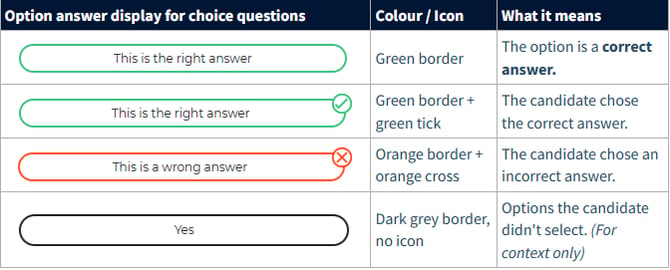
Understanding how choice-question responses are displayed
Key points
- A tick or cross only appears next to the option(s) the candidate chose
- An orange border and cross always appear together, signalling the candidate selected an incorrect answer.
- If multiple correct answers exist, each one is outlined in green
Understanding how order-of-importance responses are displayed
Each question shows two columns under the question text:
- Correct Order – The correct order set by the form designer.
- Candidate Order – How the candidate ranked the options.
In the Candidate Order column, each option is color-coded to quickly indicate correct or incorrect placements.

FAQs
Why don’t I see the Score A / Score B columns in my candidate list?
Your site admin may have relabelled or hidden them. Ask them to confirm the column name and check if it’s switched on.
Can I download the scores into Excel?
Yes. In the candidate list, click Export > Excel (or CSV) and include the Score A / Score B columns. The export will show each candidate’s total score.
How is the overall score calculated when there are two assessment forms?
Score A totals questions from Assessment Form A; Score B totals questions from Assessment Form B. The system does not auto-combine them.
The “Correct Order / Candidate Order” panels aren’t showing - what’s wrong?
These panels only appear for order-of-importance question types. If you don’t see them, the question was set up as a different question type such as Choice or Rating.