
Skip to content
English - United Kingdom
  • There are no suggestions because the search field is empty.

How To Resize Images for Media Rich Adverts

No recent searches

    Popular Articles

            Sorry! nothing found for

            How to Resize Images for Media Rich Adverts

            Modified on Fri, 30 Jul, 2021 at 2:21 PM

            • Save the image you wish to use to your desktop
            • Right-click on the image file name and select Open with and choose Paint 3D
            • Select Canvas in the top menu

            To ensure your image does not "stretch" or distort but still resizes the canvas to the correct dimensions, we've outlined some steps below on how best to resize the image to the correct dimensions.


            • Under Resize canvas and with "Lock aspect ratio" and "Resize image with canvas" boxes checked, change the Height to 250px which will now make your image smaller.

            • Then uncheck both "Lock aspect ratio" and "Resize image with canvas" and toggle on Transparent canvas (as below).

            • Change the Width to the dimensions you require - in this instance to 750px to create a 750px x 250px image.
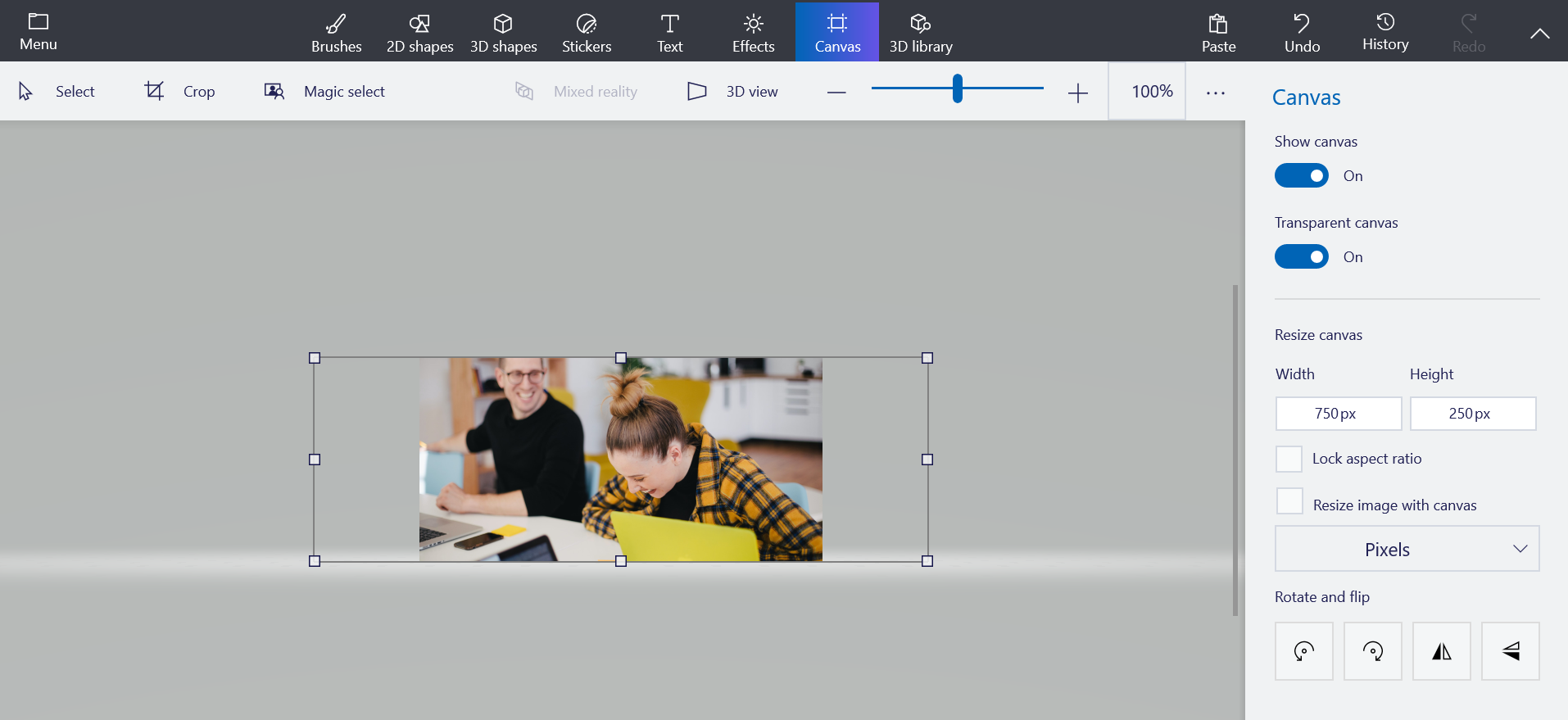

            This is the best way to get an image to sit within the correct pixel size and this is how the image will look on the website for your candidates:



            Attachments (1)

            How to Resize Images for Media Rich Adverts - June 2021.pdf
            146 KB

            Was this article helpful?

            That’s Great!

            Thank you for your feedback

            Sorry! We couldn't be helpful

            Thank you for your feedback

            Let us know how can we improve this article!

            Feedback sent

            We appreciate your effort and will try to fix the article

            X