
What is Enhanced Job Approval
Our Enhanced Job Approval functionality streamlines and enhances approval processes for larger and more complex workflows. It builds upon the standard job approval system with the following features:
- Automated Approval Workflow Selection: Automatically assigns the appropriate workflow based on job details and configured rules.
- Delegate Approvers: Allows delegate approvers to manage approvals when the primary approver is unavailable.
- Approval Groups: Enables any group member to approve on behalf of the entire group.
- Approval Tracking: Provides clear visibility into approval progress via the Job Approval Quick Link for approvers and superusers.
- Simplified Workflow Maintenance: Features tools to update existing templates and replace old approvers with new ones efficiently.
Preparing for Configuration
Before configuring Enhanced Job Approval, clients should define the broad rules that the organisation’s approval processes need to follow.
These rules ensure that workflows align with the organisation’s structure and meet business requirements.
Key Considerations:
- Approvers Based on Job Setup:
- Define rules based on factors like location, division, or department.
- Example: A manager at a specific location approves jobs for that location. Configure this in Default Approvers under General Settings.
- Approval Groups:
- For cross-functional approvals, enable group members to approve on behalf of the group.
- Example: Finance approves all new positions to ensure budget compliance.
- Named Approvers:
- Assign specific individuals for approvals when required for strategic or high-profile roles.
- Levels of Approval:
- Ensure workflows account for all required steps while skipping unnecessary ones where appropriate.
Adding Job Authorisation Users
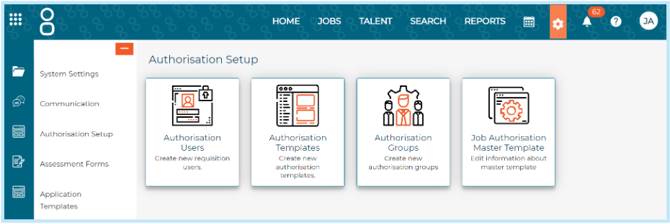
- Navigate to Settings > Authorisation Setup > Authorisation Users.
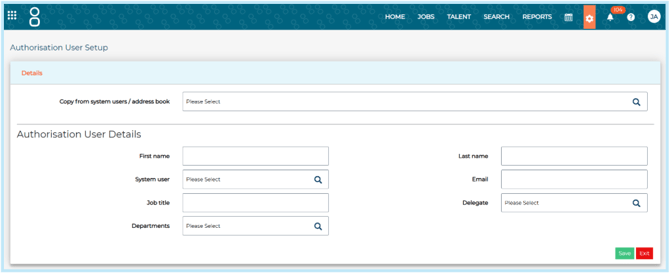
- Add or edit a user record using the system user/address book search.
- Selected user details will auto-populate.
Delegates
- Ensure the delegate has an Authorisation User record.
- Add the delegate via the delegate lookup to receive notifications during the primary approver’s absence.
Adding Default Approvers based on Job Setup
If your organisation plans to use any of the following categories to automatically select approvers:
- Location
- Region
- Department
- Division
- School Location
You must configure Default Approvers in System Settings.
To configure Default Approvers:
- Go to Settings > General Settings.
- For relevant categories (e.g., Location, Department, Division), assign a Default Approver.
Adding Approval Groups
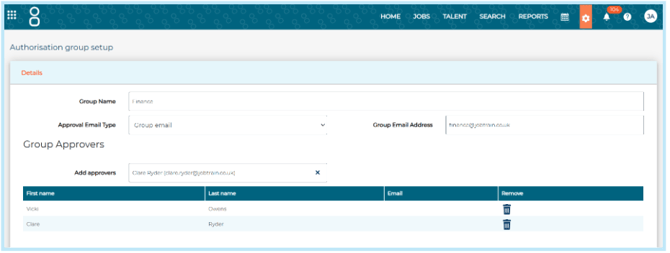
- Navigate to Settings > Authorisation Setup > Authorisation Groups.
- Click New Group and configure:
- Group Name: Enter a name to be displayed in approval workflows.
- Approval Email Type: Select how approval request emails will be sent:
- No email: No email notifications will be sent; group members must log into Jobtrain regularly to review outstanding approvals.
- Group email: Sends a single email to a nominated group inbox. When selected, a Group email address field will appear to specify the group inbox.
- All individuals in group: Sends individual emails to each group member.
- Add Approvers: Select the required approvers for the group. There is no limit to the number of approvers that can be added to a group.
Options are:-
Click Save to finalize the group setup.

Job Authorisation Master Template
The Master Template outlines your overall job approval rules, which all individual Job Approval Workflows are based on.
- Navigate to Settings > Authorisation Setup > Job Authorisation Master Template.
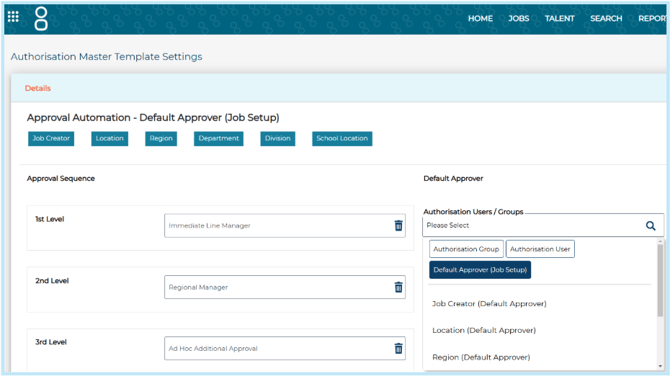
- Create the Approval Levels:
- Click New Level to add a row.
- Enter a name in the Level Name box.
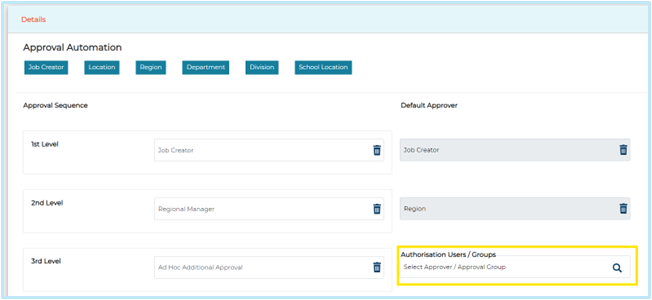
- Use the search or buttons within the Authorisation Users / Groups field to choose either:
- A specific named Authorisation User,
- An Authorisation Group, or
- A Default Approver (Job Setup) category (e.g. Location, Region etc.)
Add as many Approval Levels as you need by continuing to select New Level and configure the level details.
Where a Default Approval (Job Setup) category is included in the Master Job Authorisation setup, this automatically turns the Default Approver field in the General Settings for that category into a Mandatory Field.
Overwrite Approver on Existing Templates
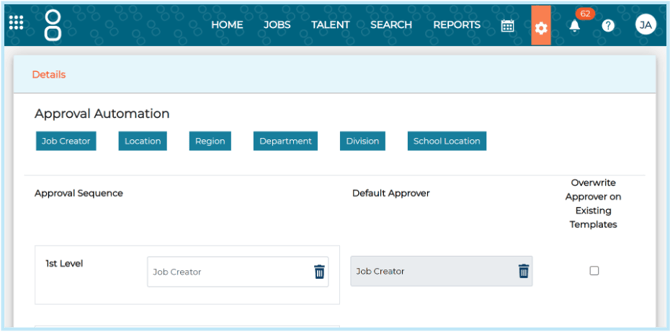
Use the Overwrite Approver on Existing Templates checkbox to apply changes across all templates.
When selected and saved, the configuration for that Approval Level is automatically updated across all existing Job Authorisation templates.
This feature is useful when you need to update the approval process consistently across multiple templates without manually adjusting each one.

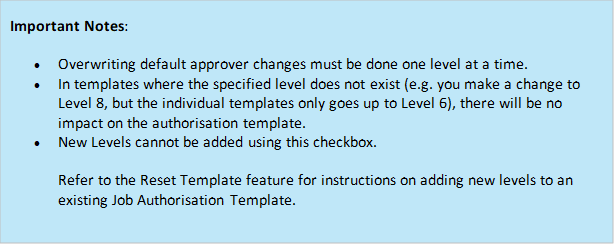
Skipping Approval Levels
Where a level of approval is only required in certain scenarios, leave the Default Approver selection blank for that level on the Master Template.
This will then require configuration of the approver against the individual Job Authorisation Template, as required.
On individual Job Authorisation templates where that level is blank, the approval sequence will skip that stage and move to the next configured approval level.
Warning Messages that you may encounter
If you attempt to add an Approval Automation – Default Approval Category that has missing approvers, you will be prompted to correct this first before adding the category to your Master Template.
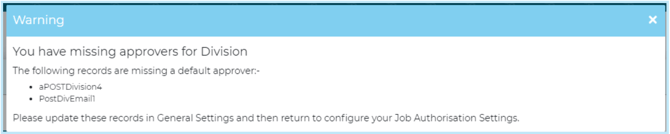
Once Default Approvers are set for your General Setting categories, return to the Job Authorisation Master Template and add the required Default Approver (Job Setup) category into the Default Approver column.
Notifications
Notifications can be defaulted in the Master Template.
To add a notification rule, select Send notifications to and choose an email address from the Address Book.
These individuals will receive one email at the beginning of the approval process to inform them of an approval process starting.
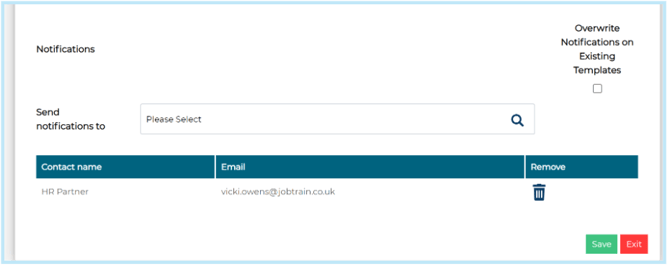
Overwrite Notifications on Existing Templates
When selected, the 'Overwrite Notifications on Existing Templates' checkbox applies changes to the notifications across all current Job Authorisation templates.
This feature is useful when you need to update the notifications across multiple templates without manually adjusting each one.
Job Authorisation Templates
Job Authorisation Templates define the specific approval workflows for different types of jobs within your organisation.
Adding Job Authorisation Templates
- Navigate to Settings > Authorisation Setup > Job Authorisation Templates.
- Select New Template
- Enter a name in Template Name
- Select Vacancy Approval in Template Type
- If a standard Job Approval email has been added to System Customisation, the email subject and body will automatically display, however can be edited on an individual job authorisation template basis.
Once Saved, an additional Setup tab appears against your Job Authorisation Template.
Job Details Connections
Job Authorisation Templates are linked to jobs through Job Details Tags, which determine which template is applicable. Tags ensure that the correct approval workflow is available for selection when a job is created.
- Example: A template tagged to "Location: London" and "Department: Marketing" can only be applied to jobs matching those criteria.
To configure tags for a Job Authorisation Template:
- In the Job Details Connections section, specify the applicable tags by selecting criteria such as:
- Location
- Department
- Division
- Employment Type
- Save the template. These tags will ensure the template is only applied to jobs meeting the specified criteria.
- It is expected that multiple Job Details selections will be made (for example, Employment Types of Replacement, Maternity Cover, Long Term Absence Cover, may all follow the same approval route). Users can select multiple Job Details options that are relevant to the Job Authorisation workflow being created.
Job Authorisation Workflow
- The workflow will copy over from the Master Job Authorisation Setup configuration.
- On an individual template basis, changes can be made to change Authorisation Users, Groups or Default Approvers based on Job Setup.
- To skip an approval step on an individual Job Authorisation Template, remove the default approval settings that have copied over and leave that level in the individual Job Authorisation Template blank.
Resetting an Individual Authorisation Template
- Select the Reset Template button to reset an authorisation template to match the Master Authorisation setup.
- Where reset, all levels of approval will be reconfigured to match the Master Authorisation setup, however any Job Details Connections that have configured remain.
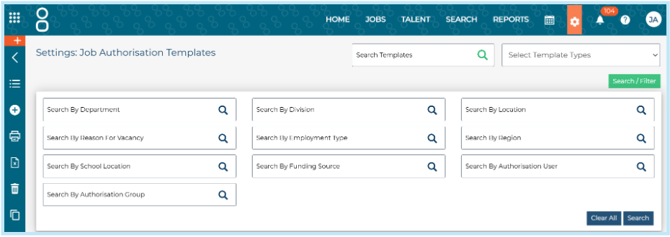
Searching and Filtering Job Authorisation Templates
- Templates can be searched by Template Names.
- The Select Template Types option allows users to filter by Vacancy or Offer approval templates.
- Selecting the Search / Filter button displays a range of additional Job Detail filters, allowing Job Authorisation Templates to be filtered by specific Job Details connections, or by individual Authorisation User or Group.
The Job Approval Process
Job Creation:
A user or hiring manager creates a job. Key fields include job title, department, location etc.
Job Approval Workflow:
On the Approval tab, select the relevant approval template from the Job Approval Workflow dropdown.
- Only approval workflows that match the Job Details setup will be available to choose.
- Where an approver is defaulted based on the Job Setup information (e.g. Location, Department, Division), the system will auto-populate the approver in the workflow based upon the job details selections.
- Should the Job Details be missing required information to automatically obtain the default approver from General Settings, a warning message will display.

- If there are no approval workflows that match the job details configured, all Job Authorisation Templates will be displayed for the user to select.
Once the job and approval details are complete, the hiring manager submits for approval using Save and Start Approval
Should an incorrect approval workflow be chosen, selecting Reset Approval allows the user to choose an alternative workflow.
Should the workflow be reset whilst the original approval process is already underway, the approval sequence starts over again.
Review by Approvers:
- Approvers receive the job details via an email notification, along with any approval attachments and the job advert as an attachment to the email.
- The approval process is linear, so only the first approver receives an email, and upon their approval, the next approver in sequence receives the approval request.
Approvers can approve or reject a vacancy request from either the links within the approval request email, or by logging into Jobtrain and accessing the Job Authorisation quick link.
Any comments added during the approval process are automatically saved to the Job Notes.
Job Approval Notifications
- Any users set to receive an approval notification will automatically receive an email when the job authorisation process starts.
- one email is sent at the beginning of the approval process, which is a copy of the approval email minus any links to approve the request.
Job Authorisation Overview
- The Job Authorisation quick link provides a comprehensive overview of all outstanding job approval requests, offering users a streamlined interface to manage and prioritise approvals efficiently
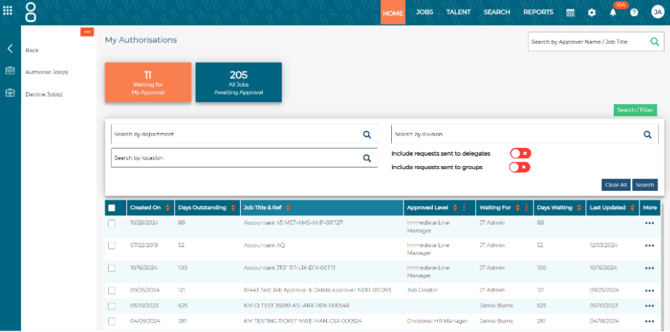
Access to jobs and actions within the Job Authorisation area is governed by the user's Security Profile permissions.
Key Features
- Quickly view all jobs awaiting approval, helping users prioritise tasks effectively.
- My Approvals: Displays jobs requiring your direct approval.
- All Jobs: Shows jobs you can view due to your Job Access permissions, even if they don’t require your direct action.
- Superusers can filter approval requests by the approver waiting for, or sort by the overall number of days outstanding or the time a specific approver has been waiting to take action.
- Provides up-to-date visibility into the current stage of each job within the approval workflow.
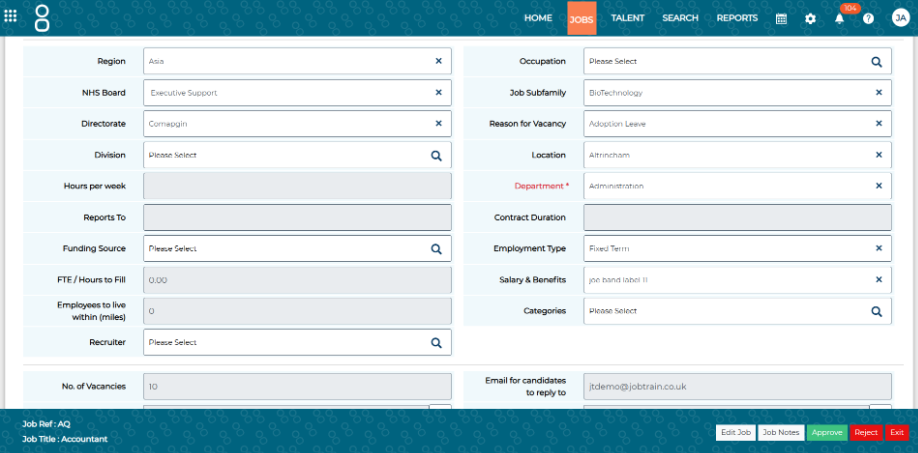
- Users can Preview the job information, and either;
- Approve
- Reject
- Add comments (without approving).
- If they have access to the job and permissions to edit, can Edit the Job Details.
Delegate Approvals
- There are two ways that delegates can be notified of vacancy requests that they may need to approve:-
- If a reminder to the original approver is issued via System Alerts, the delegate is CC’d into the approval reminder email.
- If any user selects Resend against the original approver within the workflow, the delegate is also CC’d into the approval reminder email.
- Delegates may approve or reject job vacancy requests either via the email links in the Job Approval Request email, or by logging into Jobtrain and accessing via the Job Authorisation Quick Link.
- Delegates can use the Filter options in the Job Authorisation area of Jobtrain to filter by requests they are a delegate approver for Vs. their own list of vacancy approvals.
- Once approved, the job authorisation clearly indicates that the delegate approver approved on behalf of the original approver.
Group Approvals
- Groups will receive emails according to the Approval Email Type setup of the group.
- Where an email is generated, any of the group may approve or reject job vacancy requests using the email links in the Job Approval Request email.
- Alternatively, any member of the group can log into Jobtrain and accessing via the Job Authorisation Quick Link, approve the job from here.
- Group members can use the Filter options in the Job Authorisation area of Jobtrain to filter by requests they are member of a group for.
- Once approved, the job authorisation clearly indicates that a member of the group approved the request.
- Where a Group member logs in to approve, the system is able to record which member of the group approved the request.
- Where a group member approves via email, it is not possible to identify which group member approved the request.
Feedback and Iterations:
If changes are required, an approver may reject the vacancy request, which triggers an email back to the job creator with specific feedback (any of the notes added into the vacancy approval request comments).
Final Approval:
Once all approvers sign off, the job status updates to approved and should be moved to the publishing stage.
Authorisation User Maintenance
Swap Approvers
The Swap Approver feature allows administrators to update approvers in bulk across the system.
On the Authorisation Templates page of Settings, select Swap Approvers from the left hand menu.
Select the old approver, and the approver who will replace them in all approval workflows.
If the system identifies that this change will affect any job approval workflows currently mid-process, a warning message will display listing the jobs that are affected.
It isn’t possible to change a workflow mid-way through the approval process, so where an approver is unavailable, you may opt to either;
- Over-ride the approval process on behalf of any authorisation users who are no longer available, or
- Restart the approval process and start over with the updated approval workflow.
If the old approver is linked to workflows through General Settings categories (e.g., Department or Location default approvers), the Swap Approver process will also update those default approver fields.
Deleting Approvers and System Users
Where a system user attempts to delete either a Job Authorisation User record, or another System User – the system will automatically check if that user is included in any Job Authorisation Workflows.
Where the delete action is likely to affect a Job Authorisation Template, the user is prompted to Swap Approvers first, before deleting the Authorisation User / System User.
FAQs
Can old approval templates still be used?
Yes, any clients who were originally set up on our standard Job Approval process will continue to be able to use their original approval templates without any issues. It isn’t possible to make changes to these old approval templates, so naturally over time new templates will need to be created to replace these old versions.
How do I manage approvers who are on leave or unavailable?
Consider using a delegation feature, if available, to temporarily assign approvals to another user during the absence. This ensures that workflows continue smoothly.
What happens if an approver leaves mid-way through an approval process?
If a manager or approver leaves during an ongoing approval process, the workflow will display "Archived" against the deleted approver's name. The process will still progress as designed, however will require intervention to restart or approve on behalf of the approver who has left.
What happens if a Job Authorisation User is deleted but not swapped in approval templates?
If a Job Authorisation User is deleted from the system without being replaced, any workflows using that approval template will display "Archived" against the deleted approver. Additionally, any new approval requests using that workflow will automatically skip the approval stage associated with the deleted user.
Will skipping an approval stage due to a deleted approver affect the overall workflow?
The system is designed to handle such scenarios gracefully by skipping the deleted approver’s stage. However, it’s advisable to review and update approval templates to ensure workflows continue to meet organizational needs.
Can I retrieve or restore a deleted approver in a workflow?
No, once an approver is deleted, their details will display as "Archived" in the workflow. However, you can manually add a replacement to the approval template for future processes.
If I edit the job details or approval form while the approval process is ongoing, will my changes be reflected in the approval?
If you have permission to edit a job at any time or before approval is completed, you can update and save job details while the approval process is underway.
Changes will be saved and visible in the Job Approval preview within Jobtrain.
However, the approval form attachment remains a static copy of the job details as they were when the approval process began, and it will not update with later changes.
If approvers rely on the approval form attachment in the email for their decision-making, we recommend restarting the approval process to ensure the latest job details are included.
If I add notes to the job without approving, does this display in the next approval email?
Yes, any job notes added will be included in subsequent approval email requests.