
I want to:
- Understand what the Download Documents PDF includes
- Get Download Documents enabled on my site
- Give my users access through Security Roles
- Download a candidate's full record as a single PDF
- Refresh individual documents using Re-Queue
What is Download Documents?
Download Documents compiles everything connected to a candidate record, from application through to onboarding, into a single structured PDF.
The PDF is generated in one action and opens with a contents page showing the status of every expected document, so you get a complete, portable record of a candidate in one file.
This makes it useful for audit purposes, compliance sign-off and transferring a new starter's paperwork into your HR system once they have been appointed.
Video: Download Documents
What’s included
The download spans the full candidate journey. The following are included where they exist on the candidate record:
- Job details, advert, and approval form
- Application forms, CV, cover letter and uploaded documents
- Pre-assessment, sifting, shortlisting and panel shortlisting forms
- Onboarding and compliance documents, including contracts, forms and uploads
- Right to work, identity check and DBS disclosure information
- References
- New starter and pre-employment checklist forms
- Onboarding and compliance progress summary
Not included: the bank details form, candidate notes, candidate history and job history are not part of the download.
Getting started
Download Documents is a paid add-on feature, so it is not switched on by default.
There are three steps to getting it live on your site:
- Contact your Jobtrain Account Manager to discuss pricing and arrange a quote.
- Once agreed, Jobtrain’s Support team will enable the feature on your site.
- Once enabled, your internal Jobtrain system administrator assigns the correct permission in Security Roles, as described in Enabling access for your users.
Enabling access for your users
This section is for system administrators.
Users cannot see the Download option until the List Candidate – Download permission is enabled for their Security Role.
- Go to Settings > Security Roles then select the relevant role to edit
- Select the Jobs and Talent Pools tab
- Locate List Candidate – Download

- Enable the access toggle
- Select Save
Once saved, the Download option will appear in the left-hand Candidate Actions menu for any user with that permission enabled.
How to download a candidate record
Download Documents works on a per-candidate basis, so complete a separate download for each candidate.
-
Go to the relevant job and open the candidate listing page
-
Select the candidate you want to download
-
Select Download from the left-hand Candidate Actions menu
-
A documents screen will display, showing each document as it is compiled
-
Select Start Process to begin the download
-
Once compilation is complete, select Download Documents to save the PDF to your device
The documents screen displays a progress summary showing the total number of documents, how many compiled successfully and how many failed. 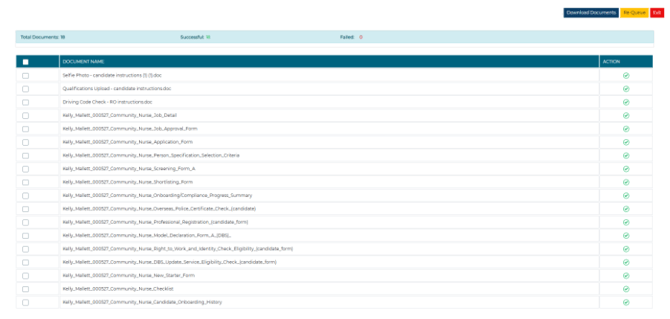
Good to know: Each download is logged in the candidate history and in your user history.
Understanding the downloaded PDF
The downloaded PDF opens with a contents page showing the status of every expected document, so you can see at a glance what has been included and what is outstanding.
Each page includes a footer showing the candidate reference, the date and time of download, the section title and the page number, so individual pages remain identifiable if printed or shared separately.
Document status in the contents page
|
Status |
What it means |
What to do |
|
Included |
The document exists and has been included in the PDF |
No action needed |
|
Did Not Exist |
No data existed for this candidate, so the document not included |
Check the candidate record and upload or complete the document, then Re-Queue |
|
Incomplete |
The document was configured but not completed by the candidate or system user |
Complete the outstanding item, then Re-Queue to regenerate |
How downloaded files are named
Downloaded files are named automatically using the following format:
Surname_ApplicationID_DDMMYYYY_HHMM.pdf
Example: Brown_123_01082026_1134.pdf
Refreshing documents with Re-Queue
Re-Queue refreshes selected documents without regenerating the whole PDF. Use it when a candidate record has been updated since your last download.
- From the documents screen, select the individual documents you want to update
- Select Re-Queue to recompile only the documents you have selected
- Once complete, select Download Documents to save the updated PDF to your device
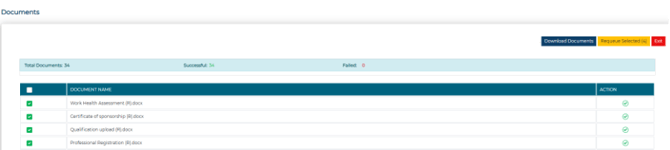
To regenerate everything, select Re-Queue without selecting individual documents and the full PDF is recompiled from scratch.
FAQS
Can I download records for more than one candidate at a time?
No. The download is per candidate. If you select multiple candidates and choose Download, Jobtrain prompts you to select one candidate only.
Will the download include documents the candidate has not yet completed?
Yes. Incomplete documents appear on the contents page marked as Incomplete, so you can see what is outstanding. Incomplete documents do not appear as full documents in the pack.
Does downloading a candidate record affect anything in the system?
No. Downloading does not change any data or statuses. Every download is logged in the candidate history and in your user history, but nothing else in the system is affected.
Can we re-download after changes have been made to the candidate record?
Yes. Select Re-Queue from the documents screen to regenerate the PDF with the latest available data.