
For: Superusers, recruiters, hiring managers
What you’ll achieve
Configure default calendar behaviour and control user permissions for booking and visibility.
I want to:
- Set default calendar values
- Configure email defaults
- Control booking cut-off restrictions
- Allow private events
- Manage booking permissions by security role
Configure default calendar settings
Some fields in event setup can auto-populate based on System Customisation.
Go to: Settings > System Customisation > Calendar
- From here you can configure:
- Default invite status
- Default email templates
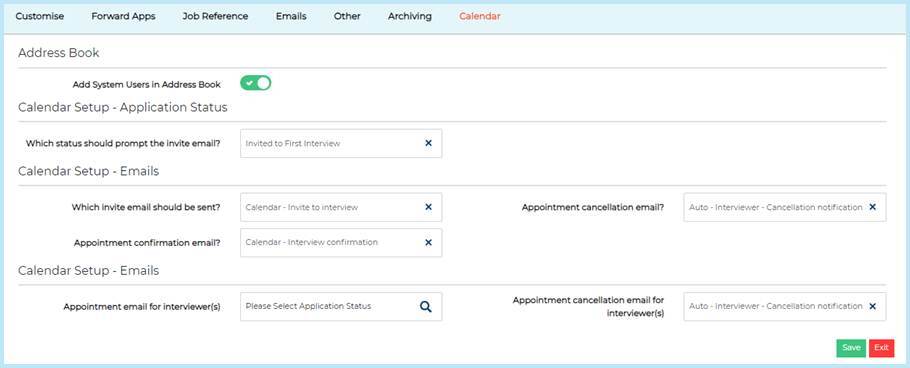
To check the default post-booking status:
Settings > System Customisation > Customise > Interview Statuses > Interview Accepted
Select Save after making changes.
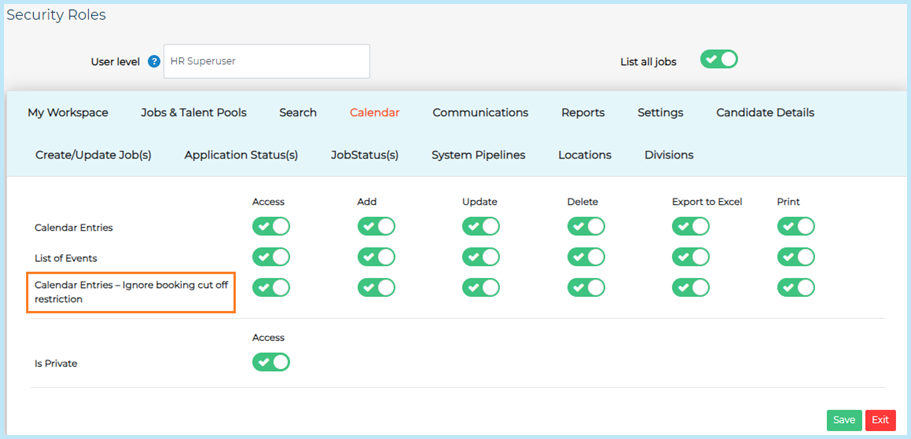
Configure booking cut-off override
By default, users cannot book candidates beyond the event’s booking cut-off restriction.
To allow specific roles to override this:
- Go to Settings > Security Roles.
- Open the relevant role.
- Go to the Calendar tab.
- Next to: Calendar Entries – Ignore booking cut off restriction
- Enable:
- Access
- Add
- Update
- Enable:
- Select Save.
Allow users to create private events
To allow users to create private events:
- Go to Settings > Security Roles.
- Open the relevant role.
- Go to the Calendar tab.
- Enable Is Private.
- Select Save.
Best practice
-
Limit booking cut-off overrides to trusted roles.
-
Restrict private event permissions where audit visibility is required.
-
Pre-set email templates to reduce setup errors.