
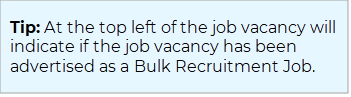
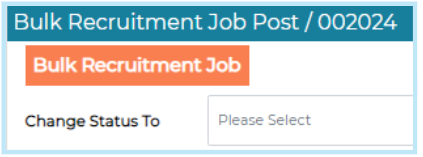
This functionality is designed to support our clients with managing Volume recruitment campaigns, presenting a predefined list of Specialisms and/or Locations to candidates at the application stage.
Candidates can mark their preferred choices and recruiters can use this information to filter based on candidate preferences. This supports a more targeted shortlisting and interview arrangement process, with the ability to move the candidate seamlessly through the recruitment cycle.
This guide includes information on:
Video guide to Bulk Recruitment
Creating a Bulk Recruitment Job
-
Adding a Bulk Recruitment job
-
Adding Specialisms/Locations to the job
-
Reviewing candidate preferences during New Applicant stage
-
Search and filter by candidate preference
-
Editing a candidate’s preferences on their behalf
Searching for Bulk Recruitment Jobs
-
Enabling access to add Specialisms within Security Roles
-
Adding Specialisms/Locations within System Settings
-
Enabling user’s access to create Bulk Recruitment jobs
Video guide to Bulk Recruitment
If you’d prefer to watch a video introduction to Bulk Recruitment, no problem, just follow the link below:
Bulk Recruitment video guide
Creating a Bulk Recruitment Job
Adding a Bulk Recruitment job
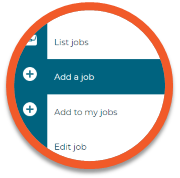
Go to Jobs > Add a job
A new window will open. Copy from a job template or copy from an existing job.
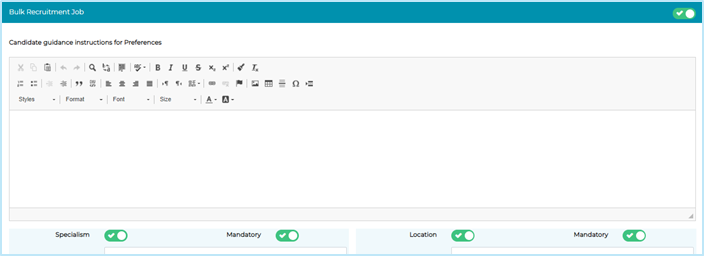
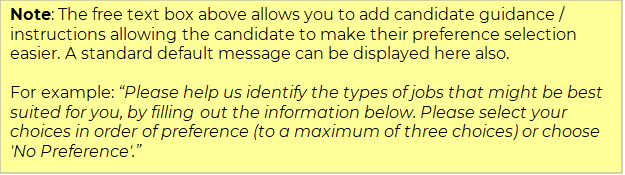
As you complete the job details tab and make your way down the page, you will see a heading for Bulk Recruitment. Turn on the toggle button at the right-hand side, this will change to a green tick and expand the page like below:
Adding Specialisms/Locations to the job
Below the free text box, choose to enable Specialisms, Locations, or both.
- Toggling on Specialism/Location allows you to select or search in the drop-down box, selecting your options for the job post you would like candidates to choose from when they’re completing their application.
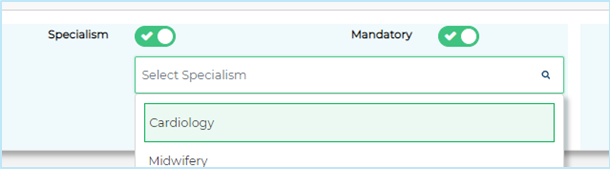
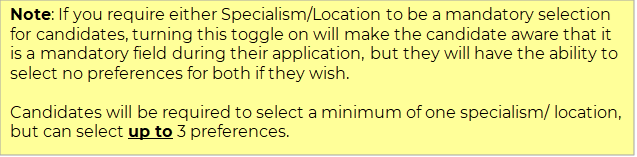
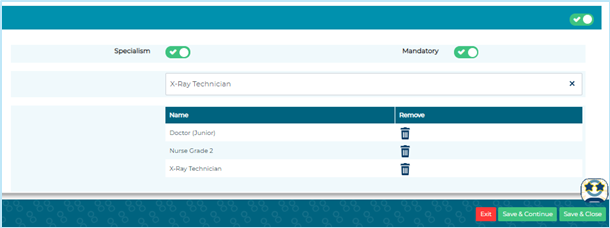
- After adding which Specialisms/Locations you would like candidates to be able to choose from, these will be displayed under the Specialism/Location headings as below. Select Save & Continue and fill out the job information as normal and advertise.
Candidate Management
Reviewing candidate preferences during New Applicant stage
To review an individual candidate preference against their profile:
- Select a candidate and within the Application Form and the header titled Personal, scroll to the end of this section to view what preferences the candidate has selected during their application.


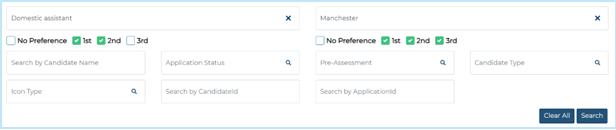
- Click on the Search / Filter button to search & filter on the candidate(s) preferences.
- In the Specialism/Location search box, select from the drop-down menu which preference you would like to filter along with the candidate(s) order of selected preference.
Editing a candidate’s preferences on their behalf
From the candidate list in the bulk recruitment job, follow the steps below:
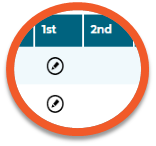
Click on the pencil icon to edit the application > Preferences sub tab
From here you will see which preference a candidate has selected for their specialism and location.
Searching for Bulk Recruitment Jobs
Search Jobs
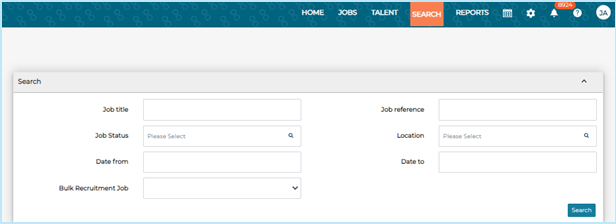
To search for a bulk recruitment job, simply go to Search > Jobs.
Select Yes in the field next to Bulk Recruitment Job, then click Search.
Setup
Enabling access to add Specialisms within Security Roles
|
Go to Settings > Security Roles |
|
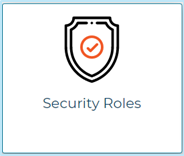
Open up the relevant security role by clicking on the name and navigate to the Settings tab.
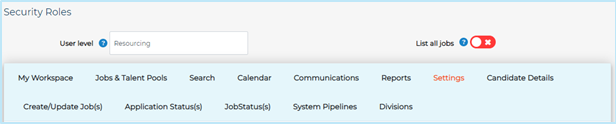
Scroll down the page and toggle on General Setup - Specialities

Once you have selected Save users assigned to this security role will now have access to add Bulk Recruitment Specialisms.

Adding Specialisms/Locations within System Settings
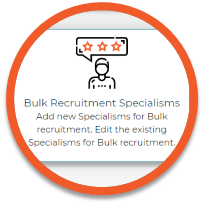
Go to Settings > General Settings
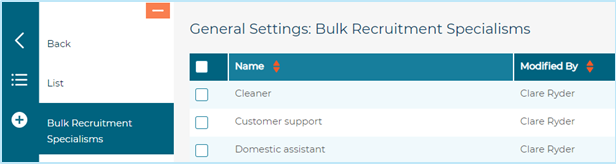
In General Settings, access the Locations or Bulk Recruitment Specialisms settings. If you have already added locations for all job locations, you do not need to add locations again.
Within the Bulk Recruitment Specialisms settings, add, edit, or remove from the list of specialisms.
Enabling user’s access to create Bulk Recruitment jobs
|
Go to Settings > Security Roles |
|
Open the relevant security role by clicking on the name and navigate to the Create/Update Job(s) tab.

Scroll down the page and toggle on Bulk Recruitment Job & Candidate Instructions for Preferences.

Once you have selected Save, users assigned to this security role will now have access to add Bulk Recruitment Jobs.

FAQs
Can I report on candidate specialisms and locations?
Yes, you can report on Bulk Recruitment within the Advanced Insights Report Builder.
You can also search by candidates’ preferred specialisms and locations within the Bulk Recruitment job.
If I manually add a candidate to a Bulk Recruitment job, will I be prompted to add in the candidate’s preferences on their behalf?
Yes, you will be able to add in the candidate's preferences, these will be presented at the end of the application form before the declaration.
Still have questions?
The Jobtrain Support Team or your Client Success Consultant
will be happy to help answer any further queries.
+44(0)161 850 2004