
I want to:
- Open JobBoard Reach and find my jobs
- Top up my credits
- Boost a job or automate boosts for new jobs
- Run social ads
- Add an Always On Supplier
- Read my reports and see what my advertising delivered
What is JobBoard Reach?
JobBoard Reach is the job advertising area of Jobtrain, powered by our advertising partner Hire Intelligence.
All your externally advertised jobs show in JobBoard Reach automatically, and every live job also goes out to a network of free job boards. From there, you can boost jobs on paid job boards, run Facebook and Instagram ads and set up yearly contracts with boards. You can also see the applications, interviews, offers and hires that each one delivers.
Before you start: JobBoard Reach needs to be switched on and set up for your organisation first. See Get ready for JobBoard Reach.
Prefer to watch? See our video on how to use JobBoard Reach, or follow the steps below.
Open JobBoard Reach
- Select Adverts in the top navigation menu. JobBoard Reach opens in a new tab.

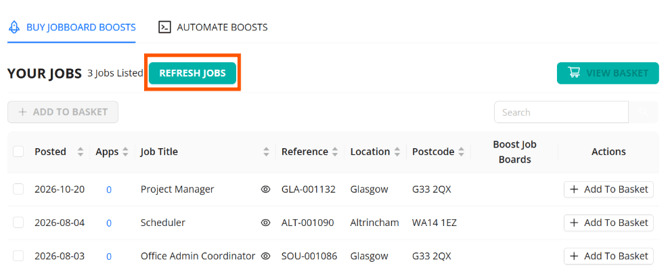
- Your Jobs lists all your externally advertised jobs. The list refreshes every hour, so if you cannot see a job you want to boost straight away, select Refresh Jobs.
Top up your credits
You need credits before you can boost, so do this first. Credits pay for boosts, social ads and yearly board contracts, and you can start spending them straight away.- Select Top up at the top of any page, then select Apply for Credit Invoicing.

- Enter your company details and the email your invoices should go to, then select Save.
- Enter an amount in Credit Amount GBP and select Purchase. Your credits are ready to use straight away.
Good to know: You only apply for credit invoicing once. Jobtrain then invoices you for what you spend, in line with your agreed payment terms.
Boost a job
A boost promotes a job on a board you choose for a set number of days. These boards are available to boost to straight away: Indeed, LinkedIn, Reed, Totaljobs, CV Library and Caterer.com.
Need another board, or have an existing contract with a board? Contact our Support team and we will speak to our advertising partner about getting it added.
Screenshots in this guide are from a demo site, so any prices shown are examples only.
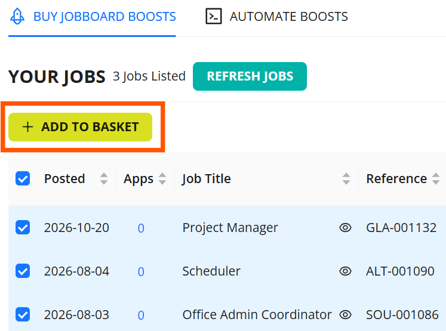
- On the Your Jobs page, select the role(s) you want to boost and select Add To Basket. You can boost several jobs at once.
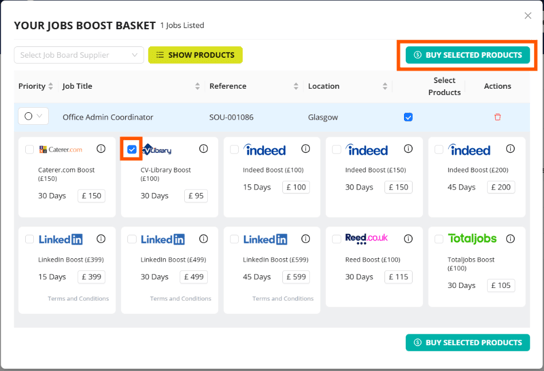
- Select View Basket and tick the board and duration you want for each job.
- Select Buy Selected Products to see the Boost Order summary.
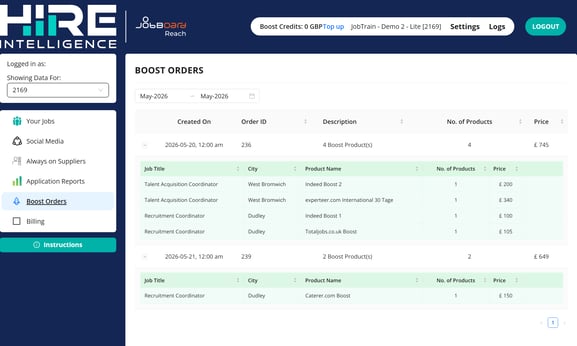
- Tick to accept the terms, then select Book Now. Your order appears under Boost Orders.
Important: Keep the job open for the full boost, as spend is not refunded if it closes early. Do not boost on a board where you have already booked a paid posting for the job yourself.
Tip: If your balance is too low, select Top Up Credits on the Boost Order summary.
Automate boosts for new jobs
If you regularly boost the same kinds of roles, set a rule once and every new job that matches it is boosted automatically.
-
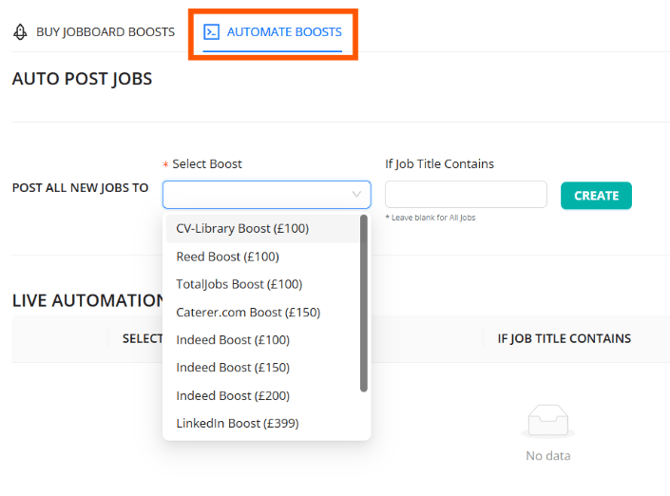
On Your Jobs, select the Automate Boosts tab and choose a job board boost from Select Boost.
-
To limit it to certain roles, enter a word in If Job Title Contains, or leave it blank for all new jobs, then select Create.
Your rule shows under Live Automations and each automated boost uses credits.
Run social ads
Social ads are sponsored Facebook and Instagram ads that send people to your job. Nothing is posted on your own social media pages.
- Select Social Media. On the job's card, select Configure Ad (or Edit Ad if it already has one).
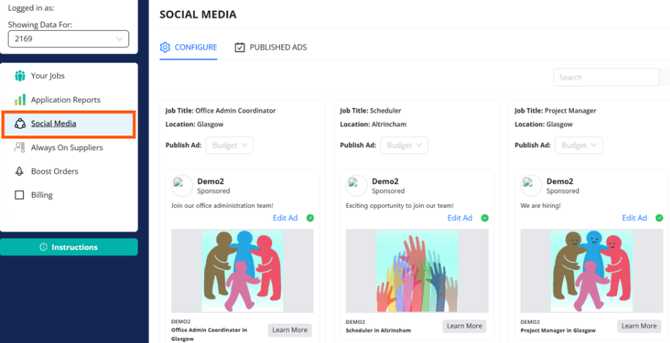
- Add a promo image and, if you like, a video.
- Enter your Promo Text and select Save.
- Choose the amount you would like to spend on this campaign from the Publish Ad budget dropdown. Live ads show on Published Ads within 3 hours.
Good to know: Once the ad is live, you can monitor performance in real time, tracking spend, clicks and reach in JobBoard Reach.
Add an Always On Supplier
Always On is a yearly contract with a job board. Every job is posted to it for a single yearly fee, up to an annual posting limit based on your current posting volume.
- Select Always On Suppliers. Job boards you already have activated show under Active Suppliers.
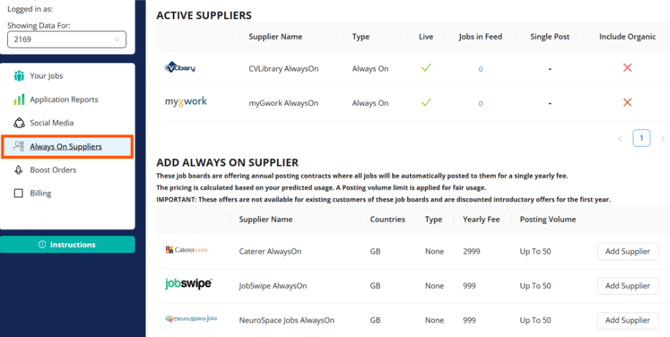
- Under Add Always On Supplier, select Add Supplier for the board you want and confirm. Allow up to five working days for it to go live.
Important: Always On offers are discounted for the first year and are not available if you are already a customer of that board.
Read your reports
- Select Application Reports and choose a date range.
- Read across each board: applications, cost and cost per application (CPA), then through to interviews (CPI), offers (CPO) and hires (CPH).
- Use the tabs to change the view, or select Download as Excel to share the figures.
Important: Interviews, offers and hires will only show if you keep candidate statuses up to date in Jobtrain.
Get help
Select Instructions in JobBoard Reach for quick help, or contact Jobtrain Support.
FAQs
Where do applications from boosted jobs go?
Candidates apply on the job board and arrive in Jobtrain straight away as new applications, in the job’s candidate list. For how this works, see Direct Apply for JobBoard Reach.
Why can’t I see my job in JobBoard Reach?
Only externally advertised jobs appear, and the list refreshes every hour. If you’ve just posted a job, select Refresh Jobs on Your Jobs.
Can I boost a job on more than one board?
Yes. In the basket, tick a card for each board you want for that job.
Why am I being asked for a LinkedIn Company URL?
LinkedIn boosts need your organisation’s LinkedIn Company page. On the Boost Order summary, enter the web address of your company page in LinkedIn URL and select Save, then book as usual.