
I want to:
What is a dashboard template
A dashboard template is a saved dashboard layout. You build it once, give it a name and then assign it to a Security Role. Everyone in that role opens their dashboard on that layout.
What order to do this in
The setup runs in three steps:
- Give your superuser Security Role access to Dashboard and to the dashboard settings
- Build the dashboard template
- Assign the template to your security role
Step 1: Give superusers access to build dashboards
Before you can build anything, your own Security Role needs access to Dashboard itself and to the dashboard settings. Watch our short video below or follow the written steps that follow.
Video: How to activate Dashboard for superusers
Go to Settings > Security Roles and select your own role, or whichever role will be managing dashboard templates.
On the My Workspace tab
-
Find Advance Dashboard and enable access, add, update and delete toggles. You need this to reach the dashboard settings.

- Find Dashboard Builder and enable access, add, update and delete toggles. You need this to build dashboard layouts.

Good to know: Dashboard Builder lets you build dashboard templates and/ or lets those users personalise their own dashboard, which we’ll look at how to do in a later step.
On the Settings tab

- Find General Setup: Dashboard Templates and enable access, add, update and delete. This gives you access to create, amend and remove dashboard templates.

- Select Save.
Step 2: Build or edit a dashboard template
Watch our short video below or follow the written steps that follow.
Video: How to build dashboard templates
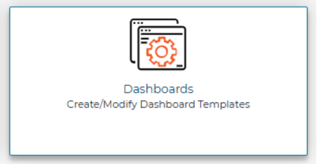
Go to Settings > General Settings > Dashboards.
-
Select New Dashboard from the left-hand actions menu, or select an existing template from the list to modify.
-
Select + to open the widget selector and add components. Choose from widgets or graphs/reports.
-
Once you've added a widget, select the pencil icon that appears on it to configure things like which application status or date range it should show.
-
Use the red X to remove a widget, or drag and drop to reposition it.
-
Select Save when finished.
-
Enter a template name.
Step 3: Assign your superuser role a dashboard template
Until now, a user’s home page hasn’t updated. Only when you assign a dashboard template will a user’s view change. Watch our short video below or follow the written steps that follow.
Video: How to assign a dashboard template to a Security Role
Go to Settings > Security Roles > select your superuser role > Dashboards tab and set up the following to suit:

|
Setting |
What it does |
|
Default landing page |
Chooses where users land when they log in: Homepage, Jobs, My Tasks, Onboarding Hub, Reports, Search or Talent Area. Defaults to the homepage/dashboard if nothing is set. |
|
Default dashboard |
The template you created in Step 2 that this role sees. |
|
Allow user to modify their Dashboard |
Let’s users customise their own dashboard, overriding the assigned template if toggled on. |
|
Overwrite existing user dashboards |
Applies an updated template to everyone on this role who has personalised their own dashboard. See further information below. |
Good to know: If a role lands somewhere other than the homepage when users log in, they can access the dashboard via the Quick Links menu to open their dashboard.
For what happens when you update a template that's already in use and how to apply an update to users who have personalised their own dashboard, see this table.
FAQs
Why can't I see Dashboards in General Settings?
Check that General Setup: Dashboard Templates is enabled on the Settings tab of your Security Role, as covered in Step 1. Without it, you won't see the option to create or modify templates.
What's the difference between editing my dashboard in User Settings and building a template in General Settings?
The Dashboard Builder button in User Settings changes your own layout only. Building a template in Settings > General Settings > Dashboards creates a layout you can assign to a Security Role, so everyone on that role sees it. Personalising your own view never changes a template.
Do I need to build a separate template for every Security Role?
No. A template can be assigned to any number of Security Roles, so you can build one layout and reuse it across several roles. Each role has one template assigned to it at a time.
Can I copy an existing template to save time?
No, each template needs to be built from scratch. Before you build a new one, it's worth checking whether an existing template would work for the role, as one template can be assigned to any number of roles.
What happens if a template assigned to a role is archived?
Users on that role will continue to see the archived dashboard. In Settings > Security Roles, on the role's Dashboards tab, the default dashboard will still be listed, shown with "(archived)" next to it.
For any questions about configuring Dashboard (or any other Jobtrain functionality), please contact our support team on +44(0)161 850 2004.